Accessing User Location with RunJS Query
This guide explains how to retrieve a user's location using the JavaScript Geolocation API in a RunJS query and display it on a Map component.
For privacy reasons, Geolocation requires user permission before locating the device. Upon permission, you gain access to data like latitude, longitude, altitude, and speed.
-
Create a RunJS query
Add a Run JavaScript Code query and name itgetLocation. -
Add Geolocation logic
Paste the following JavaScript code to employ the Geolocation API and retrieve the user's location:function getCoordinates() {
// Function to get coordinates
return new Promise(function (resolve, reject) {
// Promise to get coordinates
navigator.geolocation.getCurrentPosition(resolve, reject); // Get current position
});
}
async function getAddress() {
// Function to get address
const position = await getCoordinates(); // Await the coordinates
let latitude = position.coords.latitude; // Get latitude
let longitude = position.coords.longitude; // Get longitude
return [latitude, longitude]; // Return the coordinates
}
return await getAddress(); // Return the address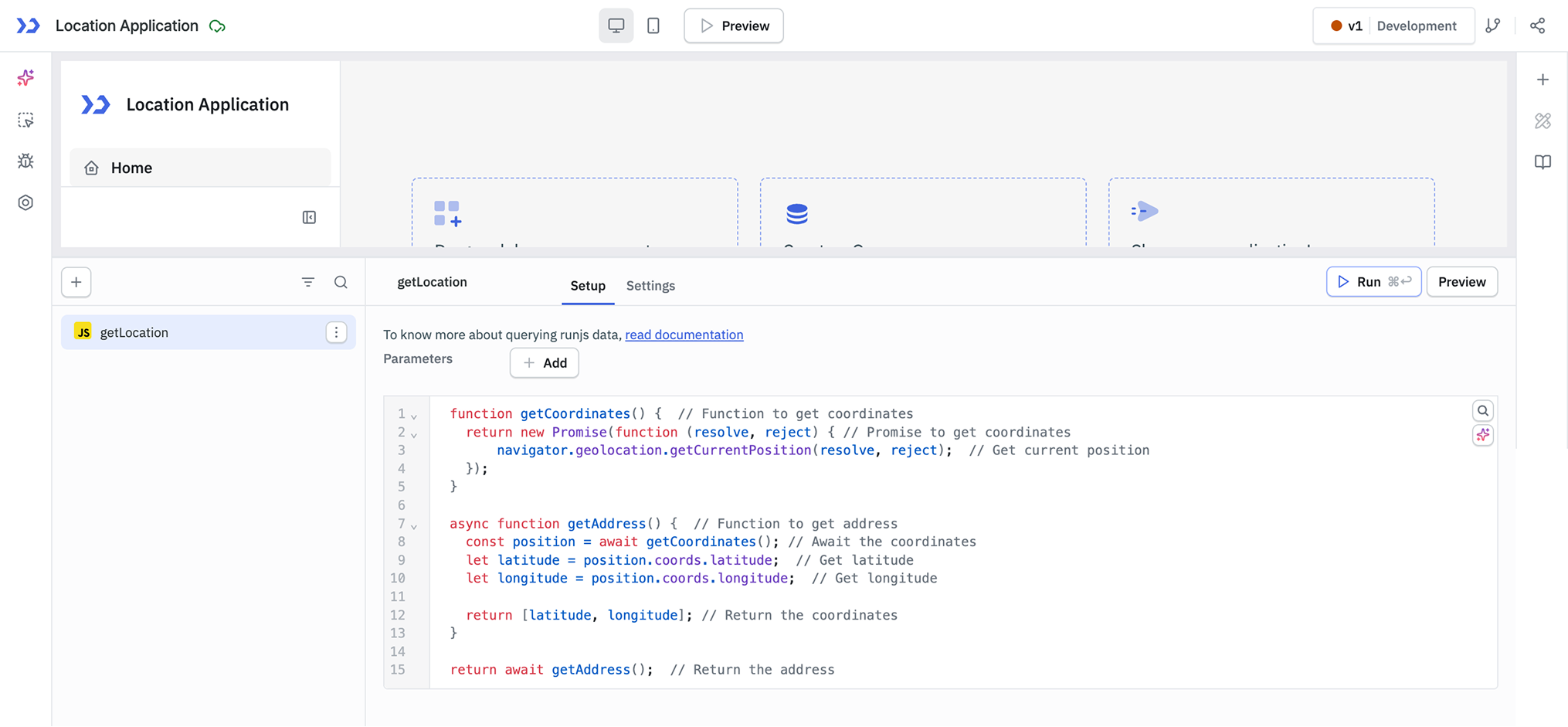
-
Run on application load
Navigate to Settings enable the Run this query on application load option. This ensures that the JavaScript query runs each time the app is opened, providing the user's location.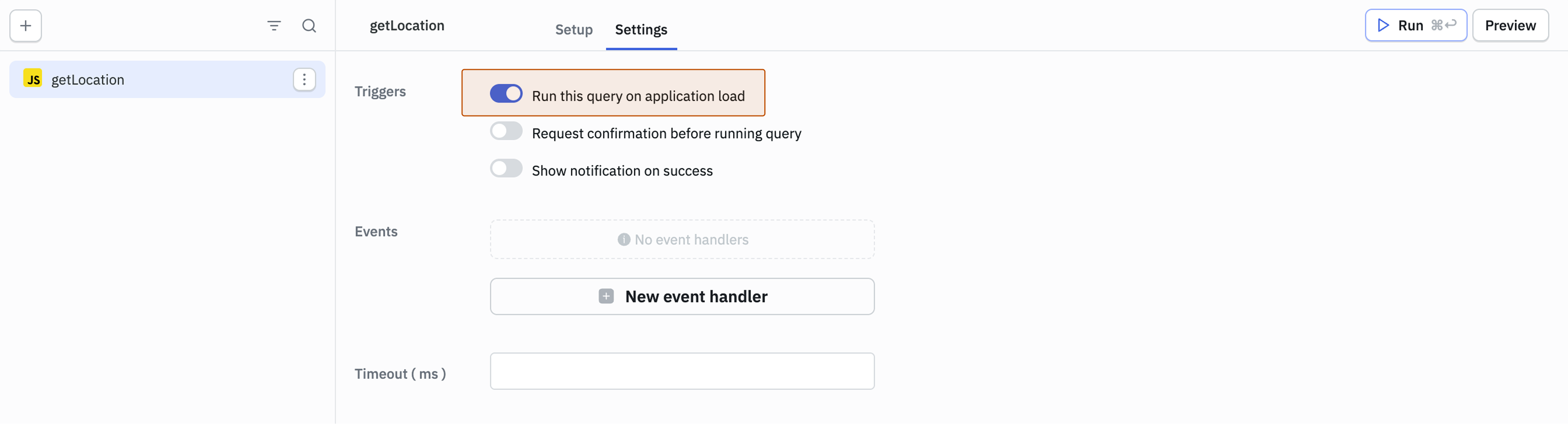
-
Grant Location Permission
Upon clicking Run, your browser prompts you to grant permission for the ToolJet app to access your location. Allow this permission to receive location data.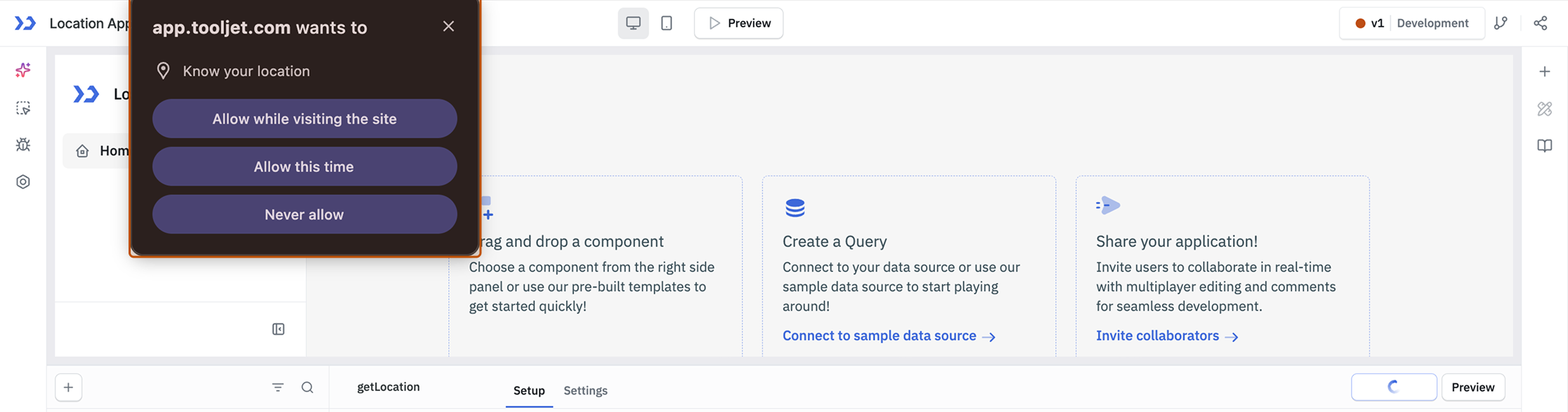
-
Inspect the Returned Data
Once the query successfully runs, the coordinates will be returned and displayed in the Preview section of query editor. To inspect the data returned by the query, go to the Inspector on the left sidebar, expand Queries and clickgetLocation(query name), and open Preview. -
Add the Map Component
Add a map component to the canvas and edit its properties. In the Initial location property, enter:
{{ {"lat": queries.getLocation.data[0], "lng": queries.getLocation.data[1]} }}Optionally, you can set the same value for the Default markers property.
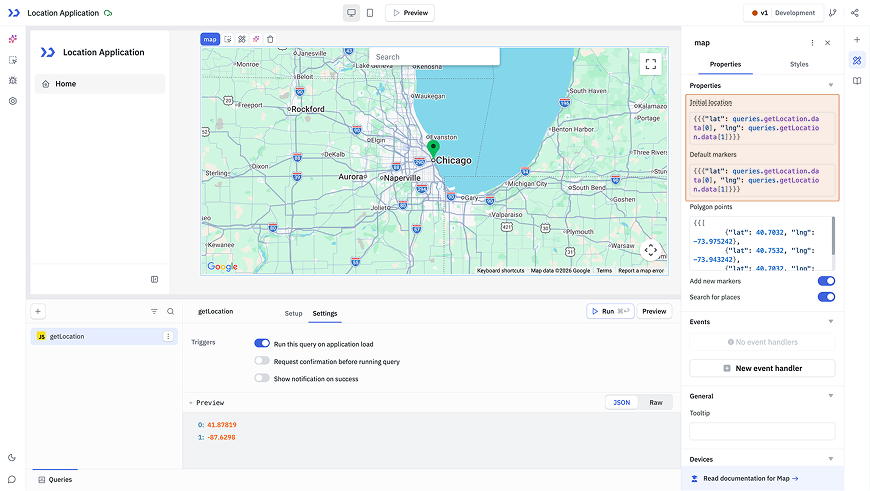
Once the Map component properties are updated, you'll see the location displayed on the map component.