Setting Up Outgoing Emails (SMTP)
Configuring an SMTP server lets your self-hosted ToolJet instance send outgoing emails automatically. Without this setup, the following email-based flows will not work:
- Password reset: users who forget their password cannot receive a reset link
- Workspace invitations: users won't receive the invitation email
- Account activation: new sign-up confirmation emails won't be delivered
There are two ways to configure SMTP in ToolJet:
- Using the GUI — Enter credentials directly in the ToolJet dashboard. Best for quick setups and testing.
- Using environment variables — Define credentials in your
.envfile. Recommended for production environments where secrets should not be stored in the UI.
Prerequisites
Before you begin, make sure you have:
- Super Admin access to your ToolJet instance
- SMTP credentials from your email service provider (host, port, username, password)
Configuration Using GUI
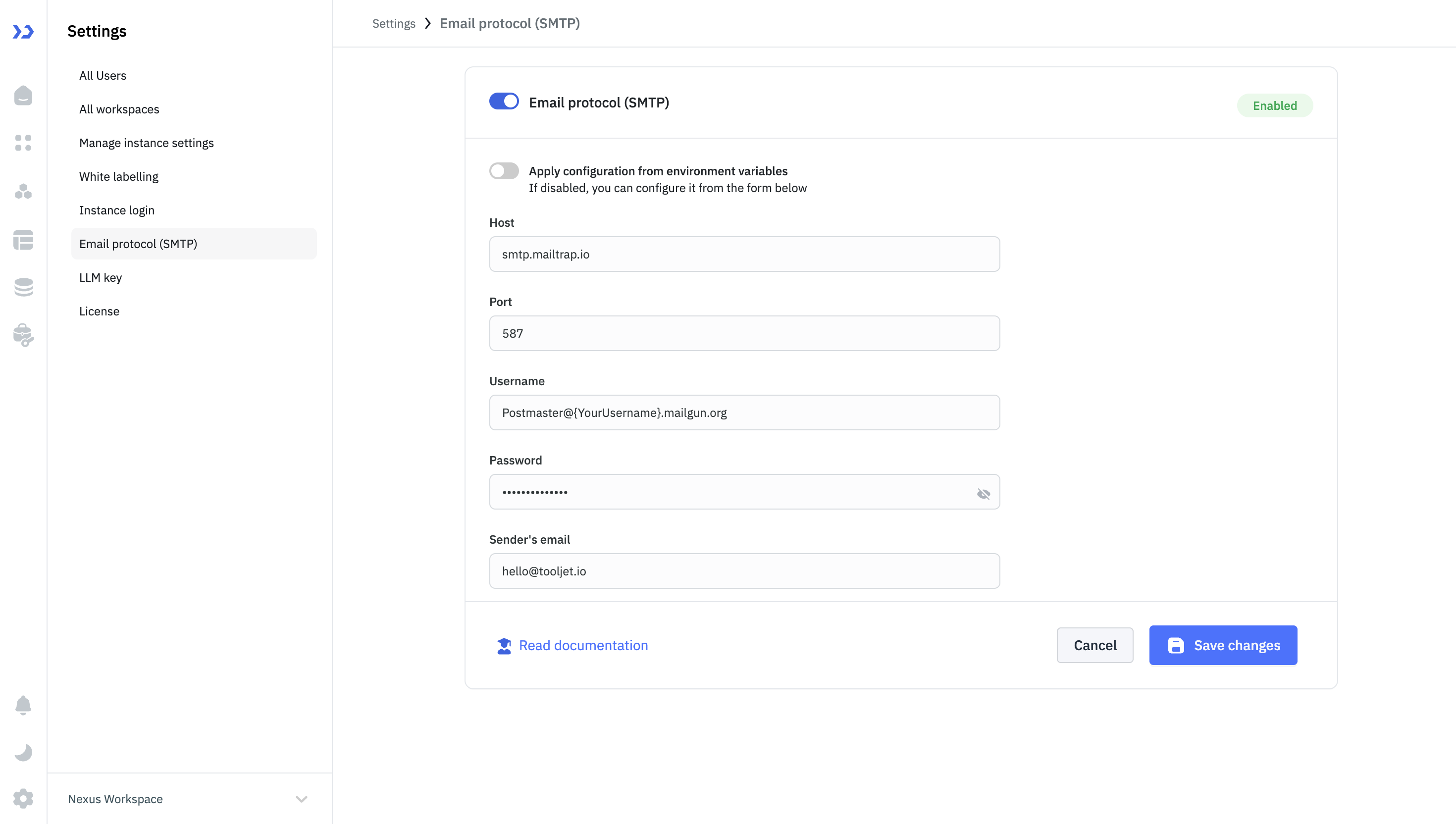
- Go to Settings in ToolJet.
- Open the Email protocol (SMTP) tab.
- Toggle on Email protocol (SMTP) to enable it.
- Fill in the following fields:
Field Description Example Host SMTP server hostname smtp.gmail.com Port SMTP server port number 587 User SMTP account username [email protected] Password SMTP account password or app token your-app-password Sender's email The "From" address on outgoing mail [email protected] - Click Save changes.
Configuration With Environment Variables
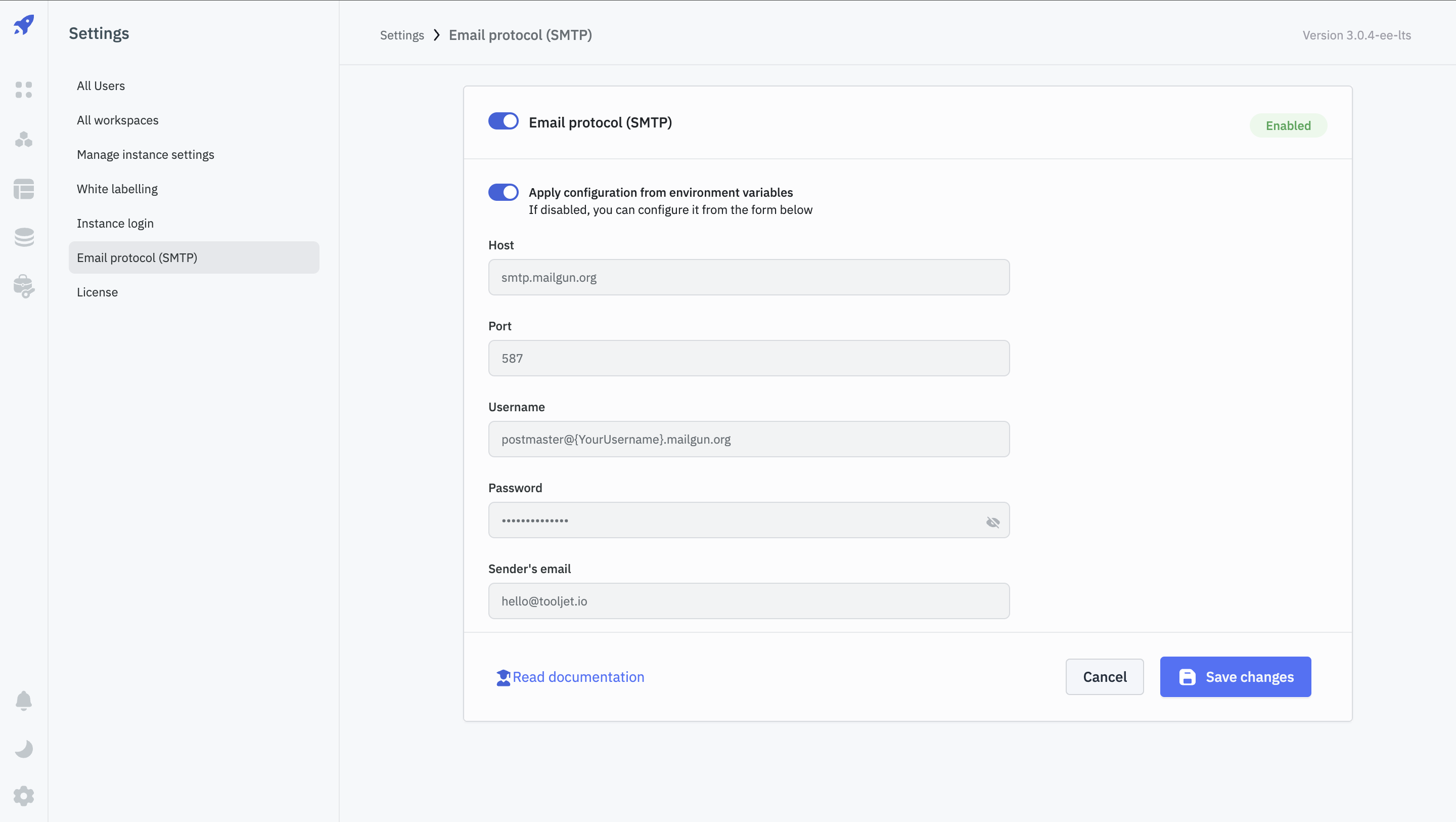
You can configure SMTP entirely via environment variables and have ToolJet read those values directly, keeping credentials out of the UI.
Add the following variables to your .env file:
[email protected]
SMTP_USERNAME=your-username
SMTP_PASSWORD=your-password
SMTP_DOMAIN=smtp.mailgun.org
SMTP_PORT=587
SMTP_SSL=false
SMTP_DISABLED=false
How it works:
- On new installations, if SMTP variables are present in
.env, the Apply configuration from environment variables toggle is automatically enabled. - When the toggle is on, the SMTP fields in the UI are populated from environment variables and become read-only.
- Turning the toggle off lets you override those values manually in the UI.
Frequently Asked Questions
Users aren't receiving password reset emails. What's wrong?
This almost always means SMTP is not configured or is misconfigured. Ask your Super Admin to go to Settings → Email protocol (SMTP) and verify that:
- The toggle is enabled
- The host, port, username, and password are correct
- The sender's email address is filled in
If you're using environment variables, make sure SMTP_DISABLED is set to false.
Invitation emails aren't being delivered to new users.
Workspace invitation emails are sent via your configured SMTP server. If invitees aren't receiving them, check that SMTP is enabled and correctly configured. Also ask invitees to check their spam/junk folder, as new sender domains are sometimes filtered.
SMTP is configured but emails are still not sending.
Work through this checklist:
- Confirm the toggle is enabled and you've clicked Save changes.
- Double-check credentials - copy-paste from your provider's dashboard to avoid typos.
- Verify that port
587(or whichever port you're using) is not blocked by your server's firewall or cloud security group. - If using Gmail, ensure you're using an App Password, not your regular account password.
- Check ToolJet server logs for SMTP-related errors (
connection refused,authentication failed, etc.).
Can I use Gmail or Google Workspace as my SMTP server?
Yes. Use smtp.gmail.com on port 587. For the password, you must generate an App Password from your Google account (Google does not allow regular account passwords for SMTP). App Passwords are available under Google Account → Security → 2-Step Verification → App passwords.
Can I use SendGrid, Mailgun, AWS SES, or another provider?
Yes, any provider that exposes standard SMTP credentials works. See the Email Providers guide for provider-specific settings and examples.
The SMTP fields in the UI are grayed out and I can't edit them.
This means the Apply configuration from environment variables toggle is enabled. ToolJet is reading SMTP settings from your .env file and the UI fields are read-only. To edit them manually, disable that toggle. If you want to keep using environment variables, update the values in your .env file and restart ToolJet.
Emails are sending but landing in spam.
This is a DNS configuration issue, not a ToolJet issue. Ask your domain administrator to verify:
- SPF record — authorizes your SMTP provider to send mail on behalf of your domain
- DKIM — adds a cryptographic signature to outgoing mail
- DMARC — tells receiving servers what to do with unauthenticated mail
Most email providers have a guide for setting up these records for your domain.