Google Sheets 2.0
ToolJet has the capability to establish a connection with Google Sheets for both reading and writing data. By utilizing OAuth 2.0, ToolJet can establish a secure connection with Google Sheets, ensuring that the application's access to a user's account is restricted and limited appropriately.
Connection
To establish a connection with the Google Sheets data source, you can either click on the + Add new Data source button located on the query panel or navigate to the Data Sources page through the ToolJet dashboard.
Authentication Types
ToolJet supports two authentication methods for connecting Google Sheets to your application: OAuth 2.0 and Service Account. Each method provides a secure way to authorize access based on your integration requirements.
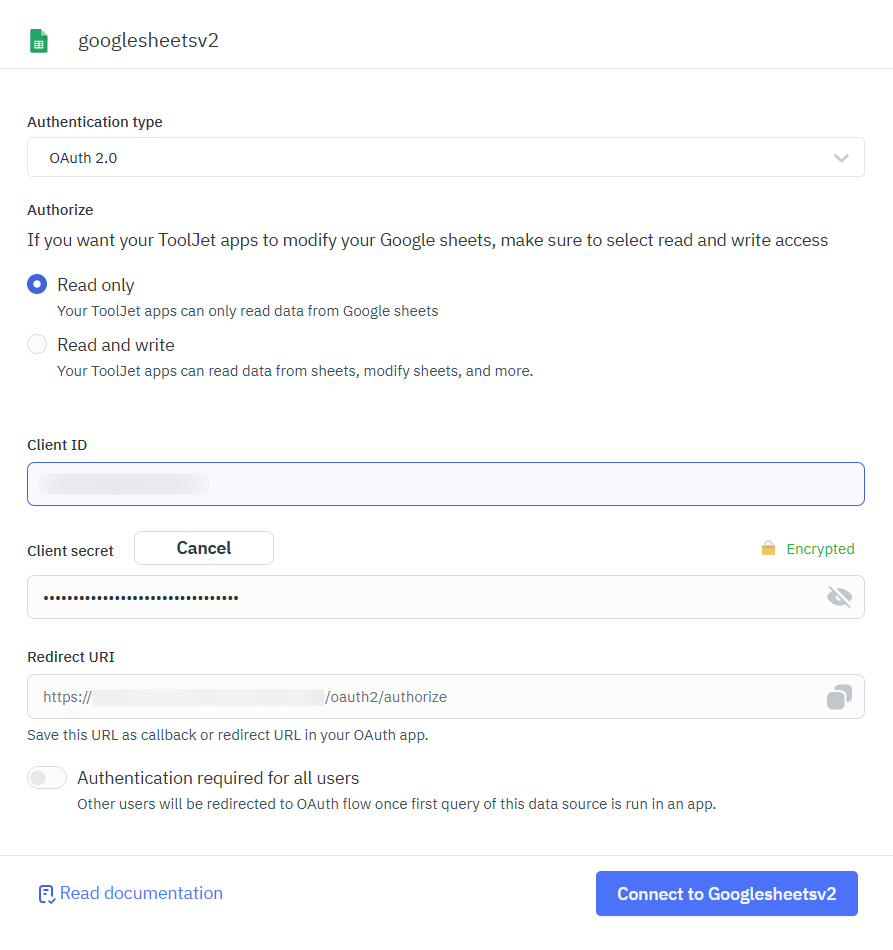
OAuth 2.0
Authenticates via a Google user account using OAuth consent, allowing ToolJet to access Google Sheets based on the granted permissions. You can use this when data access should be tied to individual users or requires user-level consent and visibility.
Self-Hosted Configuration
If you decide to self-host ToolJet, there are a few additional steps you need to take:
- Proceed with the setup steps provided in the Google OAuth guide to configure the necessary settings.
- Assign the corresponding values obtained from the previous step to the following environment variables:
- GOOGLE_CLIENT_ID
- GOOGLE_CLIENT_SECRET
- REDIRECT_URI (TOOLJET_HOST)
- Activate the Google Sheets API within the Google Cloud Platform (GCP) console.
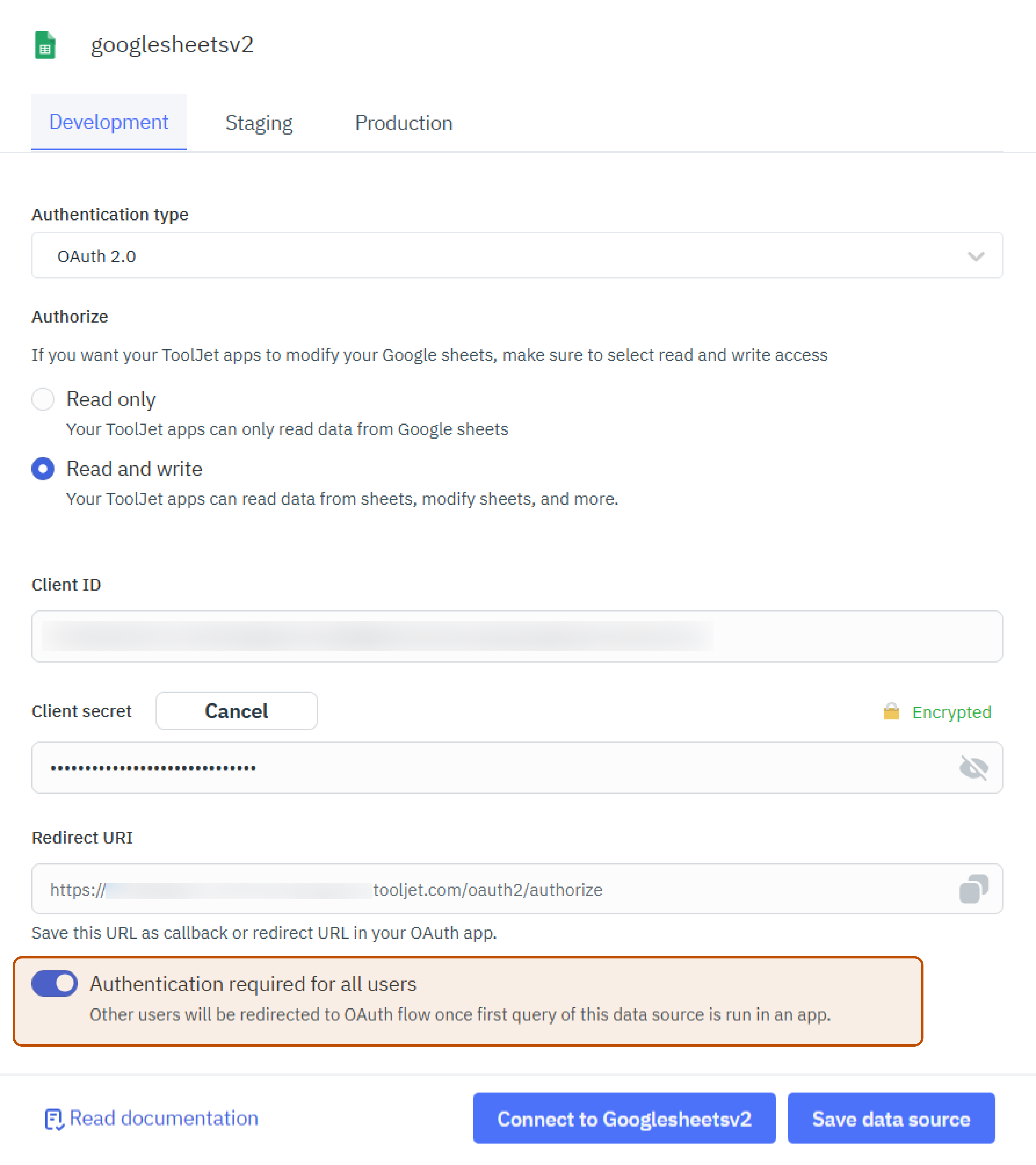
Multi-Factor Authentication
You can toggle on Authentication required for all users in the configuration. When enabled, users will be redirected to the OAuth consent screen the first time a query from this data source is triggered in the application. This ensures each user connects their own Google Sheets account securely.
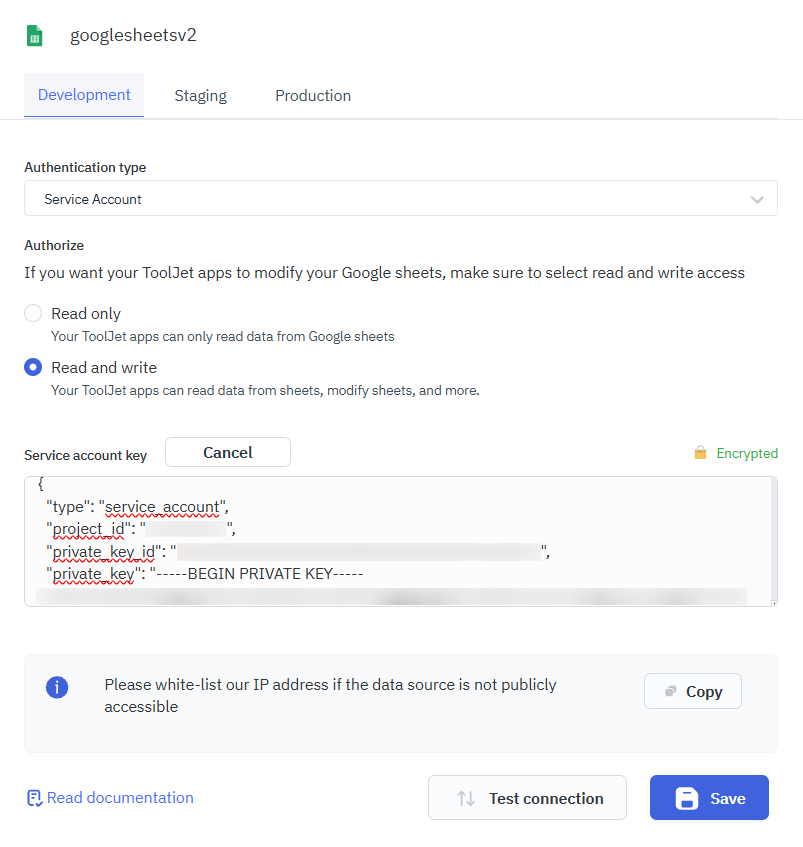
Service Account
Authenticates using a Google Cloud service account, enabling server-to-server access to Google Sheets without user interaction. You can use this for backend or system-level integrations where a shared, fixed access is required without user interaction.
Authorization Scopes
When connecting to a Google Sheets data source, you can choose between two permission scopes:
Read Only
This allows you to only access and retrieve, you cannot edit/write the data from the Google Sheets.
Read and Write
This scope grants you both read and write permissions, enabling you to retrieve and modify data within the Google Sheets.
Selecting Spreadsheet
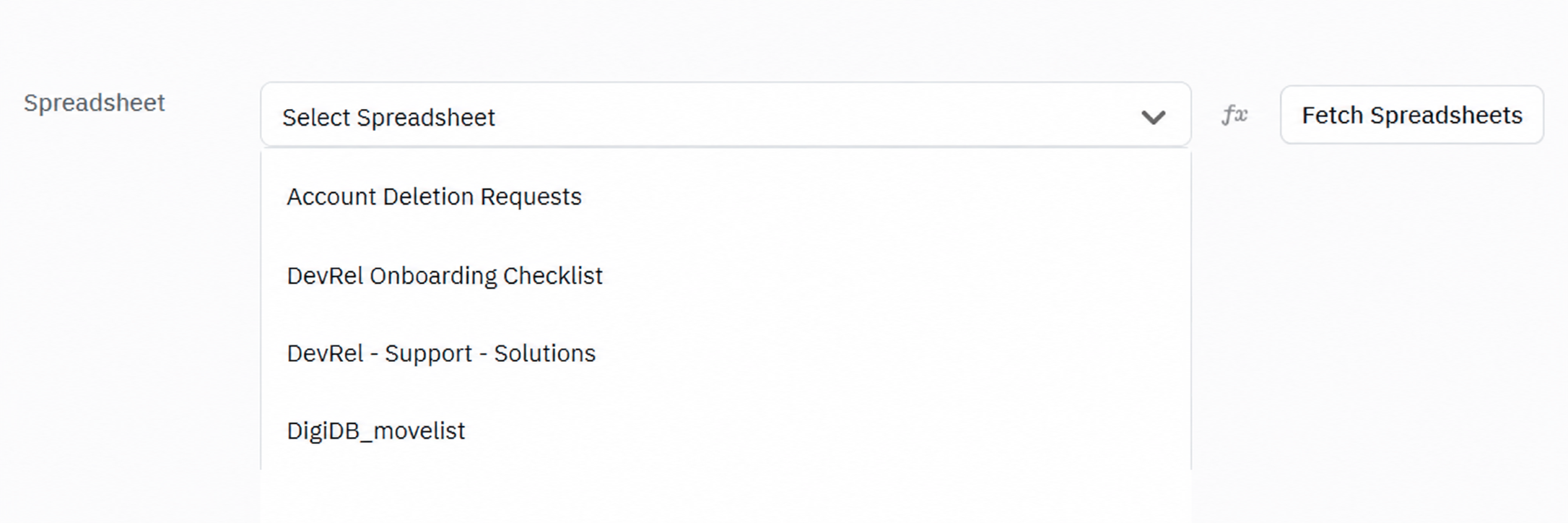
The Google Sheets data source in ToolJet provides a spreadsheet selection mechanism within the query builder to identify the Google Sheet on which the selected operation will be performed.
Each Google Sheets API request must be associated with a Spreadsheet, which represents a specific Google Sheet accessible to the authenticated account.
Fetch Spreadsheets
The Fetch Spreadsheets option allows ToolJet to dynamically retrieve all available Google Sheets after a successful and secure authentication.
Manual Spreadsheet Selection
ToolJet also supports manual spreadsheet selection for advanced use cases using the fx expression editor, enabling dynamic or programmatic selection of a spreadsheet at runtime.
Querying Google Sheets
- Click the + Add button in the query manager located at the bottom panel of the editor.
- Select the Google Sheets data source under the data source section.
- Choose the desired operation from the dropdown.
- Click on the Preview button to preview the output or Click on the Run button to create and trigger the query.
Spreadsheet ID can be obtained from the URL of the spreadsheet. For example, in the URL https://docs.google.com/spreadsheets/d/1W2S4reCqOpPdm_mDEqmLmzj7zNaPk9vqv6_Ve7Nb9WM/edit#gid=0, the 1W2S4re7zNaPk9vqv6_CqOpPdm_mDEqmLNb9WMmzjVe7 represents the spreadsheet ID.
Supported Operations
Using Google sheets data source you can perform several operations from your applications like:
- Create a Spreadsheet
- List All Sheets of a Spreadsheet
- List All Spreadsheets
- Delete Data From a Spreadsheet By Data Filter
- Bulk Update Using Primary Key
- Copy Data Between Spreadsheets
- Read Data From a Spreadsheet
- Append Data To a Spreadsheet
- Get Spreadsheet Info
- Update Data To a Spreadsheet
- Delete Row From a Spreadsheet
- Delete Data From a Spreadsheet By Range
- Update Spreadsheet
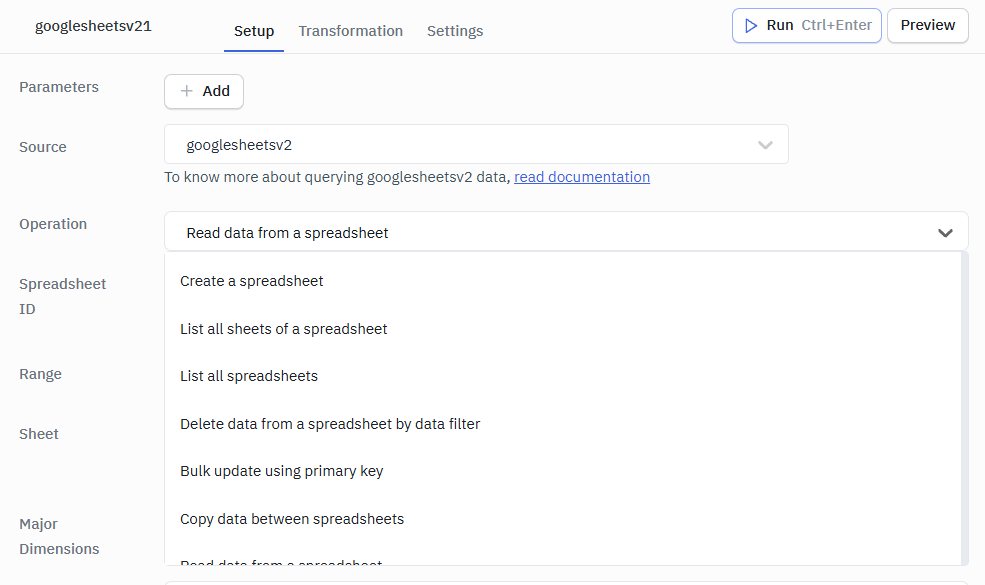
Create A Spreadsheet
This operation creates a new Google Sheets spreadsheet in the authenticated account.
Required Parameter
- Title : The name assigned to the newly created spreadsheet.
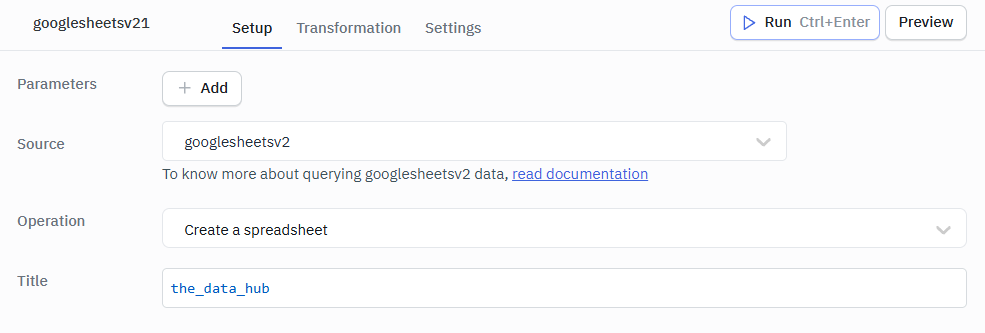
Sample Output
status:"success"
message:"Spreadsheet created successfully"
spreadsheetId:"1GBQDElkjhgvbsnduytcfgh76rghnsdxctr5tgwei9"
title:"the_data_hub"
spreadsheetUrl:"https://docs.google.com/spreadsheets/e/hfhvhjdjvhbhjedgchbs/tfghdbjxn_tf57gw/7654234"
List All Sheets Of A Spreadsheet
This operation retrieves all individual sheets (tabs) within a specified spreadsheet.
Required Parameter
- Spreadsheet : The unique ID of the spreadsheet whose sheets (tabs) need to be listed.
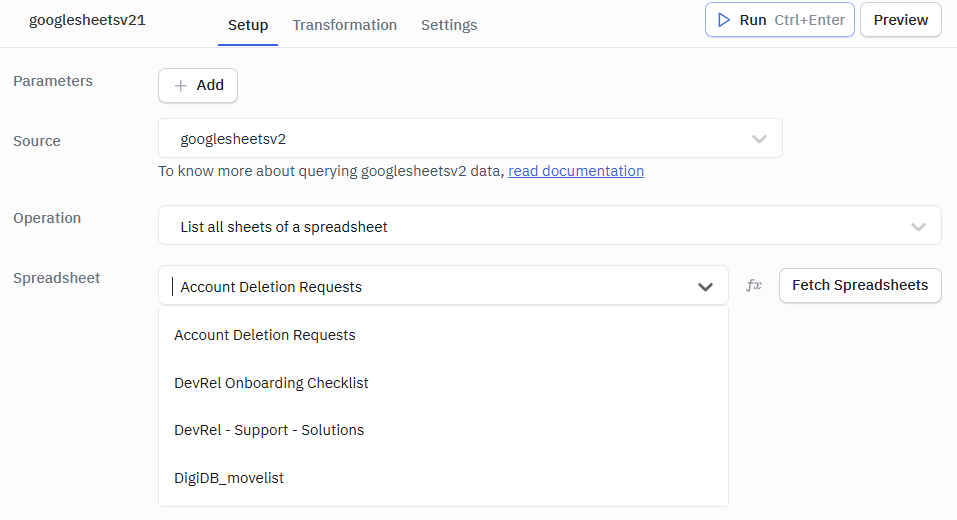
Sample Output
{
  "sheets": [
    {
      "properties": {
        "sheetId": 123456,
        "title": "Reference Links",
        "index": 0,
        "sheetType": "GRID",
        "gridProperties": {}
      },
      "protectedRanges": [],
      "bandedRanges": [],
      "tables": []
    },
    {
      "properties": {},
      "merges": []
    }
  ]
}
List All Spreadsheets
This operation fetches all accessible spreadsheets associated with the authenticated Google account.
Optional Parameter
- Page Size : The maximum number of spreadsheets to return per request.
- Page Token : Token used to retrieve the next set of results.
- Filter : Filters the list of spreadsheets based on specified criteria.
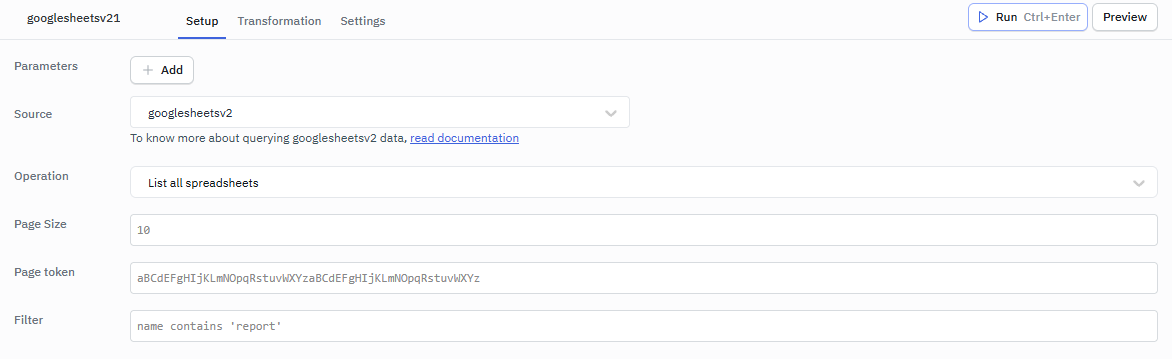
Sample Output
{
  "status": "success",
  "message": "Spreadsheets listed",
  "files": [
    {
      "owners": [],
      "id": "1083492804",
      "name": "the_data_hub",
      "createdTime": "2026-01-29T11:06:13.493Z"
    },
  ],
  "raw": {}
}
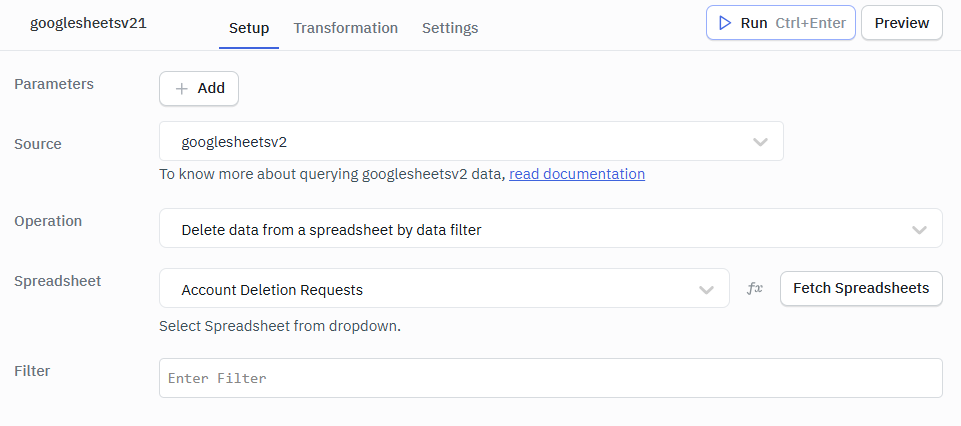
Delete Data From A Spreadsheet By Data Filter
This Operation removes rows that match the specified filter conditions.
Required Parameter
- Spreadsheet : The ID of the spreadsheet from which data will be deleted.
- Sheet : The sheet (tab) within the spreadsheet where the filter will be applied.
Optional Parameter
- Filter : Filters the list of spreadsheets based on specified criteria.
Sample Output
status:"success"
message:"Filtered data deleted successfully"
result : {} 1 key
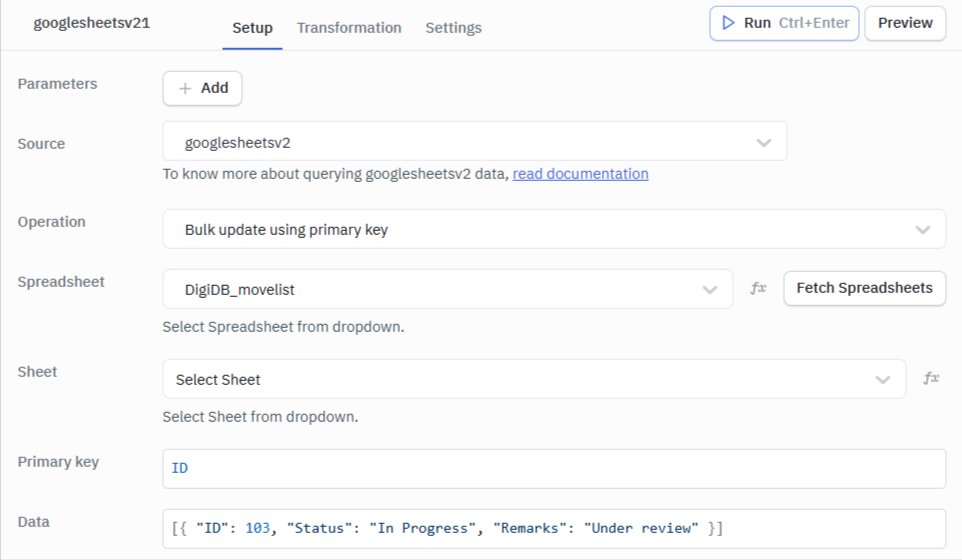
Bulk Update Using Primary Key
This operation updates multiple rows at once by matching records using a primary key column.
Required Parameter
- Spreadsheet : The ID of the spreadsheet to be updated.
- Sheet : The target sheet where the update is performed.
- Primary Key : The column used to uniquely identify rows for updating.
- Data : The new values to be updated for matching rows.
Example
Data : [{ "ID": 103, "Status": "In Progress", "Remarks": "Under review" }]
Sample Output
{
  "status": "success",
  "message": "Bulk update completed successfully",
  "spreadsheetId": "2vRiGOGPnzSvBJU5g2F3elPxD_KiU8npLSoox-crmPg",
  "sheet": "DigiDB_movelist",
  "primaryKey": "ID",
  "updatedRows": 2,
  "result": [
    {
      "ID": 1,
      "Status": "Done",
      "updateStatus": "Row updated successfully"
    },
    {
      "ID": 2,
      "Status": "In Progress",
      "updateStatus": "Row updated successfully"
    }
  ]
}
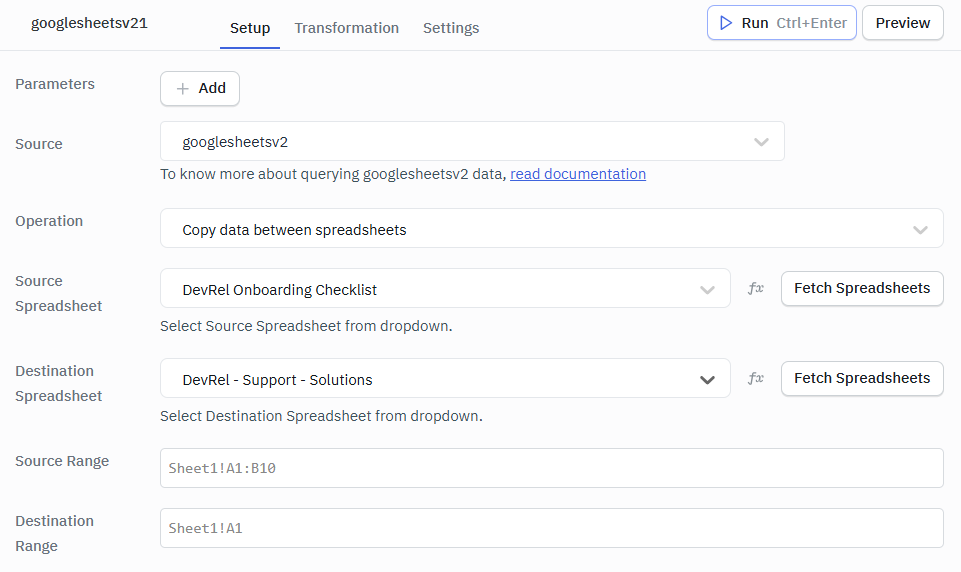
Copy Data Between Spreadsheets
This operation copies selected data from one spreadsheet to another.
Required Parameter
- Source Spreadsheet : The ID of the spreadsheet from which data is copied.
- Destination Spreadsheet : The ID of the spreadsheet where data will be copied to.
Optional Parameter
- Source range : The specific range of cells to copy from the source spreadsheet.
- Destination range : The target range where the copied data will be placed.
Sample Output
{
  "status": "success",
  "message": "Spreadsheet data copied",
  "destinationSheet": "DevRel - Support - Solutions",
  "copiedRows": 8,
  "result": {
    "spreadsheetId": "1iGOCzN5U2F3elPxgGPnzSnpLSovBJD_KxiU8o-crPmg",
    "updates": {
      "updatedRange": "Sheet1!A1:B8",
      "updatedRows": 8,
      "updatedColumns": 2,
      "updatedCells": 16
    }
  }
}
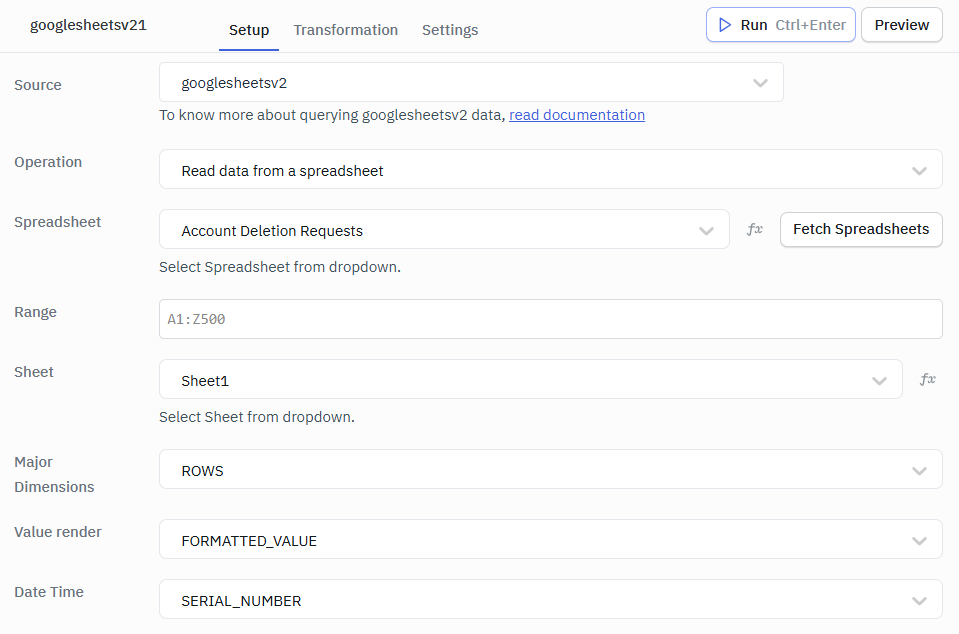
Read Data From A Spreadsheet
This operation retrieves data from a specified sheet or range within a spreadsheet in the form of a JSON object.
Required Parameter
- Spreadsheet : The ID of the spreadsheet to read data from.
- Sheet : The sheet (tab) within the spreadsheet to read.
Optional Parameter
- Range : The specific cell range to retrieve data from.
- Major Dimensions : Determines whether data is read row-wise or column-wise.
- Value Render : Specifies how cell values should be rendered (formatted or raw).
- Date Time : Controls how date and time values are returned in the response.
Sample Output
0: {} 2 keys
  Name: "Alice"
  College: "SJEC"

1: {} 2 keys
  Name: "Pari"
  College: "CI"

2: {} 2 keys
3: {} 2 keys
4: {} 2 keys
5: {} 2 keys
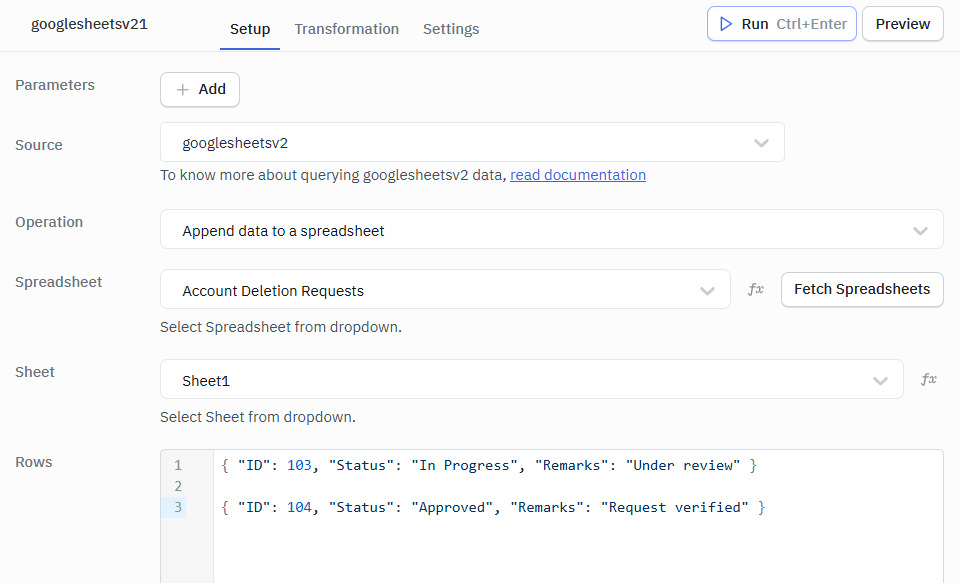
Append Data To A Spreadsheet
This operation adds additional rows of data to the end of a sheet without modifying existing data.
Required Parameter
- Spreadsheet : The ID of the spreadsheet where data will be appended.
- Sheet : The target sheet to append new rows.
- Rows : The data rows to be added to the spreadsheet.
Example
 Data :
 [
  {
    "ID": 201,
    "Status": "Pending",
    "Remarks": "Waiting for manager approval"
  },
  {
    "ID": 202,
    "Status": "Rejected",
    "Remarks": "Missing required documents"
  },
  {
    "ID": 203,
    "Status": "Completed",
    "Remarks": "Process finished successfully"
  },
  {
    "ID": 204,
    "Status": "On Hold",
    "Remarks": "Client requested changes"
  }
]
Sample Output
spreadsheetId: "1CzNiGBJU2F3elO5gGPnzSnpLSovPxD_iUk8ox-rcmPg"
updatedRange: "Sheet1!A1:C8"
updatedRows : 4
updatedColumns : 3
updatedCells :12
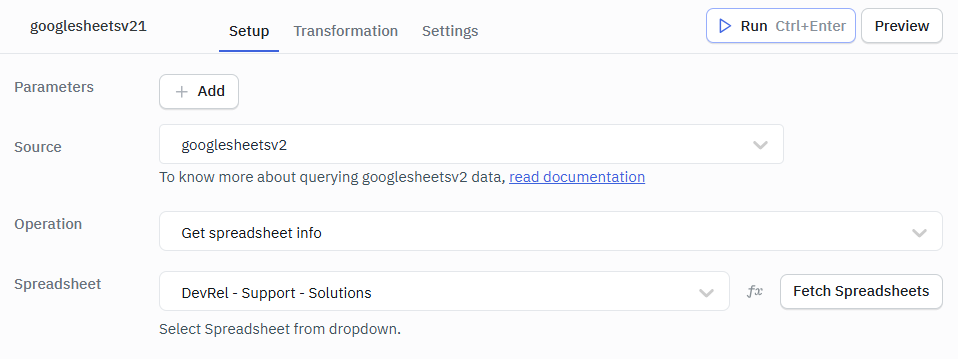
Get Spreadsheet Info
This operation retrieves metadata and structural details of a spreadsheet.
Required Parameter
- Spreadsheet : The ID of the spreadsheet for which metadata and details are retrieved.
Sample Output
{
  "spreadsheetId": "1CzNiGO5gGPnzSnpLSovBJU2F3elPxD_KiU",
  "properties": {
    "title": "DevRel - Support - Solutions",
    "locale": "en_GB",
    "autoRecalc": "ON_CHANGE",
    "timeZone": "Etc/GMT",
    "defaultFormat": {},
    "spreadsheetTheme": {}
  },
  "sheets": [],
  "spreadsheetUrl": "https://docs.google.com/spreadsheets/f/1hgbjfjc5fvsgbhn/456axcv7"
}
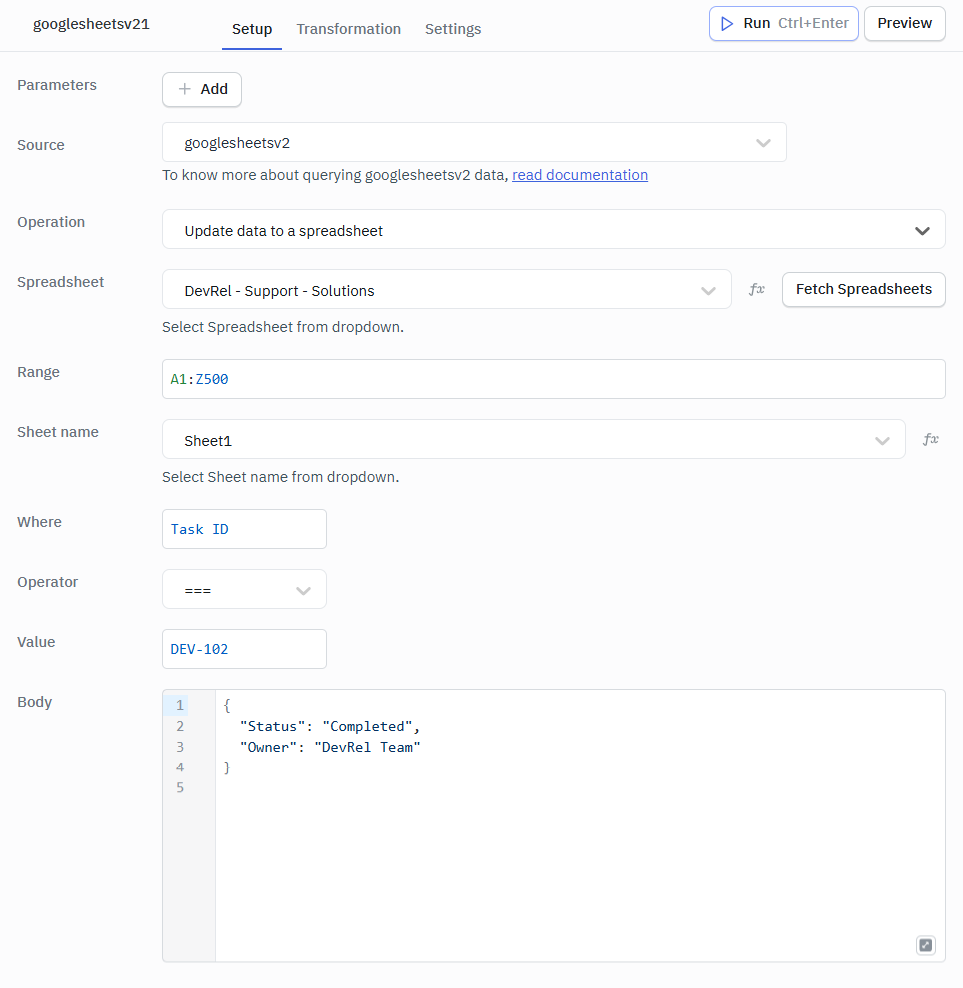
Update Data To A Spreadsheet
This operation modifies existing data in specified cells or ranges.
Required Parameter
- Spreadsheet : The ID of the spreadsheet to update.
- Range : The cell range where the update will be applied.
- Sheet Name : The sheet (tab) where the update occurs.
- Where : The column used to identify rows to update.
- Operator : The condition operator used for matching rows.
- Value : The value used with the operator to filter rows.
Optional Parameter
- Body : The data payload containing updated values.
Sample Output
status : "success"
spreadsheetId:"2npLSovBJU2FCzNiGO5gGPnzS3elPxD_crmPg-KiU8ox"
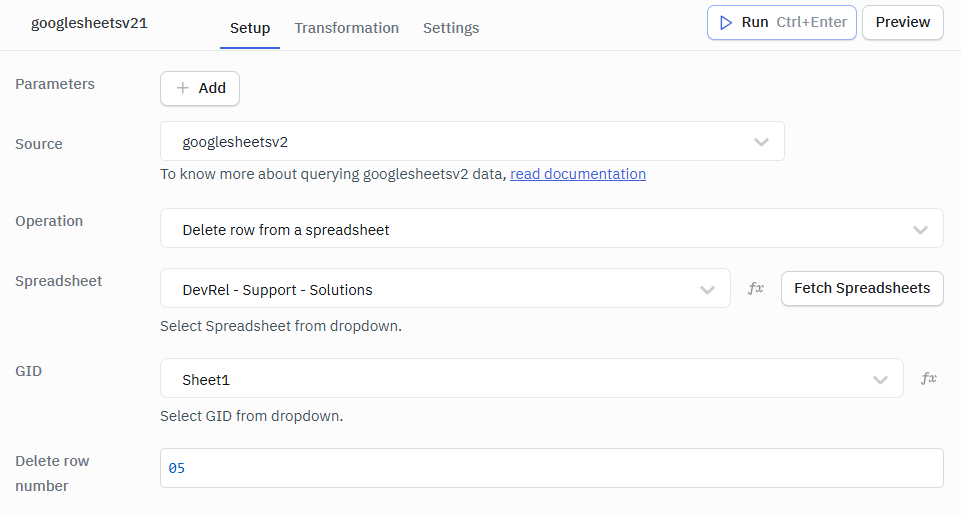
Delete Row From A Spreadsheet
This operation deletes one or more specific rows from a sheet.
Required Parameter
- Spreadsheet : The ID of the spreadsheet from which the row will be deleted.
- GID : The unique grid ID of the target sheet.
- Delete Row Number : The row index to be removed from the sheet.
Sample Output
spreadsheetId:"2npLSovBJU2FCzNiGO5gGPnzS3elPxD_crmPg-KiU8ox"
replies : [] 1 item
Delete Data From A Spreadsheet By Range
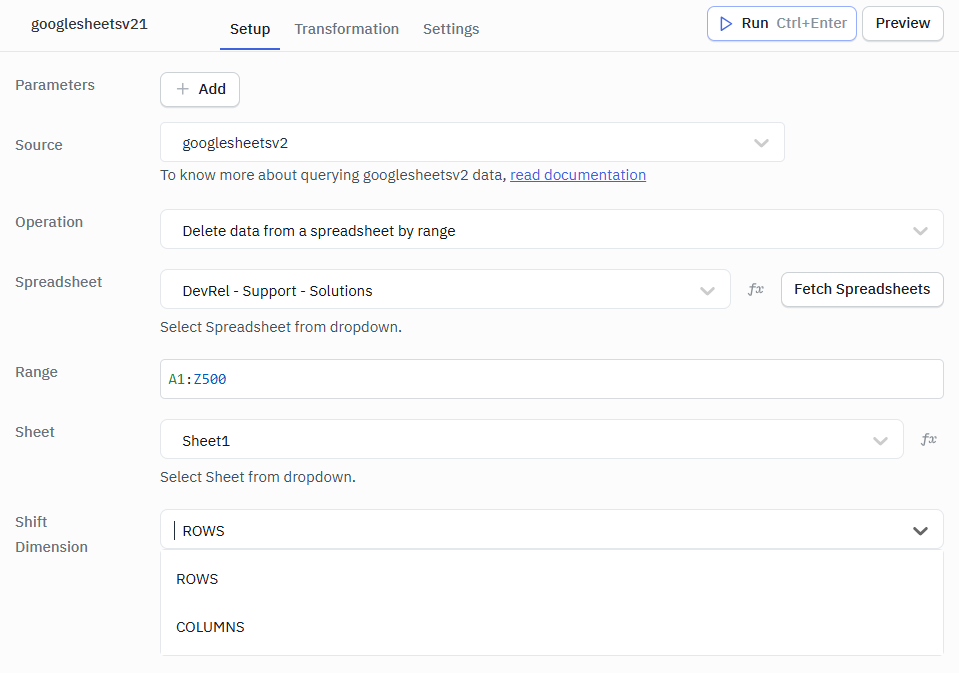
This operation clears data from a defined cell range within a sheet.
Required Parameter
- Spreadsheet : The ID of the spreadsheet from which data will be deleted.
- Range : The cell range specifying the data to remove.
- Sheet : The sheet (tab) where the range exists.
Optional Parameter
- Shift Dimension : Specifies how remaining cells should shift after deletion.
Sample Output
status : "success"
message : "Range deleted successfully"
sheet:"Sheet1"
spreadsheetRange:"A1:A05"
shiftDimension:"ROWS"
result : []2keys
spreadsheetId:"2npLSovBJU2FCzNiGO5gGPnzS3elPxD_crmPg-KiU8ox"
Update Spreadsheet
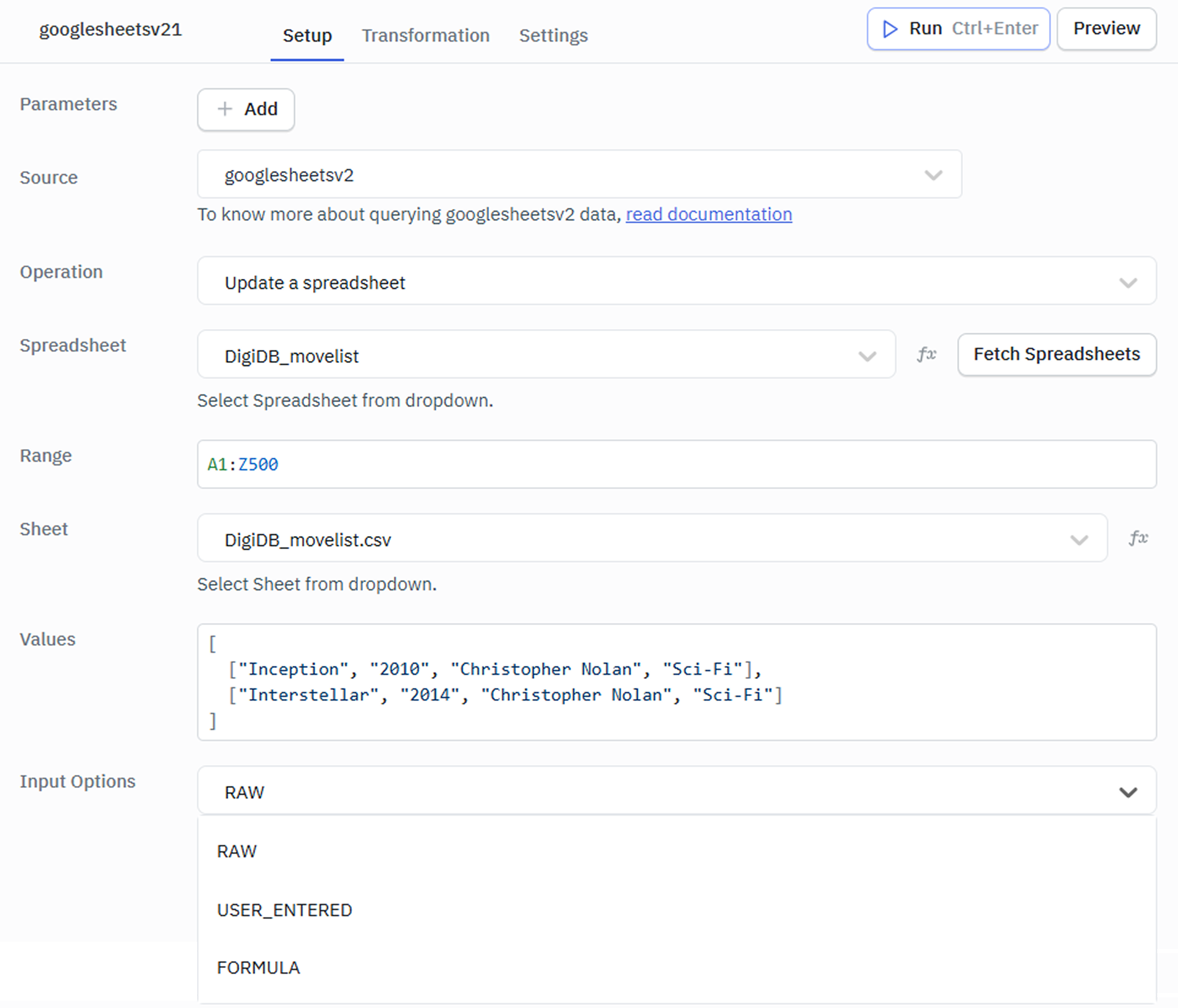
This operation updates spreadsheet properties such as title or configuration settings.
Required Parameter
- Spreadsheet : The ID of the spreadsheet to update.
- Sheet : The target sheet for the update.
- Values : The data values to be written to the spreadsheet.
Optional Parameter
- Range : The specific range of cells to update.
- Input Options : Determines how input values are interpreted (raw or user-entered).
Example
 Data :
 [
  ["Inception", "2010", "Christopher Nolan", "Sci-Fi"],
  ["Interstellar", "2014", "Christopher Nolan", "Sci-Fi"]
 ]
Sample Output
{
  "spreadsheetId": "1CzNiGO5gGPnzSn2F3elPxD_KiU8pLSovBJUox-crmPg",
  "updatedRange": "DigiDB_movelist!A1:Z500",
  "updatedRows": 2,
  "updatedColumns": 4,
  "updatedCells": 2
}