Version Control
Version Control for Workflows helps you maintain multiple versions of a workflow, iterate on changes safely, and deploy updates systematically. It ensures stability by keeping your released workflow running while you develop and test new changes in a separate draft.
For example, you can create a new draft version of a workflow to modify a node or update its logic, without disrupting the currently released workflow. After testing, you can promote and release the new version. This minimizes downtime and allows developers to experiment without affecting production executions.
Each version is isolated and can be promoted across environments such as development, staging, and production. Check out the Workflow Environments guide for more information.
How Draft and Saved Versions Work
A draft version represents the working copy of your workflow. When you create a new version or begin editing, ToolJet ensures that the changes happen inside a draft. Drafts allow you to safely modify nodes, and workflow logic without affecting the active version.
Saved versions are finalized checkpoints created from drafts. Saved versions are fixed, cannot be edited, and can be promoted to staging or production, released for execution, or used for rollback.
A draft can be saved as a version when you are ready to promote or release your changes. Only saved versions can be promoted to staging or production, while draft versions remain editable. This keeps in-progress work clearly separated from versions that are ready for deployment.
Version Status
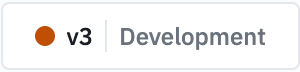
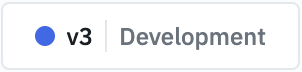
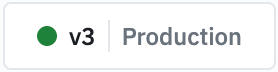
The following color schema represents the status of workflow versions across different stages of the development lifecycle.
Creating a Draft Version
You can create new versions from the Version Manager in the workflow editor toolbar. It displays the current version and can be used to switch between different versions of the workflow. To create a new version:
- Go to the Version Manager from the toolbar and click on the dropdown. It will display all the available versions of the workflow. The released version will have a green tag saying Released beside it. The draft versions will have a tag saying Draft beside them.
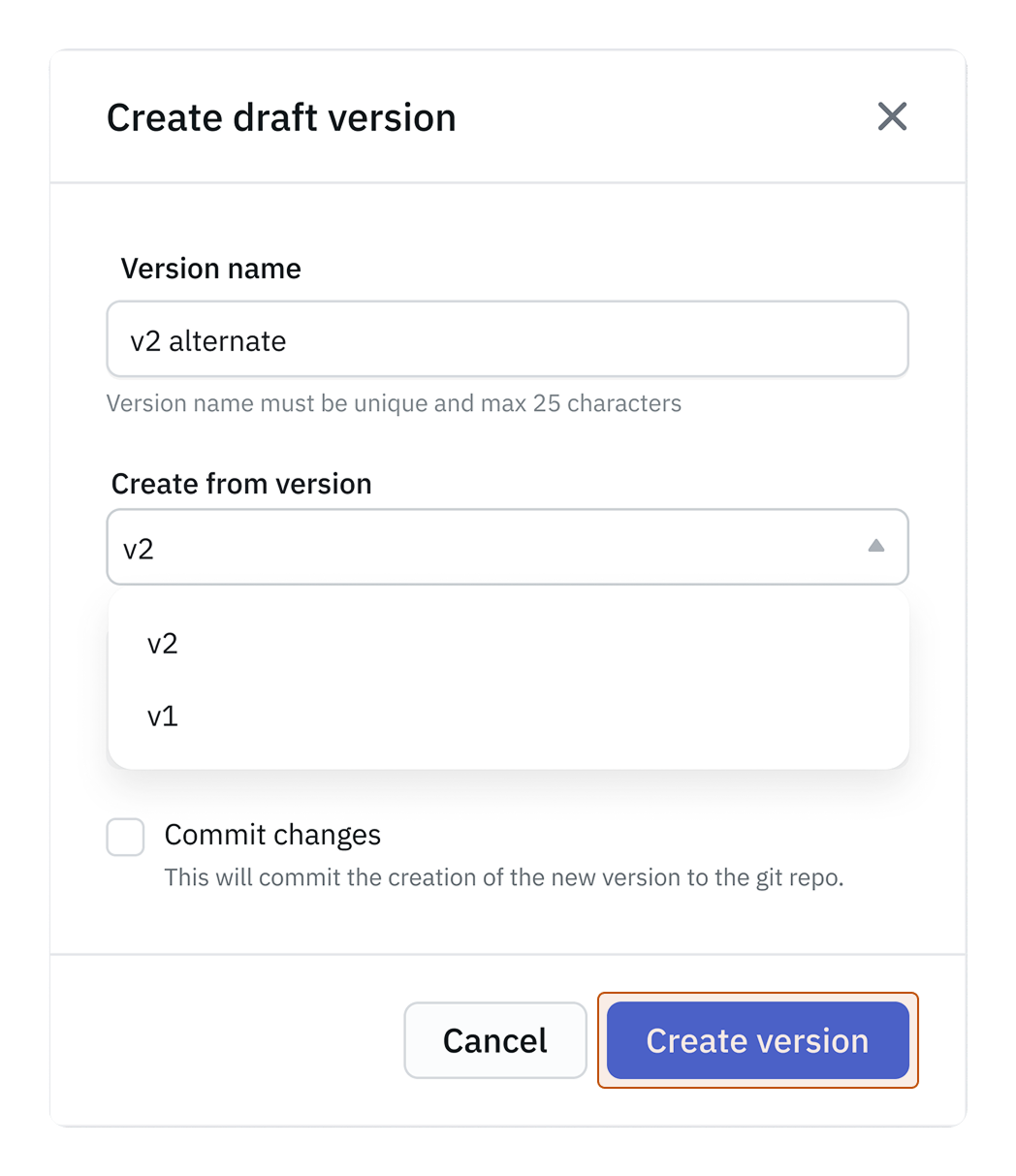
- Click on Create draft version button at the bottom of the menu and a modal will pop up.
- Enter a Version Name.
- Select the Create from version dropdown that will include all the saved versions of the workflow, choose a version from the dropdown that you want to use as the base for your new version or ToolJet will automatically select the last released version.
- Click on Create version to add a new version.
Renaming a Version
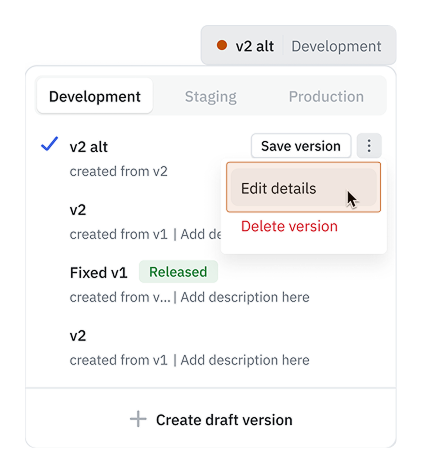
To change the name of a workflow version, navigate to the Version Manager and locate the version you wish to rename. Click on the ⋮ icon beside the version name and select Edit details. A modal will pop up where you can update the Version Name and Version Description. Released versions cannot be edited.
Deleting a Version
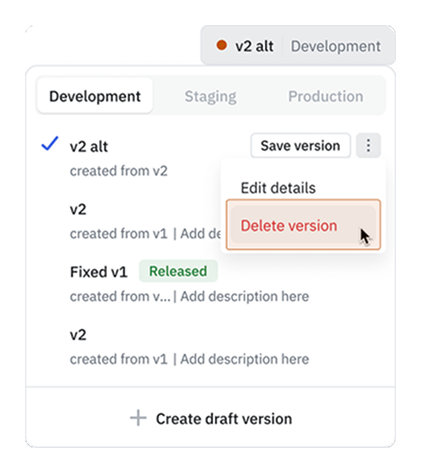
To remove a workflow version, navigate to the Version Manager and select the version you wish to delete. Click on the ⋮ icon beside the version name and select Delete version to delete it. Released versions cannot be deleted.
Releasing a Workflow Version
A workflow version can only be released when it has been promoted to the production environment. Releasing a version makes it the active version that runs when the workflow is triggered via webhooks, schedules, or other execution methods.
To release a version:
- Ensure the version has been promoted through all environments up to production. Refer to the Workflow Environments guide for promotion steps.
- Once the version is in the production environment, click the Release button.
- The released version becomes the active workflow that responds to all triggers.
Only one version of a workflow can be released at a time. Releasing a new version automatically replaces the previously released version.