PrestoDB
ToolJet allows you to connect to your PrestoDB database to perform SQL queries and retrieve data.
Before following this guide, it is assumed that you have already completed the process of Using Marketplace plugins.
Connection
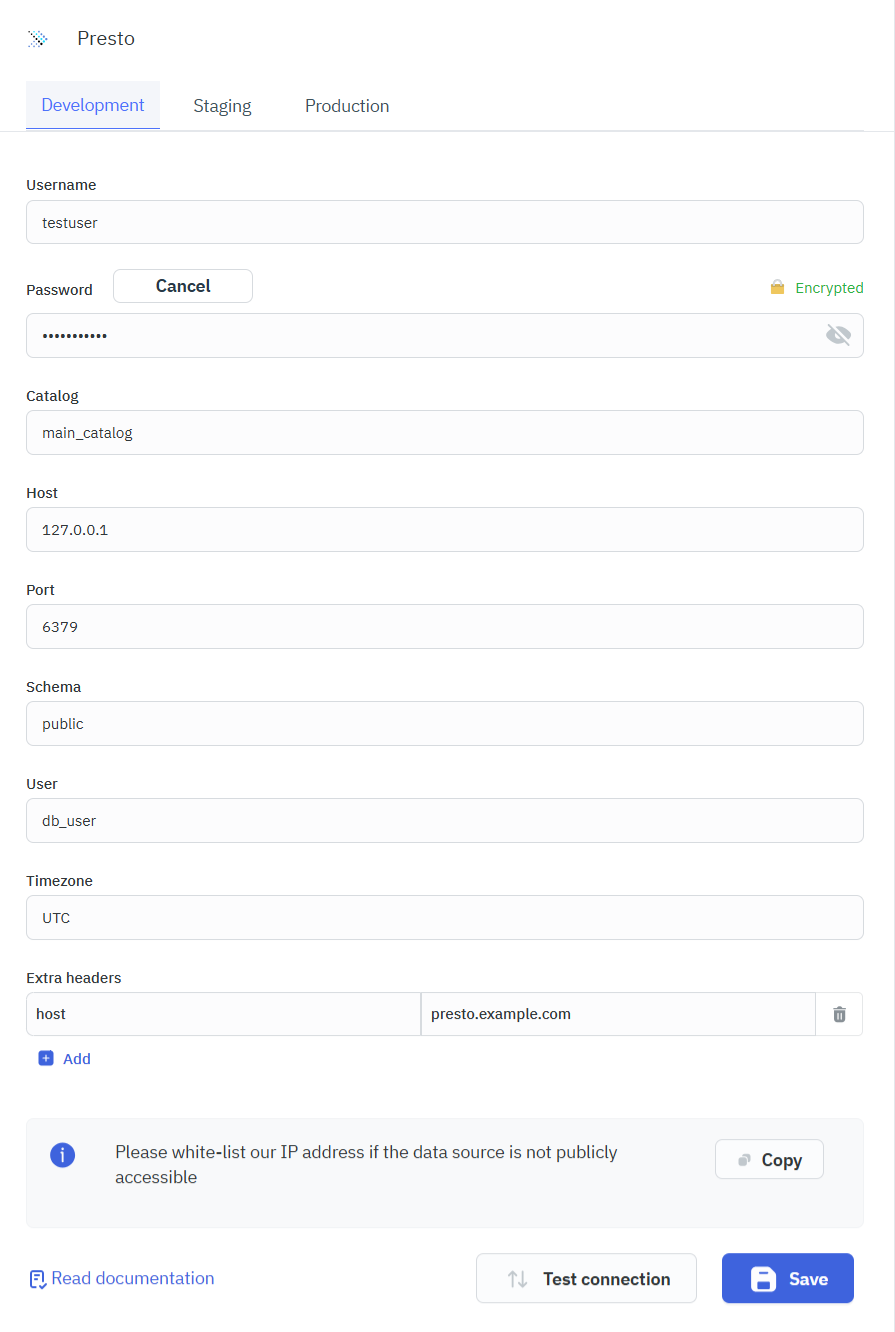
To connect to a PrestoDB data source in ToolJet, you can either click the +Add new data source button on the query panel or navigate to the Data Sources page in the ToolJet dashboard.
To connect to your PrestoDB database, the following credentials are required:
- Username
- Password
- Catalog
- Host
- Port
- Schema
- User
- Timezone (optional)
- Extra Headers (optional)
Querying PrestoDB
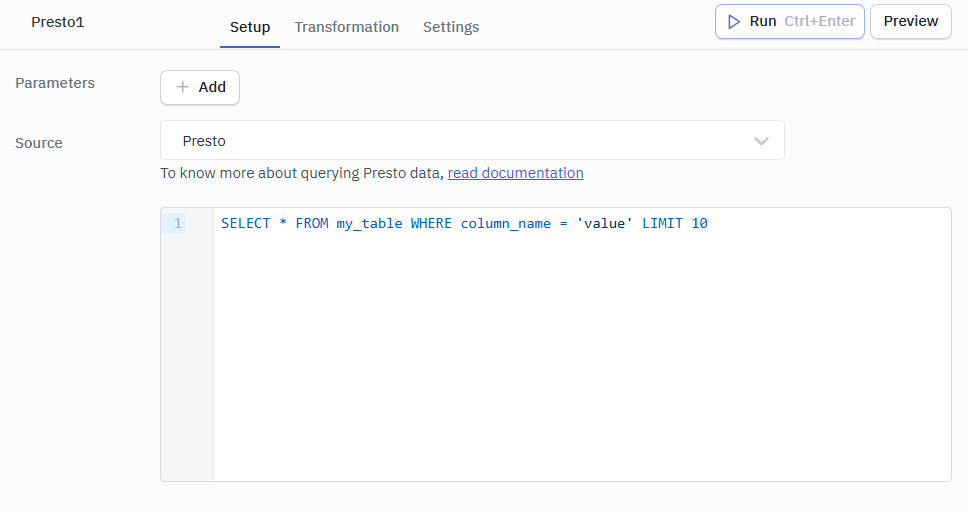
- Click the + button in the query manager at the bottom of the editor and select the PrestoDB data source added earlier.
- Write your SQL query in the query editor.
Query results can be transformed using transformations. Refer to our transformations documentation for more details: link
Supported Operations
ToolJet supports executing SQL queries on PrestoDB databases.
SQL Query
This operation allows you to execute SQL queries on your PrestoDB database.
Required Parameter:
- SQL Query: The SQL query to execute.
Example 1:
SELECT * FROM my_table WHERE column_name = 'value' LIMIT 10
Response Example
[
  {
    "id": 1,
    "name": "Alice",
    "column_name": "value",
    "created_at": "2025-02-01 10:00:00"
  },
  {
    "id": 2,
    "name": "Bob",
    "column_name": "value",
    "created_at": "2025-02-01 11:30:00"
  }
]
Example 2 :
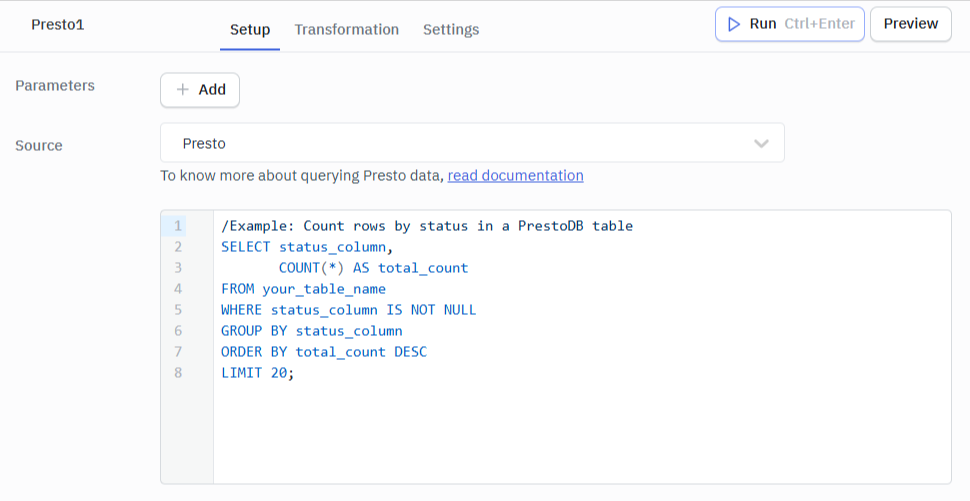
Use this query to group and count rows by a specific column in a table (e.g., count records per status). Replace your_table_name and status_column with your actual table and column names.
-- Example: Count rows by status in a PrestoDB table
SELECT status_column,
       COUNT(*) AS total_count
FROM your_table_name
WHERE status_column IS NOT NULL
GROUP BY status_column
ORDER BY total_count DESC
LIMIT 20;
Response Example
[
  {
    "status_column": "Completed",
    "total_count": 245
  },
  {
    "status_column": "Pending",
    "total_count": 180
  },
  {
    "status_column": "Failed",
    "total_count": 52
  },
  {
    "status_column": "Cancelled",
    "total_count": 21
  }
]