Conditional Formatting
Conditional formatting lets you dynamically change the text color, background color and disable action button of Table columns based on cell values or row data. You can use it to highlight important data, flag anomalies, or visually categorize records, all without writing a separate query or adding extra components.
How It Works
Each column in the Table component has Text Color and Cell Color style properties. By default, these accept a static color value. Clicking the fx icon next to these properties lets you write JavaScript expressions inside {{ }} that evaluate per row at render time.
Two identifiers are available inside these expressions:
| Identifier | Description |
|---|---|
cellValue | The value of the current cell in that row. Use this when the formatting condition depends on the column's own data. |
rowData | An object containing all column values for the current row. Use this when the formatting condition depends on data from other columns. |
To learn more about writing dynamic expressions, see Using fx for Dynamic Behaviour.
Configuring Conditional Formatting
- Click the Table component to open the properties panel.
- Go to the Columns section and select the column you want to format.
- Scroll down to the Styles section of the column.
- Click the fx icon next to Text Color or Cell Color.
- Enter a JavaScript expression using
cellValueorrowData.
The expression must return a valid CSS color value — a color name (e.g., red), hex code (e.g., #D9534F), or any other CSS-supported color format.
Supported Column Types
Not all column types support both formatting options. The table below summarizes support across column types.
| Column Type | Text Color | Cell Background Color |
|---|---|---|
| String | Yes | Yes |
| Number | Yes | Yes |
| Text | Yes | Yes |
| Date Picker | Yes | Yes |
| Boolean | Yes | Yes |
| Column Type | Text Color | Cell Background Color |
|---|---|---|
| Select | Yes | No |
| Multiselect | Yes | No |
| Link | Yes | No |
| Image | Yes | No |
| Toggle | Yes | No |
Examples
Text Color Based on Cell Value
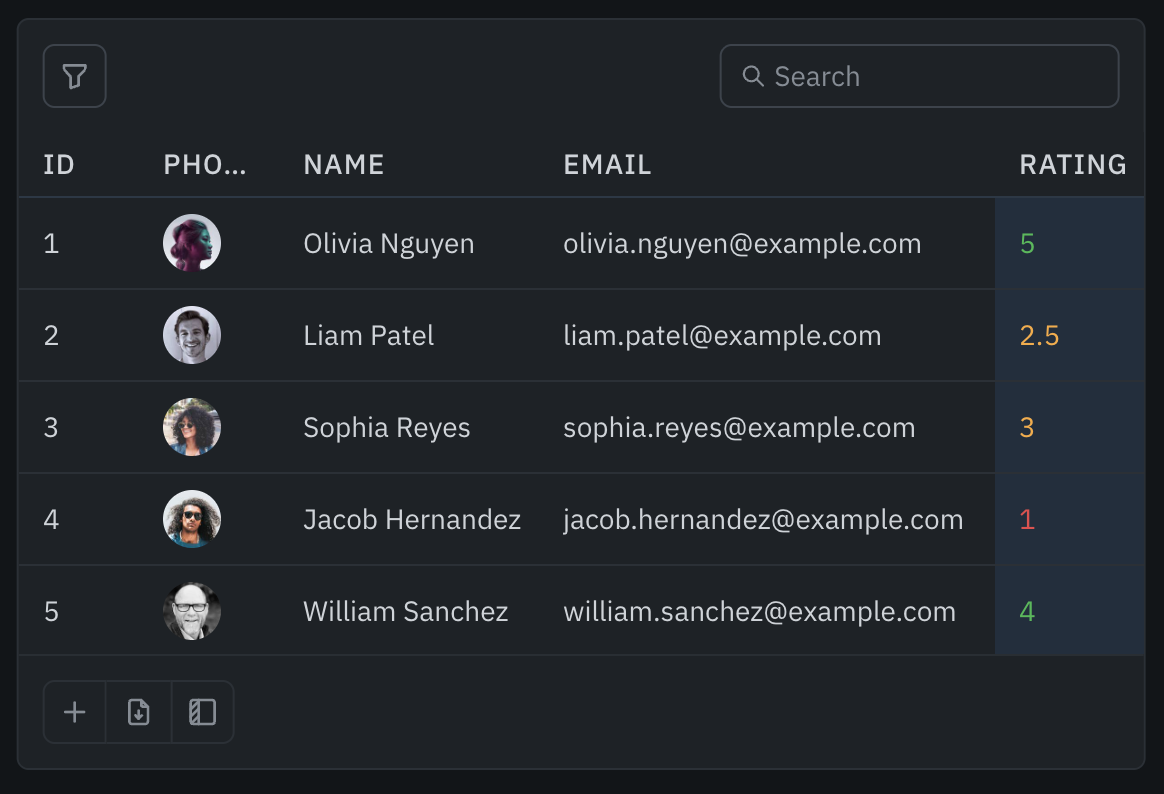
Format a Rating column so that low ratings appear in red, mid-range in orange, and high ratings in green:
{{cellValue >= 4 ? '#5CB85C' : cellValue >= 2.5 ? '#F0AD4E' : '#D9534F'}}
Cell Background Color Based on Cell Value
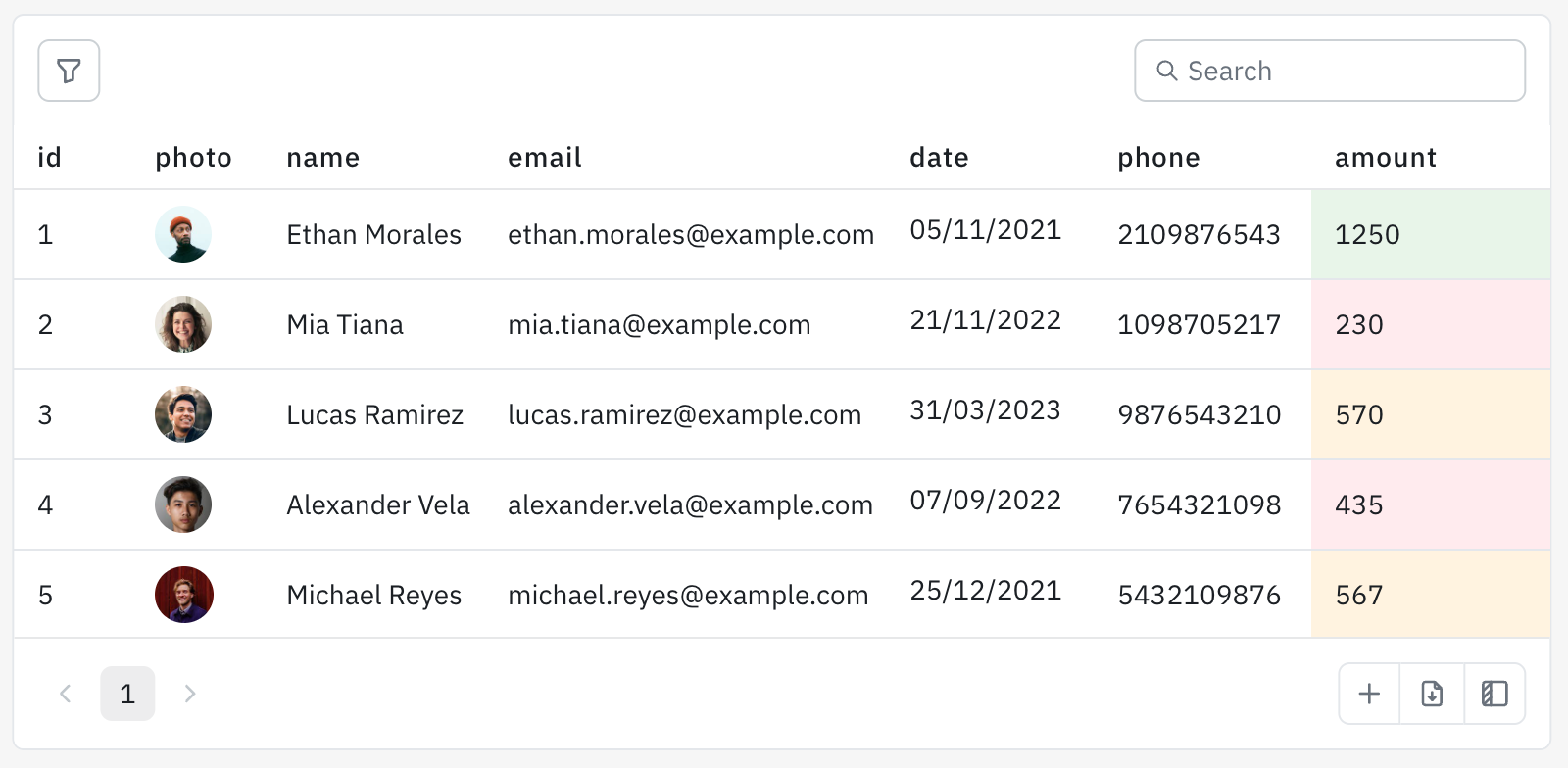
Highlight a Sales column where high-value cells get a green background and low-value cells get a red background:
{{cellValue >= 1000 ? '#e8f5e9' : cellValue >= 500 ? '#fff3e0' : '#ffebee'}}
Text Color Based on Row Data
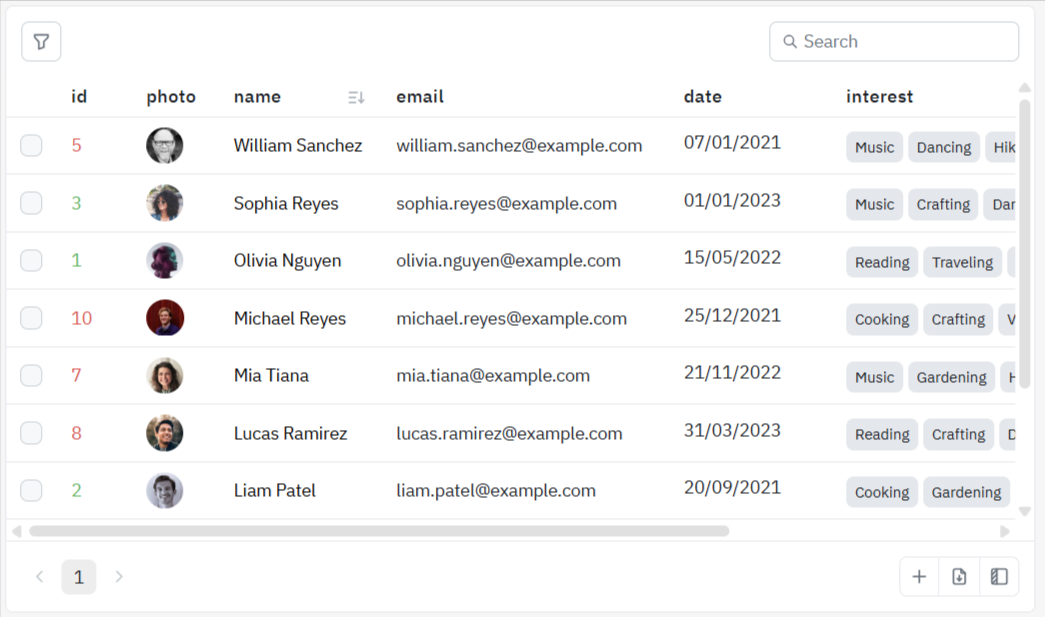
Change the text color of a id column based on the phone column in the same row:
{{ rowData.id > 3 ? '#D9534F' : '#5CB85C' }}
Cell Background Color Based on Row Data
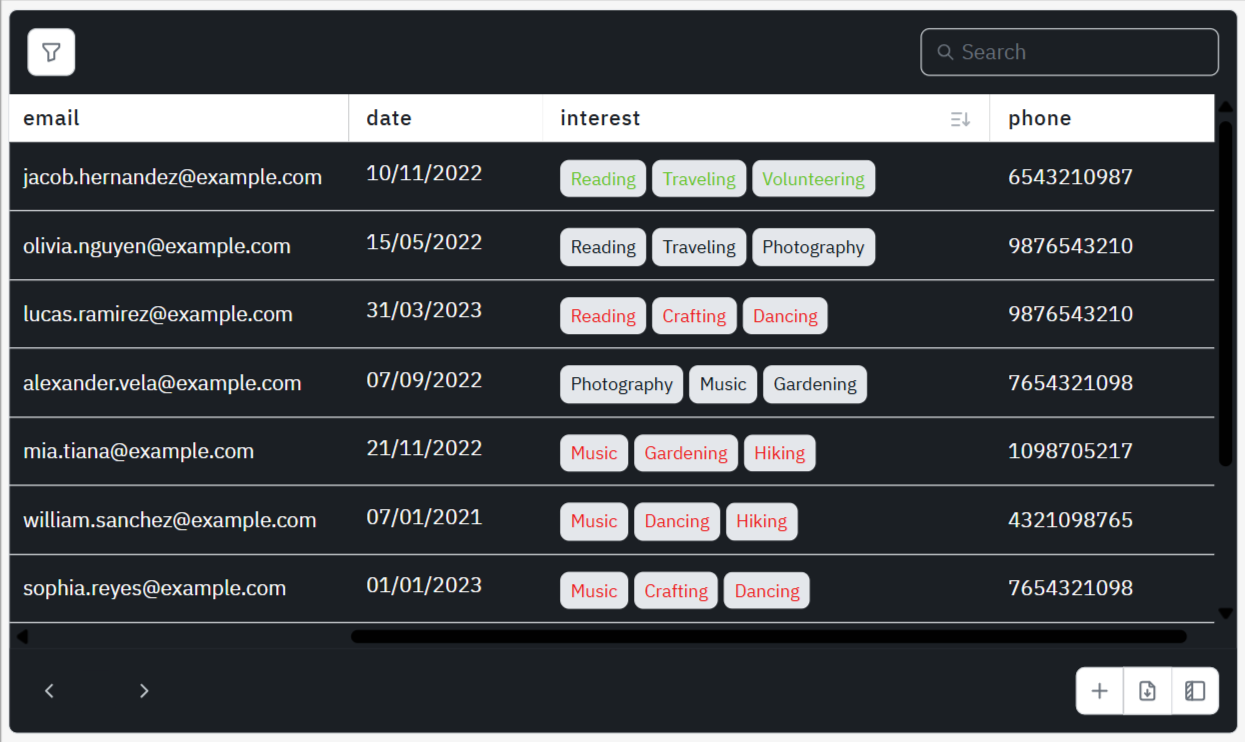
Color-code a Title column based on the product's interest:
{{
  rowData.interest?.includes('Photography') ? '#030f16' : rowData.interest?.includes('Traveling') ? '#5ec522' : '#ed1717'
}}
Combining Multiple Conditions
Use nested ternary operators or logical operators to build more complex rules. For example, format a Name column by combining id and phone from row data:
{{
  rowData.id === 1 ? '#1565c0' : rowData.phone > 9000000000 ? '#212121' : '#bdbdbd'
}}
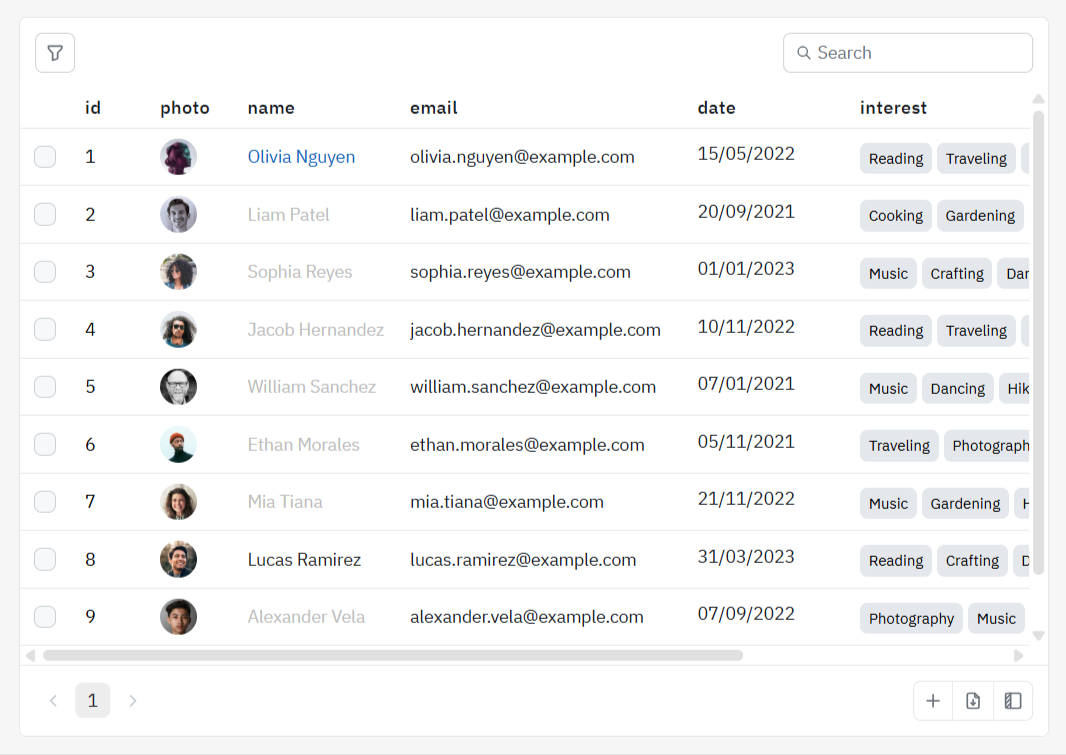
You can use hex color codes, named CSS colors (red, lightgreen), or rgb()/hsl() functions in your expressions.
Dynamic Columns
When using Dynamic Columns, you can set conditional formatting directly in the column JSON definition using the textColor and cellBackgroundColor keys:
{
   "name": "Revenue",
   "columnType": "number",
   "key": "revenue",
   "textColor": "{{cellValue > 5000 ? '#2e7d32' : '#c62828'}}",
   "cellBackgroundColor": "{{cellValue > 5000 ? '#e8f5e9' : '#ffebee'}}",
   "isEditable": false
}
Disabling Action Buttons
You can conditionally disable action buttons on a per-row basis using the same cellValue and rowData identifiers available in conditional formatting. A disabled button appears greyed out and cannot be clicked.
Configuration
- Click the Table component to open the properties panel.
- Go to the Action Buttons section and select the action button you want to configure.
- Find the Disable action button property.
- Click the fx icon to switch to a dynamic expression.
- Enter a JavaScript expression using
cellValueorrowDatathat returnstrueto disable the button orfalseto keep it enabled.
Examples
Disable based on row status
Disable a button when the row's status is completed:
{{rowData.status === 'completed'}}
Disable based on a numeric threshold
Disable a "Refund" button when the amount is zero or negative:
{{rowData.amount <= 0}}
Disable based on multiple conditions
Disable an "Approve" button when the row is already approved or the user role is viewer:
{{rowData.approved === true || rowData.role === 'viewer'}}
Disable while a query is loading
Disable the button while a related query is in progress to prevent duplicate submissions:
{{queries.updateRecord.isLoading}}
Related
- Using fx for Dynamic Behaviour — Writing dynamic expressions across ToolJet components.