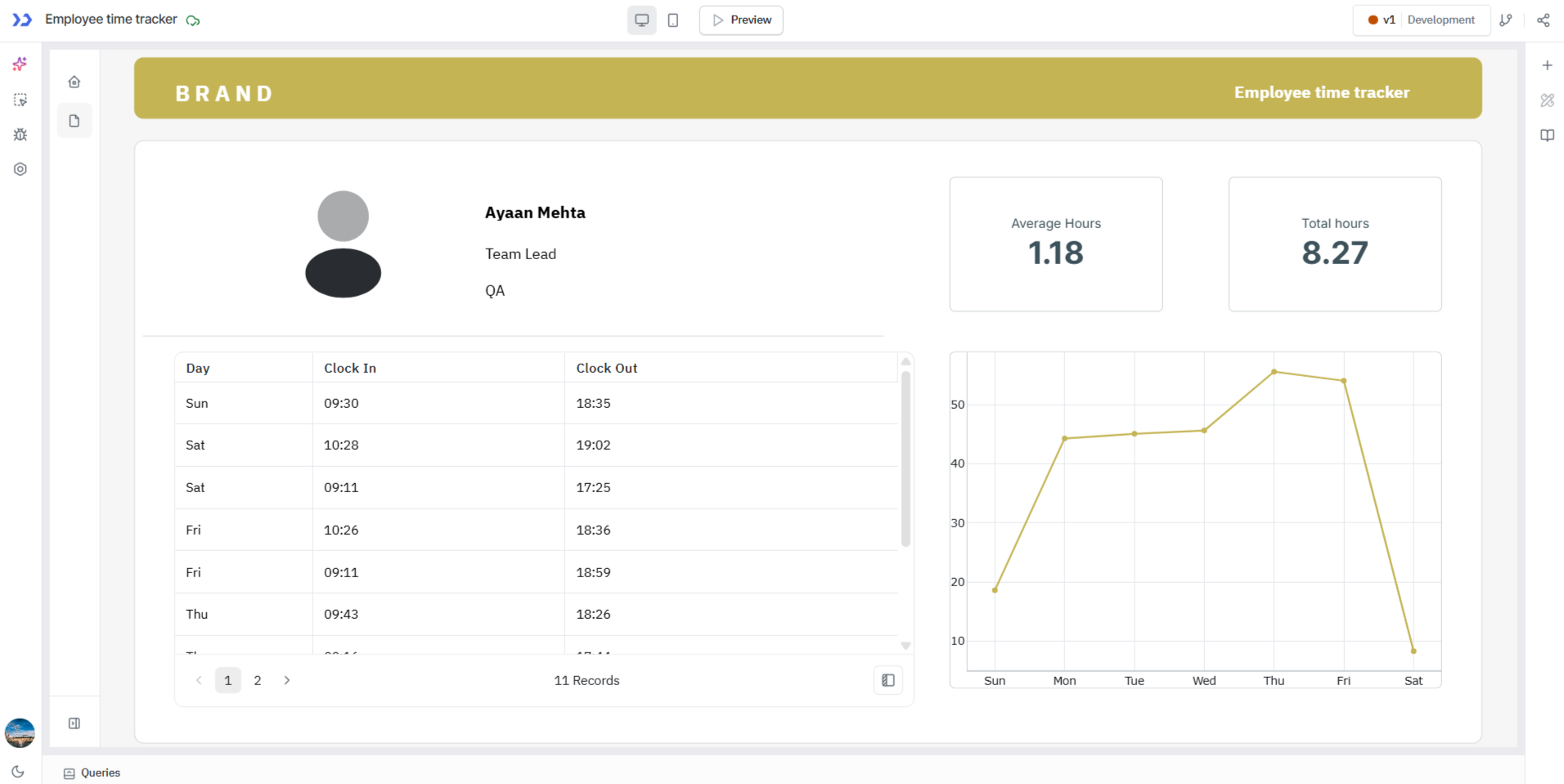
Display Listview Record Details on a New Page
The ListView widget allows you to display structured data in a repeatable layout. You can configure it to navigate to another page and display detailed information about a selected record.
For this guide, we are going to use one of the existing templates on ToolJet: Employee Time Tracker
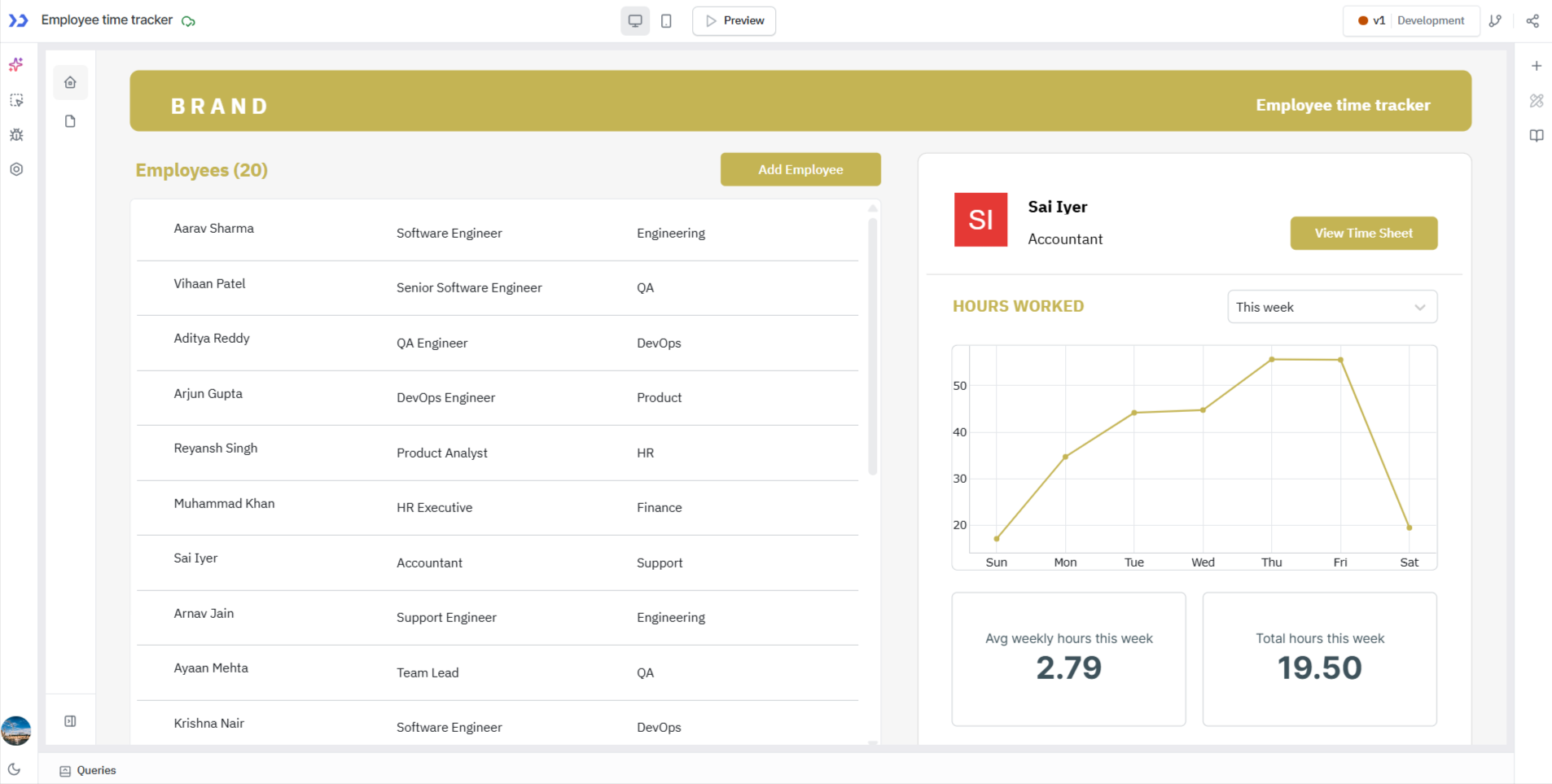
Build the App
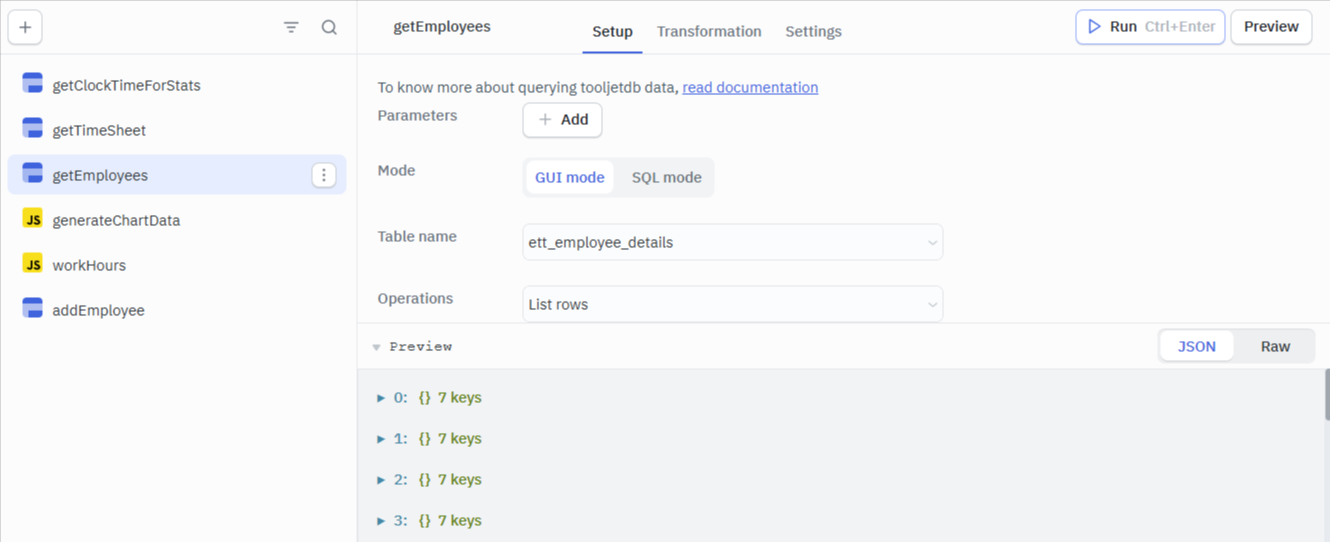
Query Configuration
-
Create a query named
get_employeeswhich is configured to fetch records from a database table such asett_employee_details -
Select the operation as List rows and select the mode as GUI
ListView Data Configuration
- Drag the ListView widget from Components section onto the canvas, and bind the Data property to:
{{queries.get_employees.data}}
Each employee object will now render as one ListView item.
- Inside the ListView, add Text widgets and bind them using:
{{listItem.name}}
{{listItem.designation}}
{{listItem.department}}
Here, listItem represents the current employee object being rendered.
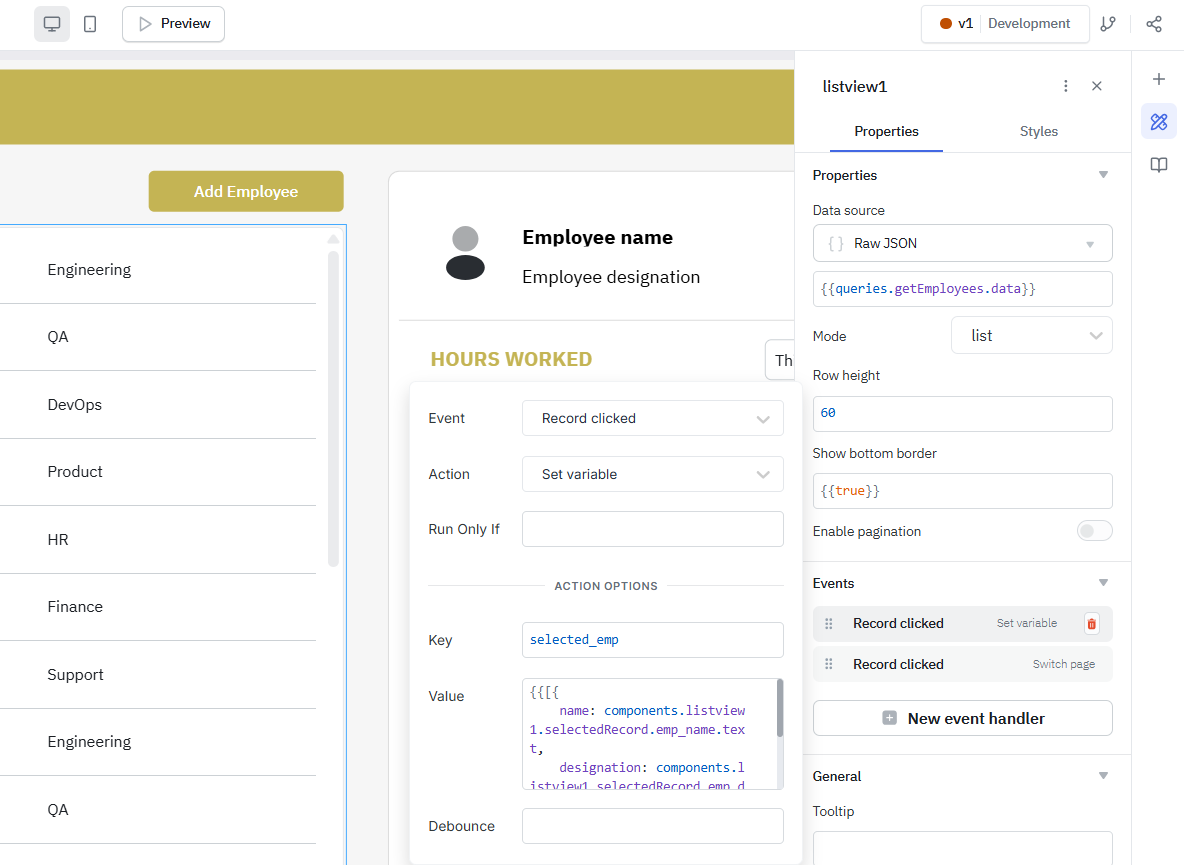
Setting up Event Handlers
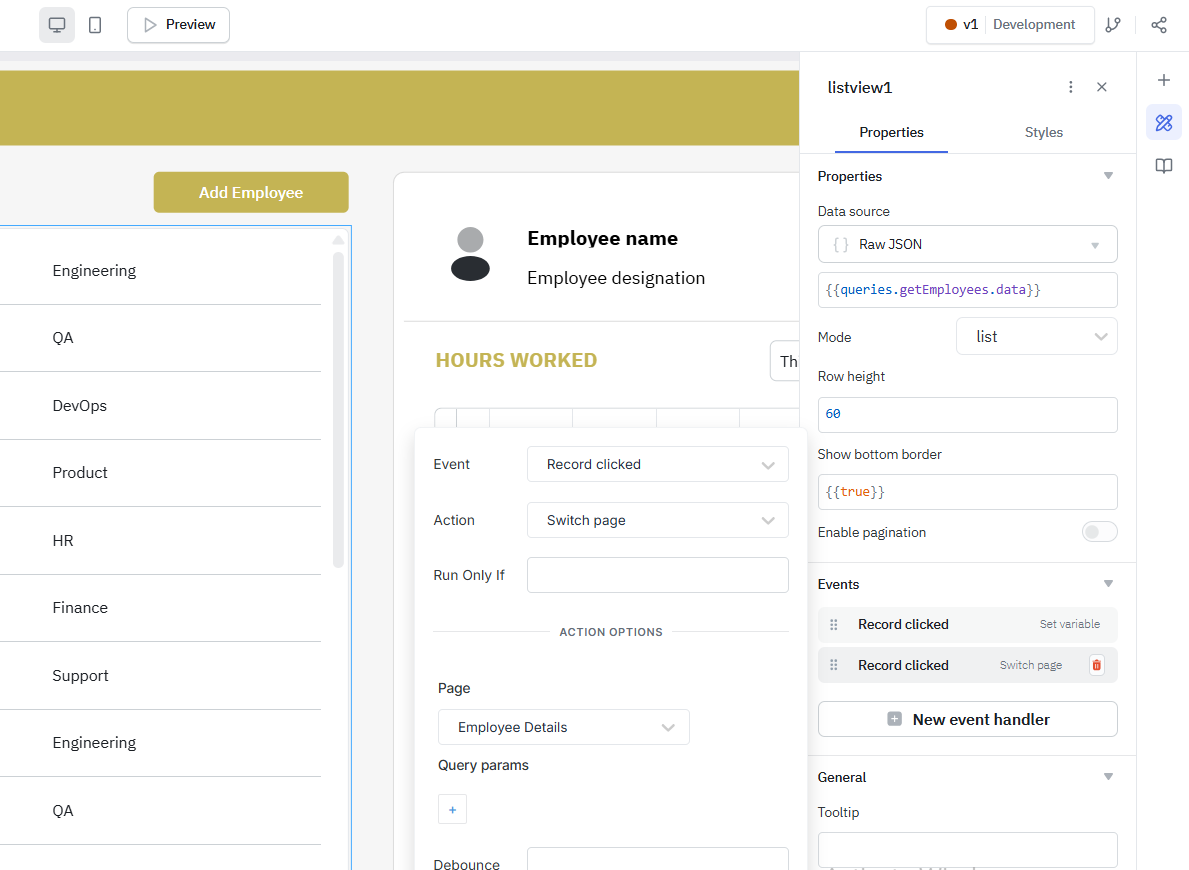
Add a new event handler to the Listview component with the following configurations:
-
- Event: Record Clicked
- Action: Set variable
- Key: selected_emp (Enter your desired variable name.)
- Value:
{{[{
name: components.listview1.selectedRecord.emp_name.text,
designation: components.listview1.selectedRecord.emp_designation.text,
department: components.listview1.selectedRecord.emp_dept.text
}]}}
-
- Event: Record Clicked
- Action: Switch Page
- Page: Employee Details
Displaying Selected Record on Another Page
After setting up event handlers and configuring the ListView to navigate to a detail page with parameters, the destination page needs to consume the passed data and render the appropriate record details.
On the destination page, this data is accessed using {{variables.selectedEmp[0].name}}