Upload Files Using GCS
This guide demonstrates how to configure file upload and download operations using the Google Cloud Storage (GCS) data source in ToolJet. Learn how to use upload, handle file inputs directly from your applications.
Before adding the new data source we will need to have a private key for our GCS bucket and make sure the key has the appropriate rights.
Setting up Google Cloud Storage Data Source
-
Go to the data source manager on the left-sidebar and click on the
+button. -
Add a new GCS data source from the APIs section in modal that pops up.
-
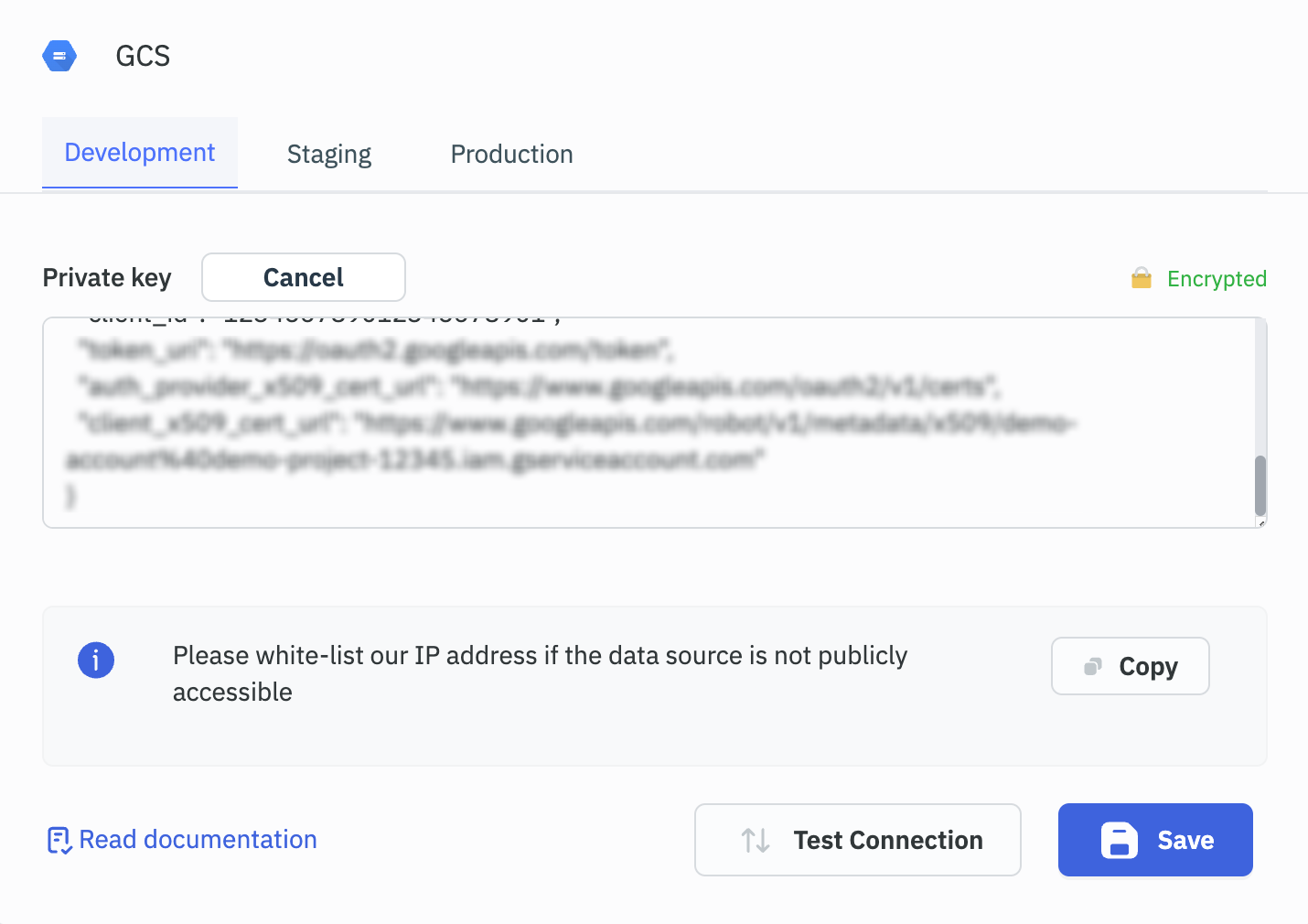
Enter the JSON private key for service account and test the connection.
-
Click on Save to add the data source.
Adding a File Picker
-
Drag and drop the file picker widget on the canvas.
-
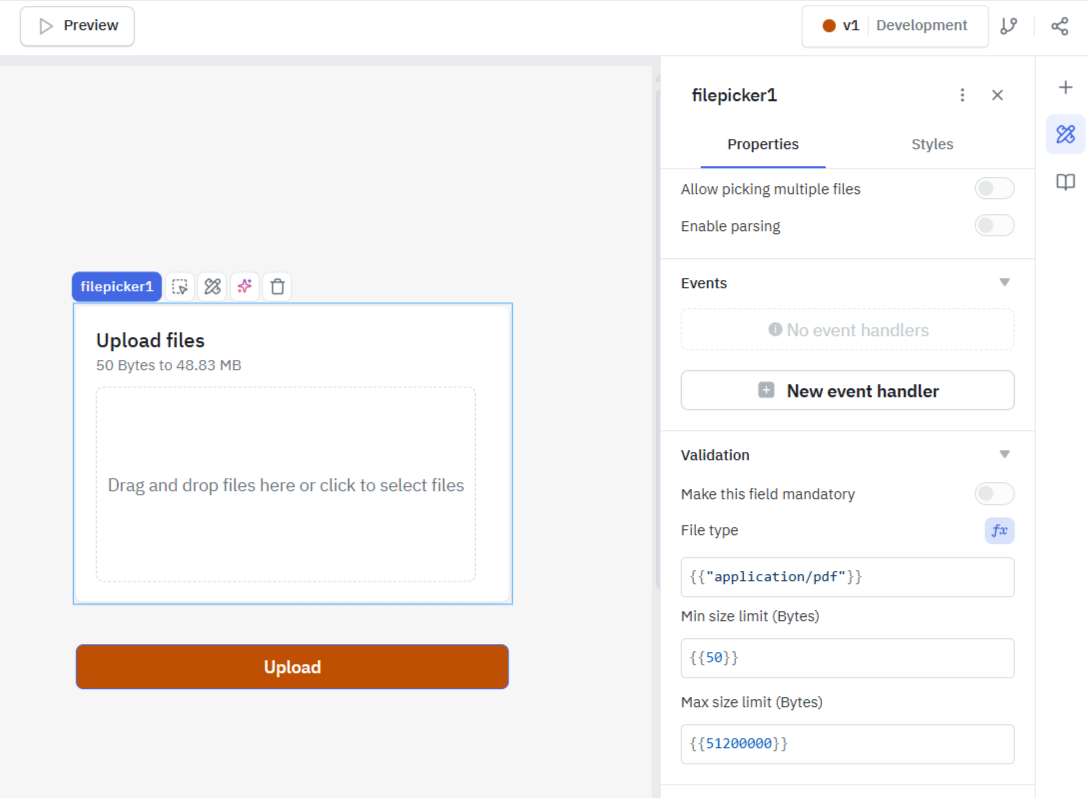
Configure the file picker: Change the Accept file types to
{{"application/pdf"}}for the picker to accept only pdf files. In the screenshot below, we have set the accepted file type property to{{"application/pdf"}}so it will allow to select only pdf files.
-
In the properties section, disable the Allow picking multiple files to avoid conflicts.
-
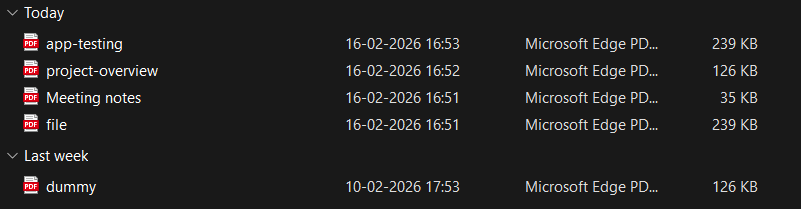
Select a pdf file and hold it in the file picker.
File types must be valid MIME type according to input element specification or a valid file extension.
To accept any/all file type(s), set Accept file types to an empty value.
Creating a Query
-
Click on the
+button of the query manager at the bottom panel of the editor and select the GCS data source. -
Create a query called
upload_objects. -
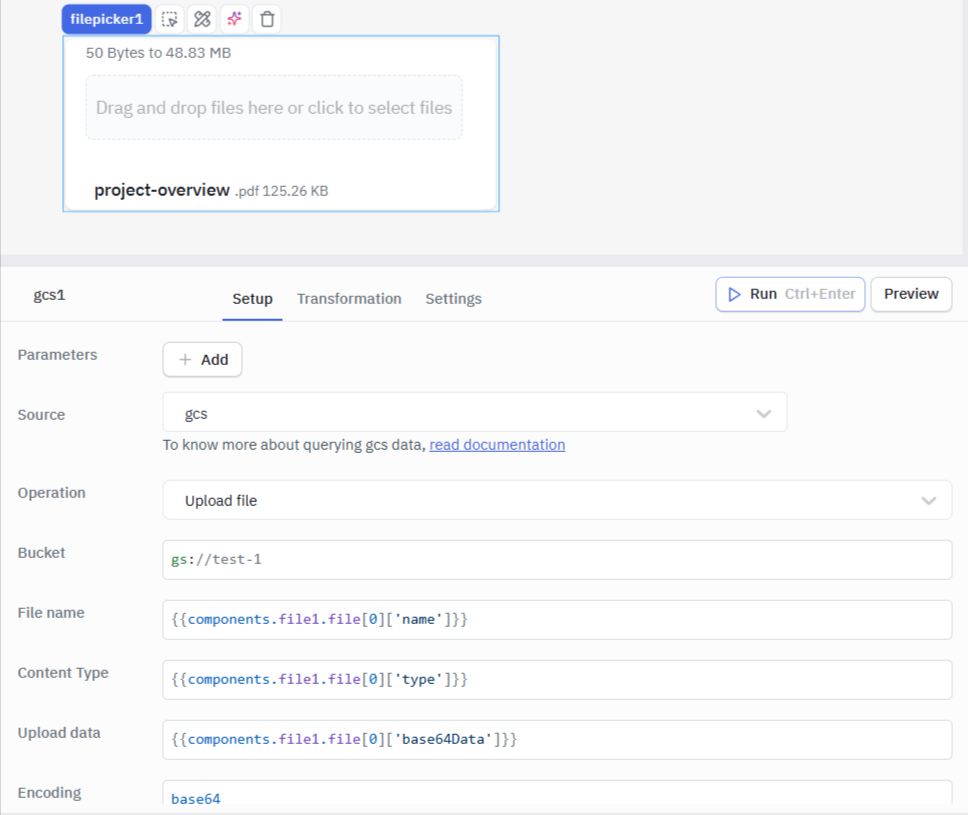
Select Upload file operation and enter the required parameters:
- Bucket:
gs://test-1 - File Name:
{{components.file1.file[0]['name']}} - Content Type:
{{components.file1.file[0]['type']}} - Upload data:
{{components.file1.file[0]['base64Data']}} - Encoding:
base64
- Click on Save to create the query.
Running the Query
-
Add a button that will fire the query to upload the file.
-
Edit the properties of the button and add an event handler to the action Run the query on the event On-Click .
-
Click on Button to execute the upload query, this will upload the pdf file that you selected earlier through the file picker and will upload it on the GCS.