MongoDB
The MongoDB data source in ToolJet allows you to connect your applications directly to MongoDB databases and perform operations on collections using queries. It supports database actions such as reading, inserting, updating, and deleting documents, enabling you to work with structured and semi-structured data efficiently. This data source is ideal for building applications that require flexible schemas and fast iteration over evolving data models.
Manual Connection
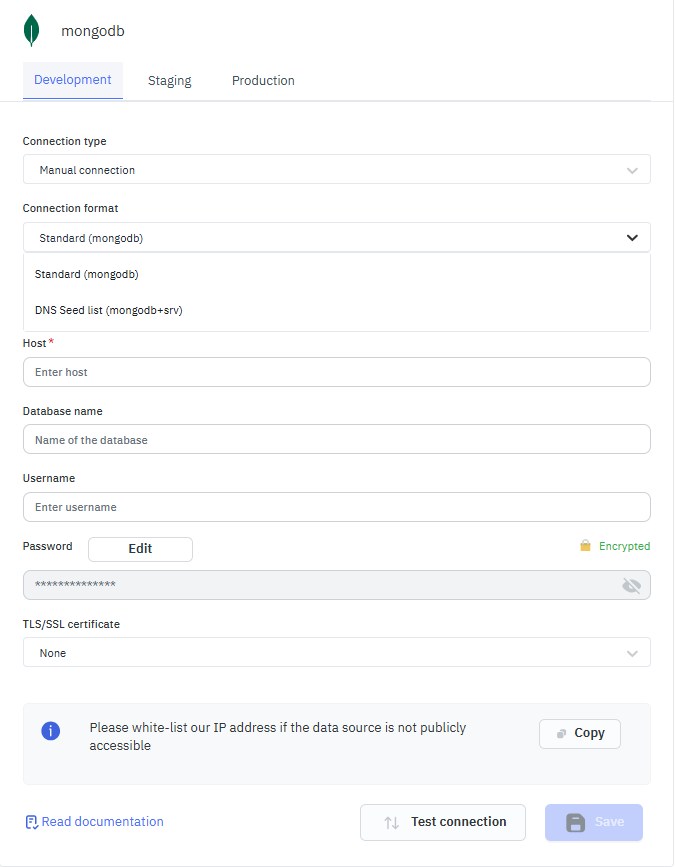
To establish a manual connection with the MongoDB data source, click on the + Add new data source button located on the query panel or navigate to the Data Sources page from the ToolJet dashboard.
Please make sure the Host/IP of the database is accessible from your VPC if you have self-hosted ToolJet. If you are using ToolJet cloud, please whitelist our IP.
Connection Format
Standard(mongodb)
Use this option when connecting to a specific MongoDB host and port. It requires manually entering server details and is suitable for standalone MongoDB deployments or custom network setups.
DNS Seed List (mongodb + srv)
Use this option for MongoDB Atlas or replica set clusters. It automatically discovers hosts using DNS, reduces configuration effort, and is the recommended approach for scalable and managed MongoDB deployments.
ToolJet requires the following to connect to your MongoDB.
- Host
- Port
- Username
- Password
Note: It is recommended to create a new MongoDB user so that you can control the access levels of ToolJet.
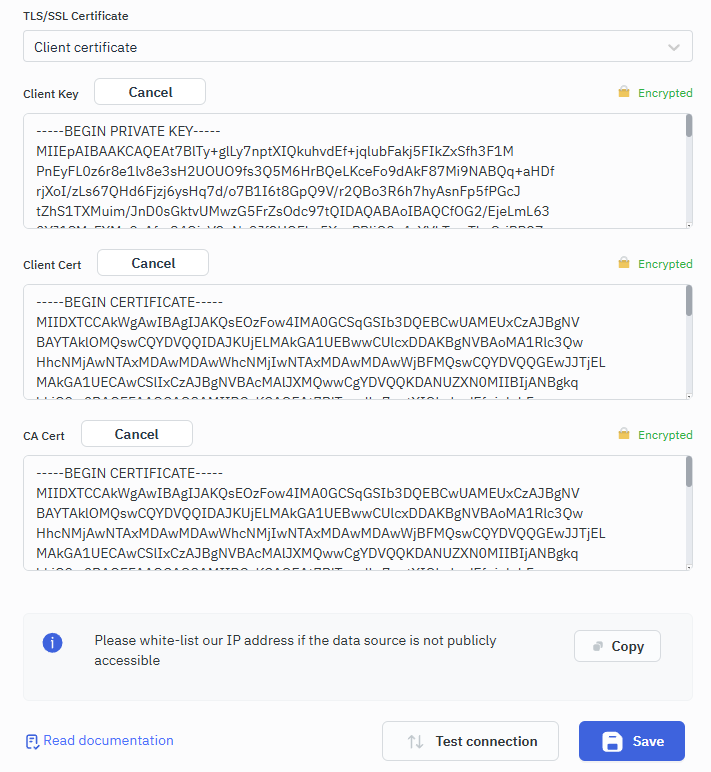
Secure Sockets Layer (SSL)
- SSL Certificate: SSL certificate to use with MongoDB. Supported Types:
- None: No SSL certificate verification.
- CA Certificate: Requires a CA certificate to verify the server certificate.
- Client Certificate: Requires a client certificate, client key, and CA certificate to authenticate with the server.
Connect Using Connecting String
You can also use a Connection String by switching the method from the dropdown. You will be prompted to enter the details of your MongoDB connection.
ToolJet requires the following to connect to your MongoDB using Connecting String:
- Connection String
The connection string typically looks like this: mongodb+srv://${username}:${password}@${cluster}/{database}.
For example: mongodb+srv://tooljettest:dummypassword@cluster0.urul7.mongodb.net/hrms
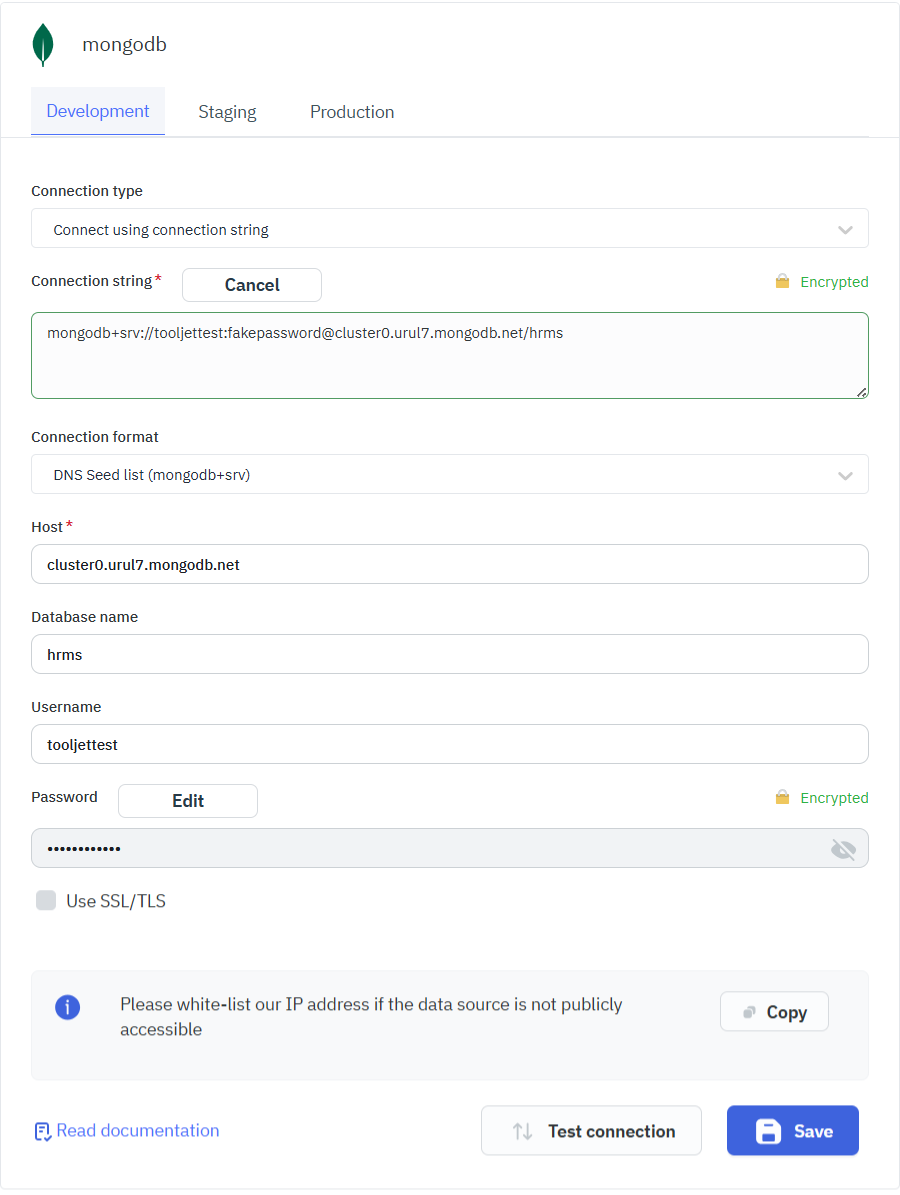
Note: Make sure to replace username, password, cluster, and database with your actual MongoDB details. If your MongoDB instance requires additional connection options, you can usually append these options to the connection string.
SSH Tunnelling
ToolJet now supports SSH tunnelling for the MongoDB data source, allowing secure connections to databases hosted inside private networks. This can be used to :
- Access private databases
- Improve security
- Enable encrytped communication
- Avoid firewall rule changes
SSH Configuration
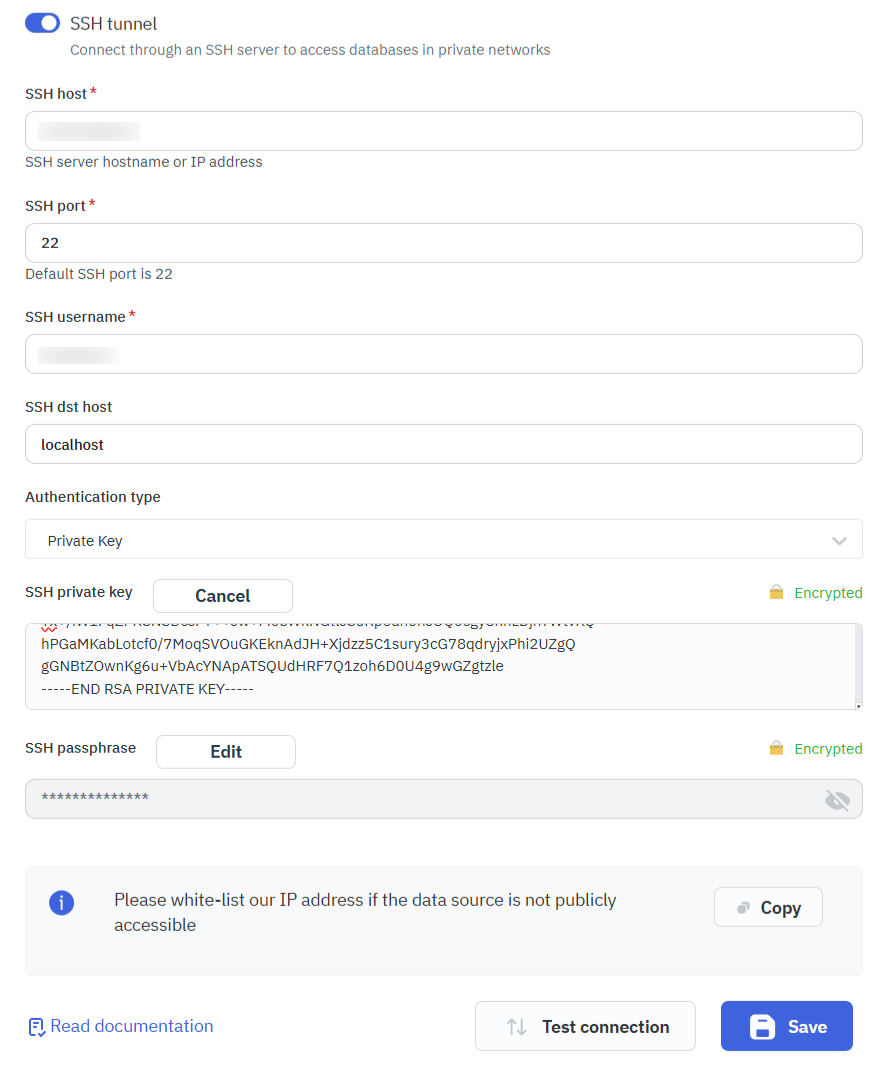
To securely connect to a private MongoDB database using SSH tunnelling:
- Enable the SSH tunnel toggle in the MongoDB data source configuration.
- Provide the following details:
- SSH host – Server hostname or IP address.
- SSH port – Port number (default:
22). - *SSH dst host - Destination host that the SSH tunnel forwards traffic to (usually
localhost) - SSH username – Username for the SSH server.
- Authentication method – Choose either:
- Private key
- Password
Once configured, ToolJet establishes a secure SSH connection. All MongoDB queries are routed through this encrypted tunnel.
Querying MongoDB
- Click on + Add button of the query manager at the bottom panel of the editor and select the database added in the previous step as the data source.
- Select the operation that you want to perform and click Save to save the query.
- Click on the Run button to run the query.
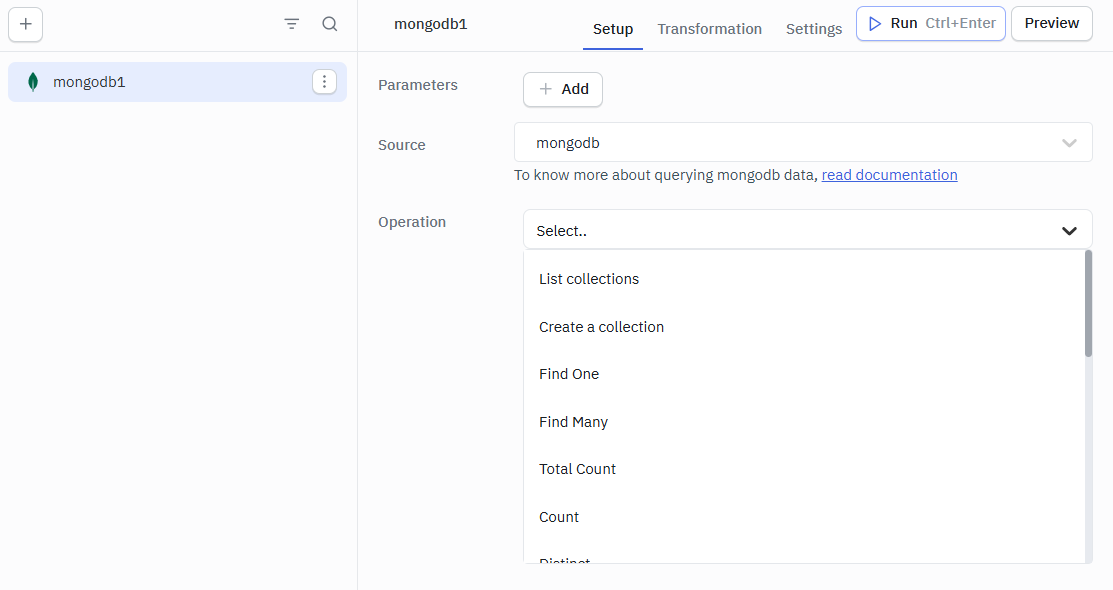
Query results can be transformed using transformations. Read our transformations documentation to see how: link
Supported Operations
- List Collections
- Find One
- Find Many
- Total Count
- Count
- Distinct
- Insert One
- Insert Many
- Update One
- Update Many
- Replace One
- Find One and Update
- Find One and Replace
- Find One and Delete
- Aggregate
- Delete One
- Delete Many
- Bulk Operations
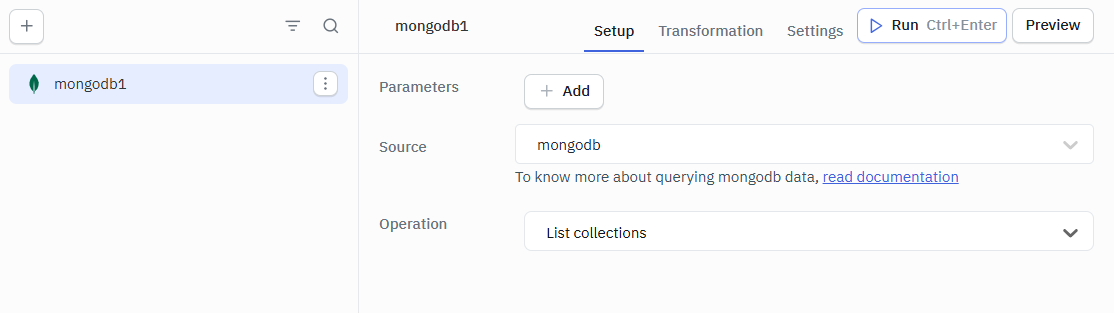
List Collections
Returns list of collections
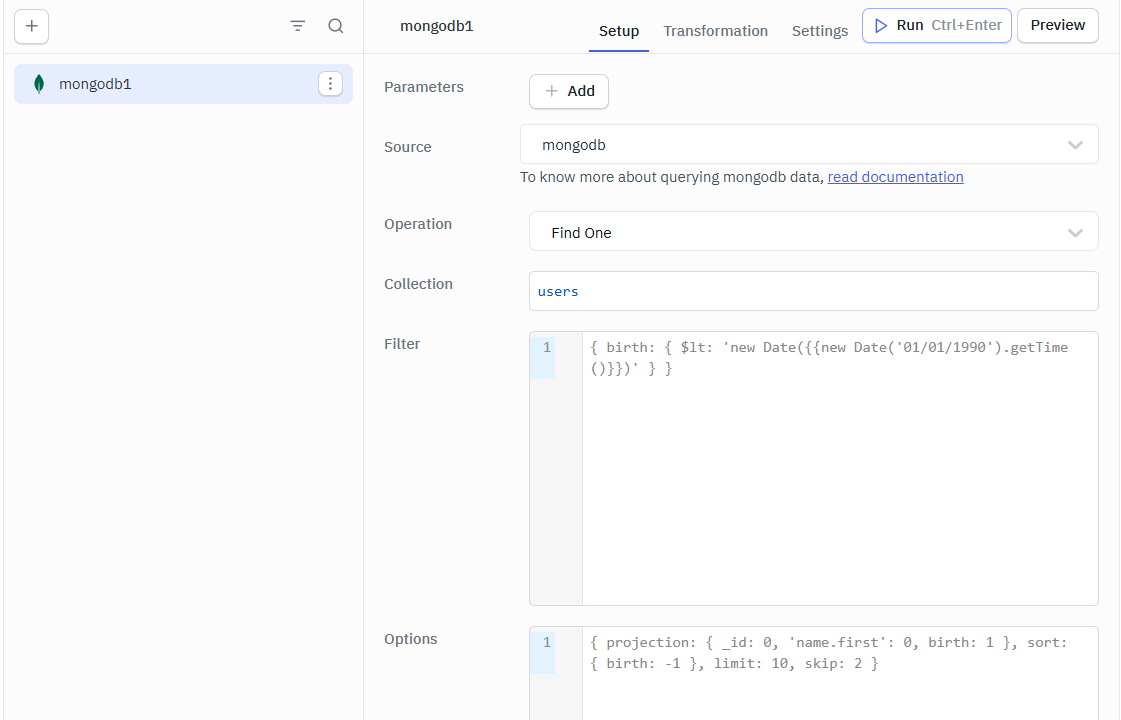
Find One
Return a document which satisfy the given filter and options. Reference
Required Parameters:
- Collection
Optional Parameters:
- Filter
- Option
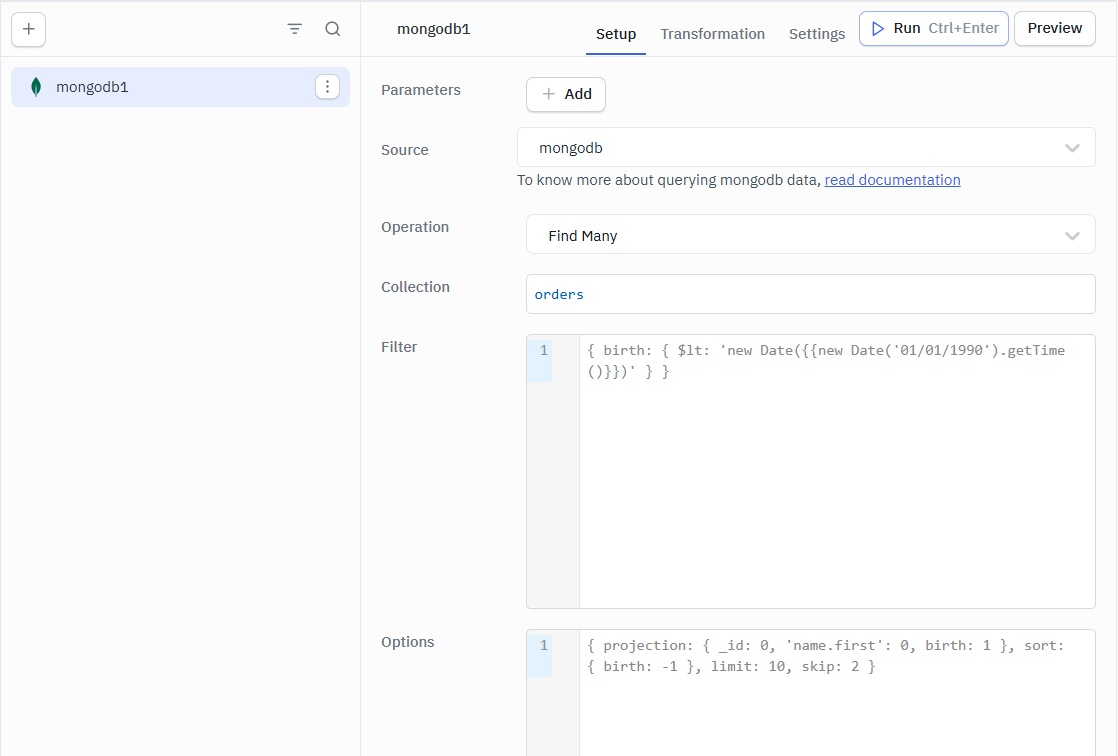
Find Many
Return list of documents which satisfy the given filter and options. Reference
Required Parameters:
- Collection
Optional Parameters:
- Filter
- Option
Total Count
Returns an estimation of the number of documents in the collection based on collection metadata. Reference
Required Parameters:
- Collection
Optional Parameters:
- Option
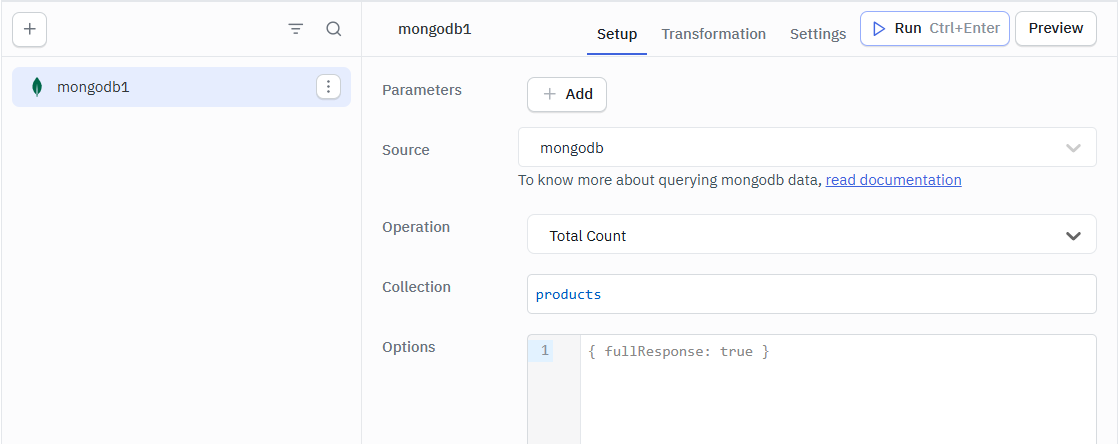
Count
Returns the number of documents based on the filter. Reference
Required Parameters:
- Collection
Optional Parameters:
- Filter
- Option
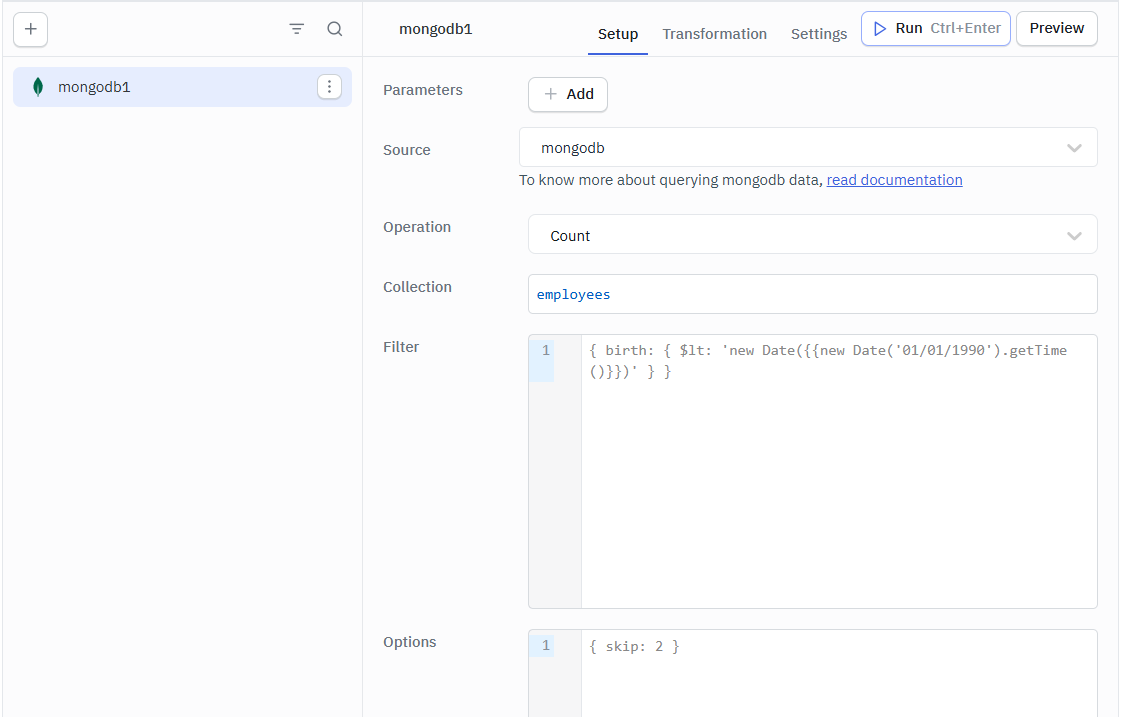
Distinct
Retrieve a list of distinct values for a field based on the filter. Reference
Required Parameters:
- Collection
- Field
Optional Parameters:
- Filter
- Option
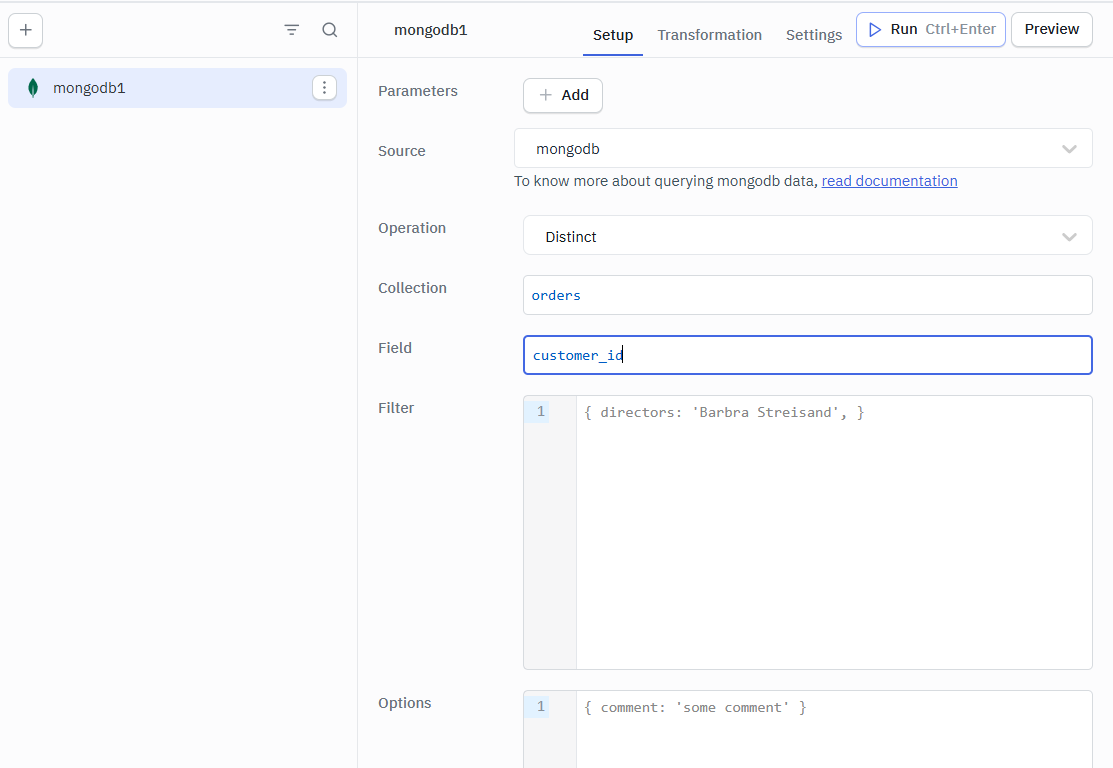
Insert One
Insert a document. Reference
Required Parameters:
- Collection
- Document
Optional Parameters:
- Option
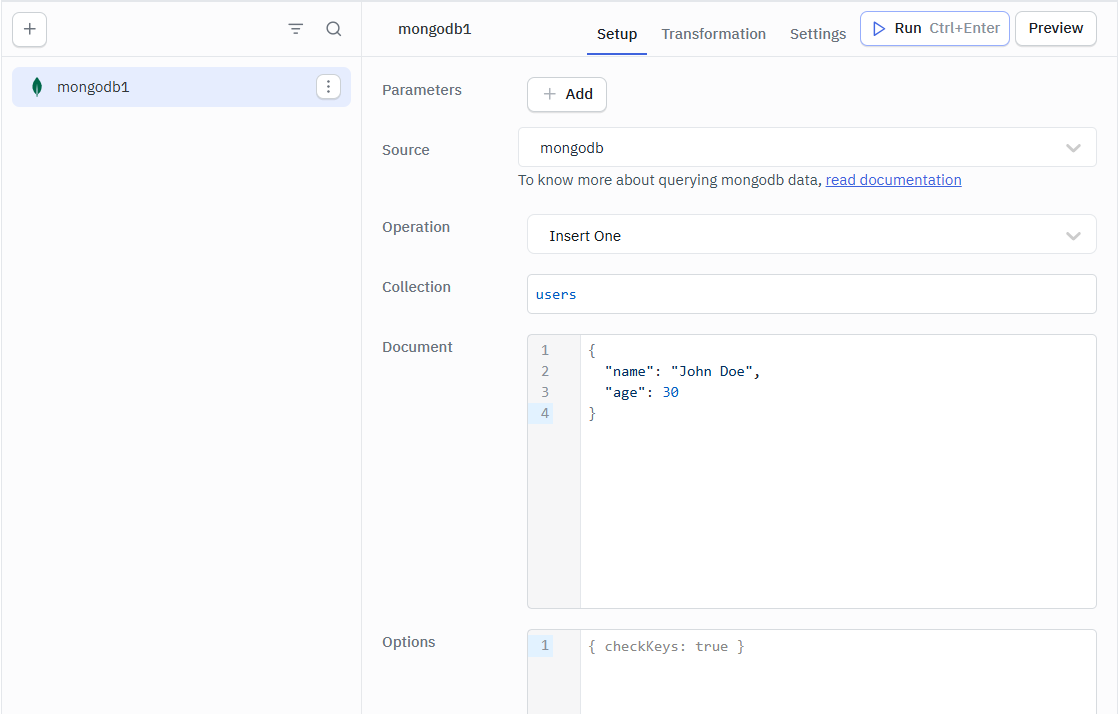
Example:
{
  "name": "John Doe",
  "age": 30
}
Insert Many
Insert list of documents. Reference
Required Parameters:
- Collection
- Document
Optional Parameters:
- Option
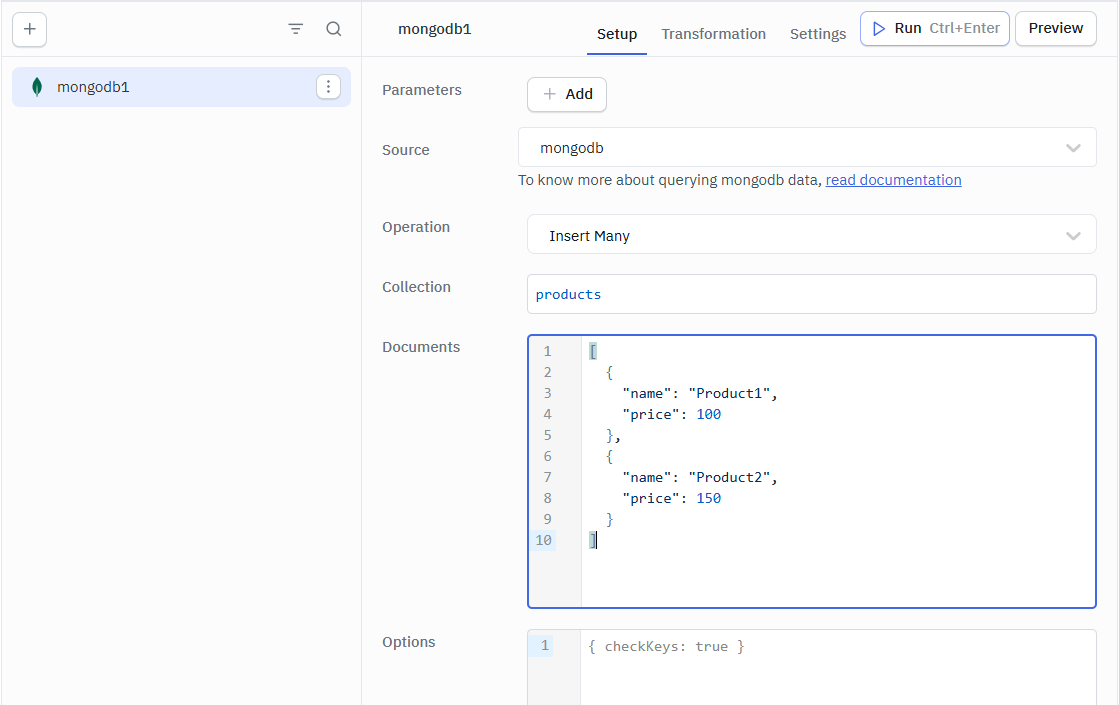
Example
[
  {
    "name": "Product1",
    "price": 100
  },
  {
    "name": "Product2",
    "price": 150
  }
]
Update One
Update a document based on the filter. Reference
Required Parameters:
- Collection
- Filter
- Update
Optional Parameters:
- Option
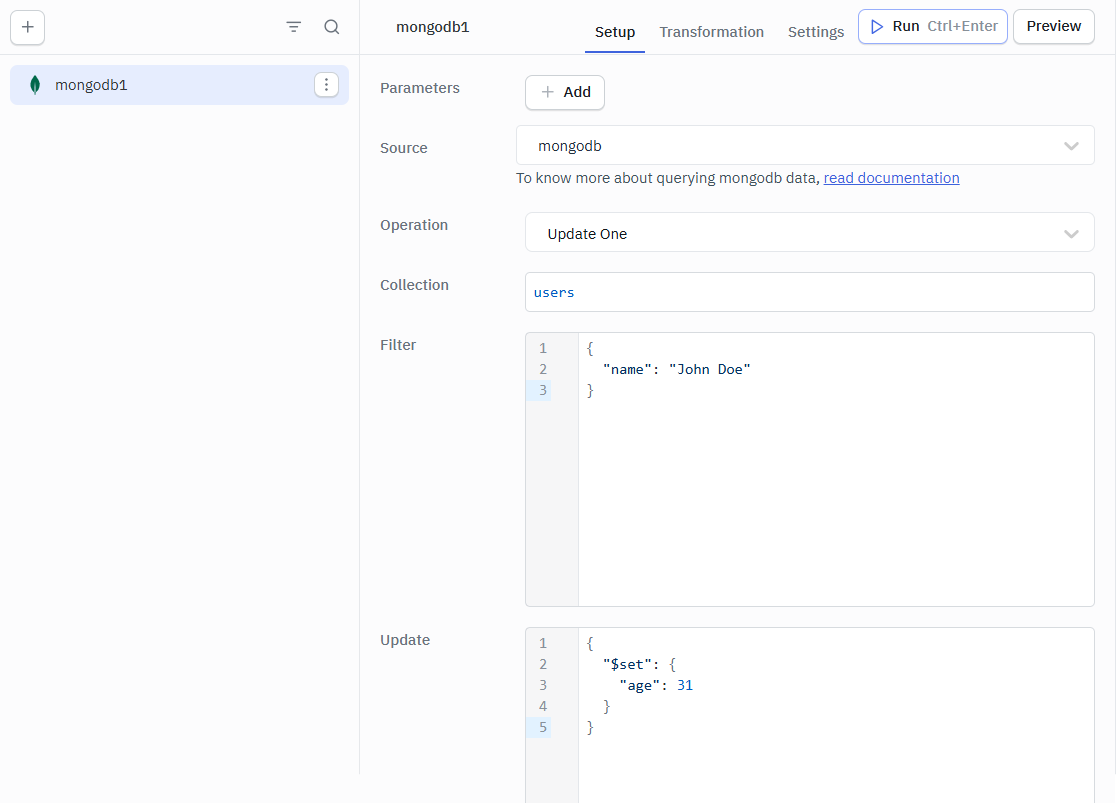
Example
Filter
{
  "name": "John Doe"
}
Update
{
  "$set": {
    "age": 31
  }
}
Update Many
Update many documents based on the filter. Reference
Required Parameters:
- Collection
- Filter
- Update
Optional Parameters:
- Option
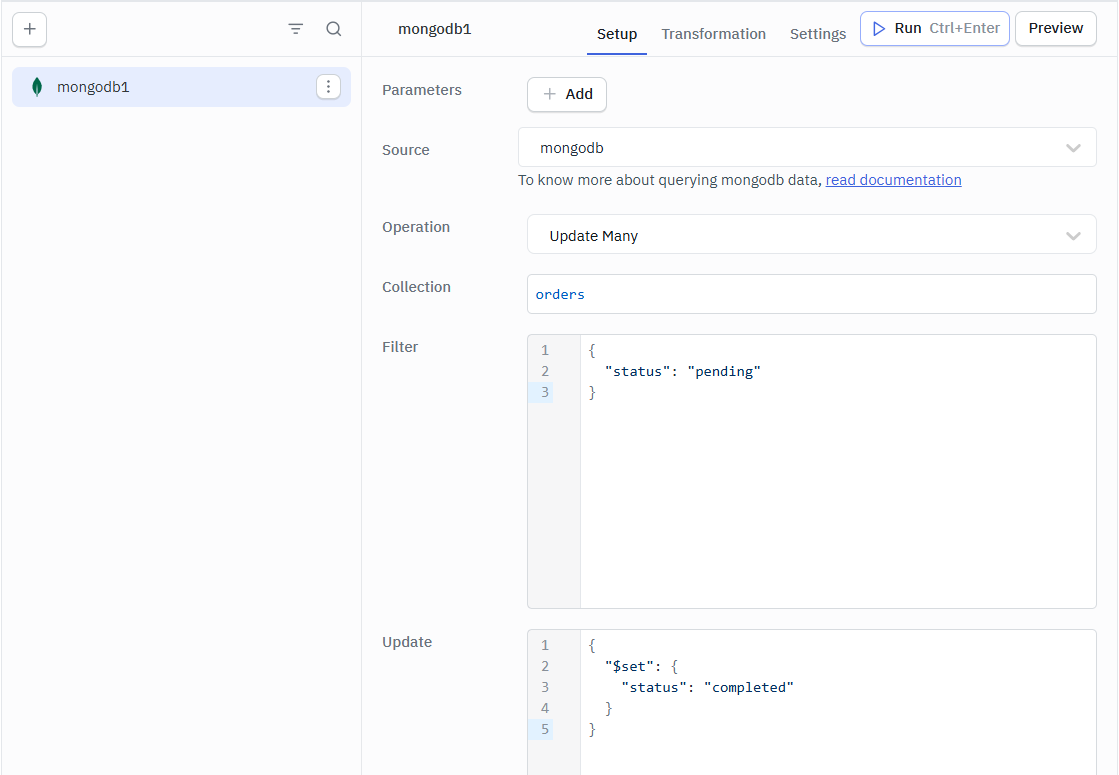
Example
Filter
{
  "status": "pending"
}
Update
{
  "$set": {
    "status": "completed"
  }
}
Replace One
Replace a document based on filter. Reference
Required Parameters:
- Collection
- Filter
- Replacement
Optional Parameters:
- Option
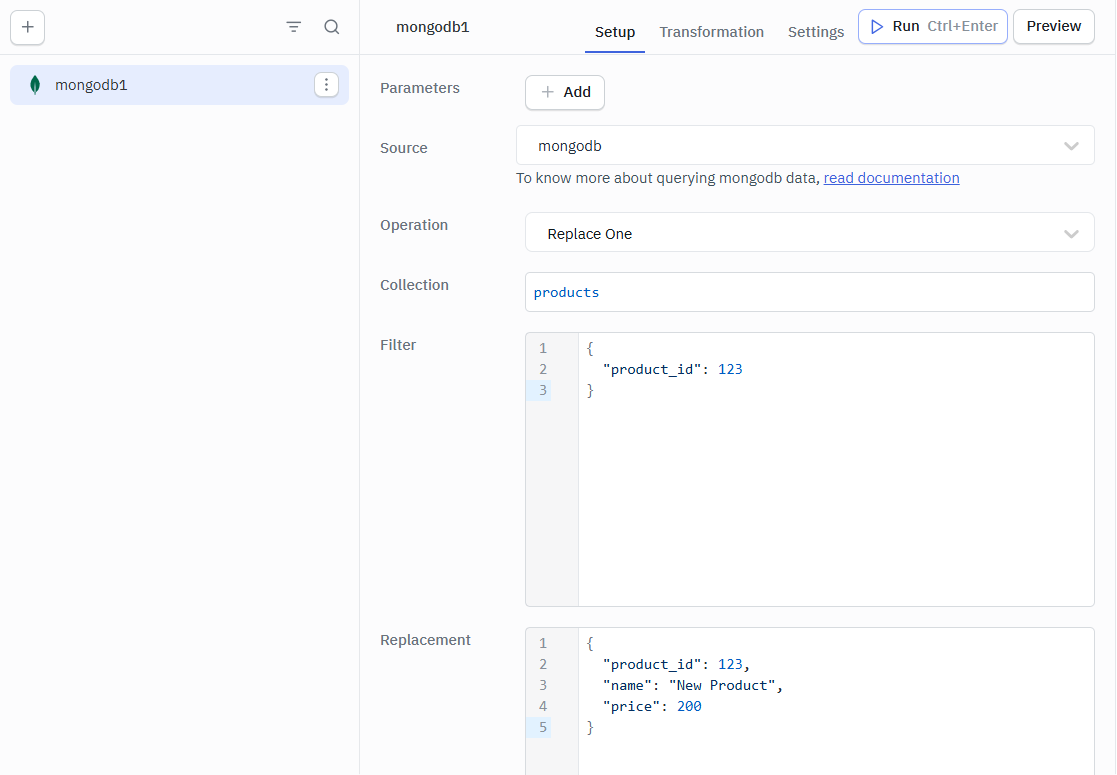
Example
Filter
{
  "product_id": 123
}
Replacement
{
  "product_id": 123,
  "name": "New Product",
  "price": 200
}
Find One and Update
If your application requires the document after updating, use this instead of Update One. Reference
Required Parameters:
- Collection
- Filter
- Update
Optional Parameters:
- Option
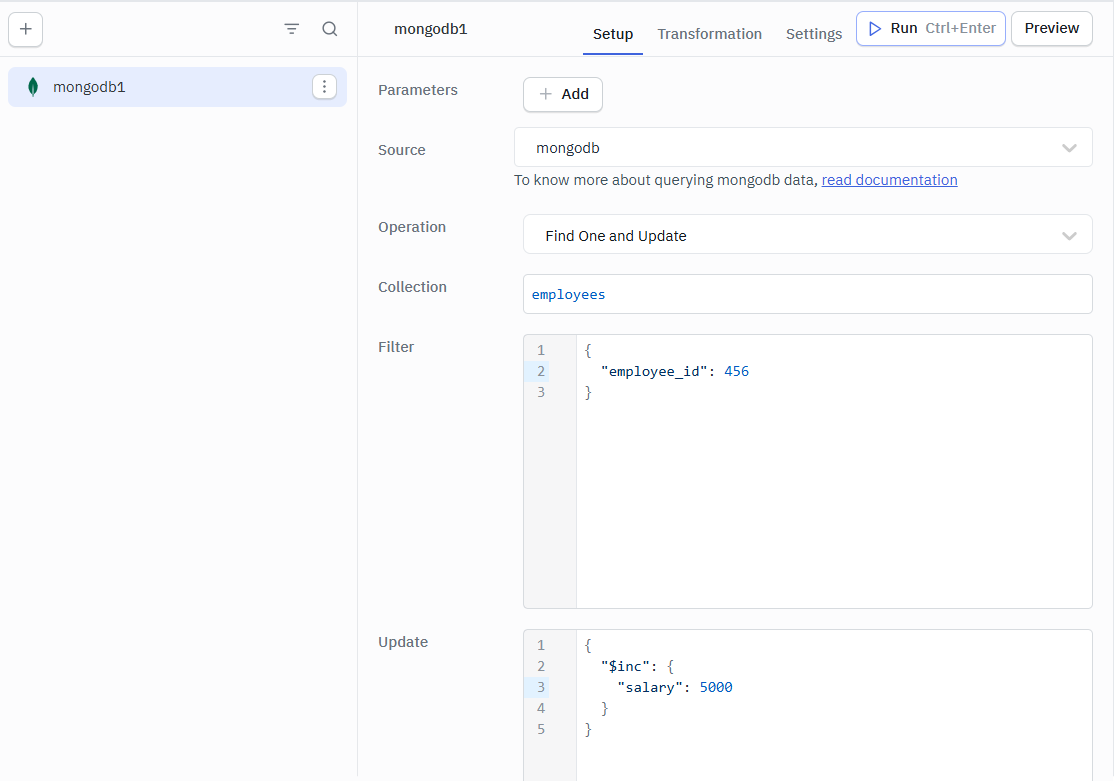
Example
Filter
{
  "employee_id": 456
}
Update
{
  "$inc": {
    "salary": 5000
  }
}
Find One and Replace
If your application requires the document after updating, use this instead of Replace One. Reference
Required Parameters:
- Collection
- Filter
- Replacement
Optional Parameters:
- Option
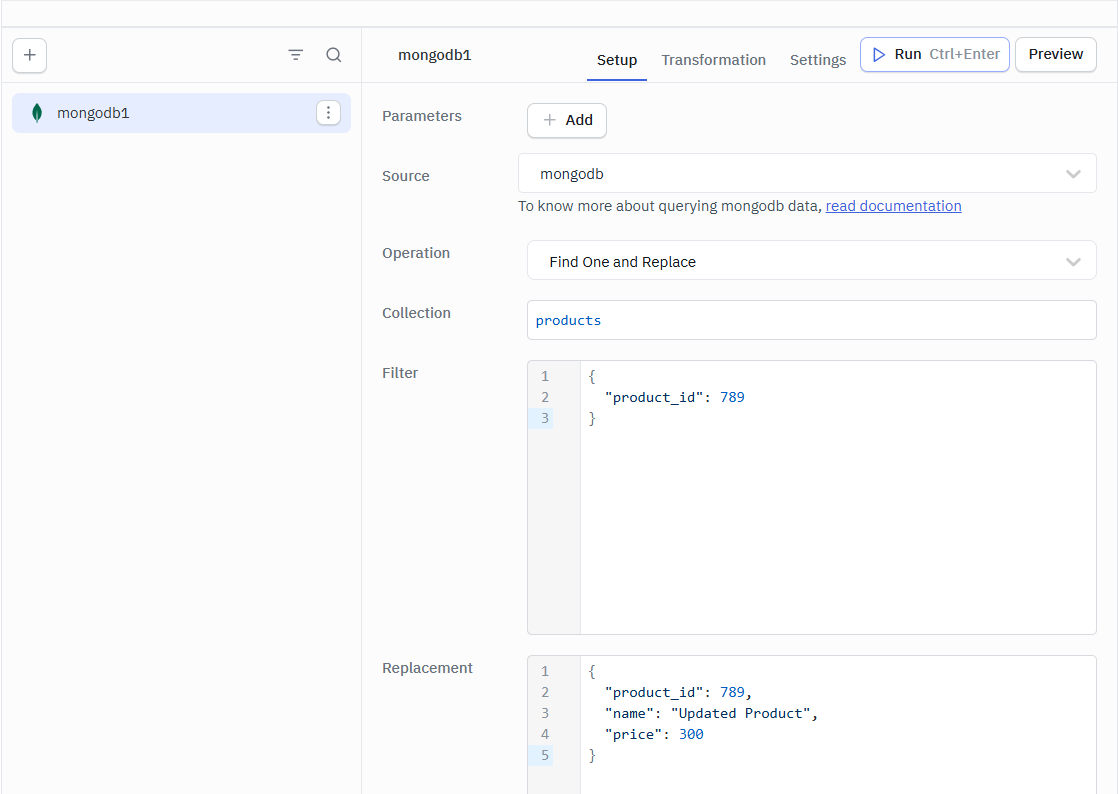
Example
Filter
{
  "product_id": 789
}
Replacement
{
  "product_id": 789,
  "name": "Updated Product",
  "price": 300
}
Find One and Delete
If your application requires the document after deleting, use this instead of Delete One. Reference
Required Parameters:
- Collection
- Filter
Optional Parameters:
- Option
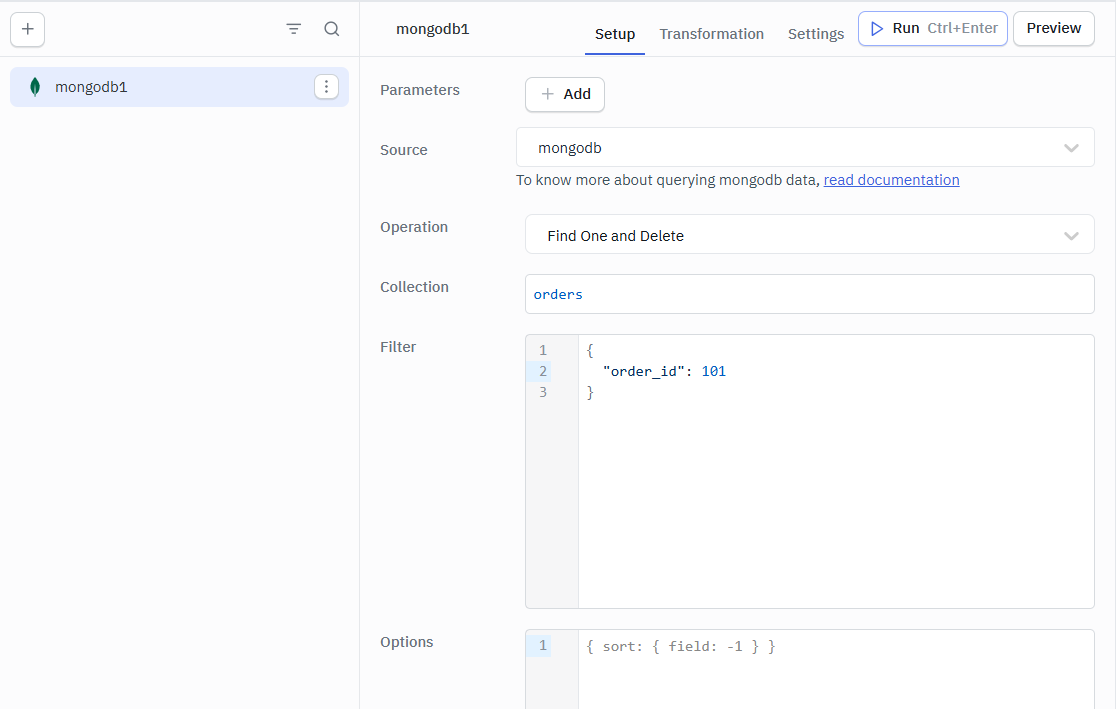
Example
{
  "order_id": 101
}
Aggregate
Aggregation operations are expressions you can use to produce reduced and summarized results. Reference
Required Parameters:
- Collection
- Pipeline
Optional Parameters:
- Option
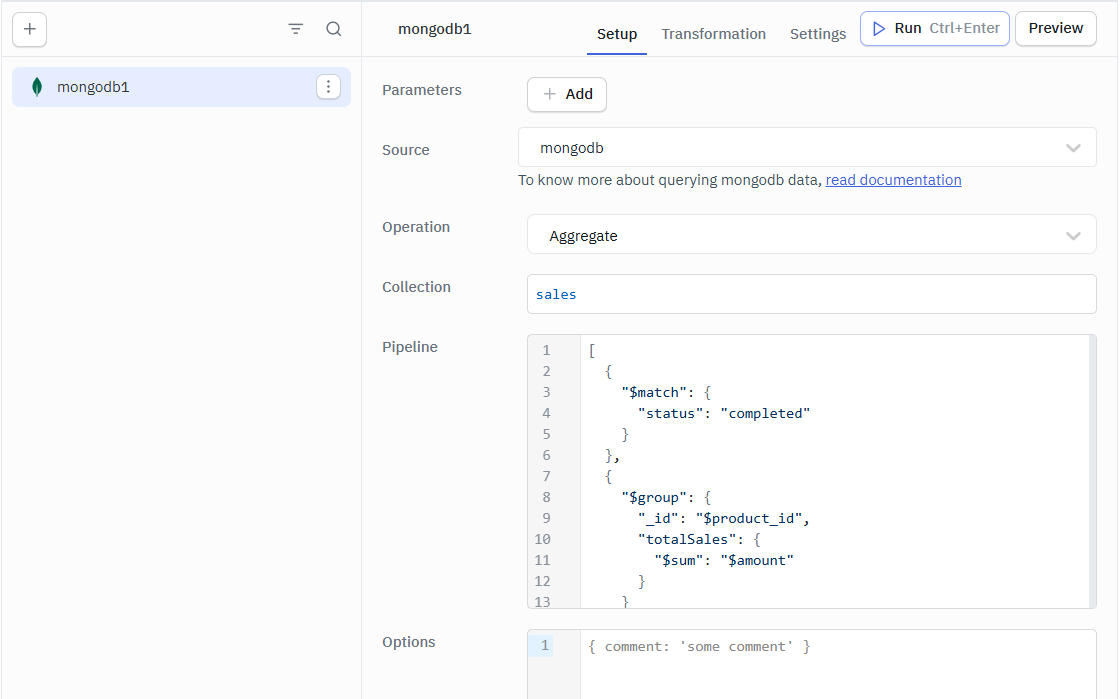
Example
[
  {
    "$match": {
      "status": "completed"
    }
  },
  {
    "$group": {
      "_id": "$product_id",
      "totalSales": {
        "$sum": "$amount"
      }
    }
  }
]
Delete One
Delete a record based on the filter. Reference
Required Parameters:
- Collection
- Filter
Optional Parameters:
- Option
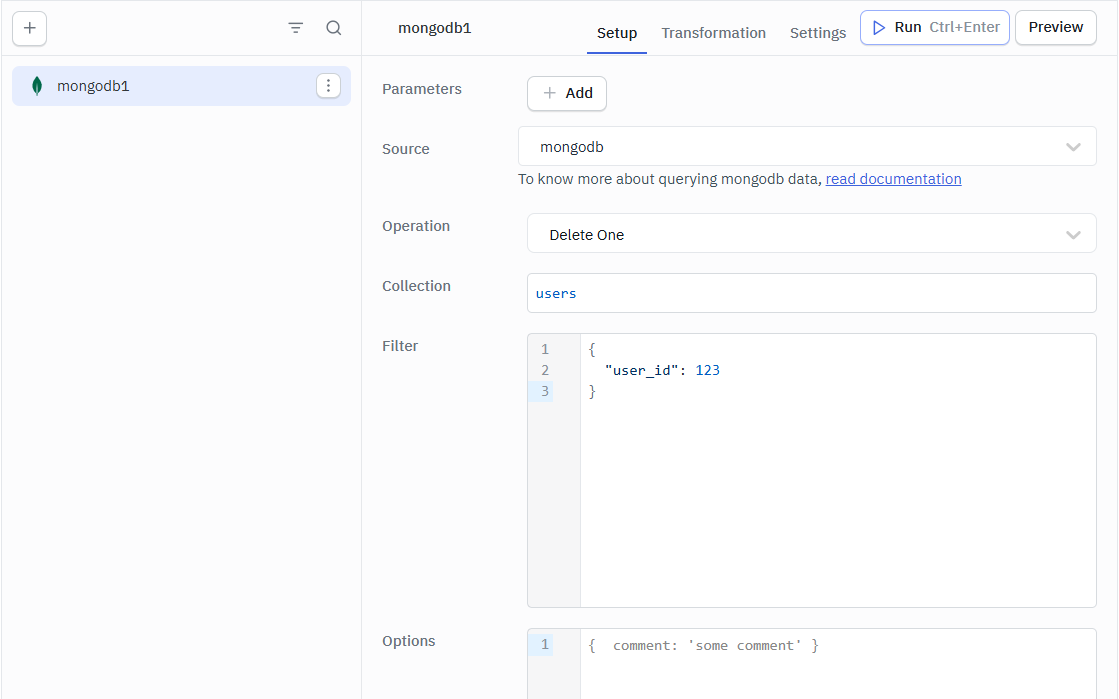
Example
{
  "user_id": 123
}
Delete Many
Delete many records based on the filter. Reference
Required Parameters:
- Collection
- Filter
Optional Parameters:
- Option
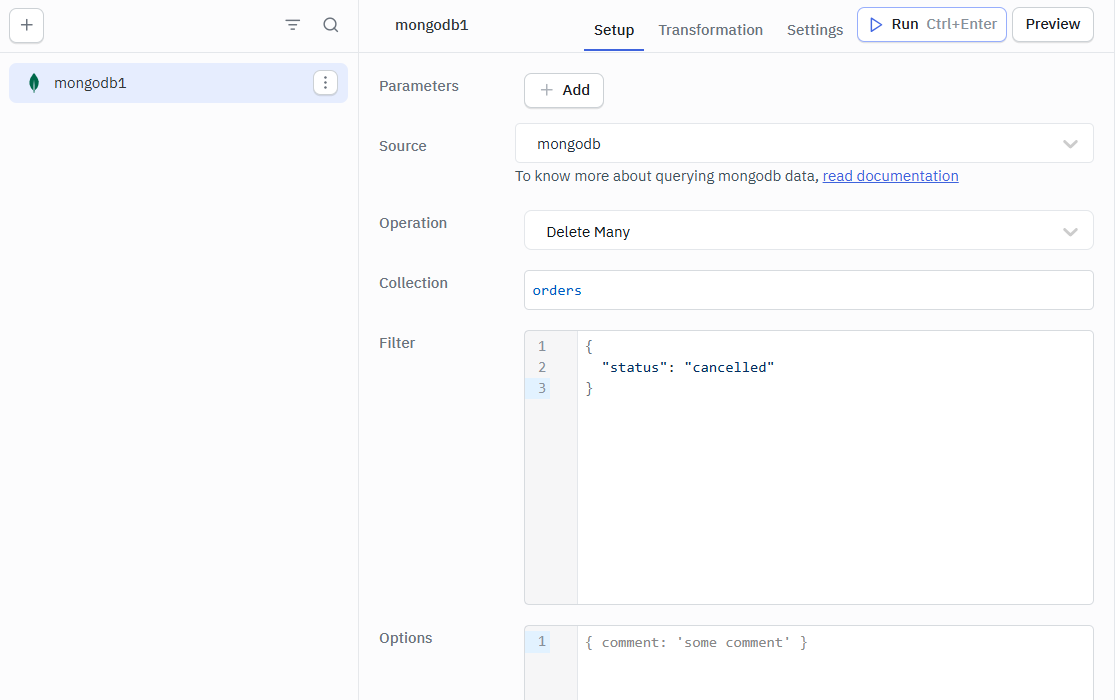
Example
{
  "status": "cancelled"
}
Bulk Operations
Perform bulk operations. Reference
Required Parameters:
- Collection
- Operations
Optional Parameters:
- Option
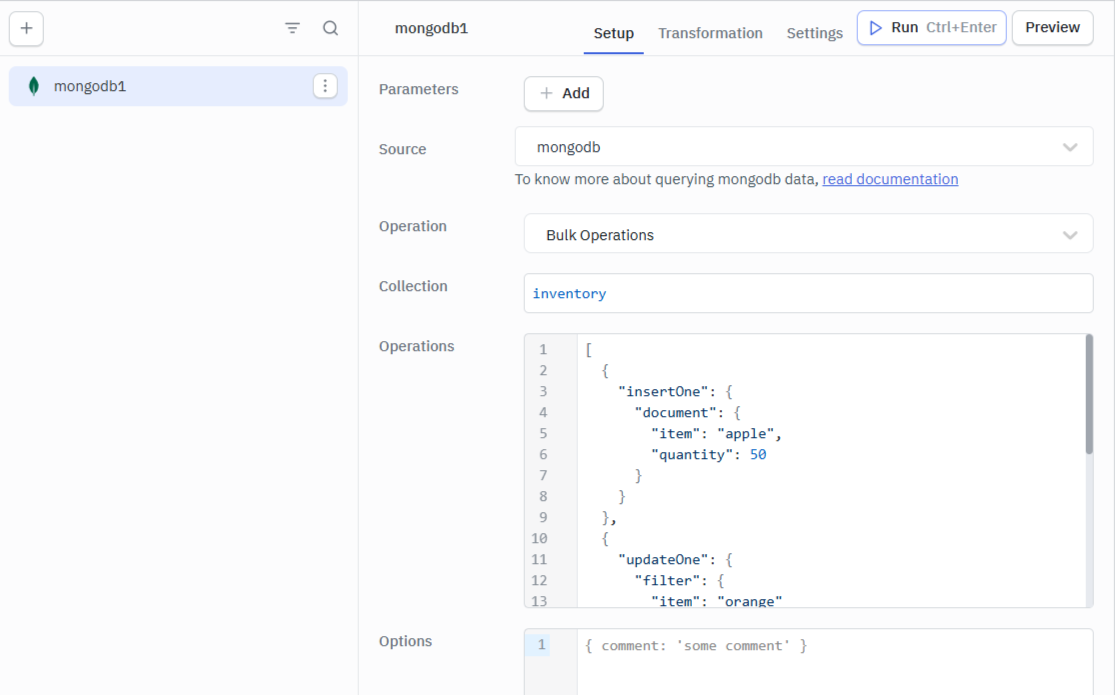
Example
[
  {
    "insertOne": {
      "document": {
        "item": "apple",
        "quantity": 50
      }
    }
  },
  {
    "updateOne": {
      "filter": {
        "item": "orange"
      },
      "update": {
        "$set": {
          "quantity": 100
        }
      }
    }
  },
  {
    "deleteOne": {
      "filter": {
        "item": "banana"
      }
    }
  }
]
Dynamic Queries
Dynamic queries in MongoDB can be used to create flexible and parameterized queries.
Example
{ amount: { $lt: '{{ components.textinput1.value }}' }}

// Dates
// supported: Extended JSON syntax
{ createdAt: { $date: '{{ new Date('01/10/2020') }}'} }
// not supported: MongoDB classic syntax
{ createdAt: new Date('01/10/2020') }
Reference on mongodb extended JSON supported data types.