Use AI in ToolJet
AI Capabilities
Everything you can do with ToolJet AI
Inside the AI Chat
The AI chat works the same way in visual applications and React Builder applications.
AI Configuration
Choose how AI requests are powered: based on your cost, compliance, and infrastructure needs
For a full architecture breakdown and a side-by-side comparison of all four setups, see Setup ToolJet AI in the deployment docs.
- No configuration needed
- Credit-based billing
- Monthly + add-on credits
- Direct billing from your LLM provider
- Full usage visibility
- No ToolJet credits consumed
- Fully air-gapped deployment
- Your own LLM keys
- Meets strict data residency requirements
AI Chat in the App Builder
Find your past chats and other ways to build with AI
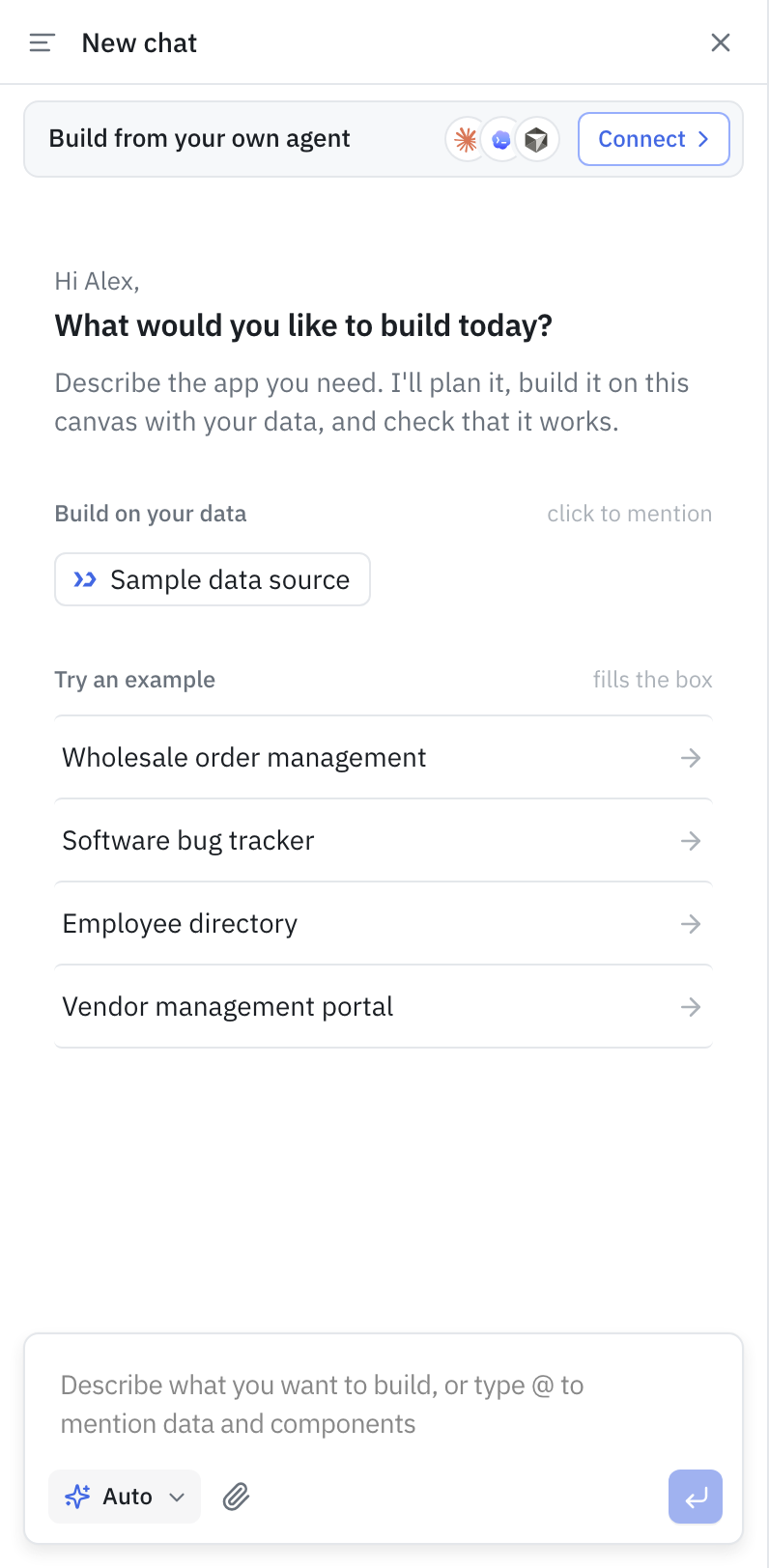
Open the AI chat by clicking AI chat in the left sidebar of the App Builder or Module Builder. It's shown only when AI features are enabled for the workspace. In a React Builder app, the chat opens with the editor.
A new chat shows example prompts and, in an app, the datasources that can be mentioned. Click a datasource to mention it in the message, or click an example to fill the message box. Nothing is sent until the message is sent.
Chat History
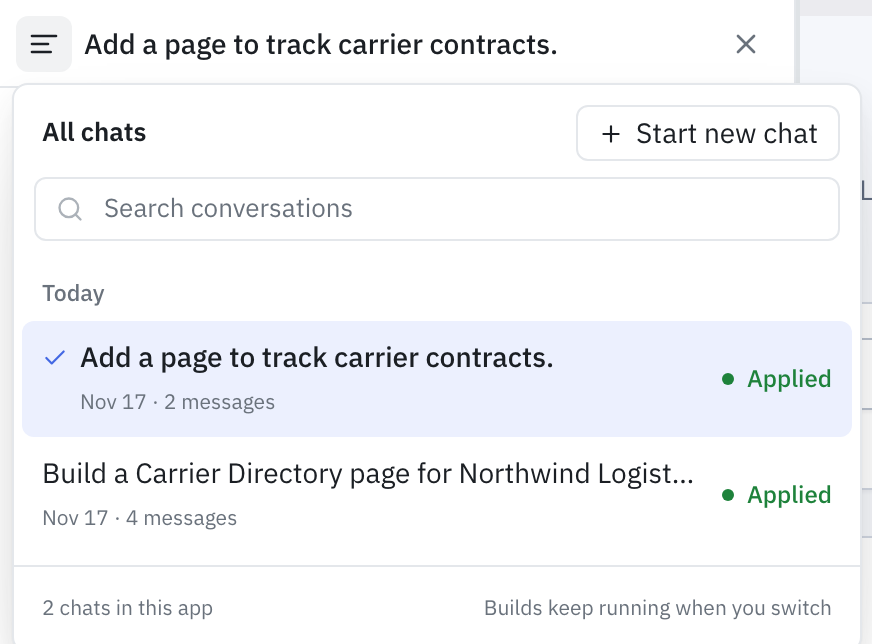
Each app keeps its own AI chats, and each user sees only the chats they started. Click the Chats button at the top-left of the AI chat panel to open All chats, which lists the user's chats for this app. Each one shows its status, such as Building or Needs you, with the date and number of messages. A build keeps running when another chat is opened.
- To find a chat, type in Search conversations. The list is filtered by chat title, which is a short summary of the first message in that chat.
- To start over, click Start new chat. The button is disabled while the AI is working on a request. If an empty chat already exists, ToolJet opens it instead of creating another one.
When a chat reaches its context limit, a card titled "This chat is full" replaces the message box. Click Continue on new chat to open a new chat that starts with a summary of the current one and sends it automatically. The new chat keeps the same model, so the AI can pick up where it left off.
Build From Your Coding Agent
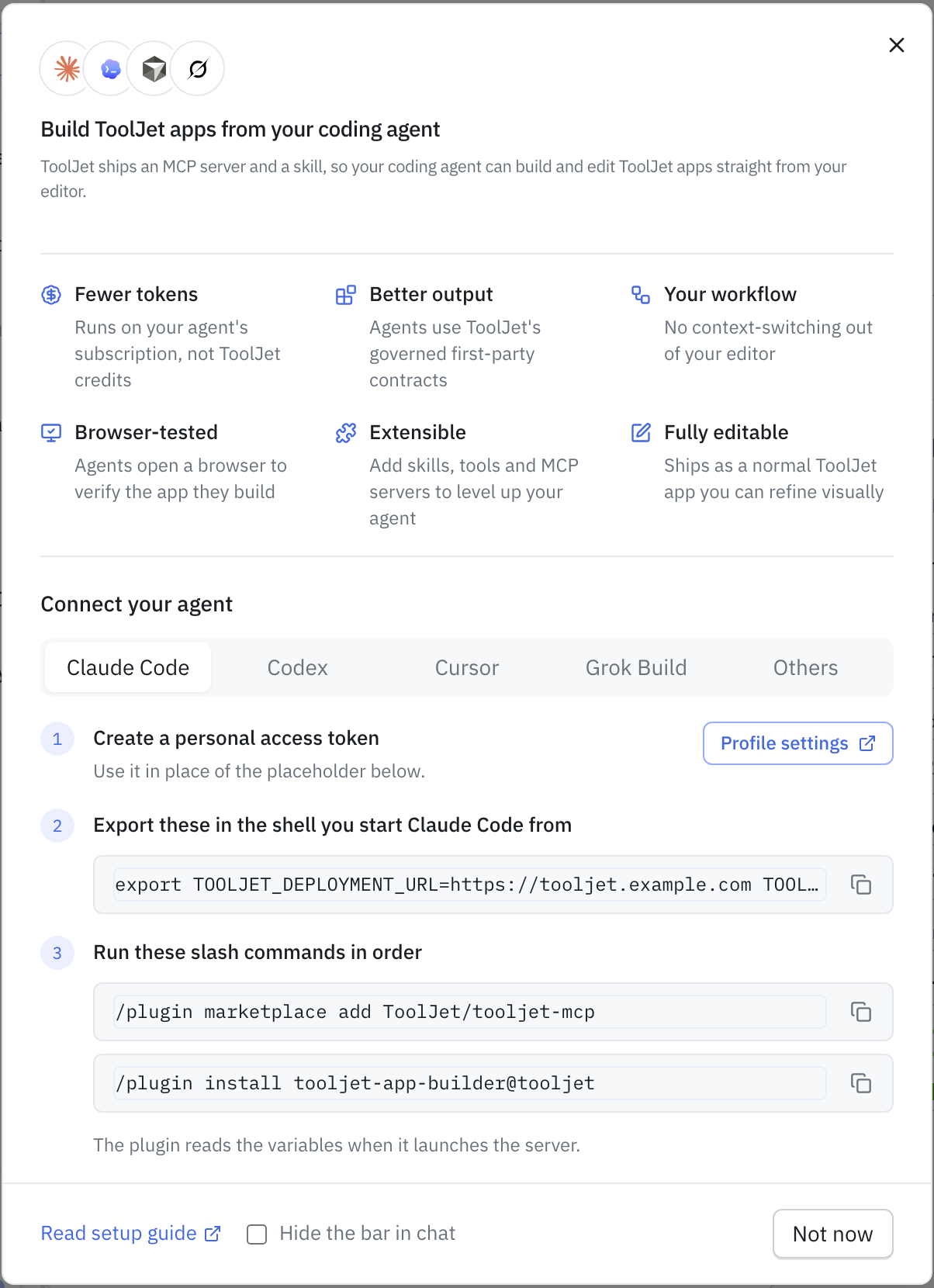
Under its header, the AI chat shows a Build from your own agent bar. Click Connect on it to open Build ToolJet apps from your coding agent, which lists the commands to connect Claude Code, Codex, Cursor, Grok Build, or another MCP client (Others) to the ToolJet instance through the ToolJet MCP server. The commands already include the instance's ToolJet URL; replace the token placeholder with a personal access token. On ToolJet Cloud, the dialog can also offer OAuth: the agent signs in through the browser, and no token is needed. Building this way runs on the coding agent's subscription instead of ToolJet AI credits.
In a React Builder app, the bar reads Work on this app in your editor instead. Click Open to work on the app's code from a local code editor, terminal, or coding agent. See Build Locally.
The bar steps aside while a build runs. To hide it for good, select Hide the bar in chat at the bottom of the dialog: it stays hidden in that browser. The bar in a React Builder app has no such option.
Data & Privacy
Understand how ToolJet handles your data when AI is involved