App History
App History keeps a timeline of the changes made to an app version in the App Builder. Use it to see who changed what and when, and to restore the app to an earlier point if a change breaks something.
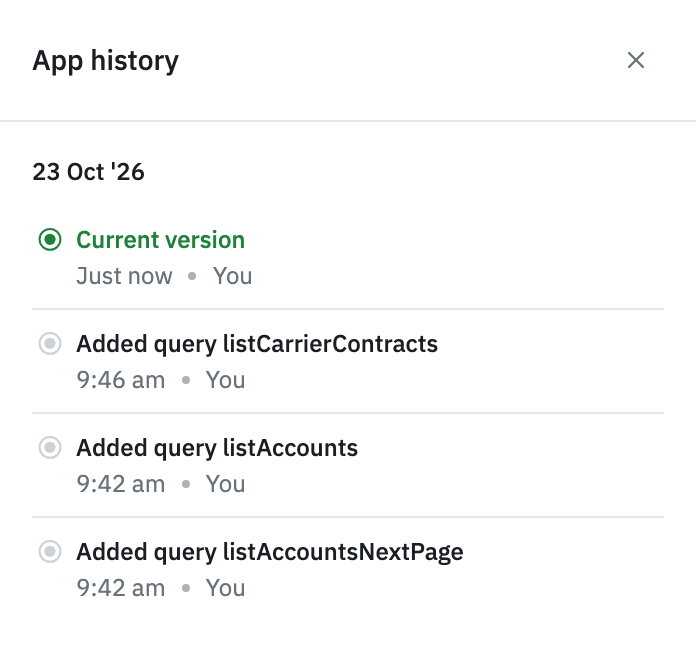
Opening App History
Click the App History icon in the left sidebar of the App Builder. The App history panel opens and lists the changes for the version you're editing. The list updates live as you and other builders make changes.
App History isn't available in the module editor.
What App History Records
ToolJet adds an entry each time a change to the app version is saved, including when you:
- Add, modify, move, resize, or delete components.
- Add, modify, clone, reorder, or delete pages and page groups.
- Add, modify, or delete queries, or change query folders.
- Add, modify, reorder, or delete event handlers.
- Change global settings, page settings, or the home page.
- Make changes with ToolJet AI.
Each entry shows:
- Description: A summary of the change, generated automatically, for example
Added component(s) ordersTable on HomeorModified query getOrders. For changes made with ToolJet AI, the description is the prompt you sent. - Time:
Just now, the number of minutes ago (for example5m ago), or the time of day for older changes. - Author: You for your own changes, otherwise the user's first name and last initial. Changes made with ToolJet AI also show the ToolJet AI icon.
Entries are grouped by day (Today, Yesterday, then the date), newest first. The top entry is labelled Current version and represents the app's current state.
Restoring an Earlier State
- In the App history panel, click the options menu (⋮) on the entry you want to go back to.
- Click Restore.
- In the Restore this app version? dialog, click Restore.
ToolJet replaces the version's components, pages, queries, event handlers, and settings with their state at that entry, and the App Builder reloads the app. A new entry, Restored to "<entry description>", is added to the top of the timeline. Entries after the restored point stay in the list, so you can restore to a later point if you need to recover recent work.
Restore isn't available on the Current version entry.
Renaming an Entry
Give important points in the timeline a meaningful name so they're easier to find later.
- Click the options menu (⋮) on the entry.
- Click Rename.
- In the Rename version dialog, enter a name in Version name.
- Click Rename version.
Renaming only changes the entry's description. It doesn't change the app. The name can't be empty.
Limits
- Each app version has its own timeline. Switching versions shows that version's history.
- The panel shows the 100 most recent entries. Older entries are removed automatically.
- On a released version, or when the editor is read-only, you can view the timeline but can't restore or rename entries.
Permissions
Admins, super admins, and users with edit permission for the app can view the timeline, restore entries, and rename entries.
ToolJet writes history entries through a background job queue that uses Redis. At least one ToolJet server must run with WORKER=true for changes to be recorded. See Redis Configuration and Workflow Scheduling for the related environment variables.