Setting Up Events
Events define how your app should respond when a user interacts with a component or when a specific system condition is met. Whether it's clicking a Button component, selecting an item from a Dropdown, or completing a query, events let you tie in logic that makes your app interactive and reactive.
You can use event triggers to run queries, update variables, show alerts, navigate to different pages, and more. Each event can be configured to trigger one or more actions in sequence, allowing you to build complex logic flows easily. Refer to the individual component guide to see the full list of supported events, and check out the Action Reference for all available actions.
Configuring an Event Handler
Suppose you're building a feedback form using a Form component that submits user input to a database whenever the user clicks on the submit button. To achieve this, you can configure the submit button to trigger a query when clicked.
First, create a query and name it addData. This query inserts Form values into the database. Then, configure the Button with the following event handler:
- Event: On Click
- Action: Run Query
- Query: addData
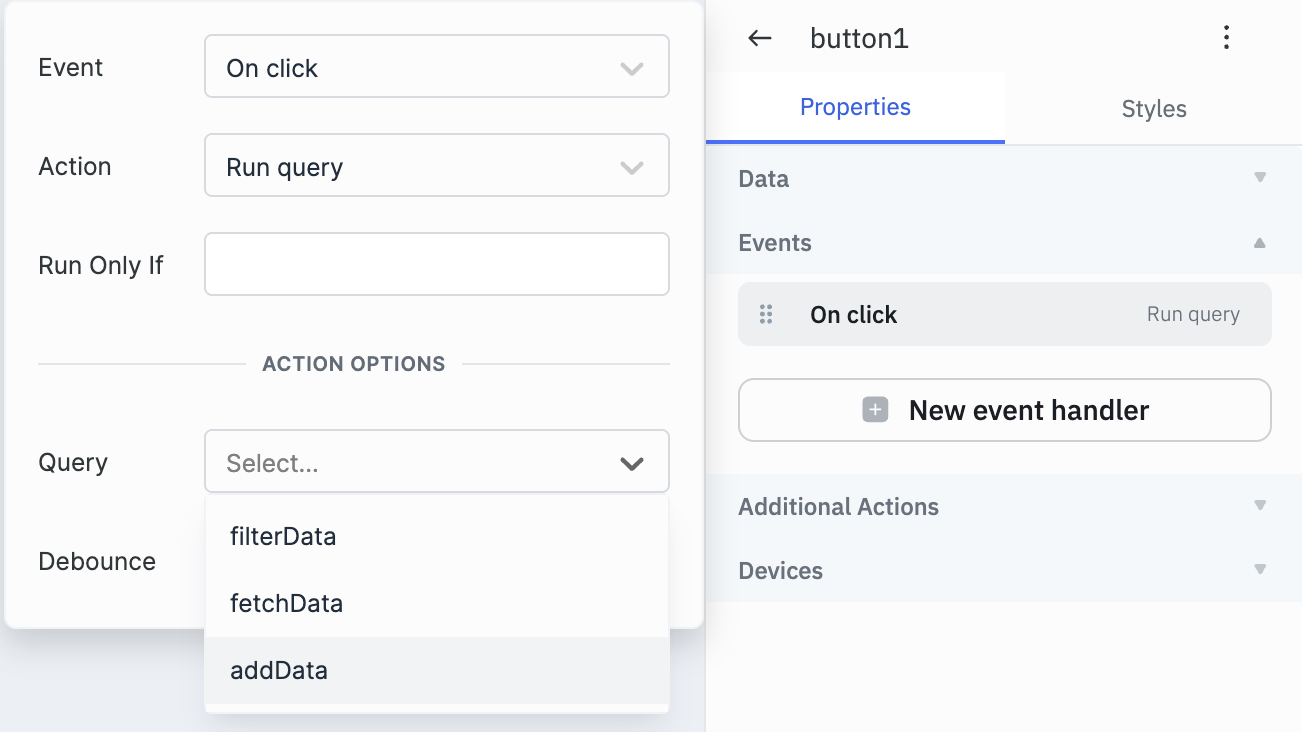
This setup ensures that every time the button is clicked, the Form data is sent to your database.

Configuring Sequential Event Handler
Continuing the previous example. After submitting the form, you may want to update the UI by fetching the latest data. To do this, create a new query and name it fetchData that retrieves updated records from the database.
Next, configure an event handler that runs sequentially after the addData query succeeds:
- Event: Query Success
- Action: Run Query
- Query: fetchData
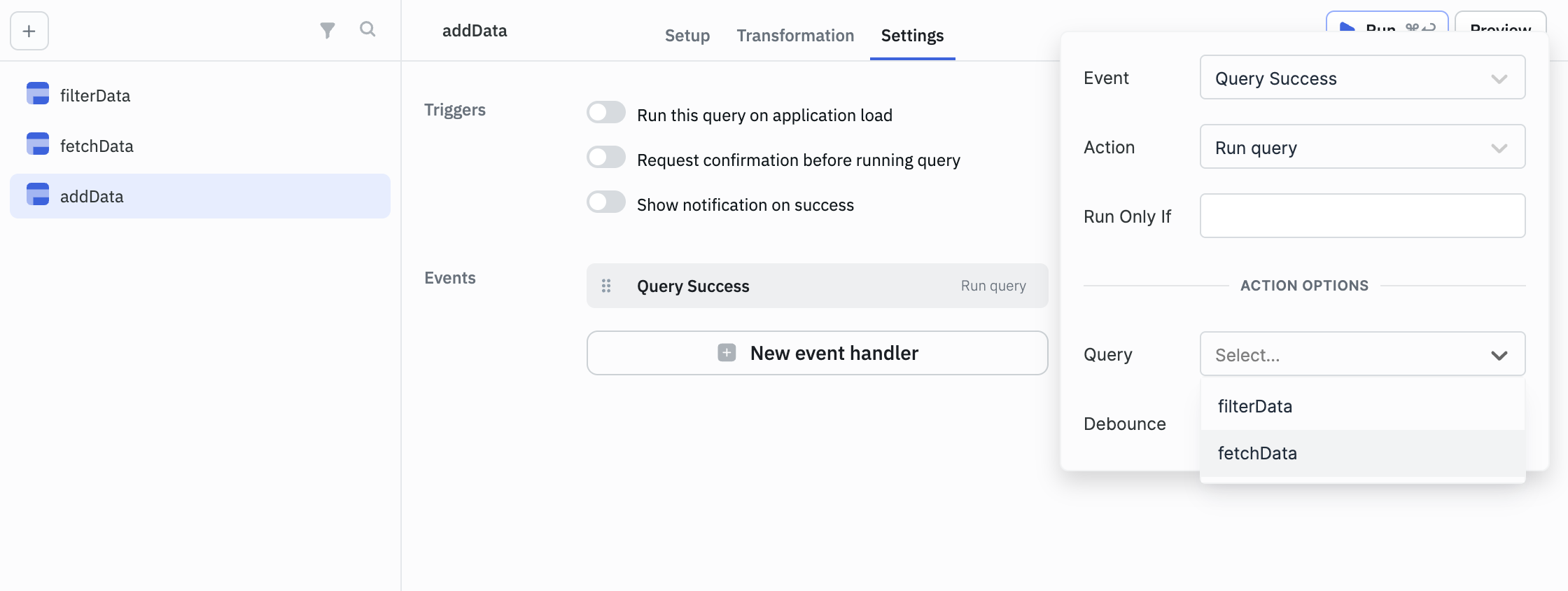
This setup ensures that the fetchData query is triggered automatically when the addData query completes successfully.

Whether it's submitting a form, running a query, or updating your UI, events and actions let you define dynamic, logic-driven behavior without writing backend code.
Managing Event Handlers
Each event handler has two additional controls accessible by expanding it in the Events panel:
Enable event: A toggle that turns the handler on or off without deleting it. When disabled, the handler is skipped at runtime — useful for testing or debugging without losing the handler configuration.
Event name: A free-text field for assigning a custom label to the handler. Use this to distinguish between multiple handlers on the same event — for example, naming one "log to console" and another "trigger refresh" when both fire on On click.
