Query Level Permissions
Query-level permissions allow you to control which users can execute specific queries. This is crucial for protecting sensitive data operations and ensuring only authorized users can perform query execution.
For public released apps, only non-restricted queries will be accessible to everyone. Restricted queries won't be accessible to anyone including the users or user groups who have access to it.
Common Use Cases
- Data modification operations: Restrict CREATE, UPDATE, DELETE queries to authorized users only.
- Sensitive data access: Limit access to queries that fetch personal information, financial data, or confidential records.
- Administrative functions: Control queries that manage user accounts, system settings, or configuration data.
- Departmental data: Restrict HR queries to HR team, Sales queries to Sales team.
- Audit and compliance: Limit access to queries that generate audit trails or compliance reports.
Scenarios
- When you need granular control over who can execute specific operations.
- When different user roles should access different data sets from the same tables.
- When you want to prevent accidental data modification by restricting write operations.
Configuring Query Level Permission
Role Required: Admin or Builder
- Select the query, then click the kebab menu (three dots) next to the query name on the query panel.
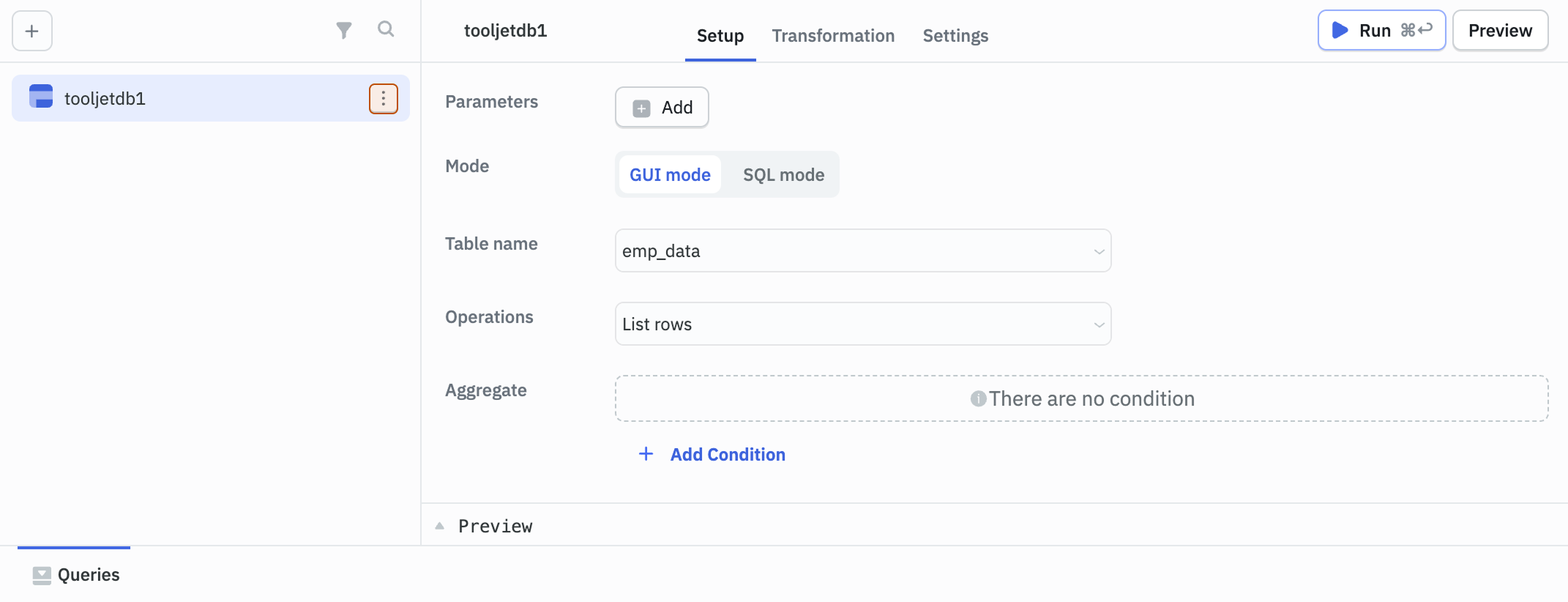
- Select Query permission.
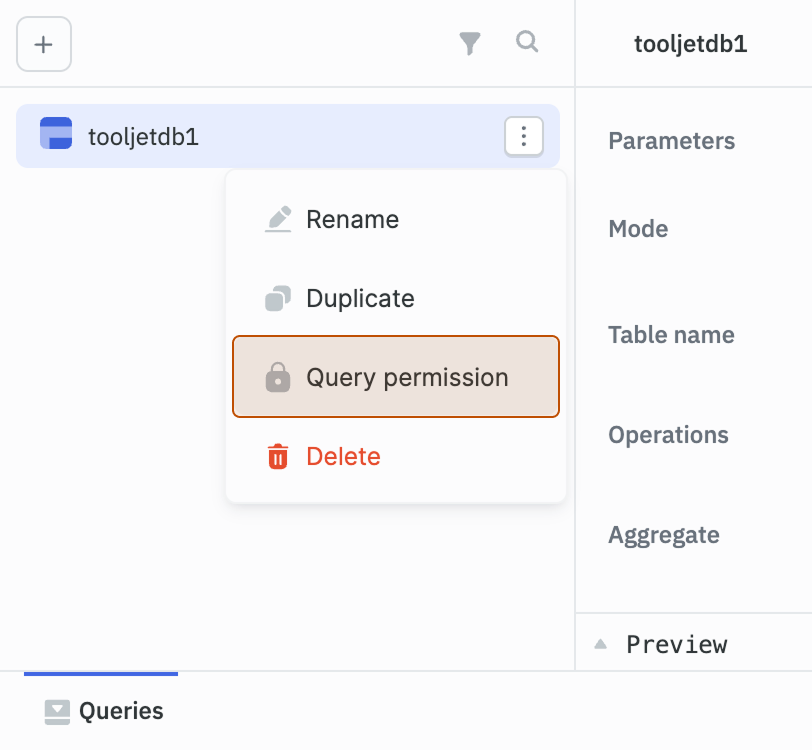
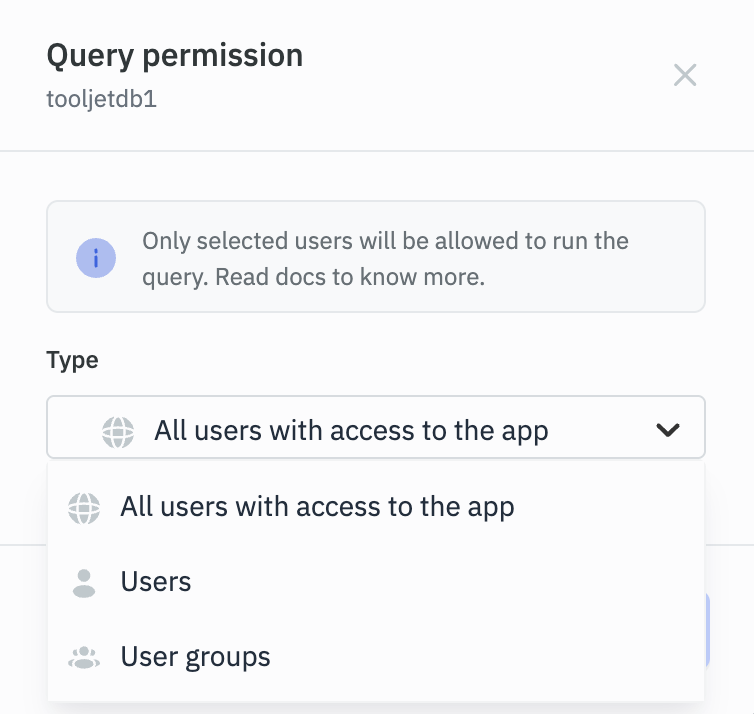
- Select the Type:
- All users with access to the app: Grants access to all users who can access the application.
- Users: Select specific users from the dropdown (only the users with access to the application will be shown in the dropdown).
- User groups: Restricts access to members of selected user groups (only the default user roles and custom groups which has access to the application will be shown in the dropdown).
If an admin restricts a query and doesn't include the builder in the allowed users or groups, the builder will lose access to run, modify, or change permissions for that query. This is to prevent builders from overriding security policies established by administrators. To regain access, the builder must be explicitly added to the allowed users/groups by the admin.
Handling Access Denied Scenarios
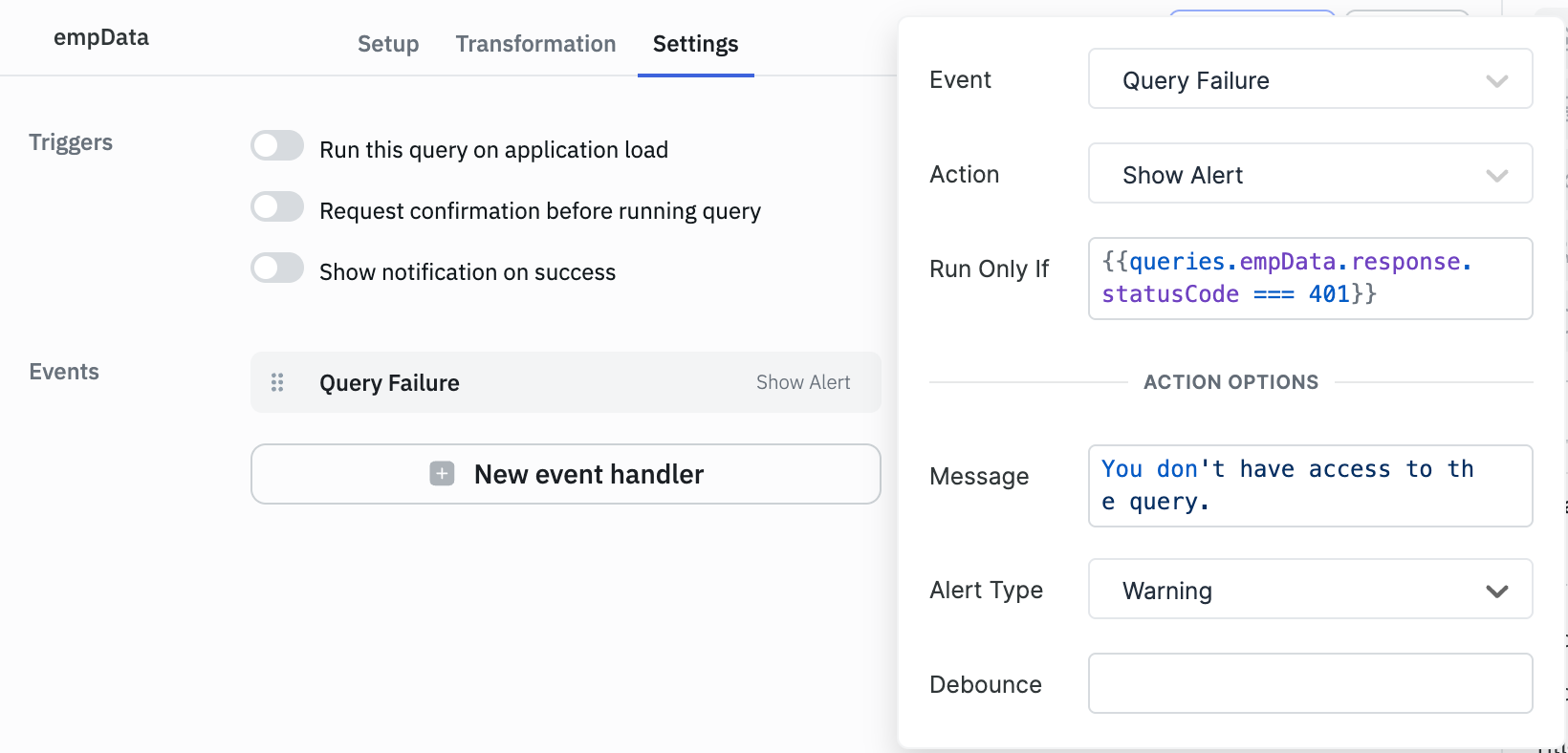
When a user attempts to run a query they don't have permission to access, admin can configure error handling by following the given steps:
- Navigate to the query's Settings > Event handler.
- Add a Query Failure event handler.
- In the Run Only If property, add:
{{queries.<query_name>.response.statusCode === 401}}. - Configure appropriate actions like showing an error message, redirecting users, or logging the access attempt.
Need Help?
- Reach out via our Slack Community
- Or email us at [email protected]
- Found a bug? Please report it via GitHub Issues