Page Level Permissions
Page permissions control who can access a particular page in your application. When a user doesn't have permission to access a page, they won't be able to navigate to it.
note
- If the user tries to access a restricted page, they will be redirected to home page if that's accessible, otherwise they will get redirected to the next accessible page.
- User won't be able to access the application itself if all the pages are inaccessible.
- For public released apps, only non-restricted pages will be accessible to everyone. Restricted pages won't be accessible to anyone including the users or user groups who have access to it.
Common Use Cases
- Administrative pages: Restrict access to admin related pages only to the authorized users.
- Department-specific dashboards: Create separate pages for Sales, Marketing, HR that only relevant teams can access.
- Sensitive reporting: Hide financial reports, audit logs, or compliance pages from unauthorized users.
Scenarios
- When entire sections of your application should not be accessible to certain user roles.
- When you need to create role-specific landing pages or dashboards.
- When compliance requires complete segregation of certain functionality.
Configuring Page Level Permission
Role Required: Admin or Builder
- Navigate to the application where you want to configure the page permission.
- Click the kebab menu (three dots) next to the page name and select Page permission.

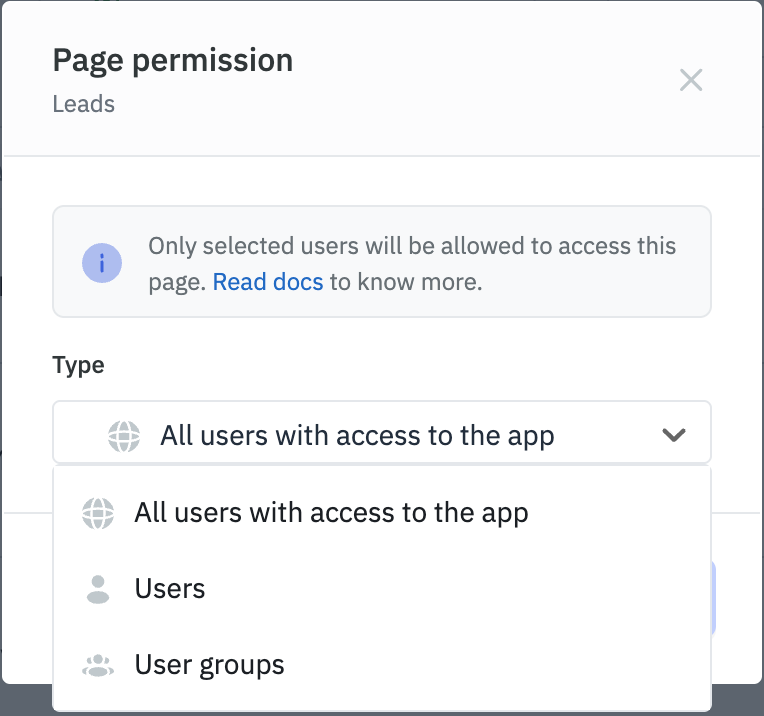
- Choose your permission type:
- All users with access to the app: Grants access to all users who can access the application.
- Users: Select specific users from the dropdown (only the users with access to the application will be shown in the dropdown).
- User groups: Restrict access to members of selected user groups (only the default user roles and custom groups which has access to the application will be shown in the dropdown).
Need Help?
- Reach out via our Slack Community
- Or email us at [email protected]
- Found a bug? Please report it via GitHub Issues