Component Level Permissions
Component-level permissions control which UI elements users can see and interact with. Components that users don't have permission to access will not render at all in their interface.
For public released apps, only non-restricted components will be accessible to everyone. Restricted components won't be accessible to anyone including the users or user groups who have access to it.
Common Use Cases
- Sensitive action buttons: Hide action buttons such as Edit, Delete, and Approve from users who are not authorized to perform these actions.
- Sensitive information display: Hide salary fields, personal details, or confidential data from unauthorized viewers.
Scenarios
- When users can view a page but should only interact with specific elements.
- When building multi-tenant applications where different tenants see different UI elements.
Configuring Component Level Permission
Role Required: Admin or Builder
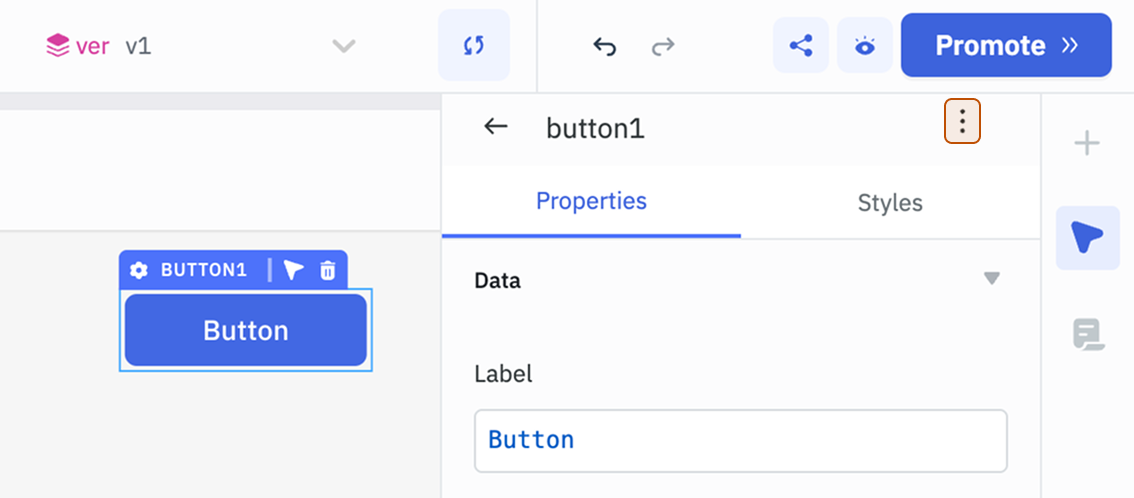
- Select the component, then click the kebab menu (three dots) next to the component name in the properties panel.
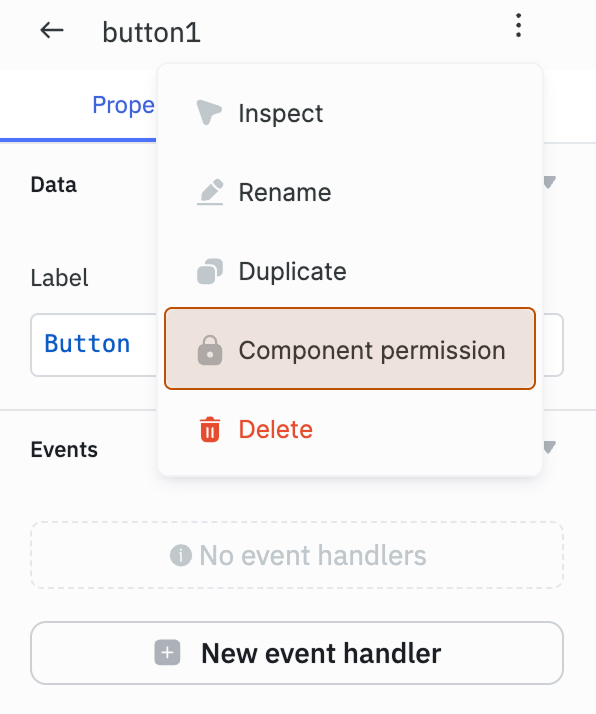
- Select the Component permission.
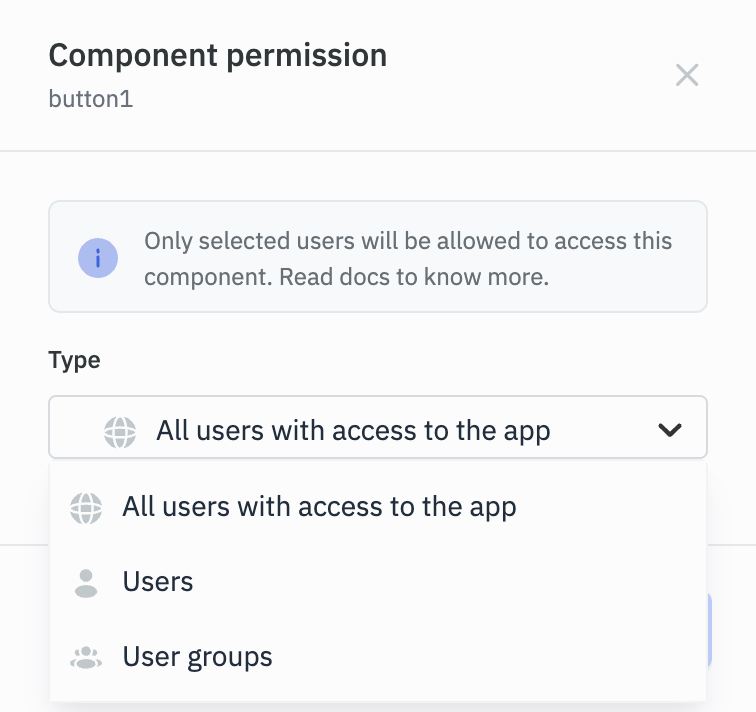
- Select the Type:
-
All users with access to the app: Grants access to all users who can access the application.
-
Users: Select specific users from the dropdown. Note: These users must already have access to the application.
-
User groups: Restricts access to members of selected user groups. Note: The selected user groups must have access to the application.
If an admin restricts a component and doesn't include the builder in the allowed users or groups, the builder will lose access to modify or change permissions for that component. This is to prevent builders from overriding security policies established by administrators. To regain access, the builder must be explicitly added to the allowed users/groups by the admin.
Need Help?
- Reach out via our Slack Community
- Or email us at [email protected]
- Found a bug? Please report it via GitHub Issues