Instance Login
In self-hosted deployments, it can be configured at two levels: Instance Level, which applies globally across all workspaces and is configurable only by the super admin, and Workspace Level, which overrides the instance-level settings for specific workspaces and can be configured by both super admins and workspace admins. This guide focuses on configuring instance-level authentication.
Configuration
To configure the instance-level authentication configuration
-
Go to Settings > Instance login. (Example URL -
https://app.corp.com/instance-settings/instance-login) -
On this page, you can configure the following settings:
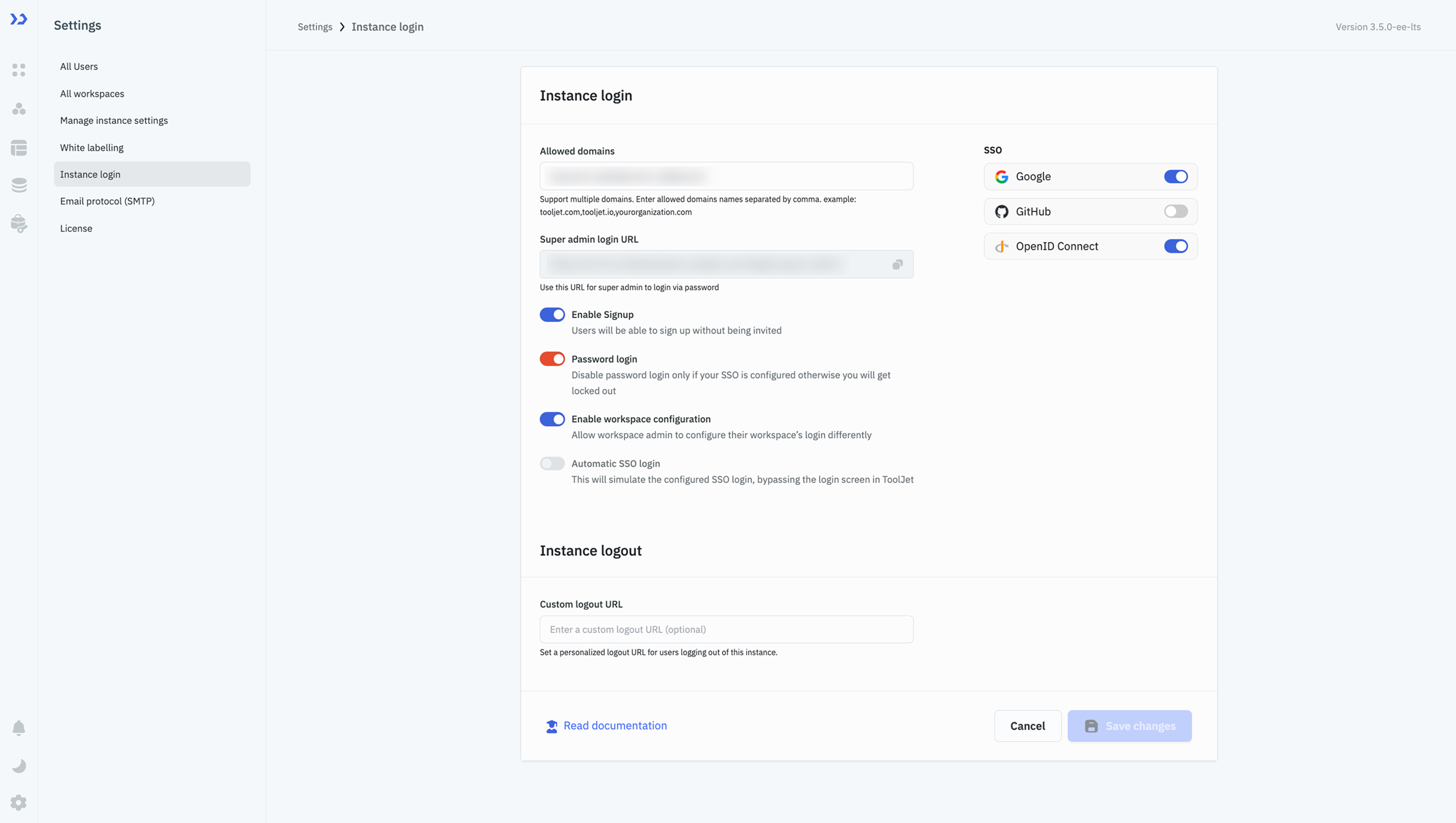
SSO (Single Sign-On)
-
SSO makes it easier for organizations to manage user access. Users can use one login for different tools, and admins can quickly add or remove access when needed. Thus, it improves an organization's onboarding and offboarding experience.
-
At the instance level you can configure SSO with Google, GitHub, and OpenID Connect. Please check the SSO docs for a detailed guide on SSO configuration.
-
You can also configure the Google or Github with Environment Variables. To set Google as default SSO use the following environment variable.
Variable Description SSO_GOOGLE_OAUTH2_CLIENT_ID Google OAuth client id -
To set GitHub as the default SSO use the following environment variables:
Variable Description SSO_GIT_OAUTH2_CLIENT_ID GitHub OAuth client ID SSO_GIT_OAUTH2_CLIENT_SECRET GitHub OAuth client secret SSO_GIT_OAUTH2_HOST GitHub OAuth host name if GitHub is self-hosted
Sign-Up Without Invitations
-
This feature allows organizations to simplify onboarding by letting users sign up without needing an invitation.
-
The Enable Signup feature lets users create accounts without being invited.
-
This feature is available only when the Personal Workspace option is enabled in the Manage Instance settings. When users sign up with this feature enabled, a new personal workspace is automatically created for them, and they are assigned as the admin of that workspace. Refer to Sign-Up Documentation to learn more.
Password Login
-
Password login allows users to log in using their email and password. However, organizations can also use SSO for better security and control.
-
Toggle this setting to enable or disable password login on the login page. Make sure to disable password login only when your SSO is configured otherwise, you will get locked out.
infoYou can enforce stronger password validation by setting the environment variable
ENABLE_PASSWORD_COMPLEXITY_RULES = true. Refer to this guide to learn more.
Domain Constraints
Domain constraints allow you to control which email domains can sign in using SSO or password authentication. These rules apply independently for each login method and help ensure only authorized domains can access the instance.
Allowed Domains
Allowed Domains can be set separately for SSO login and Password login and each behaves in a similar way:
-
Allowed Domains (SSO Login)
If one or more allowed domains are added for SSO, only users from those domains will be able to sign in using SSO. All other domains will be blocked from using SSO authentication.
If the allowed domains list is left empty, users from any domain can sign in via SSO. -
Allowed Domains (Password Login)
If one or more allowed domains are added for password login, only those domains are permitted to authenticate using a password. All other domains will not be able to log in with a password.
If the allowed domains list is empty, all domains are allowed to use password login unless a domain is explicitly restricted.
You can add multiple domain names by separating them with commas. For example:
corp.com, example.com, corp.ai
Restricted Domains (Password Login Only)
Restricted Domains apply only to password login and are used to block specific domains from signing in with a password. This is typically configured to ensure internal users always use SSO and cannot bypass it by signing in with a password.
Restriction always takes priority over allowed settings.
If a domain is added to the restricted list whether at the instance level or workspace level, it cannot use password login, even if the same domain appears in the allowed list.
Enable Workspace Login Configuration
-
This feature allows workspace admins to customize login settings for their specific workspaces. It is useful when different workspaces in the same instance require distinct login configurations.
-
Once enabled, workspace-specific settings will override the instance-level configuration for those workspaces.
Automatic SSO Login
-
This feature eliminates the need for users to interact with the login page by directly authenticating them via the configured SSO provider.
-
To Enable the Automatic SSO Login, ensure the password login is disabled and only one SSO provider is configured.
Custom Logout URL
-
A Custom Logout URL allows organizations to redirect users to a specific page after they log out. This can be useful for redirecting users to a company portal or a feedback form.
-
Enter the desired logout URL in the Custom Logout URL field to configure this.