ServiceNow
ToolJet allows you to connect to your ServiceNow instance to read and write records through the ServiceNow Table API, inspect table schemas, run Aggregate API stats queries, and invoke Action Fabric workflows and Flow Designer subflows.
Before following this guide, it is assumed that you have already completed the process of Using Marketplace plugins.
Connection
To connect to a ServiceNow data source in ToolJet, you can either click the +Add new data source button on the query panel or navigate to the Data Sources page in the ToolJet dashboard.
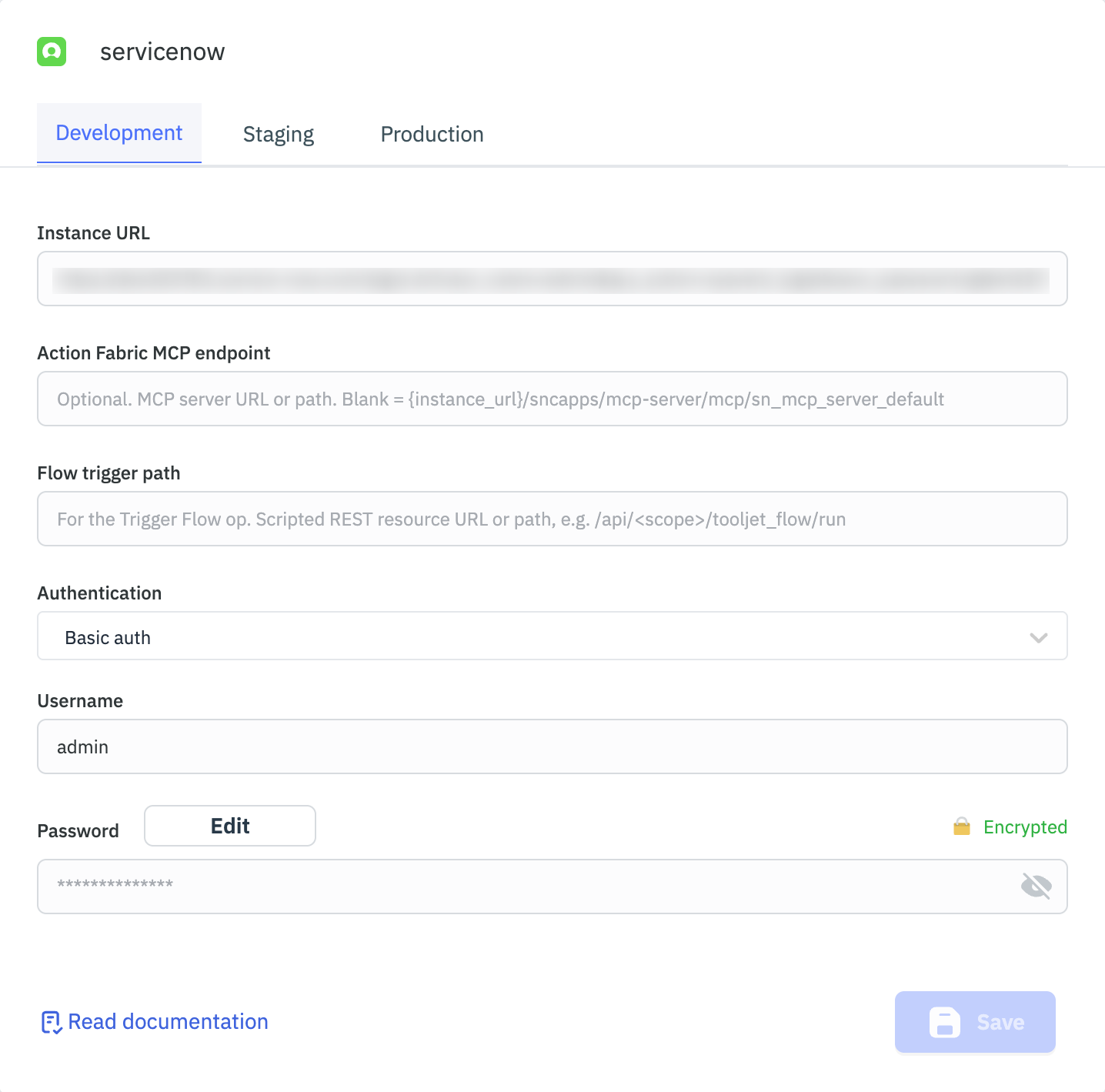
To connect to your ServiceNow instance, the following details are required:
- Instance URL: Your ServiceNow instance URL, e.g.
https://<instance>.service-now.com - Authentication: Choose between Basic auth and OAuth 2.0
Basic auth
- Username: Your ServiceNow account username
- Password: Your ServiceNow account password
OAuth 2.0
- Client ID: The client ID of your ServiceNow OAuth application registry
- Client secret: The client secret of your ServiceNow OAuth application registry
- Authorization URL: Your instance's OAuth authorize endpoint, e.g.
https://<instance>.service-now.com/oauth_auth.do - Access token URL: Your instance's OAuth token endpoint, e.g.
https://<instance>.service-now.com/oauth_token.do - Scopes: Optional. Space-separated OAuth scopes, e.g.
useraccount
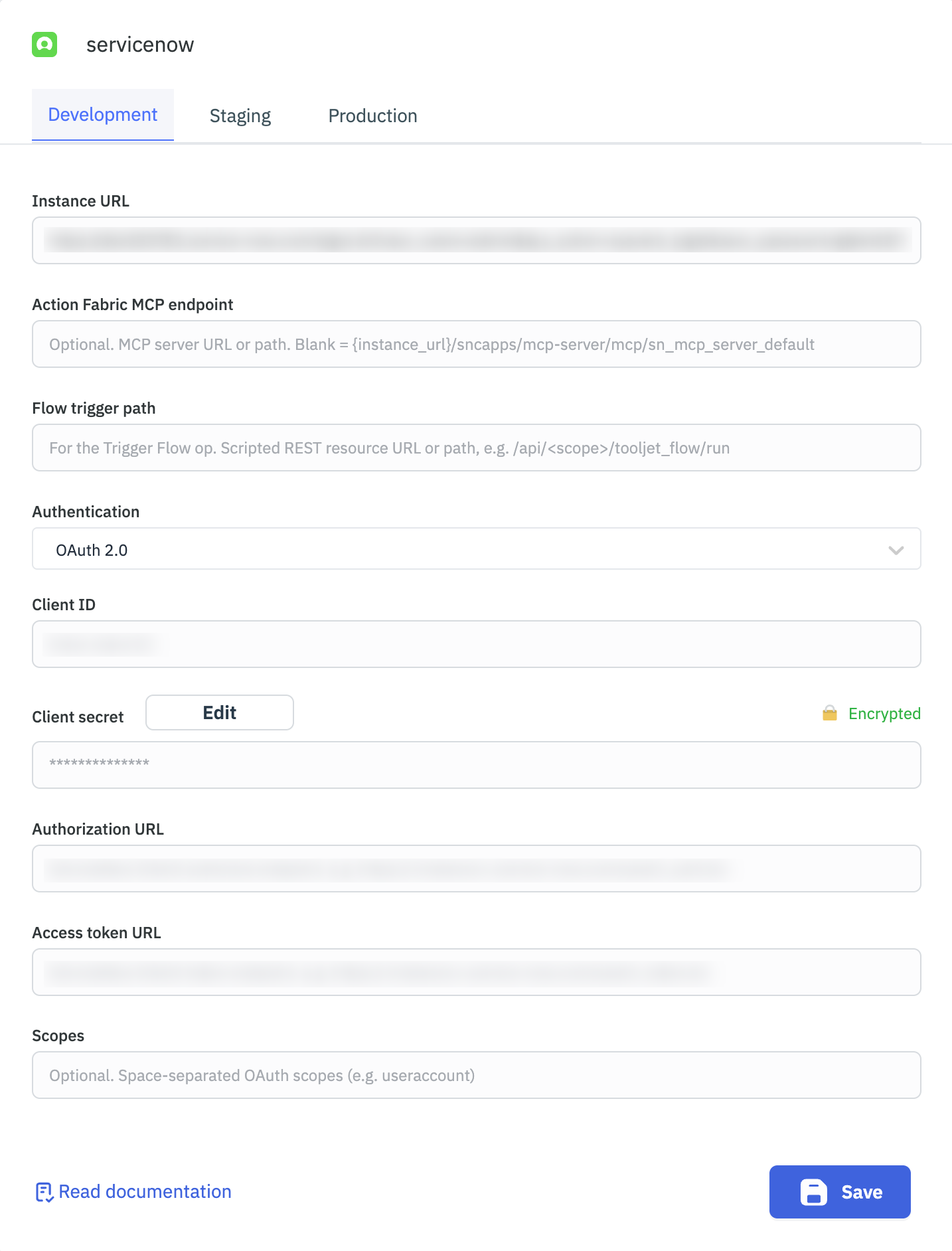
To use OAuth 2.0, create an Application Registry in ServiceNow (System OAuth > Application Registry > New > Create an OAuth API endpoint for external clients) and set its Redirect URL to the callback URL shown on ToolJet's data source configuration page.
When Authentication required for all users is available in your OAuth 2.0 authorization-code configuration, it controls whose ServiceNow token is used:
- Enabled: Each signed-in app user completes ServiceNow OAuth authorization when they first run a query that requires it. ToolJet stores and selects that user's token for the data source.
- Disabled: Queries use the token authorized for the shared connection, which can represent a different account from the signed-in ToolJet user.
Basic auth uses the configured ServiceNow username and password. ServiceNow applies the permissions of the account represented by the credentials or token. Signing in to ToolJet does not, by itself, change that ServiceNow identity.
Optional settings
These fields are only required if you plan to use the workflow-related operations:
- Action Fabric MCP endpoint: Optional. The URL or path of your instance's Action Fabric MCP server, used by List Workflows and Invoke Workflow. If left blank, it defaults to
{instance_url}/sncapps/mcp-server/mcp/sn_mcp_server_default. - Flow trigger path: Required only for the Trigger Flow operation. The path or URL of a Scripted REST resource in your instance that runs a Flow Designer subflow, e.g.
/api/<scope>/tooljet_flow/run.
When you click Test connection, ToolJet verifies the credentials by fetching a single record from the sys_user table.
Querying ServiceNow
- Click the + button in the query manager at the bottom of the editor and select the ServiceNow data source added earlier.
- Choose the operation you want to perform on your ServiceNow instance.
ServiceNow's Table, Stats, and system table APIs wrap their payload in a result key. ToolJet automatically unwraps this, so data is the array/object directly, e.g. List Records returns the array of records at queries.x.data, not queries.x.data.result.
Supported Operations
ToolJet supports the following ServiceNow operations:
List Tables
This operation lists tables defined in your ServiceNow instance (queries the sys_db_object table).
Optional Parameters:
- Name filter: Returns tables whose name or label contains this text.
- Limit: Maximum number of tables to return.
Sample Example:
Name filter: incident
Limit: 100
Get Table Schema
This operation retrieves the column/field definitions of a table (queries the sys_dictionary table).
Required Parameter:
- Table: The table whose columns/schema you want to inspect.
Optional Parameter:
- Limit: Maximum number of columns to return.
Sample Example:
Table: incident
Limit: 500
Get Field Choices
This operation retrieves the available choice-list options for a choice field on a table (queries the sys_choice table).
Required Parameters:
- Table: The table that contains the choice field.
- Field: The choice field (column name) to fetch options for.
Optional Parameter:
- Language: Choice language, defaults to
en.
Sample Example:
Table: incident
Field: state
Language: en
List Records
This operation retrieves records from a table, with optional filtering, pagination, and field selection.
Required Parameter:
- Table: The table to query.
Optional Parameters:
- Query (encoded): An encoded query string to filter records.
- Limit: Maximum number of records to return.
- Offset: Number of records to skip before returning results.
- Fields: Comma-separated list of fields to return.
- Display value:
true,false, orall— whether returned field values are the display value, the raw value, or both.
Sample Example:
Table: incident
Query (encoded): active=true^priority=1
Limit: 100
Offset: 0
Fields: number,short_description,state
Display value: true
Get Record
This operation retrieves a single record from a table by its sys_id.
Required Parameters:
- Table: The table to query.
- Sys ID: The
sys_idof the record to retrieve.
Optional Parameters:
- Fields: Comma-separated list of fields to return.
- Display value:
true,false, orall.
Sample Example:
Table: incident
Sys ID: a9e30c7dc61122760116894de7bcc7bd
Fields: number,short_description,state
Display value: true
Create Record
This operation creates a new record in a table.
Required Parameters:
- Table: The table to insert into.
- Body: The record fields as a JSON object.
Sample Example:
Table: incident
Body:
{
  "short_description": "Network outage",
  "urgency": "1"
}
Update Record
This operation updates fields on an existing record.
Required Parameters:
- Table: The table containing the record.
- Sys ID: The
sys_idof the record to update. - Body: The fields to update, as a JSON object.
Sample Example:
Table: incident
Sys ID: a9e30c7dc61122760116894de7bcc7bd
Body:
{
  "state": "2"
}
Delete Record
This operation deletes a record from a table.
Required Parameters:
- Table: The table containing the record.
- Sys ID: The
sys_idof the record to delete.
Sample Example:
Table: incident
Sys ID: a9e30c7dc61122760116894de7bcc7bd
Aggregate / Stats
This operation uses the Aggregate API to compute counts and statistics over a table, optionally grouped and filtered.
Required Parameter:
- Table: The table to aggregate over.
Optional Parameters:
- Count:
trueorfalse— whether to return a record count. Defaults totrue. - Group by: Field to group results by, e.g.
state. - Query (encoded): An encoded query to filter records before aggregating.
- Average of field: Numeric field to average, e.g.
reassignment_count. - Sum of field: Numeric field to sum, e.g.
business_duration.
Sample Example:
Table: incident
Count: true
Group by: state
Query (encoded): active=true
Average of field: reassignment_count
List Workflows
This operation lists the workflow tools (subflows) exposed by the Action Fabric MCP server.
Optional Parameter:
- Name filter: Returns only workflow tools whose name contains this text.
Sample Example:
Name filter: create_incident
Invoke Workflow
This operation invokes an Action Fabric workflow tool synchronously and returns its result.
Required Parameters:
- Workflow: Name of the Action Fabric workflow tool (subflow) to invoke.
- Arguments: Workflow inputs as a JSON object.
Sample Example:
Workflow: create_incident
Arguments:
{
  "short_description": "VPN not working",
  "urgency": "2"
}
If the workflow reports an error (isError), ToolJet surfaces this as a query error instead of returning the partial result.
Trigger Flow
This operation runs a Flow Designer subflow by POSTing to a Scripted REST resource you've set up in your instance. This requires Flow trigger path to be configured on the data source — see Optional settings. ToolJet posts { subflow, inputs } to that endpoint and returns the flow's output.
Required Parameter:
- Subflow: Scoped name or
sys_idof the subflow to run, e.g.global.create_incident.
Optional Parameter:
- Inputs: Subflow inputs as a JSON object.
Sample Example:
Subflow: global.create_incident
Inputs:
{
  "short_description": "VPN not working"
}
Unlike Trigger Flow, List Flows doesn't require a custom Scripted REST resource — it works out of the box against any ServiceNow instance with Flow Designer enabled.
List Flows
This operation lists active subflows defined in Flow Designer (queries the sys_hub_flow table for records where type=subflow and active=true).
Optional Parameters:
- Name filter: Returns only subflows whose name or internal name contains this text.
- Limit: Maximum number of subflows to return.
Sample Example:
Name filter: incident
Limit: 100