Release and Rollback
ToolJet allows you to release and share your application and rollback to a stable version whenever needed.
Release
Releasing an app in ToolJet makes the selected version available to end users, allowing them to access and use the application for their tasks. This ensures a controlled rollout of features and bug fixes while ensuring that users have access to the latest version of the app. After an application is released it can be accessed in multiple ways, refer to Share an Application guide for more information.
Steps to Release an App
-
Save the required draft version.
-
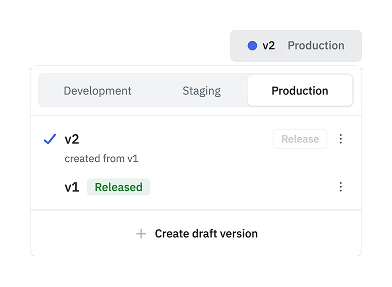
Promote the required version to the production environment.
-
Click on the Release button beside the version name in Production environment.
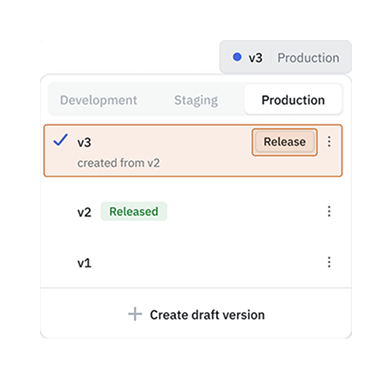
-
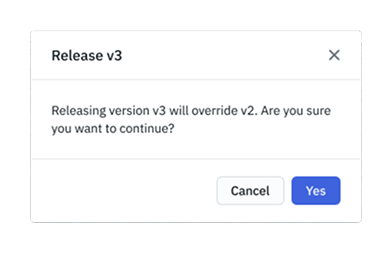
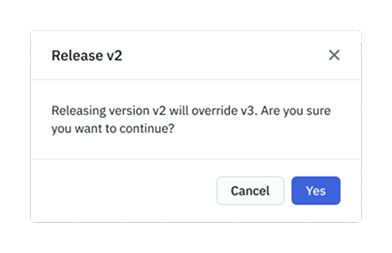
A confirmation dialog will popup that prompts you to decide whether to release the current version of the app. Clicking on the Yes button will release the current version of the app overriding the previous one.
Rollback
The Rollback feature in ToolJet allows you to revert to a previously stable version of your app whenever needed. Whether fixing bugs, resolving errors, or addressing unexpected issues after a release, rollback ensures minimal disruption to end users. It instantly restores a prior version while keeping the application's URL the same, allowing the team to maintain application stability while debugging the faulty version offline.
For example, after releasing a new version v1.2.0, users report failures of the form component. Using ToolJet’s version rollback, the team can quickly rollback to the stable version v1.1.0, restoring functionality within minutes. This minimizes downtime, and allows developers to debug the faulty version offline.
Steps to Rollback
-
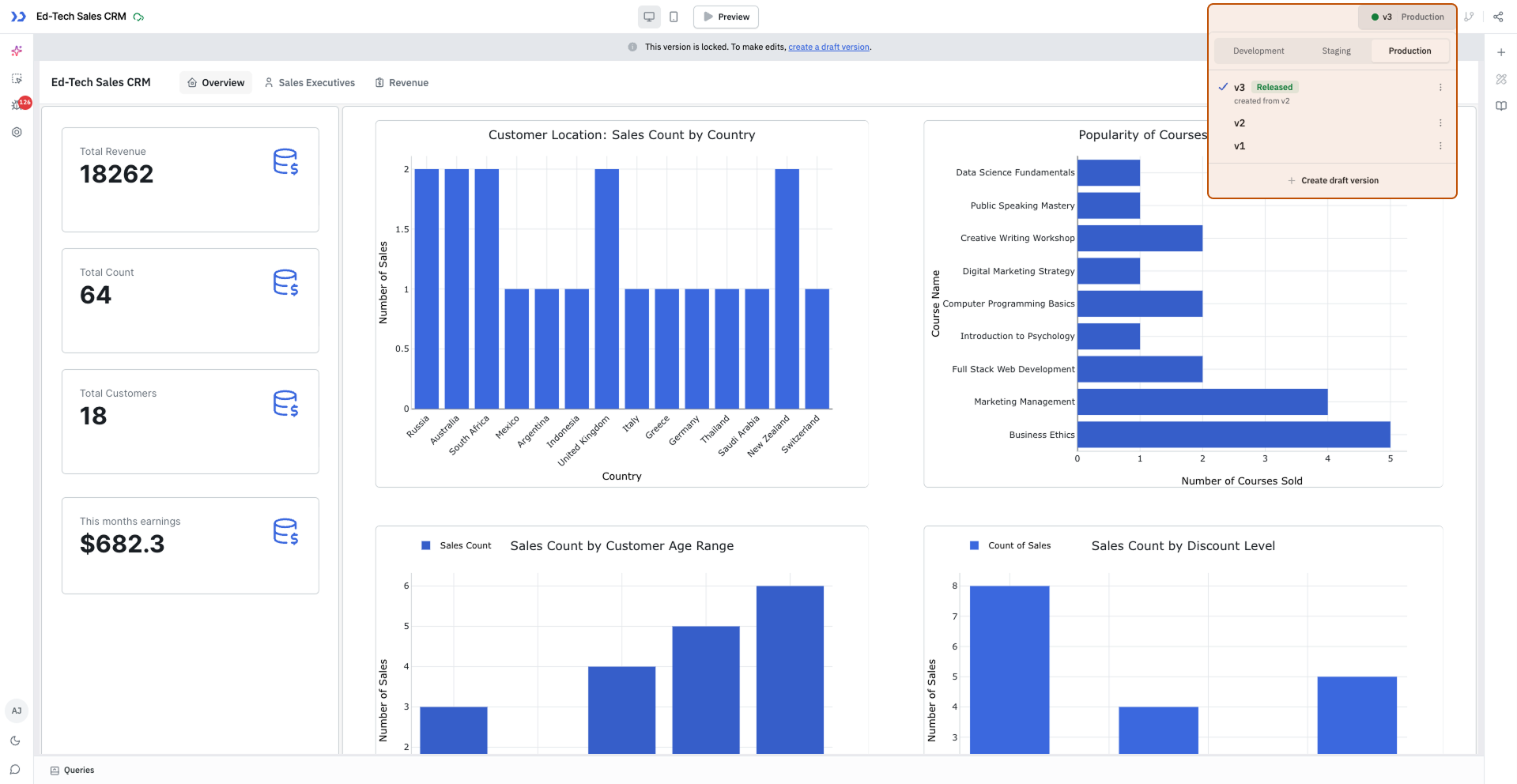
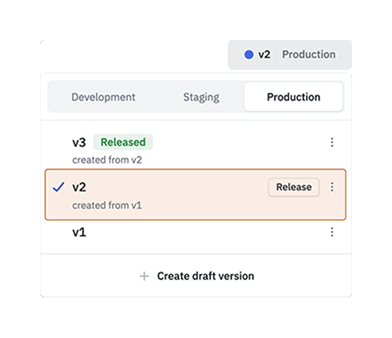
Go to the Version Manager from the toolbar and select Production environment. It will display all the production versions of the app. The currently released version will have a Released tag in green color beside it.
-
Click the desired version from the list to select it.
-
Click on the Release button beside the selected version.
-
A confirmation dialog will popup that prompts you to decide whether to release the current version of the app. Clicking on the Release button will release the current version of the app.
Release Application Permission
Admin can configure the Release Application permission from the Permissions page. This disables the Release button for users who do not have the required permission, allowing only authorized roles, such as managers, to release the application.