Pagination
This guide explains how to perform server side pagination on a Table component in ToolJet.
Add Table Component
Before performing the server side pagination, add the Table component and populate it with data:
- Drag a Table component from the right component library to the canvas.
- Select a data source and create a new query using the query panel at the bottom. This guide uses ToolJet's sample data source (Postgres). Add the following query to fetch the data from the database:
SELECT * FROM public.sample_data_orders
LIMIT 10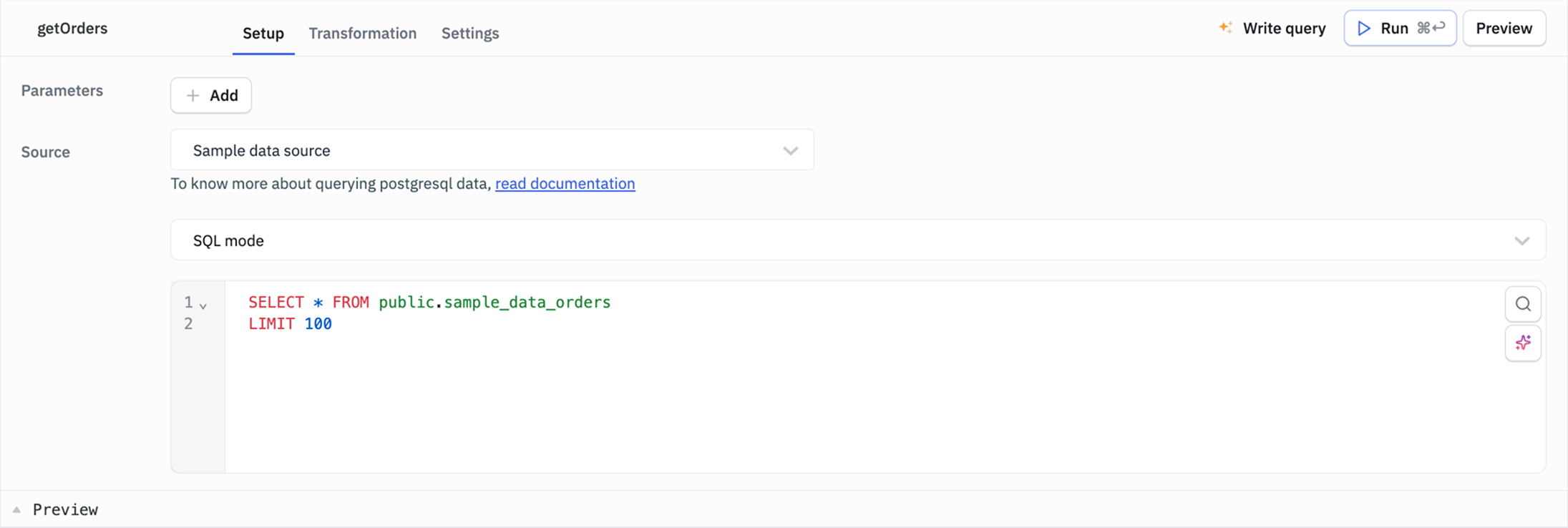
- Set the value of the Data property of the Table component to
{{queries.<query_name>.data}}to populate the Table component with the data retrieved by the query.
Server Side Pagination
Follow the mentioned steps to perform server side pagination on the Table component:
-
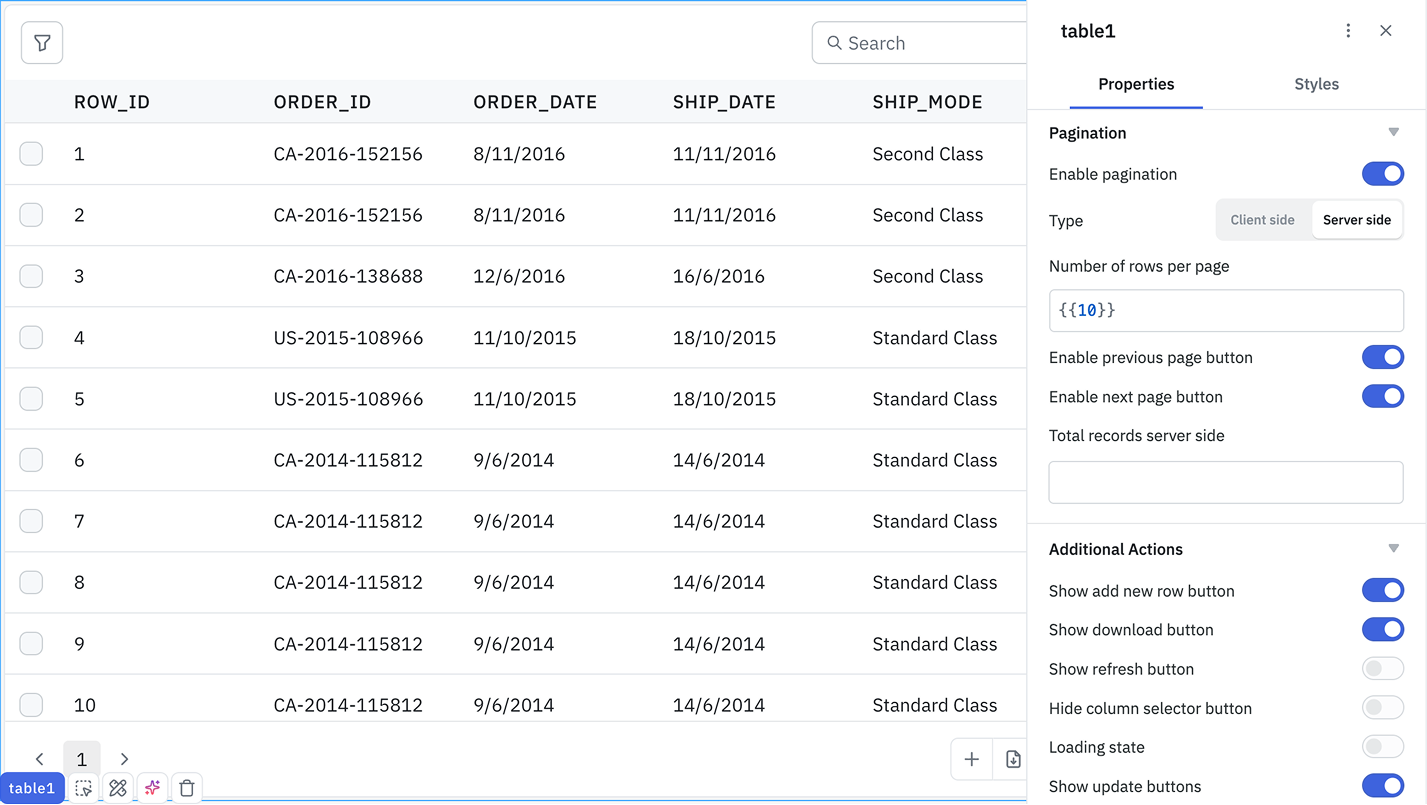
Under the Table component's Pagination properties, switch the Type to Server side.
-
Create a new query to find the total number of records on the server side.
SELECT COUNT(*) FROM public.sample_data_orders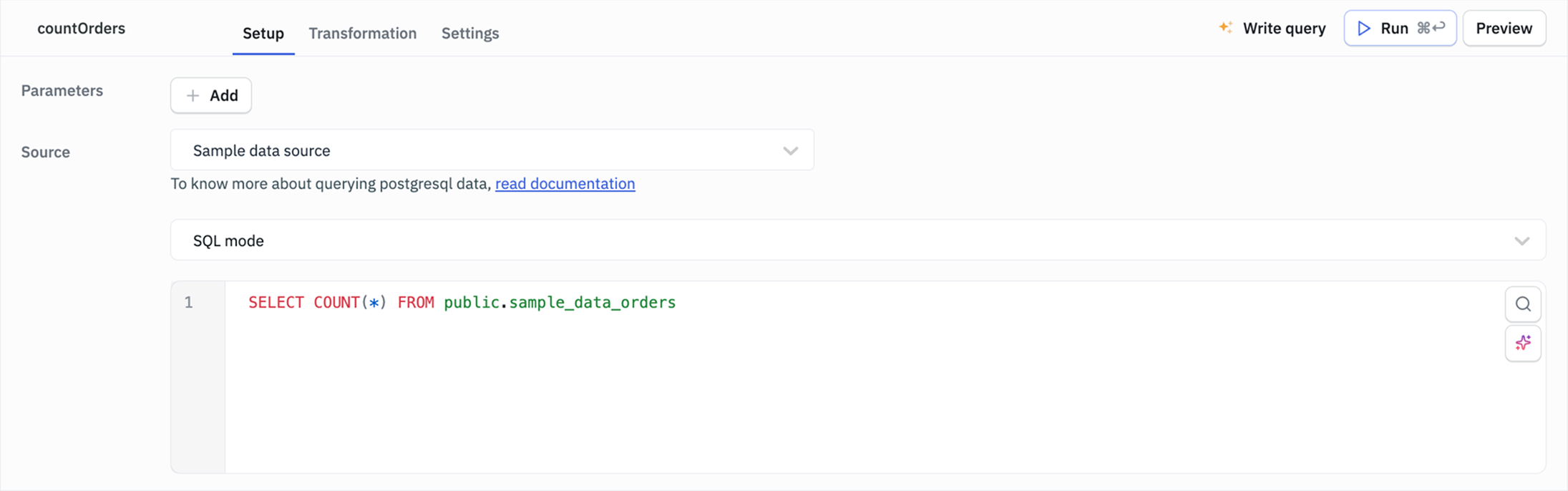
-
In the Pagination section of the Table component's properties, set Total records server side to
{{queries.countOrders.data[0].count}}.infoMake sure to replace
countOrderswith your query name created in the last step.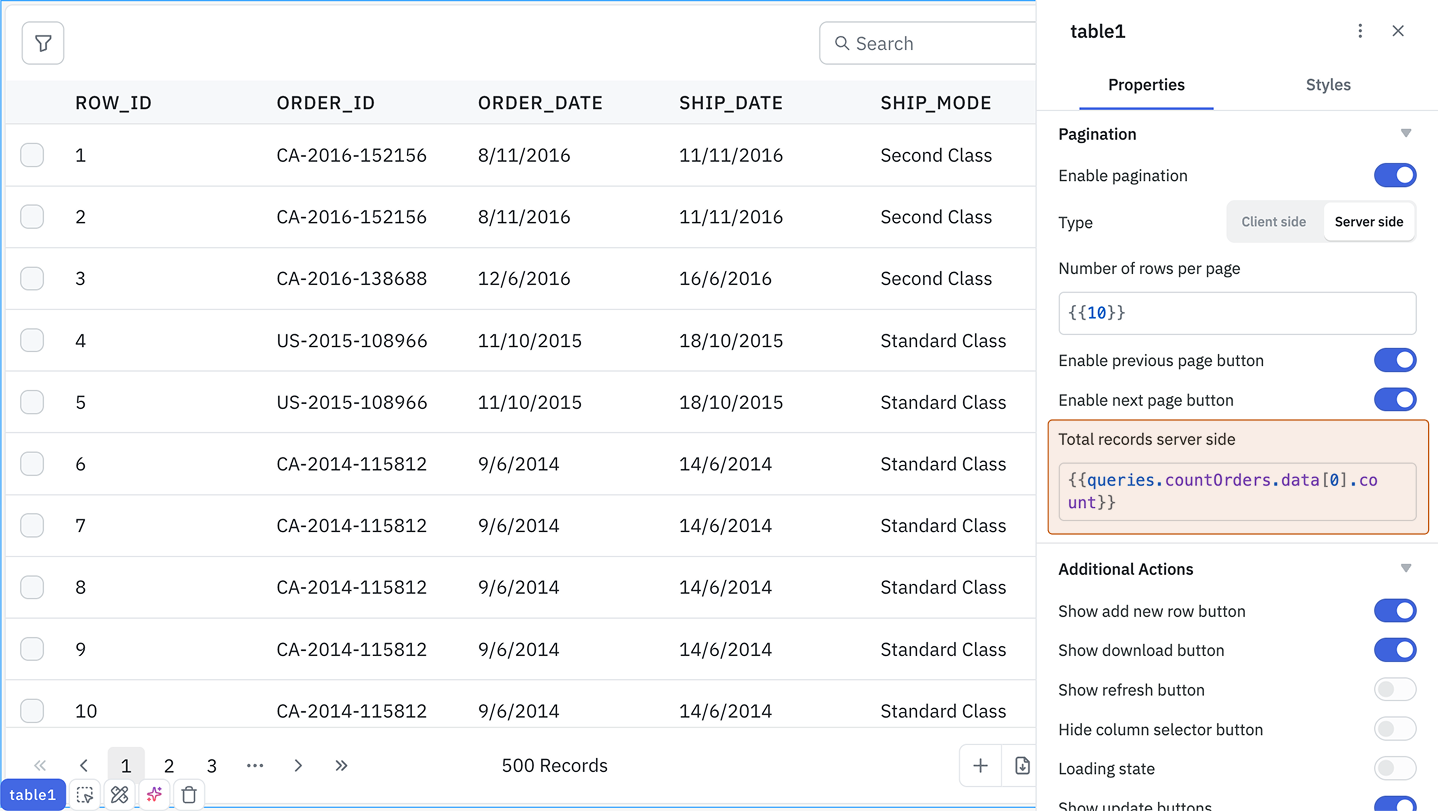
-
Set Number of rows per page to the number of records you want to fetch per page, for example
10. Providing both Total records server side and Number of rows per page lets the Table calculate the total number of pages on its own: the page count is shown in the footer and the First/Last page buttons work automatically, without any extra configuration. -
Enter the following query, using the same number you set for Number of rows per page as the
LIMIT:SELECT * FROM public.sample_data_orders
LIMIT 10
OFFSET {{(components.table1.pageIndex - 1) * 10}}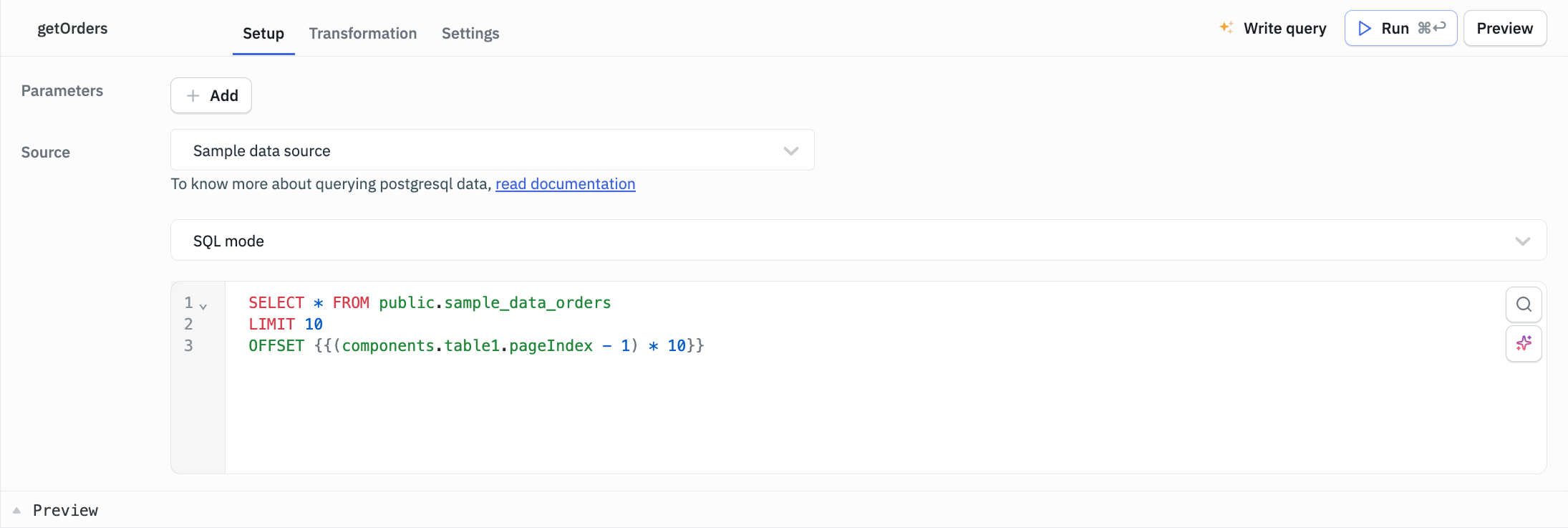 info
infoMake sure to replace
table1with your Table name, and keep thisLIMITin sync with the Number of rows per page value entered in the previous step. -
Add an Event Handler to the Table component:
Event: Page changed
Action: Run Query
Query: Select Your Query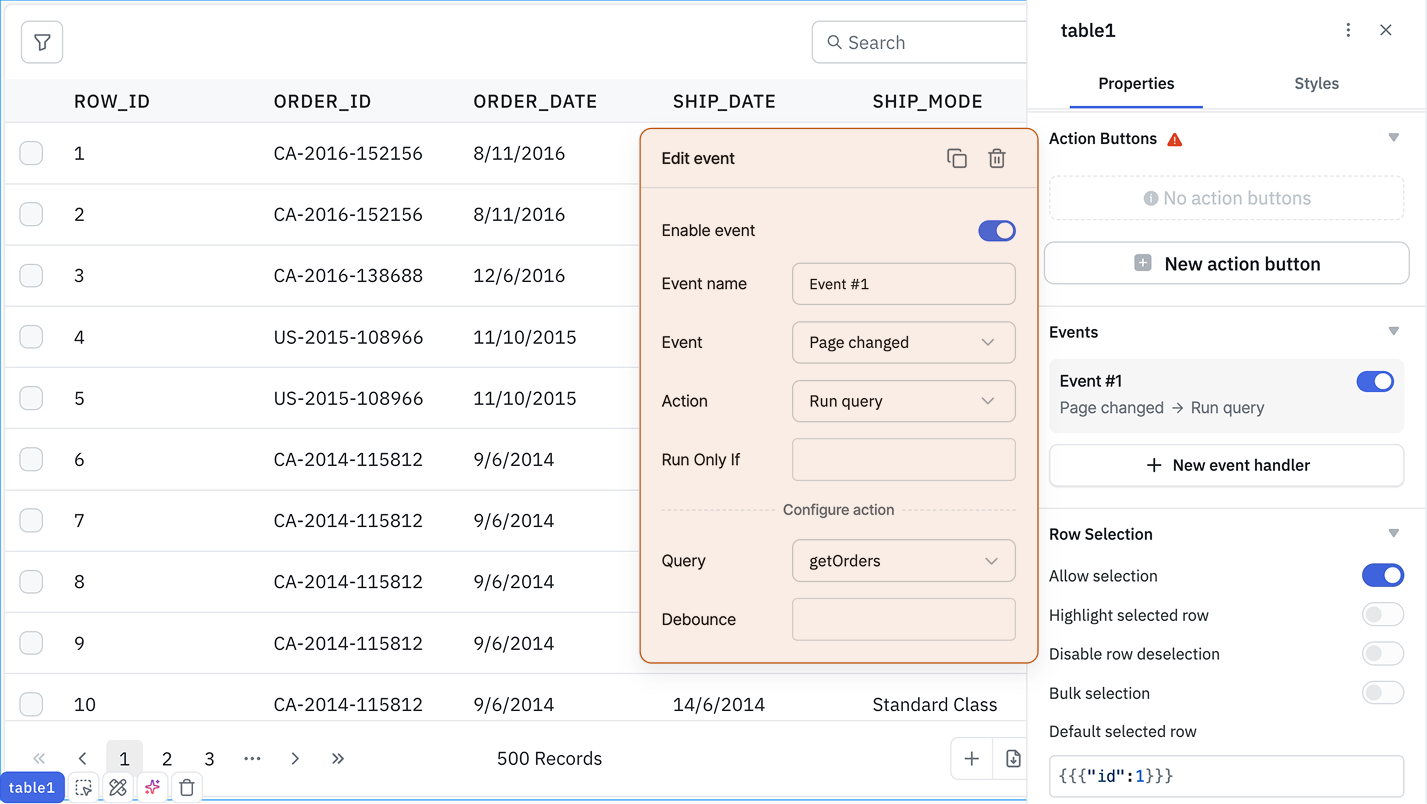
This will run the query and fetch the data every time the page is changed.
-
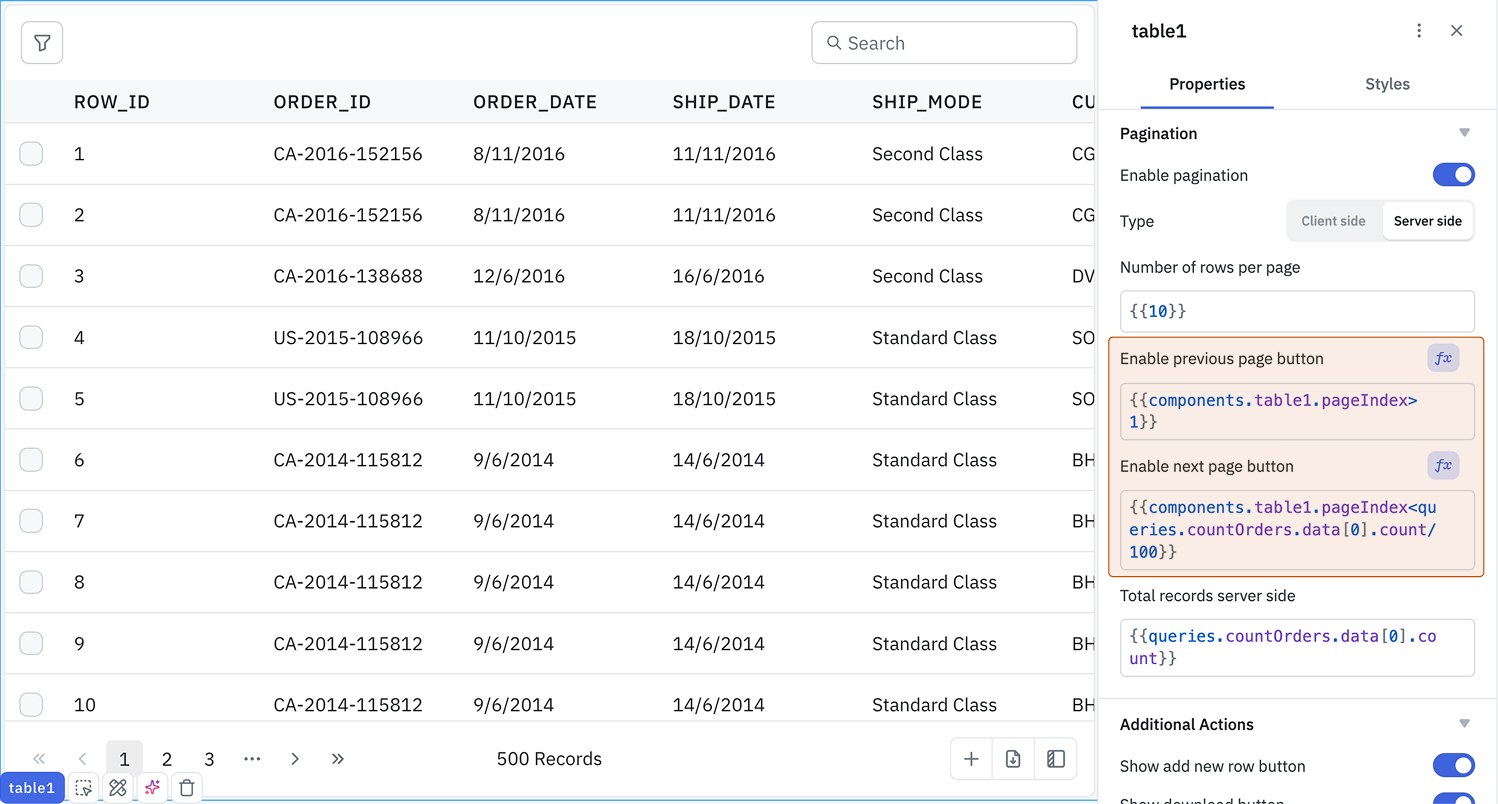
The Next and Previous page buttons don't derive their disabled state from Total records server side automatically; they're controlled entirely by the Enable next page button and Enable previous page button toggles, so you still need to bind these with
fxto stop users from paging past the data:- Click the fx icon next to Enable next page button and enter
{{components.table1.pageIndex<queries.countOrders.data[0].count/10}}. - Click the fx icon next to Enable previous page button and enter
{{components.table1.pageIndex>1}}.
- Click the fx icon next to Enable next page button and enter
-
Go to the Additional Actions section in the Table component's properties. Click the fx icon next to the Loading State and enter
{{queries.getOrders.isLoading}}in the field to add a Loading State.infoMake sure to replace
getOrderswith your query name.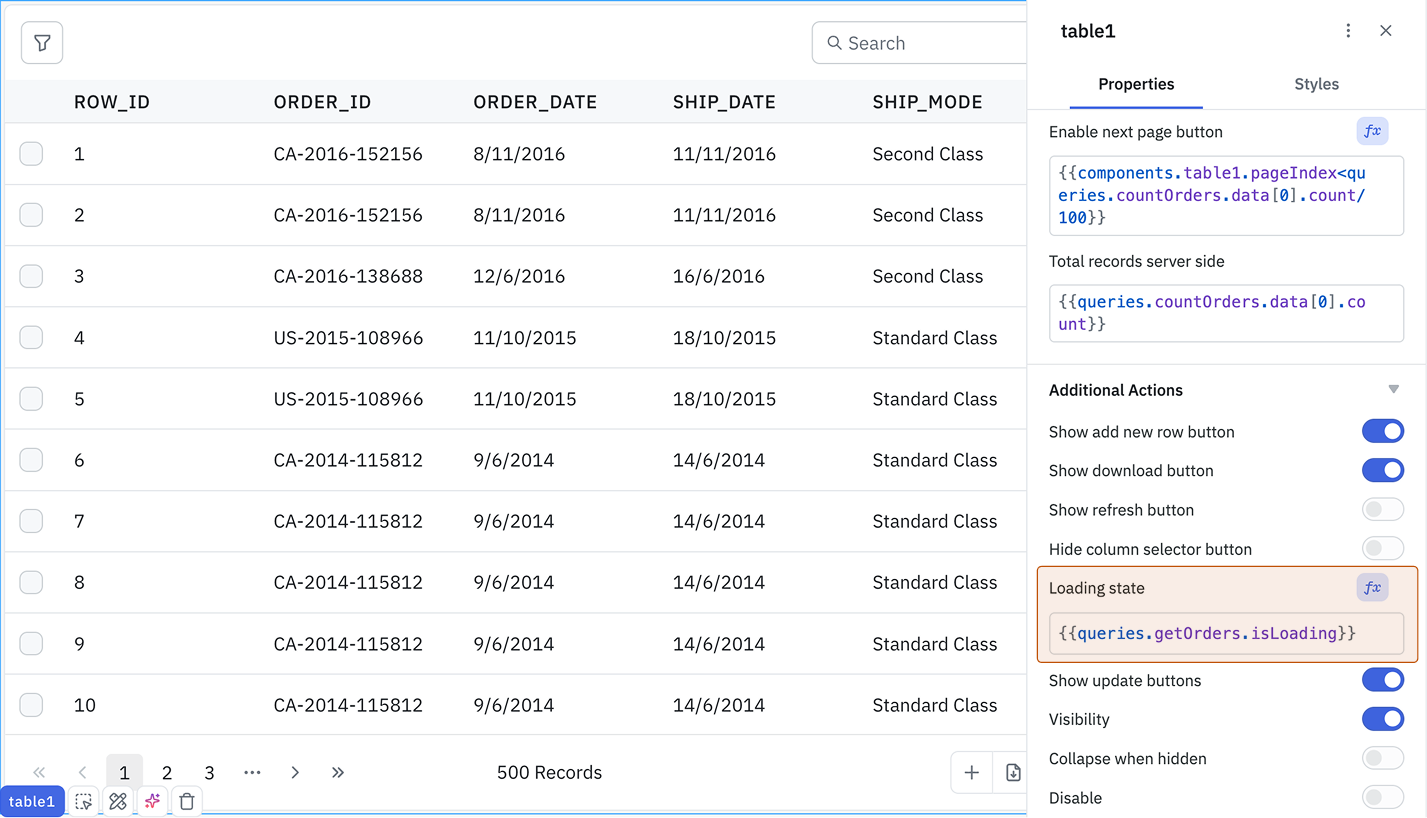
This is how you can implement server side pagination in ToolJet's Table component. When pagination is used, the query is executed on the server, retrieving only the relevant set of records for the current page. This ensures that data is fetched efficiently from the server, rather than loading the entire dataset at once, improving performance and scalability.
Need Help?
- Reach out via our Slack Community
- Or email us at support@tooljet.com
- Found a bug? Please report it via GitHub Issues