Build Locally
A React Builder application can be developed on a local computer, in a code editor or with a coding agent. This guide sets up a local copy of the application's React project. Each local save is then shown on the canvas in ToolJet.
How It Works
Only the application's code is copied to the local computer. Queries, datasources, permissions and environments remain in ToolJet.
Prerequisites
- Node.js 18 or later, with npm.
- Edit access to the app in ToolJet.
- Permission to create personal access tokens in the workspace. The CLI signs in with one.
Set Up
- From the editor
- From the terminal
The editor shows the commands with the instance's address and the app's ID filled in.
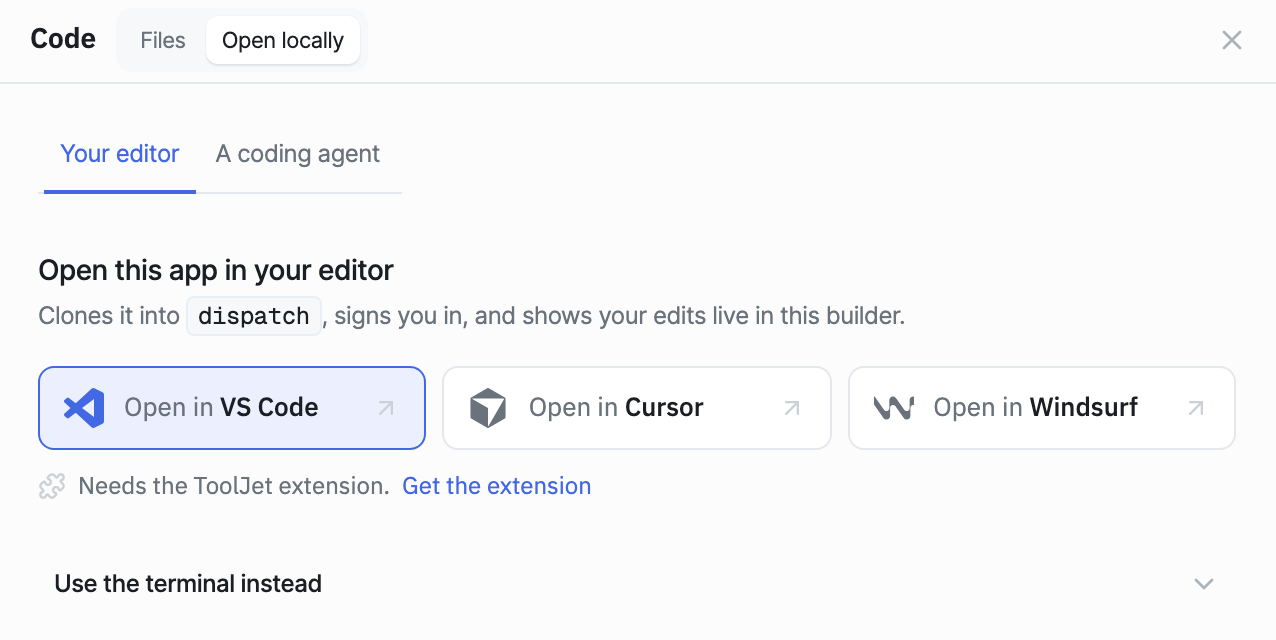
- Open the app in the editor and click Code in the header.
- In the Code panel, click Open locally.
- Expand Use the terminal instead, then copy each command and run it in a terminal.
With the ToolJet extension installed in the editor, Open in VS Code, Open in Cursor or Open in Windsurf clones the app, signs in and starts the live preview.
-
Install the CLI from the ToolJet instance. Replace
https://tooljet.example.comwith the instance's address.npm i -g https://tooljet.example.com/api/code-mode/cli/tooljet-cli.tgz -
Sign in through the browser.
tooljet auth login --url https://tooljet.example.com -
Clone the app, install its packages and start the live preview. The app's ID is the long ID after
/apps/in the editor's address.tooljet app clone <app-id> northwind-dispatch
cd northwind-dispatch
tooljet app install
tooljet app dev
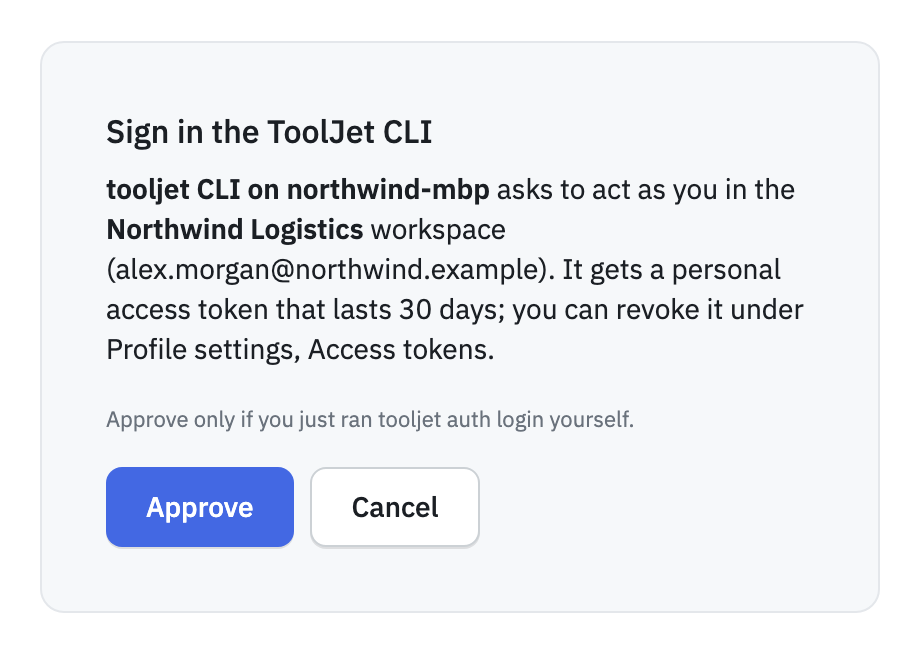
At sign-in, the CLI prints a code and opens the Sign in the ToolJet CLI page in the browser. Type the code, click Continue, then click Approve. The CLI finishes signing in by itself.
Go back to the app in the ToolJet editor: the canvas now shows the build from the local computer. Leave tooljet app dev running, and it rebuilds on every save in frontend/src. If a save has TypeScript errors, nothing is uploaded and the canvas keeps the last good build.
Common Commands
Run these in the project folder.
Command | When to Run It |
|---|---|
tooljet app dev | During development. It rebuilds on every save and shows the app live in the editor. |
tooljet app pull | After a query changes in ToolJet. It rewrites the typed hooks in frontend/src/tooljet.gen.ts. |
tooljet app check | Before publishing. It fails when the code names a query, screen or link the app doesn't have, and runs the security scan. |
tooljet app publish | When the work is ready. It saves the draft as a version, the same as clicking Save version in the editor. |
Queries are created and edited in ToolJet's query editor, not in code. publish doesn't release the version: releases are made in ToolJet. See Versions and History.
Install packages with tooljet app install, not npm install: it never runs a package's install scripts. Every flag is in the CLI reference.
Build With a Coding Agent
A coding agent can edit the application in the same project folder. First give it ToolJet's rules for React Builder apps:
tooljet skill install
The command writes one instruction file per agent, and each agent reads its own file without any setup.
Agent | File It Reads |
|---|---|
| Claude Code | CLAUDE.md |
| Codex and Windsurf | AGENTS.md |
| Cursor | .cursor/rules/tooljet.mdc |
Start the agent in the project folder, then describe the change, for example:
Add a Carriers screen that lists the rows from the listCarriers query,
sorted by on-time rate. Link it from the sidebar.
The instructions tell the agent to read data only through ToolJet queries, to build with tooljet app dev --once, and to finish with tooljet app check passing. Keep tooljet app dev running while the agent works, and its changes show on the canvas as it saves them.
The agent writes the screens. To let it also create tables and queries in the app, connect it to the ToolJet MCP server: the A coding agent tab in Open locally lists the setup commands.
Syncing Changes
Teammates and ToolJet AI can change the app during local development. For an app created in ToolJet, each local build also saves the code to the app's draft, so the Code panel and the AI work on the latest local code. For the other cases, see Who Sees Local Saves.
While it runs, tooljet app dev also checks ToolJet for newer code every few seconds:
- If no local files changed since the last sync, it pulls the newer code and rebuilds.
- If there are local changes, it keeps them and stops uploading until the newer code is pulled in.
tooljet app source-pull
source-pull refuses to overwrite locally changed files, and lists them. To take ToolJet's code anyway, add --force: the CLI keeps a copy of the changed files in .tooljet/before-pull/.
Other Sign-In Methods, Git Branches and Common Problems
Other Ways to Sign In
The CLI can also sign in with a pasted personal access token through tooljet login, stay signed in to several instances at once, or sign in from CI without a browser. See Sign In in the CLI reference.
Git Branches
If the workspace uses GitSync, ToolJet commits the app's code to a code/ folder inside the app's folder in the repository. Open that folder and run tooljet app dev there.
The Git branch of the folder decides which draft is used. After git checkout feature-x, tooljet app dev works on the feature-x branch's draft, and the CLI prints the branch it uses. tooljet app checkout <version> overrides the branch. If the branch has no draft of the app yet, open the app on that branch in ToolJet first.
Common Problems
Message | What to Do |
|---|---|
No app.json here or above | Run the command inside the project folder. |
The ToolJet token was rejected by <instance> | The sign-in expired or was revoked. Run tooljet auth login again. |
<n> TypeScript error(s); not uploaded | Fix the errors listed. The canvas keeps the last good build. |
ToolJet has newer code (revision <n>...) | Run tooljet app source-pull, then save again. |
Version <name> is <status>, which cannot change. | dev and publish need a draft. Pick one with tooljet app checkout, or create one in ToolJet. |
For every message, see Common Errors in the CLI reference.