Selecting an AI Model
ToolJet AI lets you control which LLM powers your AI chats. Depending on your workspace's AI setup, you either pick the provider and model for each chat yourself, or your admin sets them for everyone.
Picking a provider and model from the AI chat is available for workspaces using ToolJet Managed AI Server, on both ToolJet Cloud and Self-hosted deployments. To use any other model, an admin can configure OpenRouter as the LLM provider under Bring Your Own Key (BYOK), available on Enterprise plans for both ToolJet Cloud and Self-hosted deployments.
Switching the AI Provider
If your workspace uses ToolJet Managed AI Server (the default on ToolJet Cloud and self-hosted), each user can pick the provider and model that power their own AI chats. The available providers are OpenAI (the default), Claude (Anthropic), DeepSeek, Grok, and Gemini, each with its own set of models. If you don't pick a model, the picker shows Auto and the provider's default model is used.
To use a model that isn't in this list, see Selecting an Exact Model below.
How It Works
- Per-user setting: The provider you select is a personal preference. Other users in your workspace can pick a different provider for themselves without affecting your setting.
- Applies to the current chat: The provider and model you pick are used by the chat you picked them in. Your other chats keep their own selection, and new chats start with your most recent pick.
Where to Find It
- Open the AI chat interface in App Builder. You can also use the prompt box on the ToolJet home page, where your pick becomes the starting point for new chats.
- Click the model picker at the bottom-left of the message box. It shows the current provider's icon and the model name, or Auto.
- Select a model. The picker lists Recommended models first, followed by each provider's models, and shows each model's typical Build time and Credits.
When You Can Switch
- You can pick a provider and model freely before sending your first prompt in a chat.
- You can't change the model while the chat is generating; the picker is disabled until the response finishes. A build running in another chat doesn't block switching in this one.
If your admin has configured BYOK or ToolJet Enterprise AI with a provider other than ToolJet managed, the admin's provider is used and the model picker is not shown.
Selecting an Exact Model
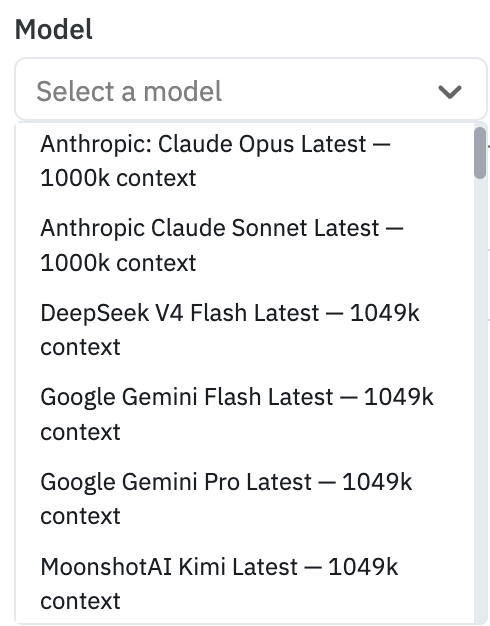
On ToolJet Cloud Enterprise or Self-hosted Enterprise, configure OpenRouter as your LLM provider under BYOK to choose a specific model. Only models that are compatible with ToolJet AI are available: the model must support the tools, response_format, and structured_outputs parameters and have a context window of at least 200,000 tokens.
This is configured by an admin for the whole workspace (ToolJet Cloud) or instance (Self-hosted), like the rest of BYOK, it is not a per-user setting.
Steps
- Navigate to Settings → LLM key.
- From the provider dropdown, select OpenRouter.
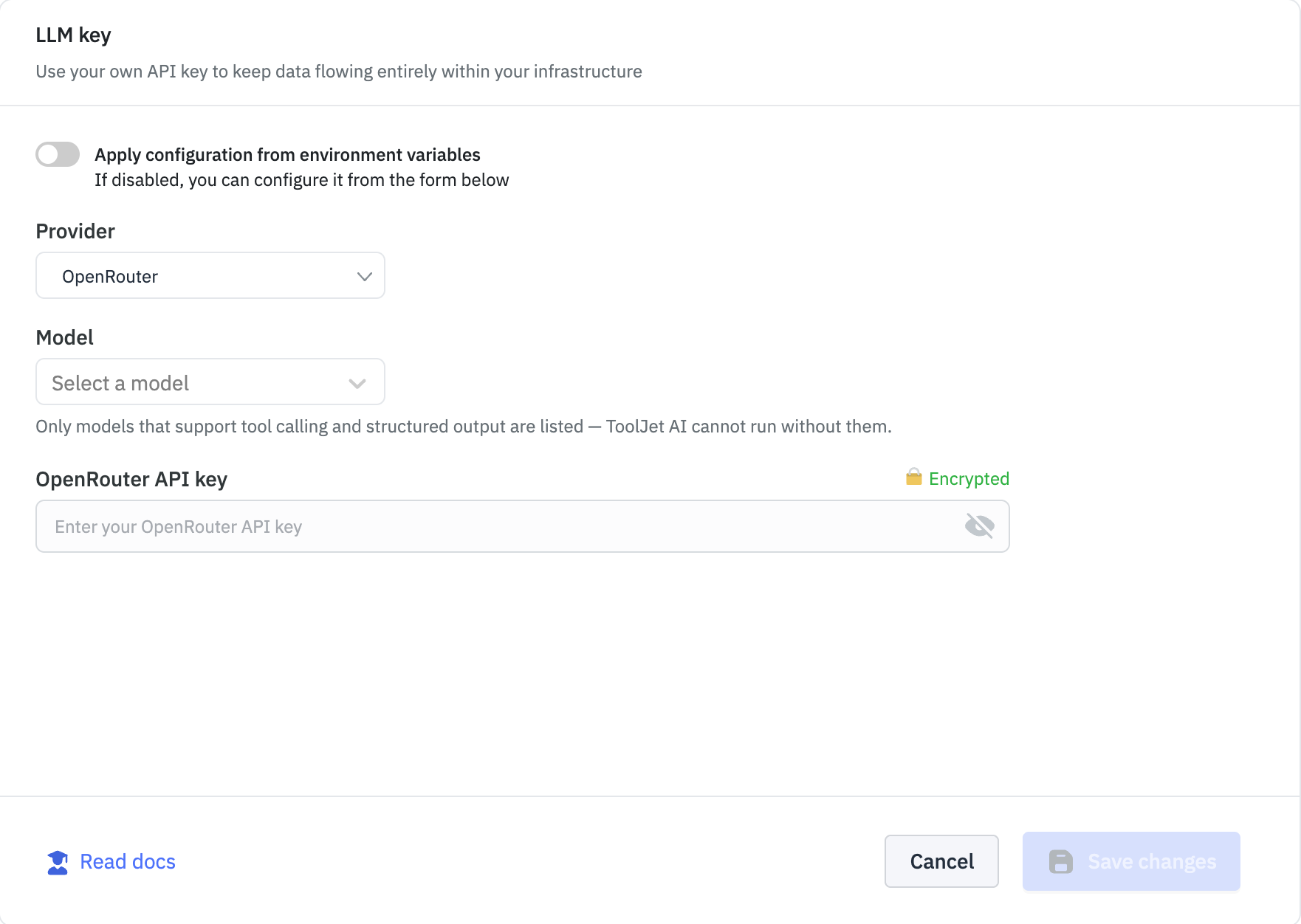
- A Model dropdown appears listing the compatible models with their context window. Select the model you want to use.
- Enter your OpenRouter API key.
- Click Save changes.
See Bring Your Own Key (BYOK) for the full BYOK setup guide.
Things to Keep in Mind
- Different providers and models can consume a different number of credits for the same task. See Understanding AI Credits for how credit consumption is calculated.
- Non-default providers and models haven't yet been individually tuned to match the output quality of the default, so you may notice some difference in results when using them.
- OpenRouter offers a large number of models. ToolJet lists only the ones that meet the requirements above, but not all of them have been tested with ToolJet. If a model you pick behaves unexpectedly, try switching to a different one.