AI Credits Usage
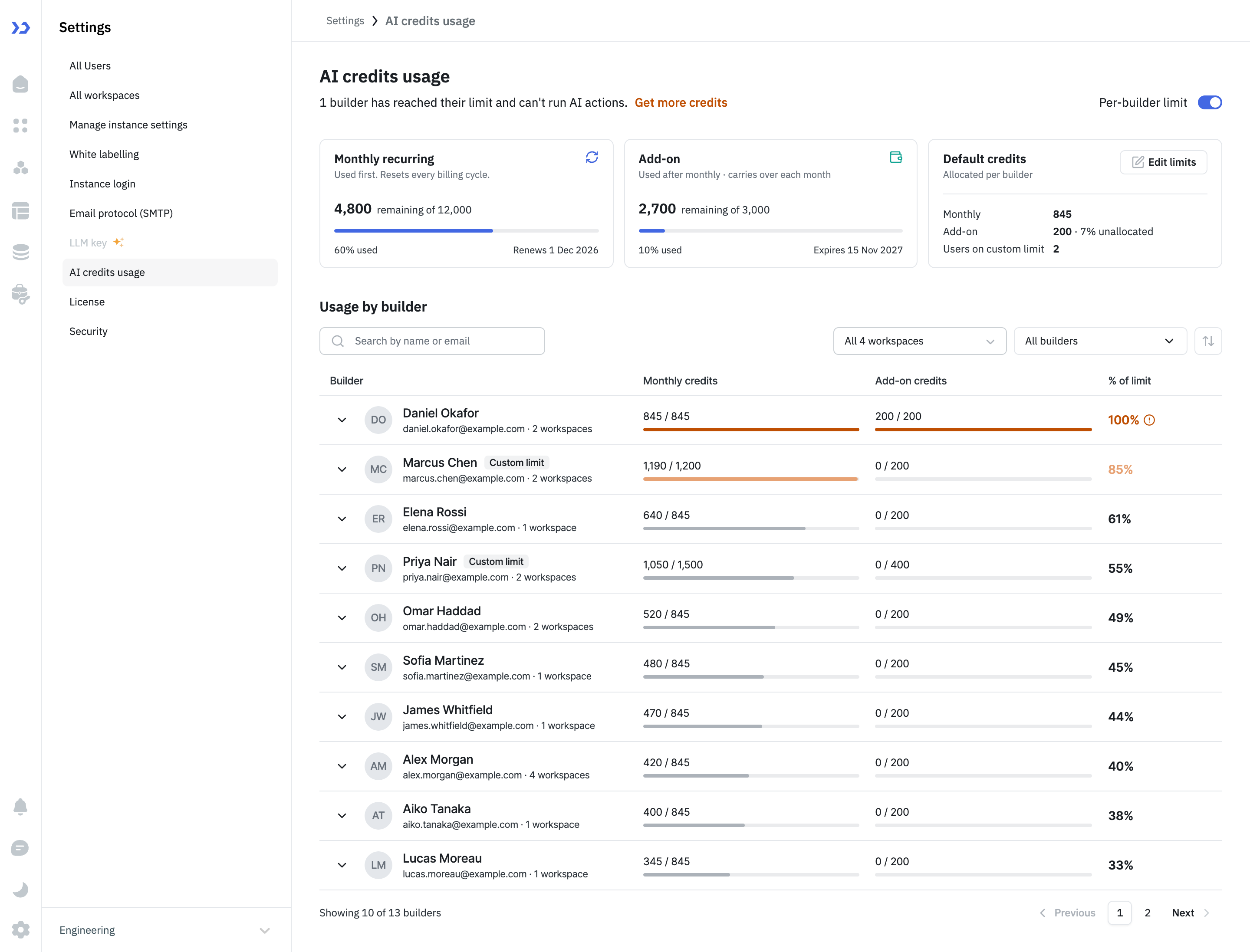
The AI credits usage page shows how ToolJet AI credits are consumed during the current billing cycle, broken down by builder. Admins use it to track spend against the monthly and add-on credit pools and to set per-builder credit limits, which cap how many credits each builder can use in a cycle.
Usage through Bring Your Own Key (BYOK), a self-hosted LLM key or ToolJet's MCP server isn't metered in credits, so it isn't shown or limited here.
Prerequisites
The role required to open the page depends on the deployment:
| Deployment | Who can open the page | Scope |
|---|---|---|
| Self-hosted | Super Admin | The whole instance. All workspaces share one credit pool. |
| ToolJet Cloud | Workspace Admin | The current workspace. |
How Limits Work
Monthly credits are used first, then add-on credits. See Understanding AI Credits for how the two pools work.
With per-builder limits on, each builder gets a limit with a monthly part and an add-on part. Spend counts against the monthly part first. When both parts are used up, the builder can't start new AI actions until the next billing cycle or until an admin raises the limit.
Builders without a custom limit get the default. Unless an admin sets a fixed value, the default is an Equal share: the pool left after custom limits, divided equally among builders without one. The total of all limits never exceeds the pool.
View Usage
Go to Settings > AI credits usage. The cards at the top show what's left in the Monthly recurring and Add-on pools, and the Default credits per builder.
The Usage by builder table lists every admin and builder:
| Column | Description |
|---|---|
| Monthly credits / Add-on credits | Credits used this cycle. With limits on, shown as used / limit. |
| % of limit | With limits on: how much of the builder's own limit is used. Bars turn orange at 80%. With limits off, this column shows % of pool. |
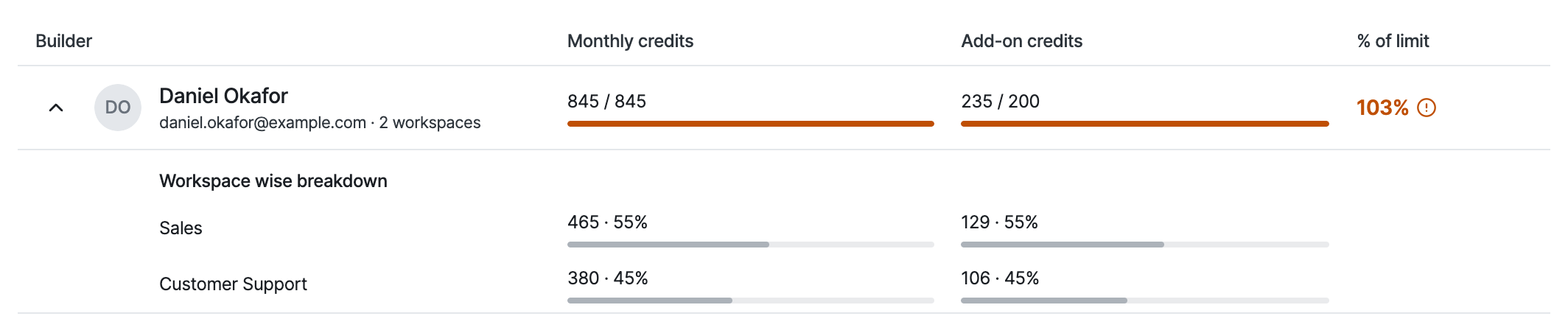
A builder can show more than 100%. ToolJet checks the limit before an AI action starts, and an action that is already running always finishes, so its cost can take a builder past their limit. Their next action is refused.
Archived users, end users and spend that can't be linked to a builder appear below the builders, only if they used credits this cycle.
Workspace Breakdown
Self HostedClick the arrow next to a builder to see their usage in each workspace. Limits apply across the instance, so a builder's limit covers their usage in every workspace.
Per-Builder Credit Limits
Enterprise PlanAdmins set a default limit for all builders and can give individual builders a custom limit.
Turn Limits On or Off
Toggle Per-builder limit in the top-right corner of the page. If some builders have already used more than their limit, a confirmation shows how many will be blocked until the cycle resets.
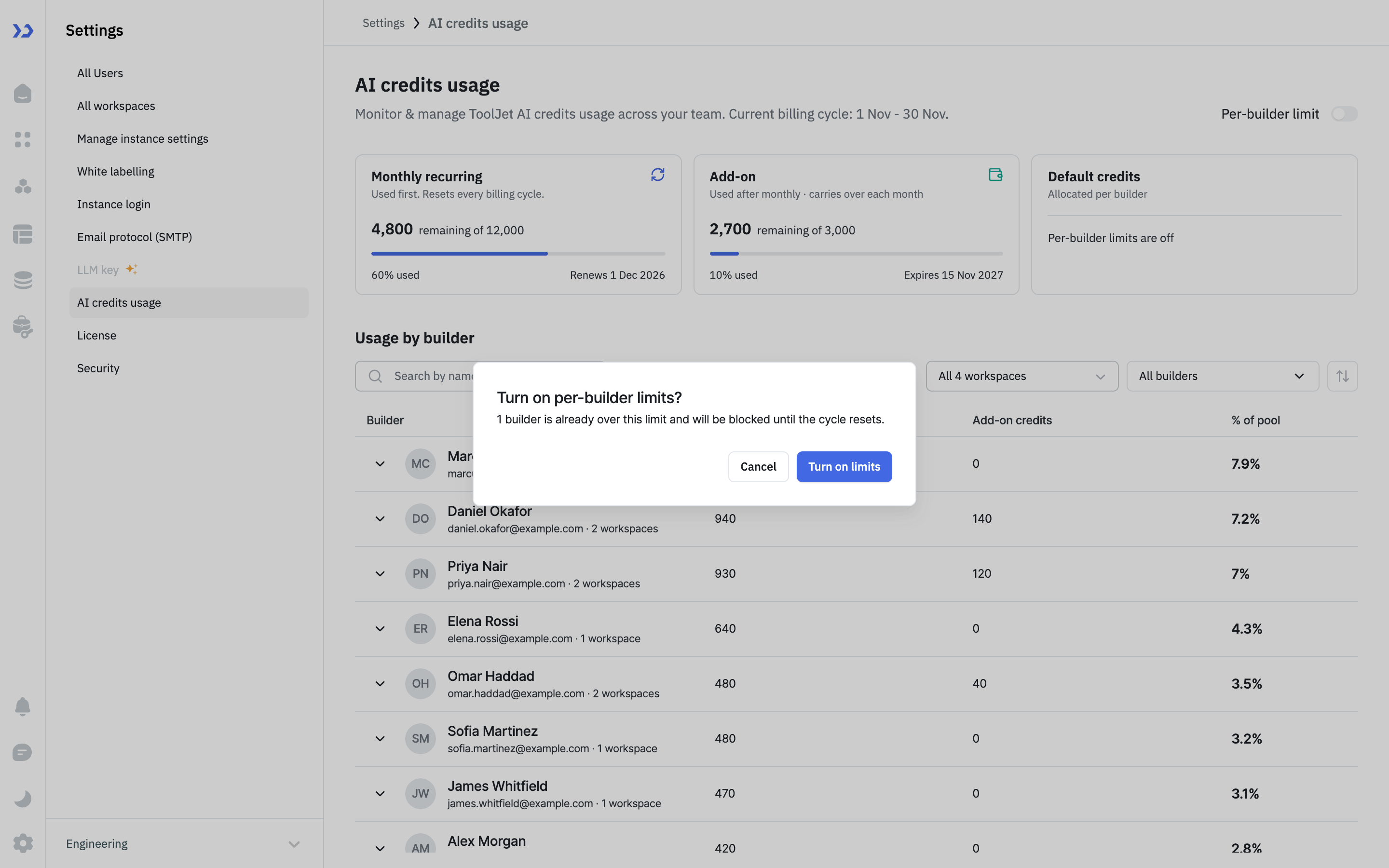
Turning limits off keeps the saved defaults and custom limits. Builders can then use credits until the pool is empty.
Set the Default Limit
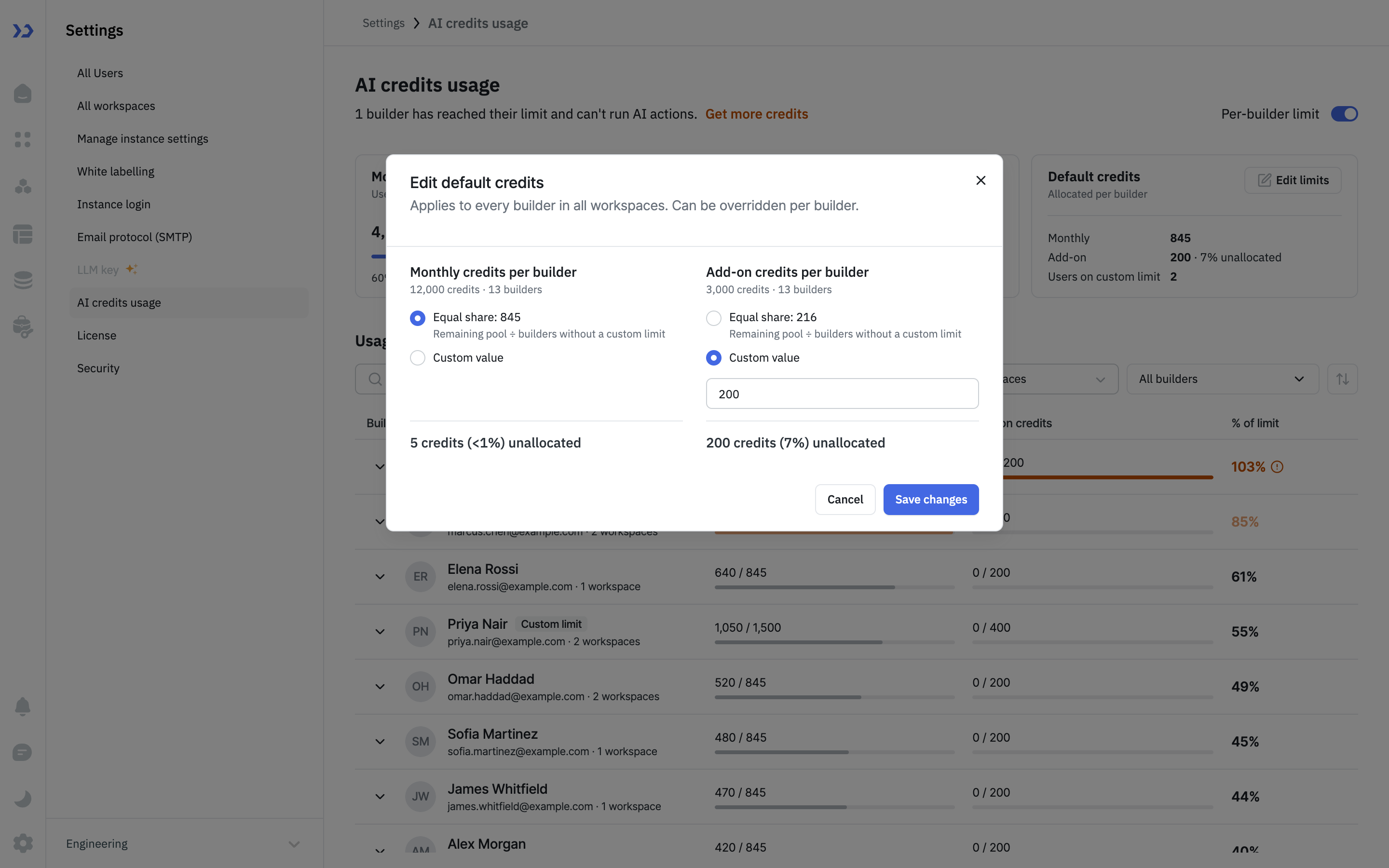
- On the Default credits card, click Edit limits.
- For Monthly credits per builder and Add-on credits per builder, select Equal share, or select Custom value and enter the credits per builder. A custom value can't be higher than the Equal share.
- Click Save changes.
Set a Custom Limit for a Builder
- Hover over the builder's row and click Edit limits.
- For Monthly credits and Add-on credits, select Custom limit and enter the credits. Under an Equal share default, the dialog shows how the default for other builders changes.
- Click Save limit.
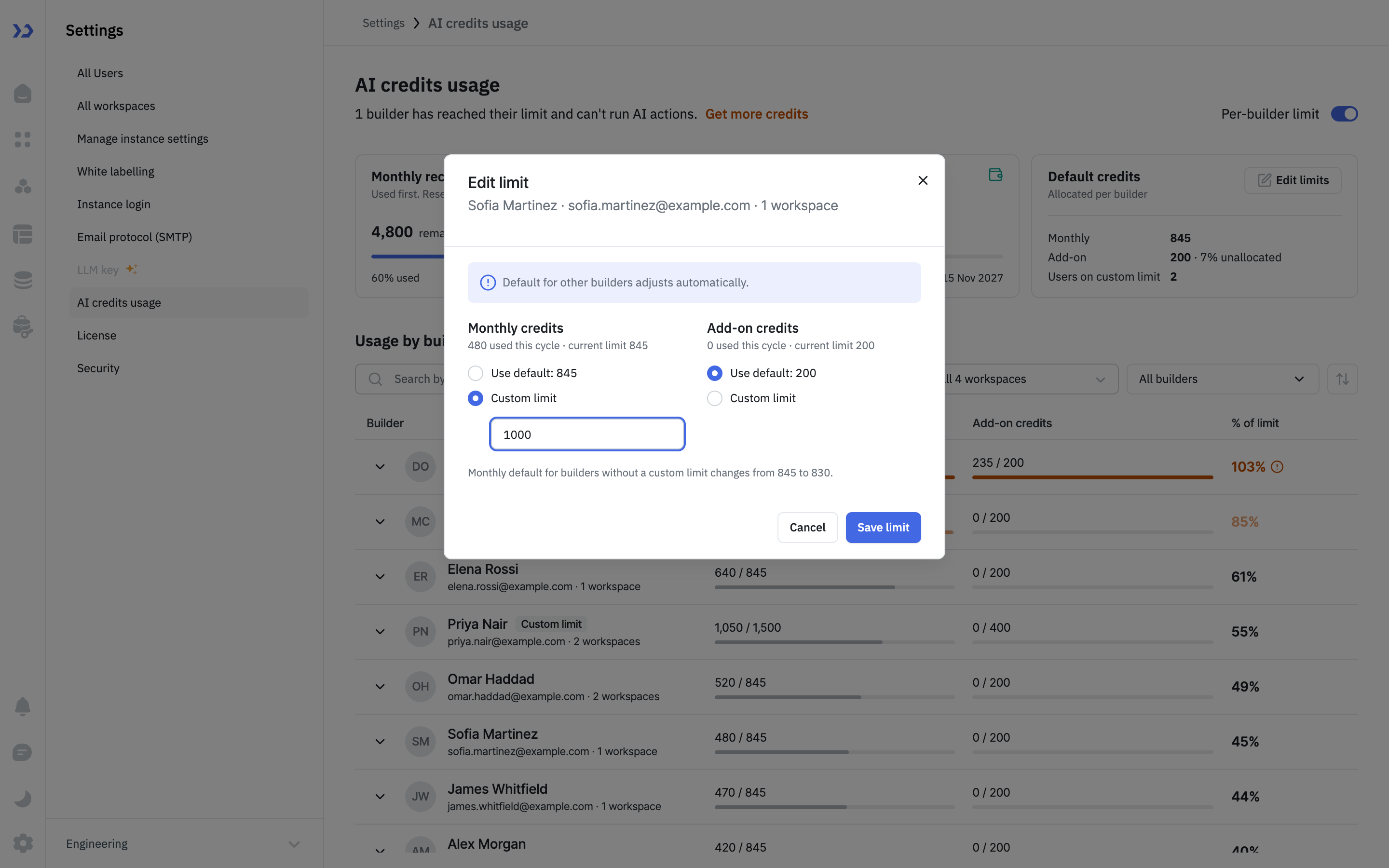
To return a builder to the default, open Edit limits, click Reset to default and save.
What Builders See
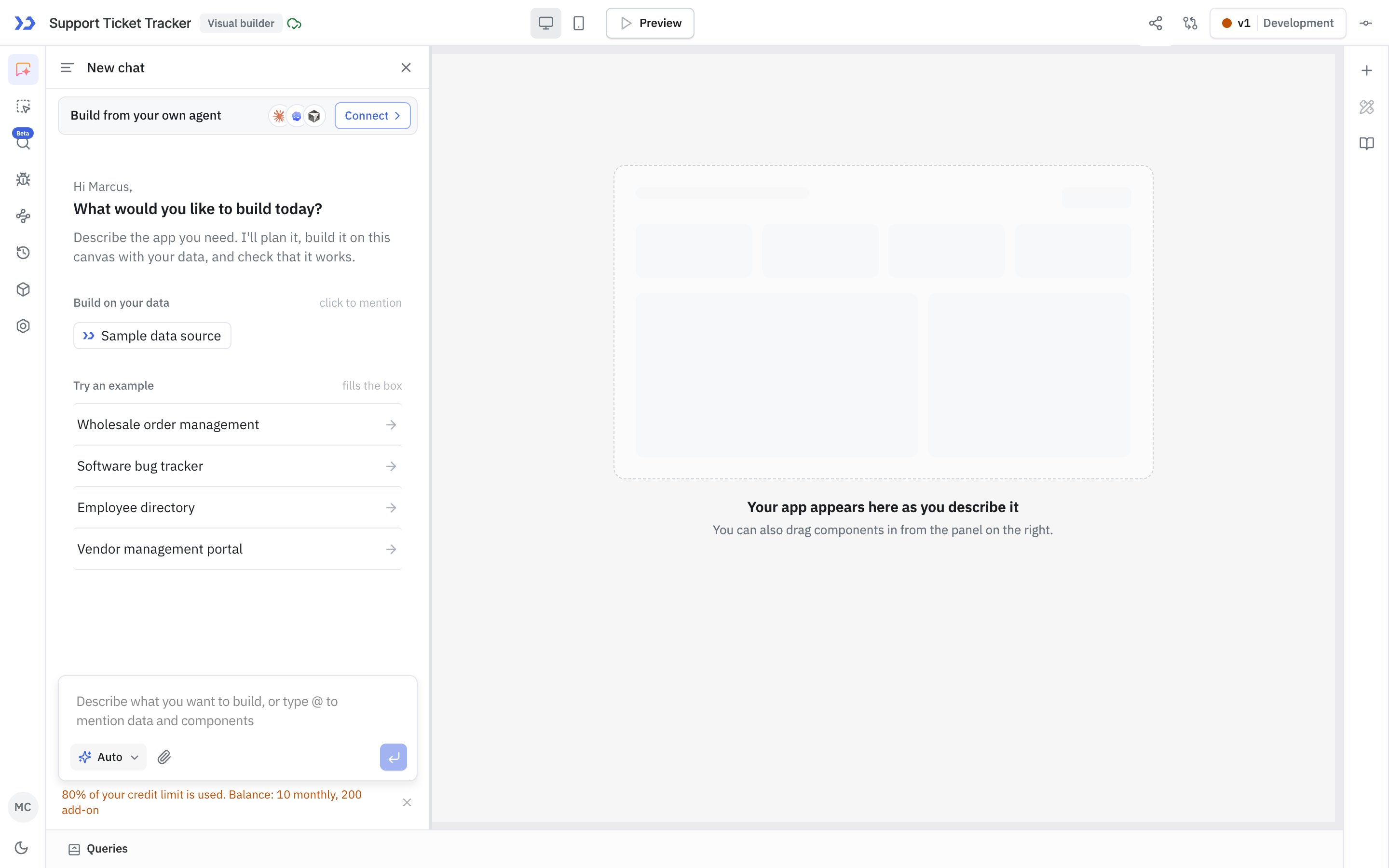
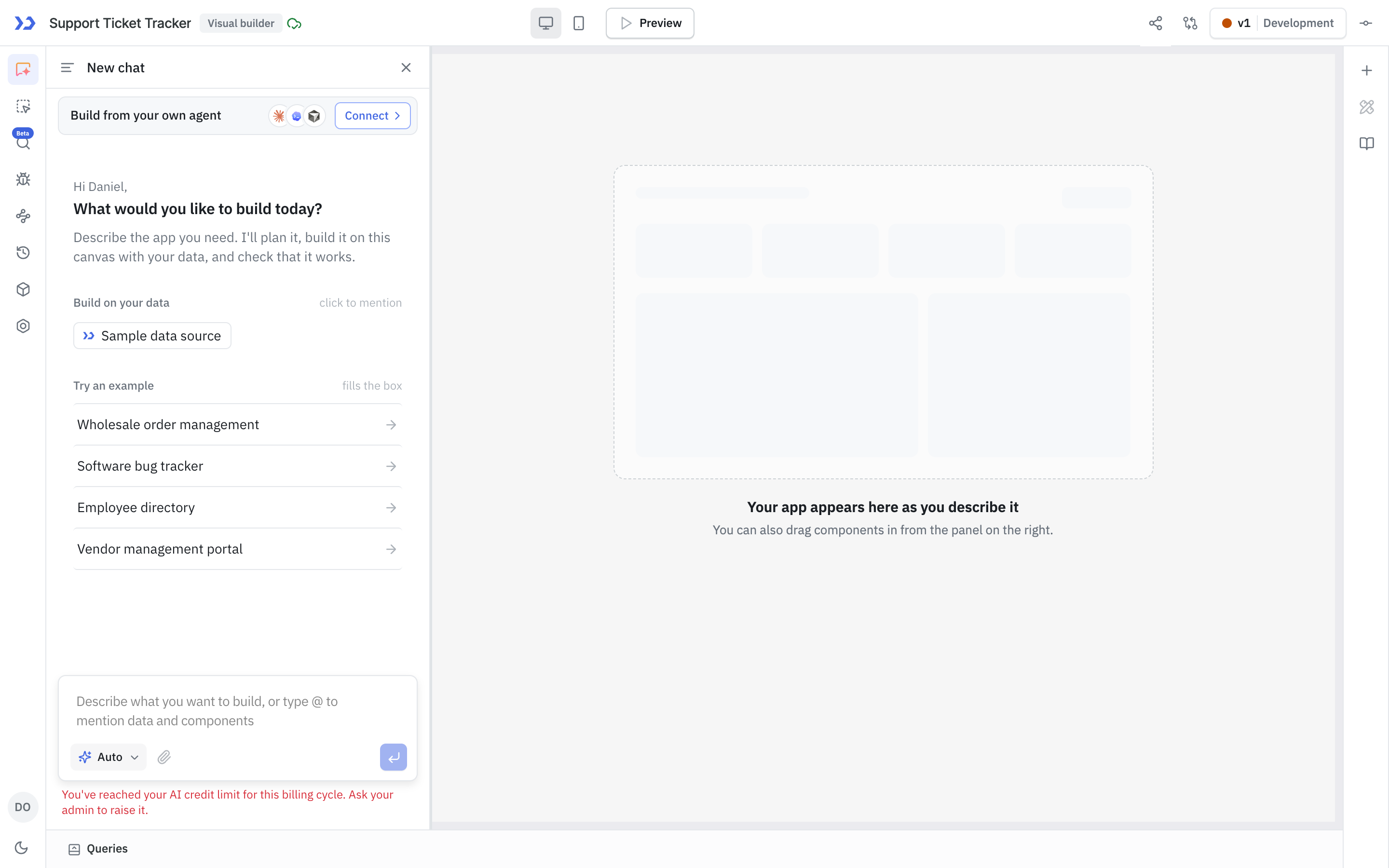
While limits are on, the AI chat shows each builder their own remaining credits instead of the whole pool.
At 80% of their limit, a warning appears below the AI chat prompt:
At their limit, the prompt is disabled:
Parallel AI Actions
While limits are on, a builder can run up to 3 AI actions at once. When less than 20% of their limit is left, they can run only one at a time. On self-hosted deployments, these values can be changed with environment variables:
| Variable | Description | Default |
|---|---|---|
AI_CREDIT_MAX_PARALLEL_RUNS | Maximum AI actions one builder can run at the same time. | 3 |
AI_CREDIT_PARALLEL_HEADROOM_PERCENT | Percentage of a builder's limit that must remain to start another AI action while one is running. | 20 |
Need Help?
- Reach out via our Slack Community
- Or email us at support@tooljet.com
- Found a bug? Please report it via GitHub Issues