Versions and History
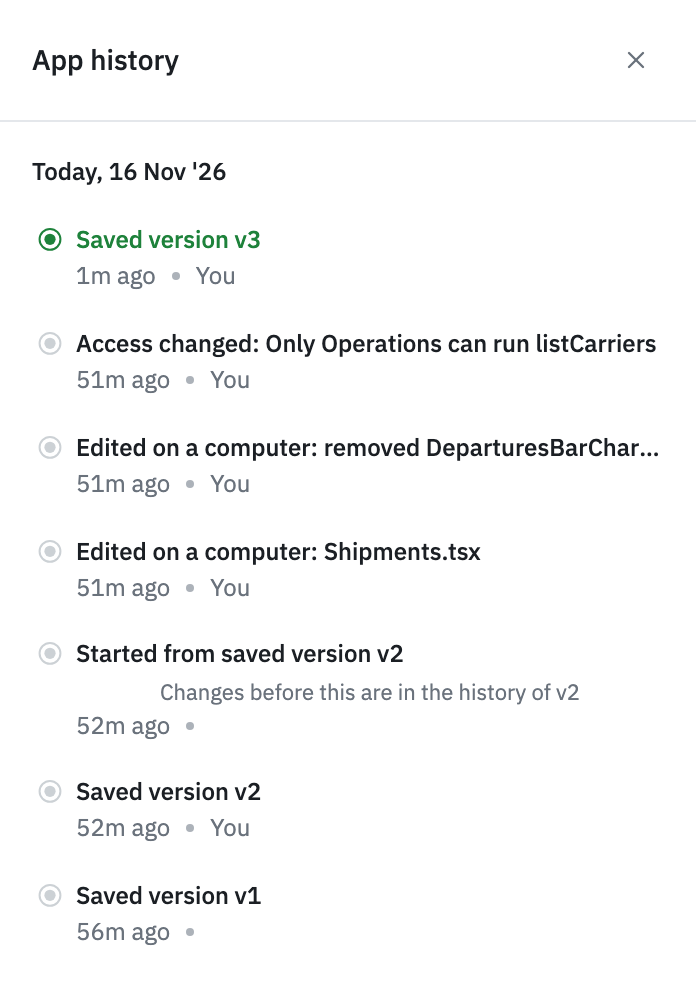
A React Builder application's code is saved with each version. ToolJet records each change to the code in App history, whether it came from ToolJet AI, the editor or a local computer, and recent changes can be undone.
Save a Version
Changes are always made on a draft. A saved version, and any release of it, always runs the code it was saved with.
- In the editor's header, open the version menu and click Save version.
- Enter the version's name and description, and save.
From a local computer, one command does the same. See Build Locally.
tooljet app publish
A saved version's code and access can't change. To keep working, create a new draft from it. See Version Control.
What Gets Checked
Two checks run when a version is saved.
Review and Release
Release and promote a React Builder version like any other app. See Release and Rollback.
- In the release and promote dialogs, click See what changed to compare the version with the released one. See Compare and Review Versions.
- To have a teammate approve the version first, request a review.
- A version can't be released or promoted until it passes its security check. See The Release Gate.
- Production has its own ToolJet Database data: rows added in development or staging aren't copied.
History and Undo
App history in the left sidebar lists every change to the app's code and access, newest first: AI edits, Code panel saves, style inspector edits, uploads from a local computer, Git pulls, saved versions and access changes. Click an entry to see what it changed.
There are two ways to go back:
- To undo an AI edit, open See what changed on it and click Undo this edit. Redo brings the edit back. If the code has changed since that edit, the undo is refused.
- To go back to a recorded point, click Restore on an entry. The code returns to how it was then, and the restore becomes a new entry, so it can be undone too.
Restore changes the code only, not queries or access, and it needs a draft whose code is edited in ToolJet.
Move an App
A React Builder app's code travels with the app.
- With GitSync, ToolJet commits the app's React project in a
code/folder beside the app definition. - An export file includes the app's code, and importing it creates a React Builder app that can be edited in ToolJet.
- Clone app copies the app with its code. The copy reads the same ToolJet Database tables as the original.
How GitSync, Export, Import and Clone Handle the Code
GitSync
- On a commit, ToolJet writes the draft's code to
apps/<app>/code/:app.json,frontend/and the lockfile. It makes the folder match the code in ToolJet and never touches other files there. - The first commit adds a
code/.gitignorefornode_modules/,.tooljet/,frontend/dist/andfrontend/src/tooljet.gen.ts. The generatedtooljet.gen.tsis never committed. - A pull brings in what's in
code/and records it in App history as "Pulled from git", so the code it replaced can be restored. - When a version is saved and its code is ahead of the last commit, ToolJet commits the code before it tags the version.
- On the first pull into another workspace, a
code/folder that ToolJet committed turns the app into a React Builder app with its code. - If the project in Git holds a file that ToolJet can't store, such as one over the size limit, the whole pull is refused.
- In multi-branch mode, each Git branch has its own draft of the app. The code on the default branch is read-only in ToolJet: create a feature branch to change it. With the CLI, the Git branch of the project folder decides which branch's draft is used. See Git Branches.
When the code is edited in a Git repository instead of in ToolJet, a commit leaves code/ as the repository has it. See Who Edits the Code.
Export, Import and Clone
Action | What Happens to the Code |
|---|---|
| Export | The file includes each version's current code. The code's history isn't exported. If the app's built code is over 40 MB in total, export one version at a time. |
| Import | The app is created as a React Builder app, with code that can be edited in ToolJet. Each version's code starts a new history, and the first Save version builds the code again. |
| Clone | The copy gets the app's code, and each version's code starts a new history. App history starts with "Copied with the app". |
A file exported before exports carried code imports without it. Export the app again from the original, and import the new file.