Control Access
Access control restricts who can open each screen of a React Builder application and who can run each query, by group or by user. Both are set in the Access panel, and the ToolJet server enforces query restrictions on every run.
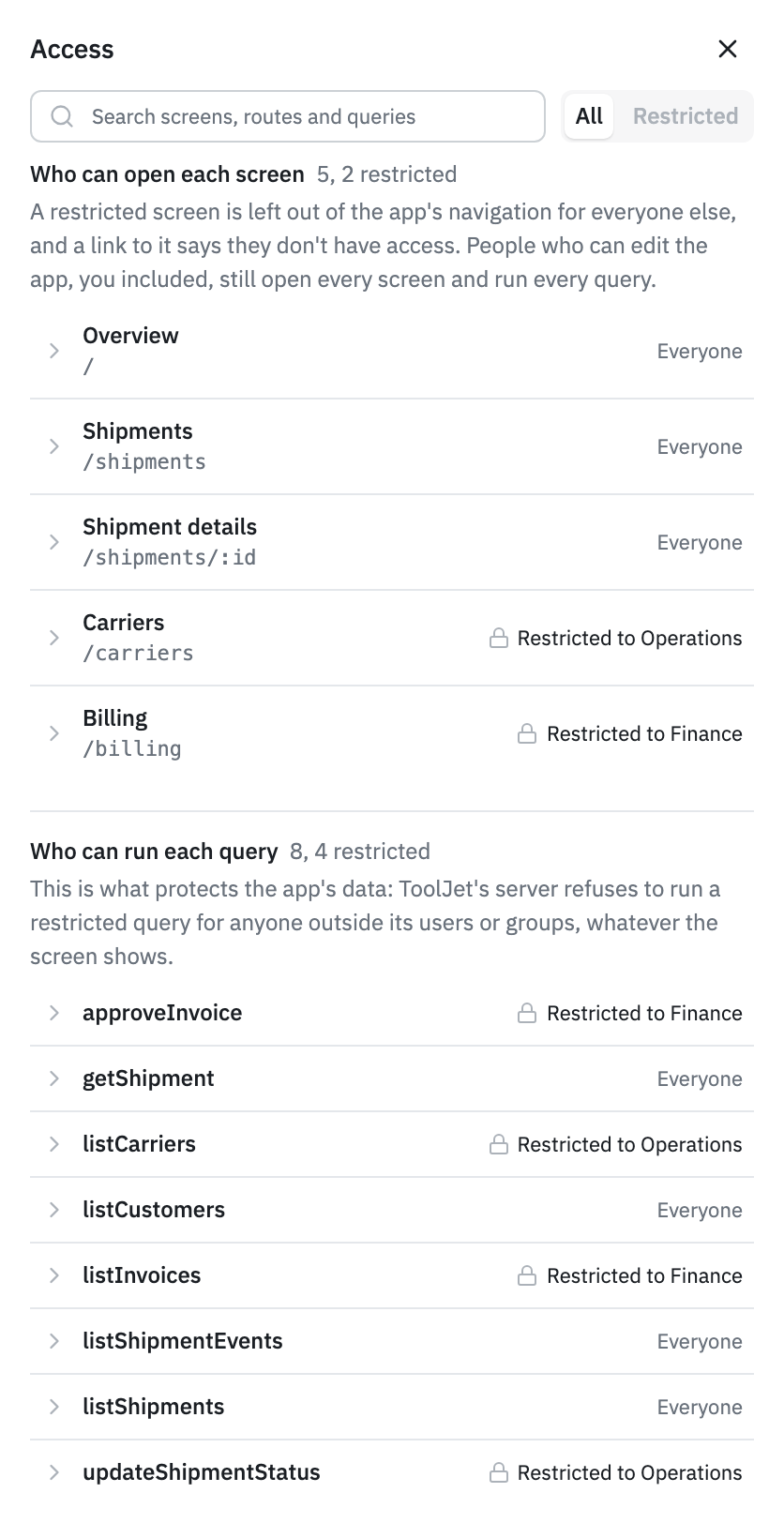
Screen and Query Restrictions
Access to the application as a whole is set in workspace settings. Inside the application, two kinds of restriction are available.
Restricting a screen only hides it. Everyone who can open the app still receives the screen's code and can still run its queries. To protect data, restrict the queries the screen uses.
Northwind Dispatch does both: its Billing screen is restricted to the Finance group, and so are the listInvoices and approveInvoice queries behind it.
Restrict a Screen or Query
- Open the app's draft version in the editor and click Access in the left sidebar. The panel has one list of screens and one of queries.
- Click a screen or a query to open its row, then click Restrict.
- Select User groups and choose the groups. To pick people instead, select Users.
- Click Create permission.
The group list shows the workspace's custom groups. A group that can't open the app yet is grayed out. Click the option beside it, for example Give Operations access to this app, to let that group open the released app, then select it.
To change a restriction later, click Change on its row. To remove it, select All users with access to the app, then click Save changes.
What Users See
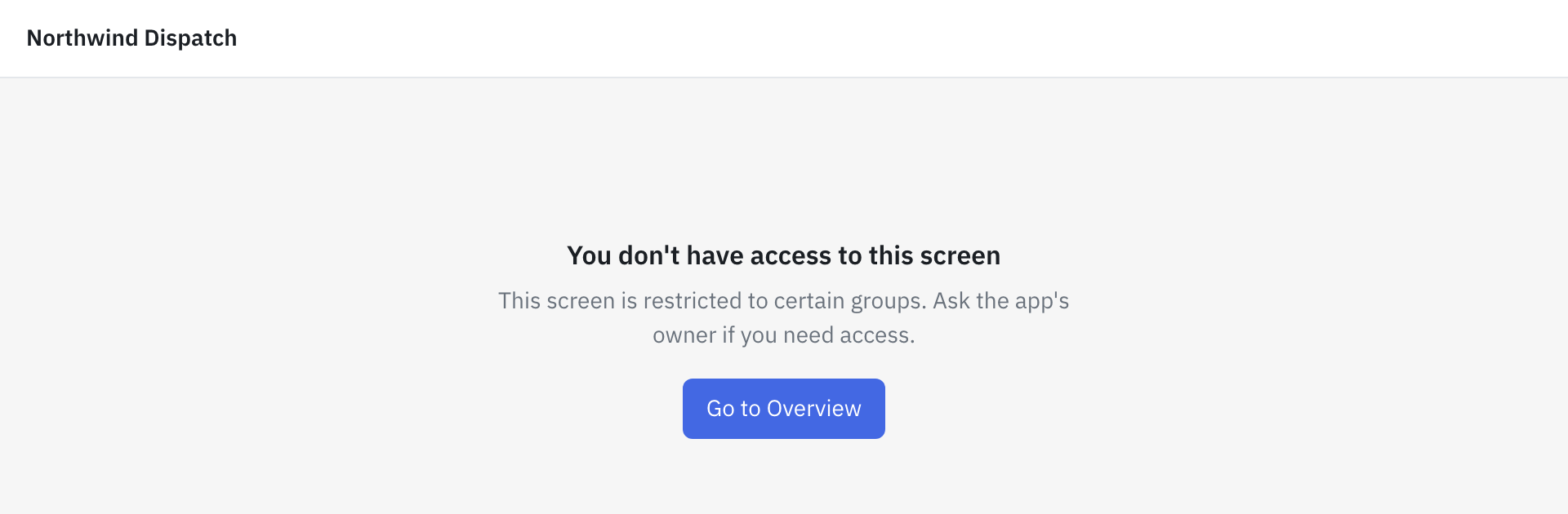
Someone outside a screen's groups doesn't find the screen in the app's navigation. A direct link to the screen shows "You don't have access to this screen" in place of the app, with a button back to the first screen they can open.
A restricted query fails for them instead of returning data, and the app's code gets the failure as the query's error. See Runtime API.
Notes
- People who can edit the app, workspace admins included, open every screen and run every query. Everyone else is held to the limits everywhere, Preview included.
- On a public app's link, restricted screens and queries are closed to everyone, signed-in members included. Queries without a restriction run for anyone who has the link.
- Access is saved with the version, and a saved version can't change. Switch to a draft to edit its restrictions.
- Every change is recorded in App history, for example "Access changed: Only Operations can open Carriers".