App Security
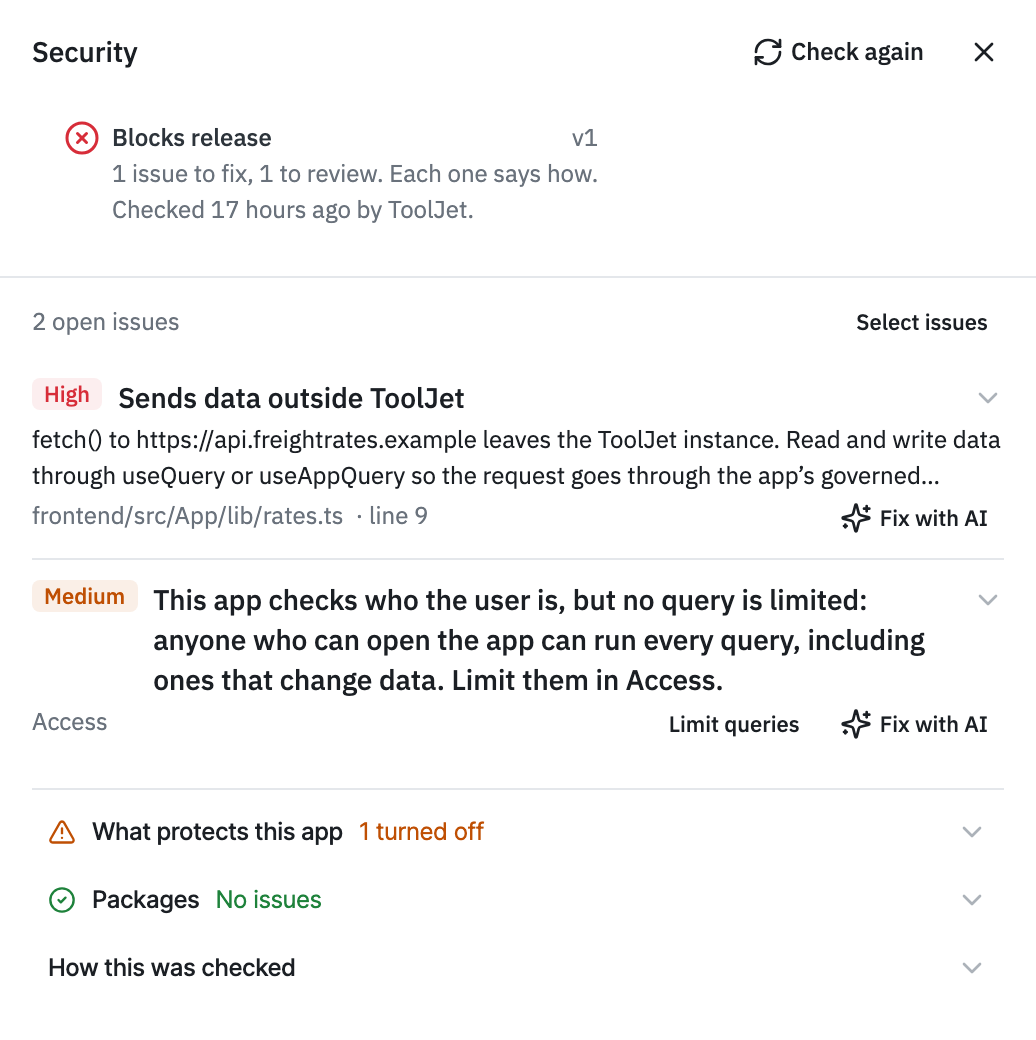
ToolJet checks the code, npm packages and queries of every React Builder application. Each reported issue states what was found, where it is and how to fix it. A version that fails the workspace's scan policy can't be released.
Protection Layers
React Builder applications are protected in three ways, all turned on by default.
What's Checked
ToolJet runs twelve checks, grouped into four categories. Comments in the code can't turn a check off.
All Twelve Checks
Check | What It Looks For |
|---|---|
| Queries and components | Unsafe SQL, scripts and HTML, and passwords sent in requests. |
| App code | Unsafe HTML, text run as code, calls to outside addresses, and token reads. |
| Secrets in code | Passwords, keys and tokens written into the code. |
| Packages with known vulnerabilities | Packages with a published vulnerability, or known to be malicious. |
| Newly published packages | Package versions released only days ago, before others could vet them. |
| Package sources | Where each package was downloaded from, and that it wasn't altered. |
| Package licences | Licenses the workspace doesn't allow. |
| Blocked packages | Packages the workspace has blocked. |
| Bundled libraries | Library files copied into the app, checked for known vulnerabilities. |
| Supply-chain alerts (Socket) | Risky package behavior, such as install scripts. Runs only when the server has a Socket token. |
| Secrets in the built app | Passwords, keys and tokens in the code that will run. |
| Known-vulnerable libraries in the built app | Library versions with known vulnerabilities in the code that will run. |
The last two checks run on the frozen build of a saved version. Packages that come with the React Builder app template are never flagged as newly published. They're still checked for known vulnerabilities.
ToolJet also reports how the app protects its data, as issues to review that never block a release. For example, when a query changes data and no query is restricted, or when a query trusts {{globals.currentUser…}} from the browser.
Read the Result
Open Security in the left sidebar, or click the security chip in the editor's header.
Result | What It Means | What to Do |
|---|---|---|
| No issues | Every check ran and found nothing open. | Nothing to fix. |
| N issues to review | Open findings, none of them blocking. | Review them. Nothing blocks the release. |
| Blocks release | A finding, or a check that couldn't run, fails the workspace's policy. | Fix the issue, or click Check again if a check couldn't run. |
| Code changed since the last check | The code changed after the last check. | Click Check again before release. |
A clean result means no check found an issue. It doesn't prove the app is secure.
What Protects This App
Below the issues, What protects this app shows whether each protection is on: who can open the app and each screen, who can run each query, how people sign in, and where the code can connect. It also flags a query that trusts {{globals.currentUser…}}, which a user can change in the browser.
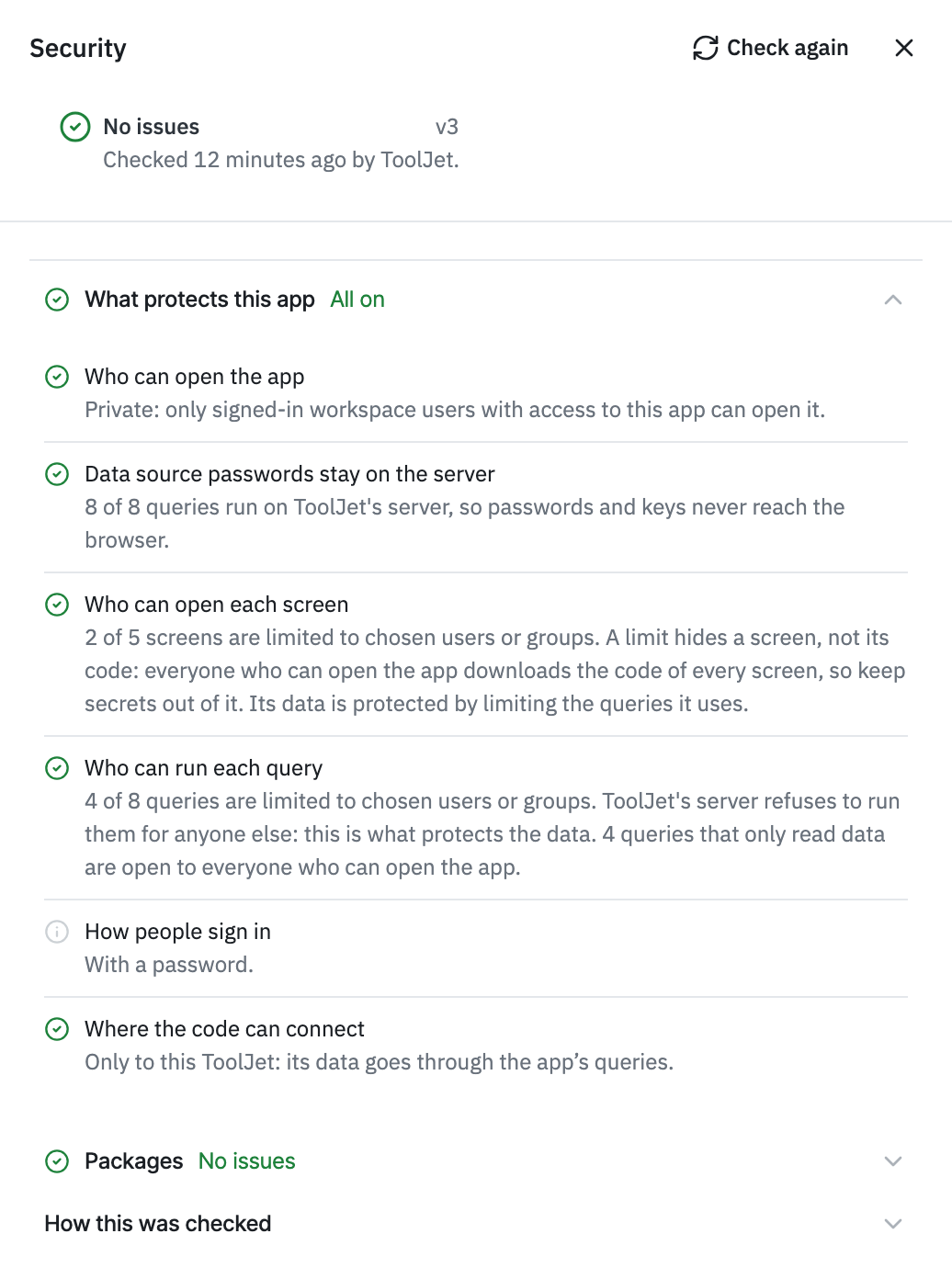
Isolation protects the viewer's session, not the app's data: that depends on who can run each query. See Control Access.
Fix an Issue
- Open Security and click Fix with AI on the issue. To fix several at once, click Select issues, choose them, then click Fix selected with AI.
- ToolJet AI makes the change as a chat message, and ToolJet checks the draft again a few seconds later.
- Confirm the issue is gone. If the result looks out of date, click Check again.
Fix with AI uses AI credits, and it's off when the app's code is owned by a Git repository. An issue can also be fixed by hand in the code.
Some issues have another route:
- For an access issue, click Limit queries to restrict the query in the Access panel.
- For an accepted issue, a workspace admin can click Add exception and give a reason. See Exceptions.
The Release Gate
Every release and promotion of a React Builder app passes the release gate. In short, it passes when the saved version has a finished check of its current code and nothing fails the workspace's policy. Otherwise, the release and promote dialogs say why and lock the confirm button.
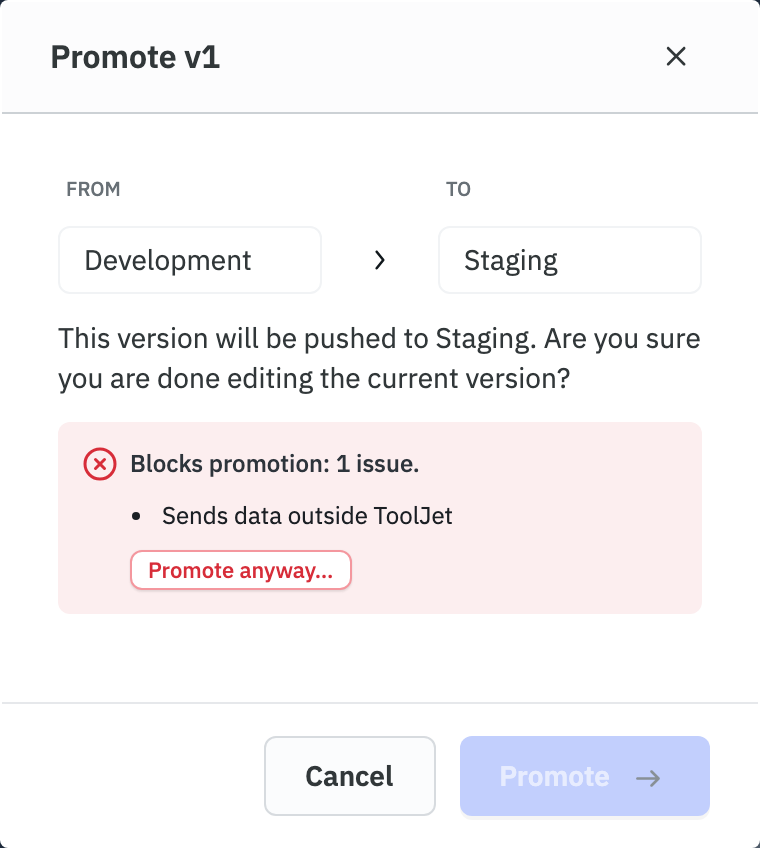
If a held version has to ship, a workspace admin or an app editor with release permission can click Release anyway… (Promote anyway… in the promote dialog) and give a reason, which is kept in the audit trail. The decision lasts until the next check or policy change. The button isn't offered while the version needs a new check, for example after its code changed.
Visual apps aren't checked, so the gate never holds them. See Release Gate Rules for every rule.
Set Security Rules for the Workspace
Workspace admins set the rules every React Builder app is checked against at Workspace settings → App security. From that page they can:
- See every app's security status, open issues and last check in one list.
- Edit the scan policy: which checks and severities block a release, the wait before new package versions can be used, and allowed licenses.
- Review and remove exceptions.
- Allow outside addresses that apps may connect to.
- Follow the activity: releases made with Release anyway, exceptions, and policy changes.
See Workspace App Security for each setting.