Compare and Review Versions
Compare versions shows the differences between two versions of an application, including its screens side by side. A version review records a reviewer's approval of a version before it is released.
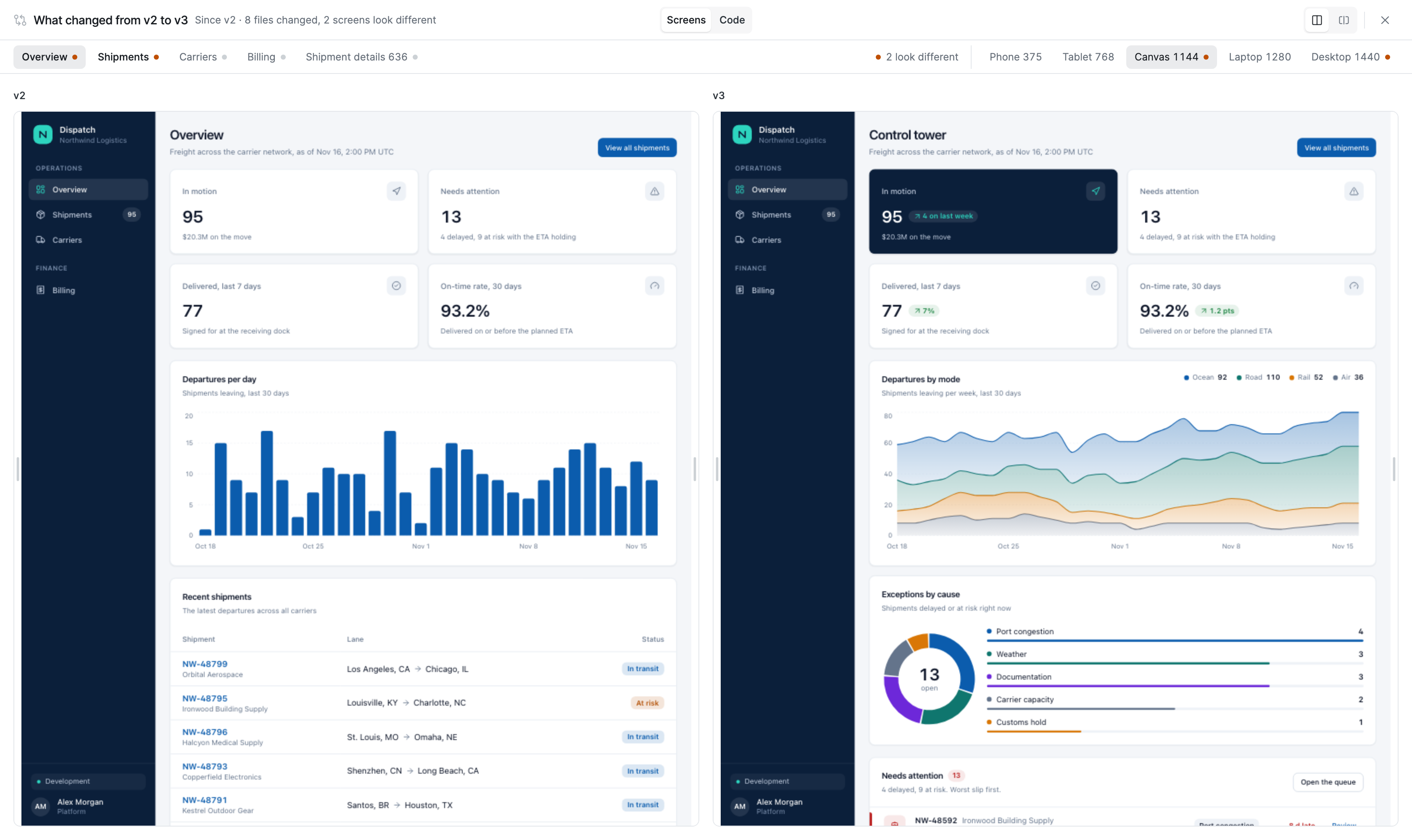
Overview
Compare versions and version reviews work the same way for visual applications and React Builder applications.
Compare Two Versions
The steps depend on how the app is built.
- Visual app
- React Builder app
- In the App Builder header, click Compare versions.
- Pick the two versions under From and To. The swap button between them switches sides.
- Go through the change list on the left. It groups what changed by page, then queries and settings.
- Choose how the pages are shown. Pick a Screen size, and use Layout to switch from side by side to a slider dragged across the page. Under Render, choose Live data to run each version's queries, or Layout only, runs no queries.
After an AI edit, See what changed under the chat turn opens this same view, with the app as it was before the edit on the left.
- In the editor's header, click Compare versions, then pick the versions under From and To.
- Read the summary on the left: the changed files, queries and settings, and any change to who can open a screen or run a query. Then click See screens and code.
- Switch between the two views:
- Screens shows each screen before and after, side by side or with a slider, at the selected width. A dot marks the screens and widths that look different.
- Code lists the changed files and shows what changed in each one.
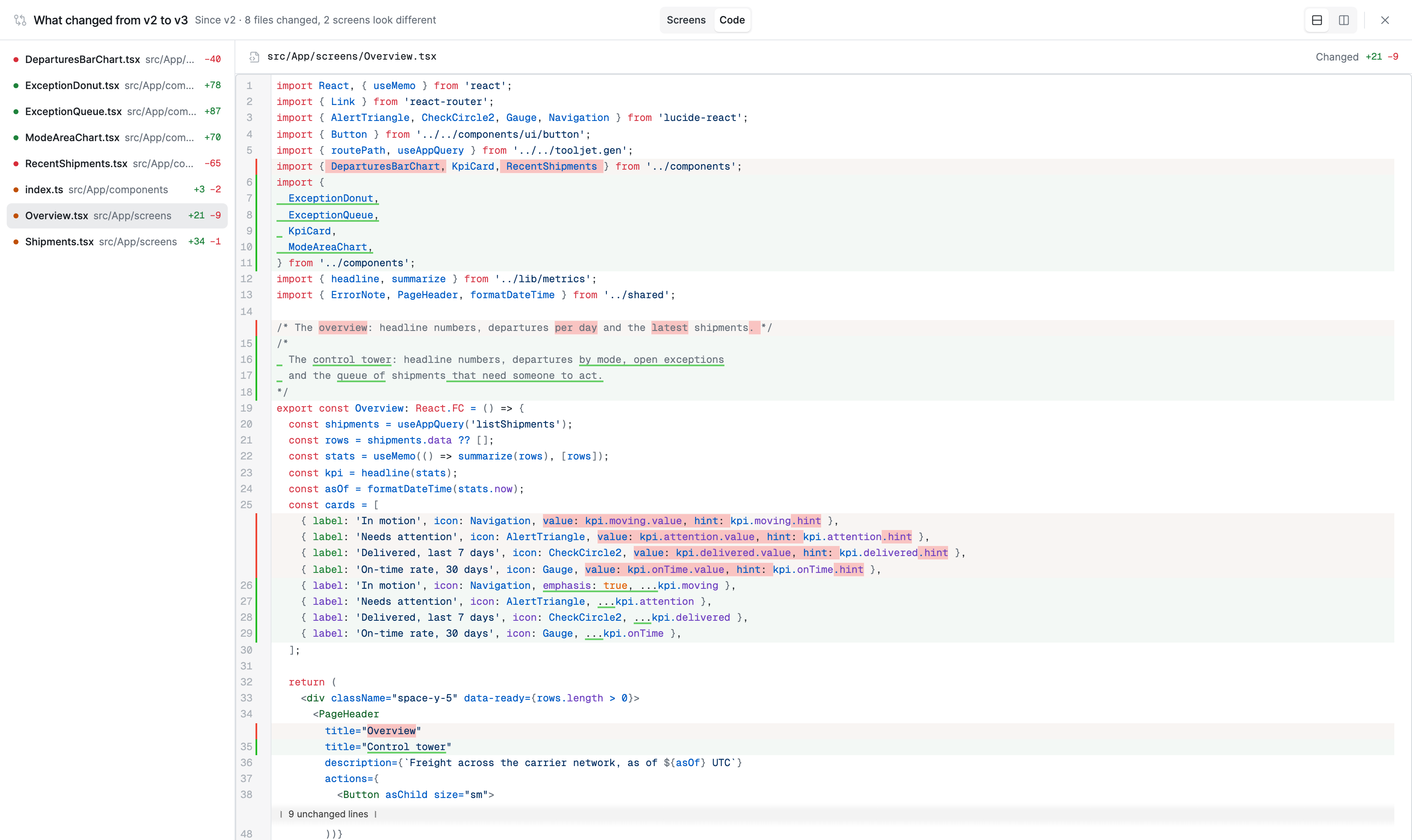
The same view opens from See what changed under an AI chat turn, on an App history entry, and in the release and promote dialogs. Queries that write data are blocked during a comparison, so comparing never changes data.
Request a Review
A review asks teammates to approve a saved version. Save the version first: a draft can't be reviewed, because what's reviewed must not change.
- Open Compare versions on the saved version. By default, a review compares it with the released version.
- Click Request review.
- Enter a Title, then describe what changed and what to check. Type
@to mention a teammate. - Under Reviewers, click Ask someone and choose people who can approve.
- Submit the request.
Each reviewer sees the request in their dashboard notifications. A version has one open review at a time.
Approve or Request Changes
Reviewers open the review from the notification or from Compare versions. The conversation sits beside the comparison.
- Comment on the whole version, or on one change.
- Approve the version. An approval covers exactly what the comparison showed. If the version changes afterwards, it needs a fresh approval.
- Request changes to block the release. The author addresses them, then clicks Ask for re-review.
The author of a review can't approve it.
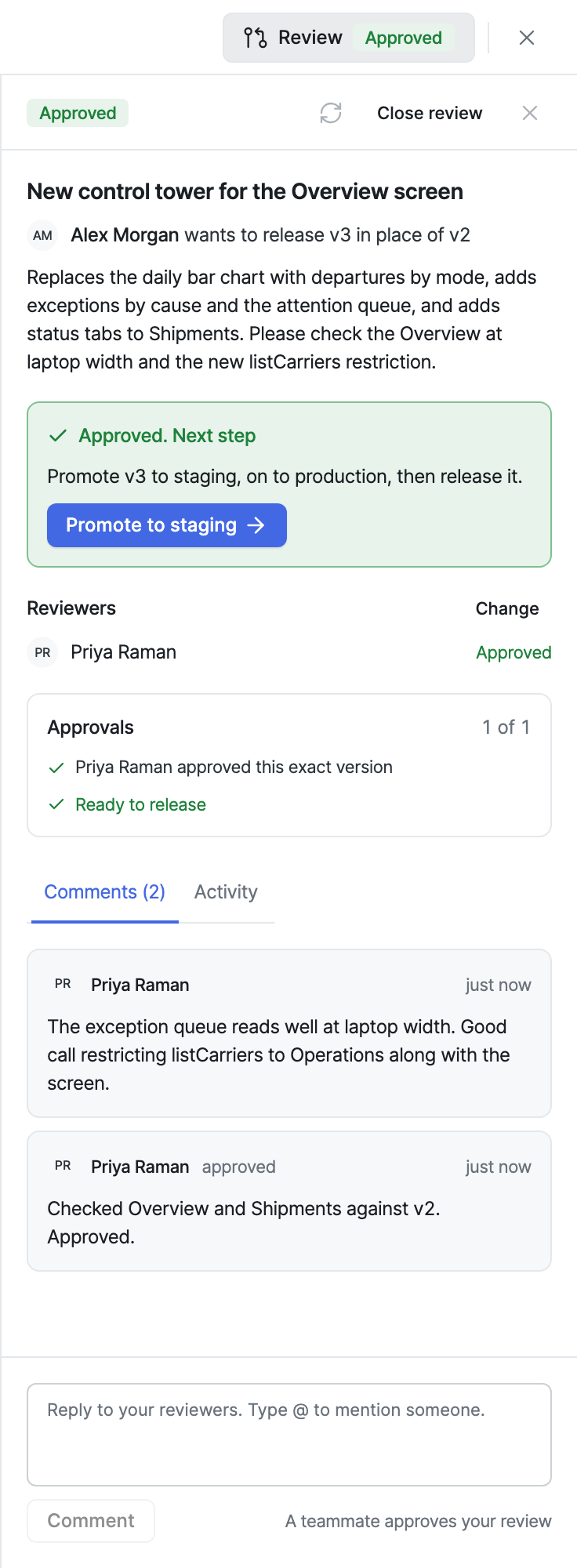
Reviews and Release
A review also decides whether the version can go out.
- A version with an open review that isn't approved can't be released, promoted or moved to another environment. This holds whether or not the instance requires reviews.
- The release dialog shows where the review stands, with a button to open the review or request one.
- A version released from an approved review can be released again later, for example to roll back, as long as its content still matches what was approved.
- In a React Builder app, the security check runs first, then the review check.
Required Reviews, Permissions and Releasing Without Approval
Require Reviews
On a self-hosted instance, an admin can require an approved review before every release, every promotion to production, or both, and set how many approvals a review needs. See Version Reviews in the environment variables reference. Until a required review is approved, the release stays locked.
Who Can Do What
Action | Who |
|---|---|
| Compare versions, request a review, comment, ask for a re-review, close or reopen a review | Anyone who can edit the app |
| Approve or request changes | Workspace admins, and users with promote permission on an app they can edit. Never the review's author. |
| Release without approval | Workspace admins |
A personal access token can read and comment on reviews, but it can never approve one or release without one. Approvals, change requests and releases without approval are recorded in the audit log.
Release Without Approval
A workspace admin can release a version whose review isn't approved:
- In the review, click Release without approval.
- Give a reason of at least 10 characters. It stays on the review's record.
- Confirm with Allow release without approval.
The author and the reviewers are emailed.
Where to Go Next
Compare versions and version reviews cover apps, not workflows or modules.