Security Policy
This page is the reference for workspace admins who decide what a React Builder app must pass before release: the scan policy, exceptions, allowed addresses, uploads from a build pipeline, and every rule and state behind the release gate. To read a result and fix an issue as a builder, see App Security.
When Checks Run
When | What Happens |
|---|---|
| After every save and build | ToolJet checks the draft automatically a few seconds after the code changes, whether the change came from the AI, the Code panel, the style inspector, the CLI or a git pull. |
| Check again | Runs a full check of the version now, from the Security panel. |
Save version and tooljet app publish | Checks the code and the frozen build of the new version. This is the result the release gate uses. |
Each tooljet app dev build | The CLI checks the build on the local computer and sends the result to the Security panel. It's for information only. |
| Build pipeline | Upload results from external scanners. See Upload Results From CI. |
| After release | Optionally, ToolJet re-checks released versions' packages for new advisories on a schedule. |
Only ToolJet's own checks count for the release gate. Results from tooljet app dev and from CI are listed, but they never block or unblock a release on their own.
The app's code can't switch any check off: lint-disable and secret-scanner comments in the code are ignored. Only workspace exceptions suppress a finding. For the list of checks, see What's Checked.
The Security Panel
Open Security from the left sidebar of a React Builder app, or click the security chip in the header.
States
The same state shows on the header chip, in the panel, in the release dialog and on the workspace App security page.
State | Meaning |
|---|---|
| Not checked yet | The version has no code yet, or hasn't been checked. Click Check now. |
| Checking… | A check is running or queued. The result shows in a moment. |
| No issues | Every check ran and found nothing open. |
| N issues to review | Open findings, none of them blocking. |
| Blocks release | A finding, or a check that couldn't run, fails the workspace policy. |
| Code changed since the last check | The code changed after the last check. Check again before release. |
| Check failed | The check didn't finish. Click Retry. |
| Released with issues | The version was released with Release anyway. |
| N new issues to review | A re-check after release found new advisories in the packages this version uses. |
ToolJet never calls a version "secure". A clean result means no check found an issue.
What Protects This App
This section of the panel lists the app's protections and whether each is on:
Row | What It Shows |
|---|---|
| Who can open the app | Public or private. |
| Data source passwords stay on the server | How many of the app's queries run on ToolJet's server, so passwords and keys never reach the browser. |
| Who can open each screen | Whether screens are restricted. |
| Who can run each query | Whether any query is restricted. It shows as off when a query changes data, or the code reads the user's groups, and no query is restricted. |
| Who the queries think the user is | Shown when a query uses {{globals.currentUser…}}. The browser fills these values, so a user can change them. |
| How people sign in | Password or single sign-on. |
| Where the code can connect | Only this ToolJet, or this ToolJet plus the addresses a workspace admin allowed. |
ToolJet also reports how the app protects its data as issues to review that never block a release. For example, when a query changes data and no query is restricted, or when a query trusts {{globals.currentUser…}} from the browser.
Packages and Check Details
- Packages lists every package with its version, license and advisories. Download package list (SBOM) downloads a CycloneDX 1.5 JSON file.
- How this was checked lists the checks that ran, any that didn't run this time and why, and the recent checks. Each check's full results can be downloaded as SARIF.
Release Gate Rules
Every release, promotion, change of the released version and auto-deploy of a React Builder app passes the release gate. The gate passes only when:
- the version has a finished check by ToolJet of exactly the code it stores, under today's scan policy;
- no finding fails the policy, and every check that the policy blocks on actually ran;
- the version runs a saved build that was frozen from its current code (not a developer's local build), built into the app's own library;
- any build pipeline checks the policy requires have reported, with nothing blocking.
When the gate fails, the release and promote dialogs show why, such as "Blocks release: 2 issues" or "Security: not checked yet", and lock the confirm button.
Security checks apply only to React Builder apps. Visual apps are never checked and are always releasable.
Release Anyway
When findings, a failed check or a check that couldn't run hold a version, someone with release permission can release it anyway:
- Click Release anyway… in the release dialog or the Security panel. In the promote dialog, it's Promote anyway….
- Explain why it's acceptable. The reason is kept in the audit trail.
- Click Release anyway.
Workspace admins, and app editors with release permission, can do this. A personal access token never can. The decision lasts until the next check or the next change to the scan policy.
Release anyway isn't offered when the version hasn't been checked, its code changed since the last check, the policy changed, a required build pipeline check hasn't reported, or the version doesn't run a saved build. Check the version again, or save it, first.
Workspace App Security
Workspace admins manage security for every React Builder app in the workspace at Workspace settings → App security.
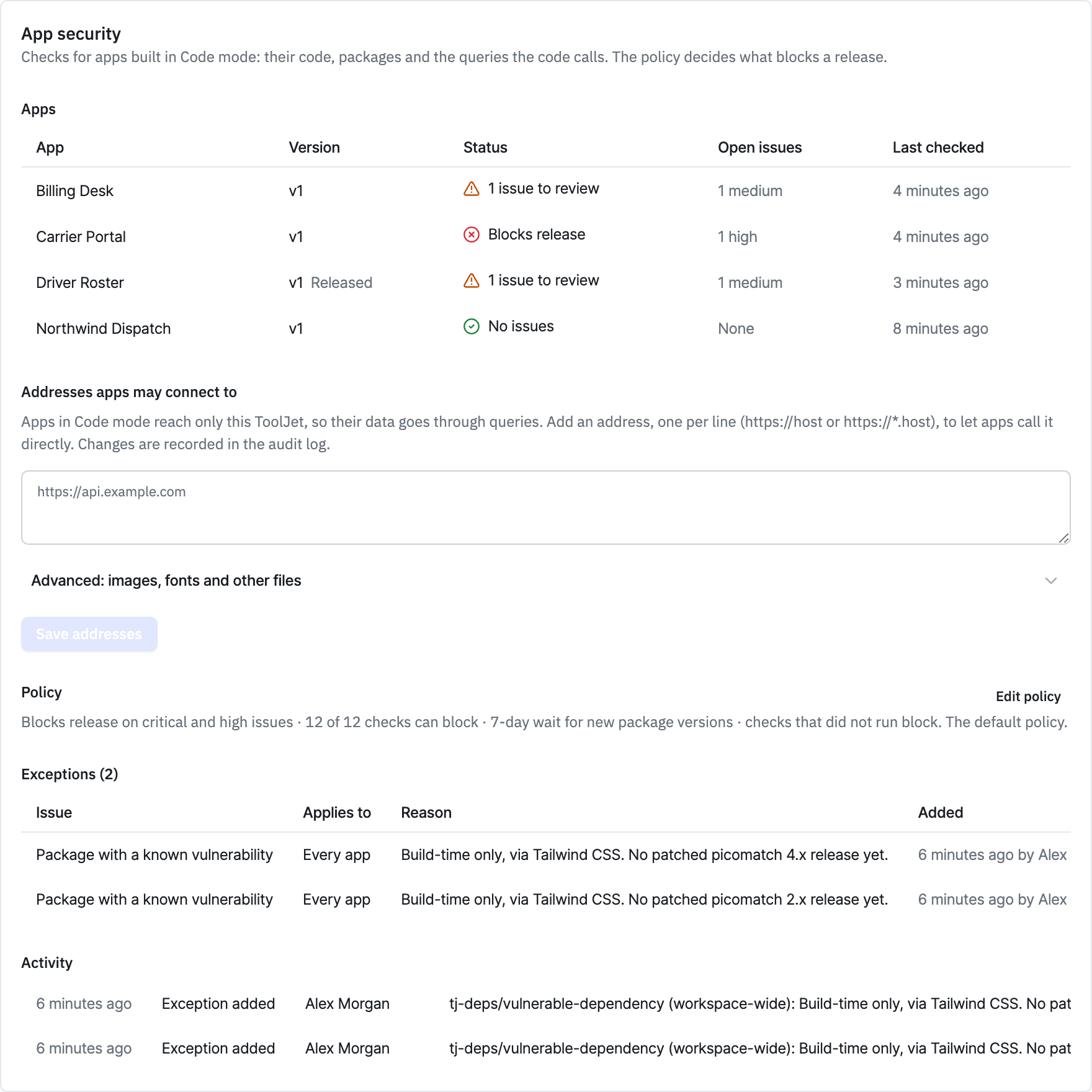
The page has five sections:
Section | What It Holds |
|---|---|
| Apps | Every checked React Builder app with its version, status, open issues and last check. |
| Addresses apps may connect to | The addresses apps may reach besides this ToolJet. See Allow Outside Addresses. |
| Policy | The workspace scan policy, with Edit policy. |
| Exceptions | Every accepted issue. |
| Activity | Releases made with Release anyway, exceptions added and removed, and policy changes. |
Scan Policy
Click Edit policy to change what blocks a release. Every workspace member can read the policy; only admins can change it.
Setting | Default | What It Does |
|---|---|---|
| Each check: Block, Warn or Off | Block | Whether the check's findings can block a release, are only reported, or aren't run. |
| Block release on | Critical, High | Which severities block a release. |
| When a check could not run | Block release | Whether a check that couldn't run (for example, the package registry was unreachable) blocks the release, or is only reported. |
| New package versions | On, 7 days | Wait this many days after a package version is published before the app may use it (0–90). |
| Licences not allowed | AGPL-*, SSPL-*, UNKNOWN | Licenses that fail the license check. |
| Only these licences | Empty | When set, every other license is refused. |
| Packages that skip the wait and the licence check | @tooljet/* | Trusted packages. |
| Packages to block | Empty | Packages, or package versions, that are never allowed. |
| Checks from your build pipeline required before release | Empty | Tool names, as the pipeline reports them, that must report a clean result before release. |
Click Save policy. The new policy applies from then on: each version's last check no longer counts until it's checked again under the new policy, which ToolJet does automatically, and any earlier Release anyway decision ends. Exceptions and policy changes take effect without changing the app's code.
Exceptions
An exception accepts one issue so it no longer blocks or counts.
- In the Security panel, click Add exception on an issue.
- Answer Why is this acceptable? The reason is kept in the audit trail.
- Under Applies to, choose This app or Every app in the workspace.
- Optionally, set Until for the exception to expire.
- Click Add exception.
Exceptions survive unrelated code edits. Remove one from the Security panel or the Exceptions list.
Allow Outside Addresses
By default, React Builder apps can connect only to this ToolJet instance, so their data goes through queries. To let apps call an outside address directly:
- Go to Workspace settings → App security → Addresses apps may connect to.
- Add one address per line, as
https://hostorhttps://*.host, with an optional port.http://localhostis allowed for development. - Under Advanced: images, fonts and other files, add addresses apps may load Images, Fonts, Stylesheets, Audio and video, Pages shown inside an app or Scripts from.
- Click Save addresses. Open apps pick up the change when they reload.
Each list holds up to 25 addresses. Paths, wildcards on their own and data: aren't allowed. Every change is recorded in the audit log.
Code from a Scripts address runs with the app user's access. Add only trusted addresses.
Calls to an allowed address aren't reported by the App code check.
Upload Results From CI
A build pipeline can upload results from any scanner that writes SARIF 2.1.0, such as Snyk, CodeQL or Semgrep:
- Exchange a personal access token for a session:
POST /api/personal-access-tokens/sessionwith the headerAuthorization: Bearer <token>. The response hasauthTokenandorganizationId. - Upload the results:
POST /api/apps/<app id>/versions/<version id>/scan-resultswith the cookietj_auth_token=<authToken>, the headertj-workspace-id: <organizationId>, and the body{ "sarif": <SARIF object>, "source": "ci" }.dependencies, a list of{ name, version, license }, can also be added.
The token's user must be able to edit the app. Uploads are limited to 20 MB of SARIF and 5,000 findings.
Uploaded results are listed in the Security panel but never block a release on their own. To require a pipeline check, add the tool's name to Checks from your build pipeline required before release in the scan policy. The release then waits for a ci upload from that tool that finished every run with nothing blocking, sent after the code was last saved.
Audit Log
These actions are recorded in the audit log:
Action | Recorded When |
|---|---|
APP_SCAN_RUN | Someone checks a version in the Security panel. |
APP_SCAN_PUBLISH | A version is checked on save or publish. |
APP_SCAN_UPLOAD | Results are uploaded from the CLI or CI. |
SCAN_OVERRIDE | A version is released with Release anyway, with the reason. |
SCAN_POLICY_UPDATE | The scan policy changes. |
SCAN_EXCEPTION_CREATE, SCAN_EXCEPTION_DELETE | An exception is added or removed. |
CODE_PAGE_SECURITY_UPDATE | The allowed addresses change. |
Self-Hosted Settings
On self-hosted ToolJet, environment variables set how React Builder apps are isolated (CODE_MODE_ISOLATION, CODE_MODE_STRICT_BINDINGS and CODE_MODE_SANDBOX_URL) and how the security checks run. See Environment Variables. For what isolation does, see How the App Is Isolated.