Access Control
ToolJet enables you to manage access control by configuring permissions like create and delete. Access control can be applied to all of your resources such as apps, data sources and workflows. Additionally, ToolJet supports granular access control, allowing you to configure permissions for individual resources to ensure precise and secure management.
Permissions
The following permissions can be configured for the given resources:
| Resource | Permission | Description |
|---|---|---|
| Apps | Create | Allows users of the group to create new applications within the workspace. |
| Delete | Allows users of the group to delete applications from the workspace. | |
| Promote | Allows users of the group to promote the applications from one environment to the other. | |
| Release | Allows users of the group to release the applications from the production environment. | |
| Data sources | Create | Allows users of the group to add new data sources in the workspace. |
| Delete | Allows users of the group to remove data sources from the workspace. | |
| Modules | Create | Allows users of the group to create new modules within the workspace. This includes cloning and importing modules. |
| Delete | Allows users of the group to delete modules from the workspace. This is blocked if the module is being used in any app. | |
| Folder | Create/Delete | Allows users of the group to create or delete folders to organize resources. |
| Workspace constants/variables | Create/Update/Delete | Allows users of the group to define, modify, or remove constants and variables used across the workspace. |
| Workflows | Create | Allows users of the group to create new workflows within the workspace. |
| Delete | Allows users of the group to delete workflows from the workspace. |
To configure view or edit access, please refer to Granular Access Control.
If a user has the create permission and creates a resource, the user becomes the owner of that resource and has all the permissions related to it by default.
For example, if a user creates a data source A, then by default, the user will have the configure and build access for data source A.
Configuring Permissions
Role Required: Admin
-
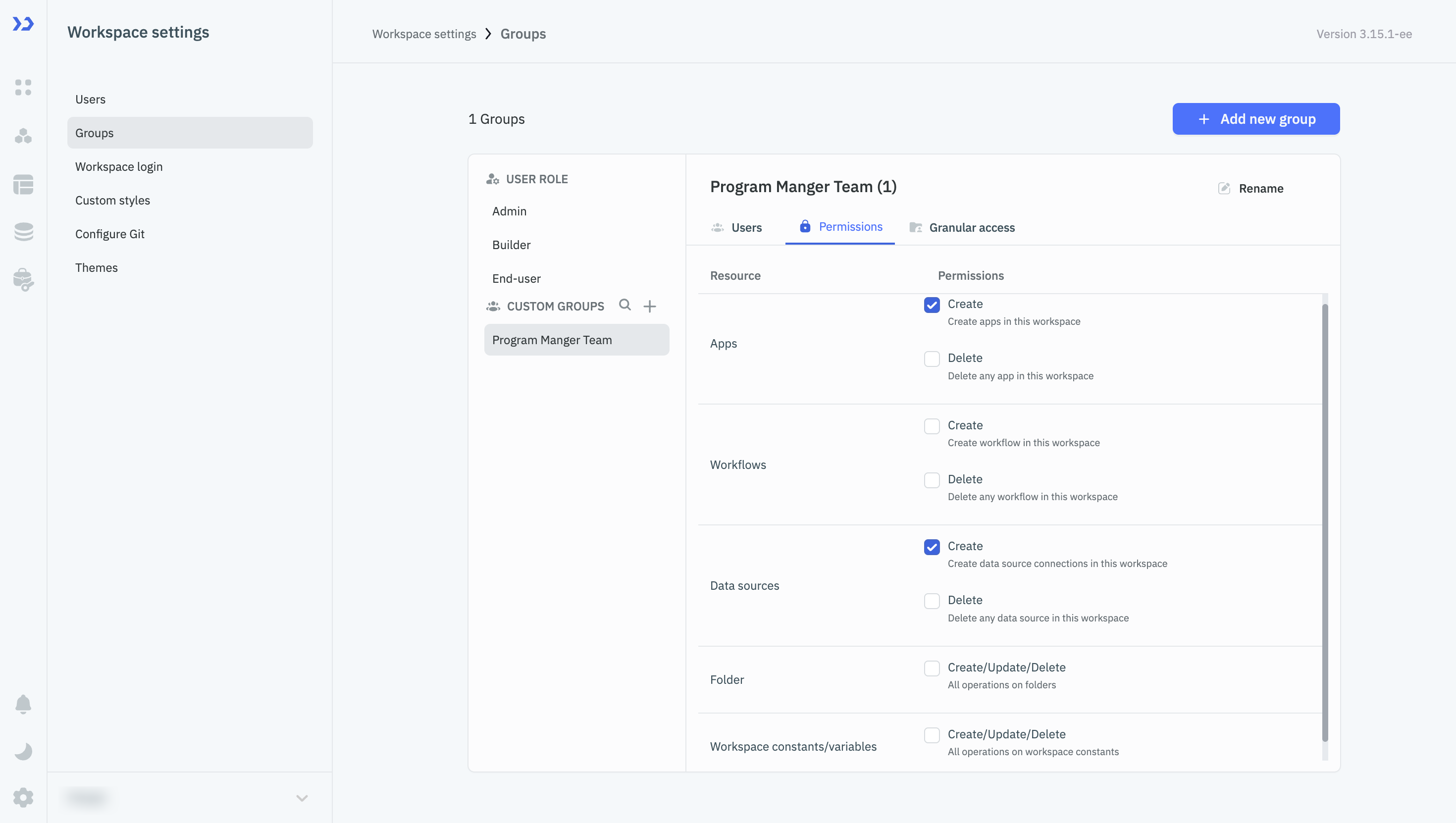
Click on the settings icon (⚙️) on the bottom left of your dashboard.
-
Go to Workspace Settings > Groups.
(Example URL -https://app.corp.com/nexus/workspace-settings/groups) -
Select the group to configure permissions.
-
Switch to the Permissions tab and configure the required permissions.
Granular Access Control
In ToolJet, you can set granular level access control for apps, data sources, and modules, by configuring permissions like view access or edit access, to manage who can interact with the resources in your workspace. You can apply permissions either to all resources (e.g., all apps or all data sources) or to specific, selected resources, offering flexibility and precision in managing access.
To configure Granular Access Control, you need to create custom groups. Refer to custom groups guide for more information.
Apps
-
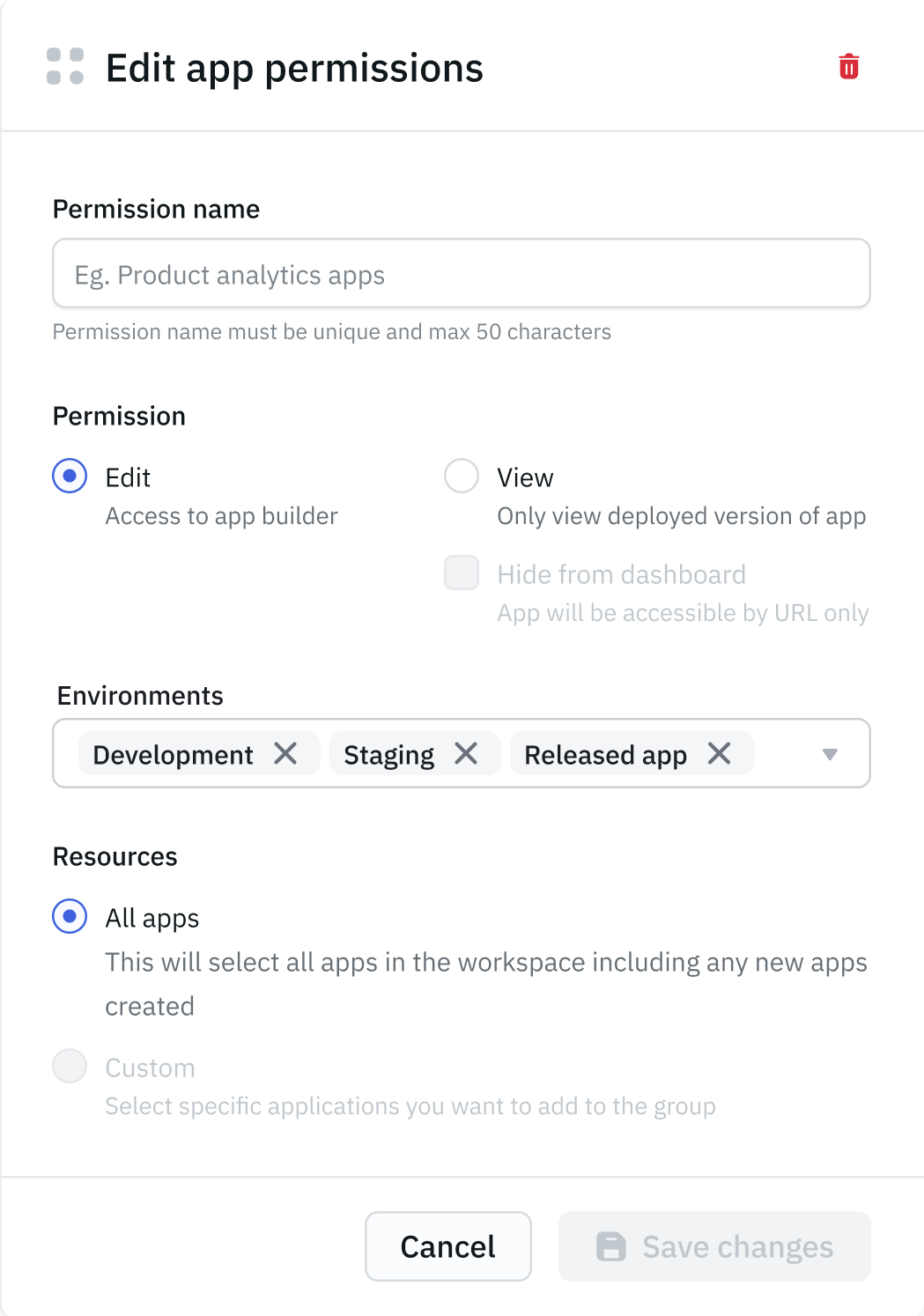
Edit: Grants edit access to the selected apps. With this access, users can build or edit the apps they are granted access to. This permission should be assigned to builders or developers.
-
View: With View access, users can preview the application in the development and staging environments, and access the released version in the production environment. This access level does not allow users to edit or modify the application. It is best suited for end users, testers, or consumers who only need to review or use the app.
noteFor end users, preview access is environment-specific. By default, end users can access only the Released app. To allow preview access in Development or Staging, the corresponding environment must be explicitly selected under Workspace settings > Groups > End-user > Granular access > Environment.
-
Hide from dashboard: Hides the selected apps from the dashboard, making them accessible only via URL. This permission applies to both View and Edit access, so if it is enabled for a group, users with Edit access (builders) will also not see the app on the dashboard, in addition to users with View access. The app remains accessible via its URL for both.
-
Environment: Using environment-level permissions, access to each environment can be restricted based on user groups or roles. For example, members of a custom group Developer may be granted access only to the Development environment. You can apply these permissions to specific apps or across all apps.
Refer this documentation to learn more about Environment Access Permissions. -
All apps: Provides the selected access (Edit or View) to all the apps in the workspace, including any newly created apps.
-
Custom: Provide the selected access (Edit or View) only to the specified apps.
Data Sources
-
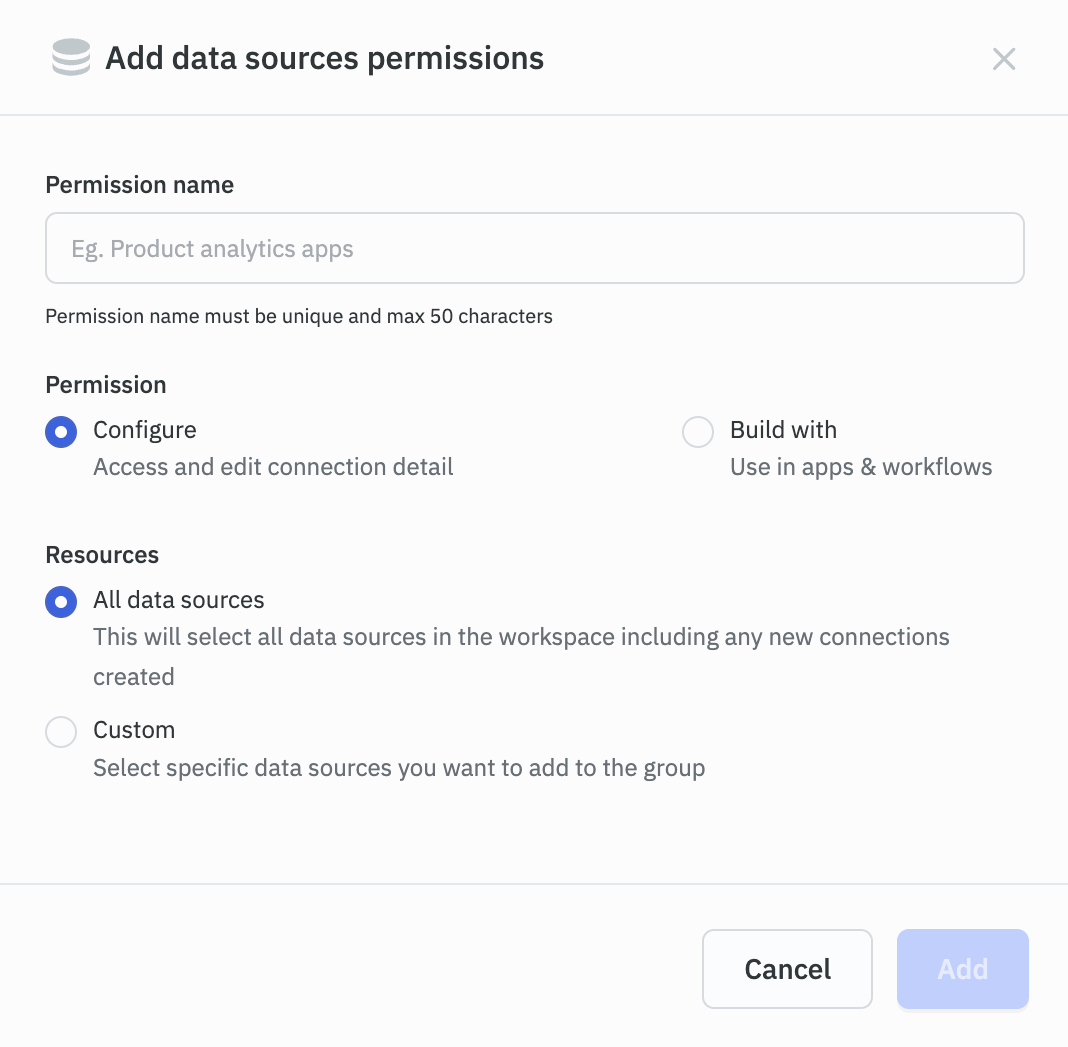
Configure: Users in the group can access and edit the configuration details of the selected data sources. This permission should be given to the admin users who needs to configure the data source.
-
Build with: Users in the group can use the selected data sources in apps and workflows to create queries. This permission should be given to the builders or developers who will create the queries for the apps or workflows.
-
All data sources: Provides the selected access (Configure or Build with) to all the data sources in the workspace, including any newly created data source.
-
Custom: Provide the selected access (Configure or Build with) only to the specified data sources.
Modules
-
Edit: Grants access to open and edit the module builder. Users with this access can build, rename, and export the module. This permission should be given to the builders or developers who own or maintain the module.
-
Build with: Users in the group can use the selected modules in the apps they build. Modules with only Build with access are shown on the dashboard in a locked, read-only state, letting builders review a module's internals (queries, components, logic) to understand or debug it, without being able to make any changes.
infoThere is no separate View permission for modules. Modules can't be accessed independently of an app, so end users always inherit access to a module from their access to the app it's used in — no additional module permission needs to be configured for end users.
-
Hide from dashboard: Hides the selected modules from the dashboard and search results, making them accessible only via URL for users with Build with access. This does not affect the Module section of the component library panel in the App Builder — builders with Build with access can still find and add a hidden module to their apps from there.
-
All modules: Provides the selected access (Edit or Build with) to all the modules in the workspace, including any newly created module.
-
Custom: Provide the selected access (Edit or Build with) only to the specified modules.
noteIf an app already has a module added to it by another builder, any builder with access to that app can edit the module's properties and styles, and move, resize, or delete it on the canvas, even without Edit or Build with access to that module itself. They cannot, however, open the module builder to view or change its internal logic.
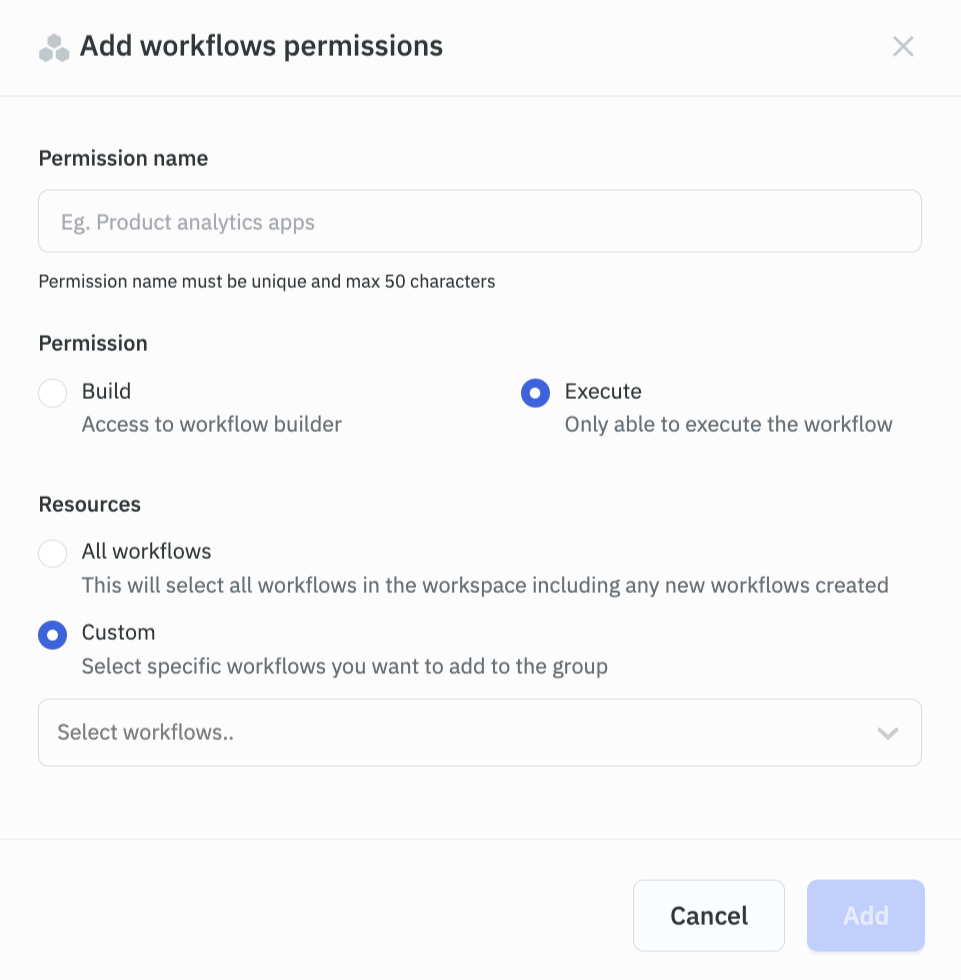
Workflows
- Build: Users in this group can build or edit the workflows they are granted access to.
- Execute: Users in this group can run/execute the selected workflows. This access does not allow users to edit or make changes to the workflows.
- All workflows: Provides the selected access (Build or Execute) to all the workflows in the workspace, including any newly created workflows.
- Custom: Provide the selected access (Build or Execute) only to the specified workflows.
Folders
Folder permissions is currently in beta and not recommended for production use.
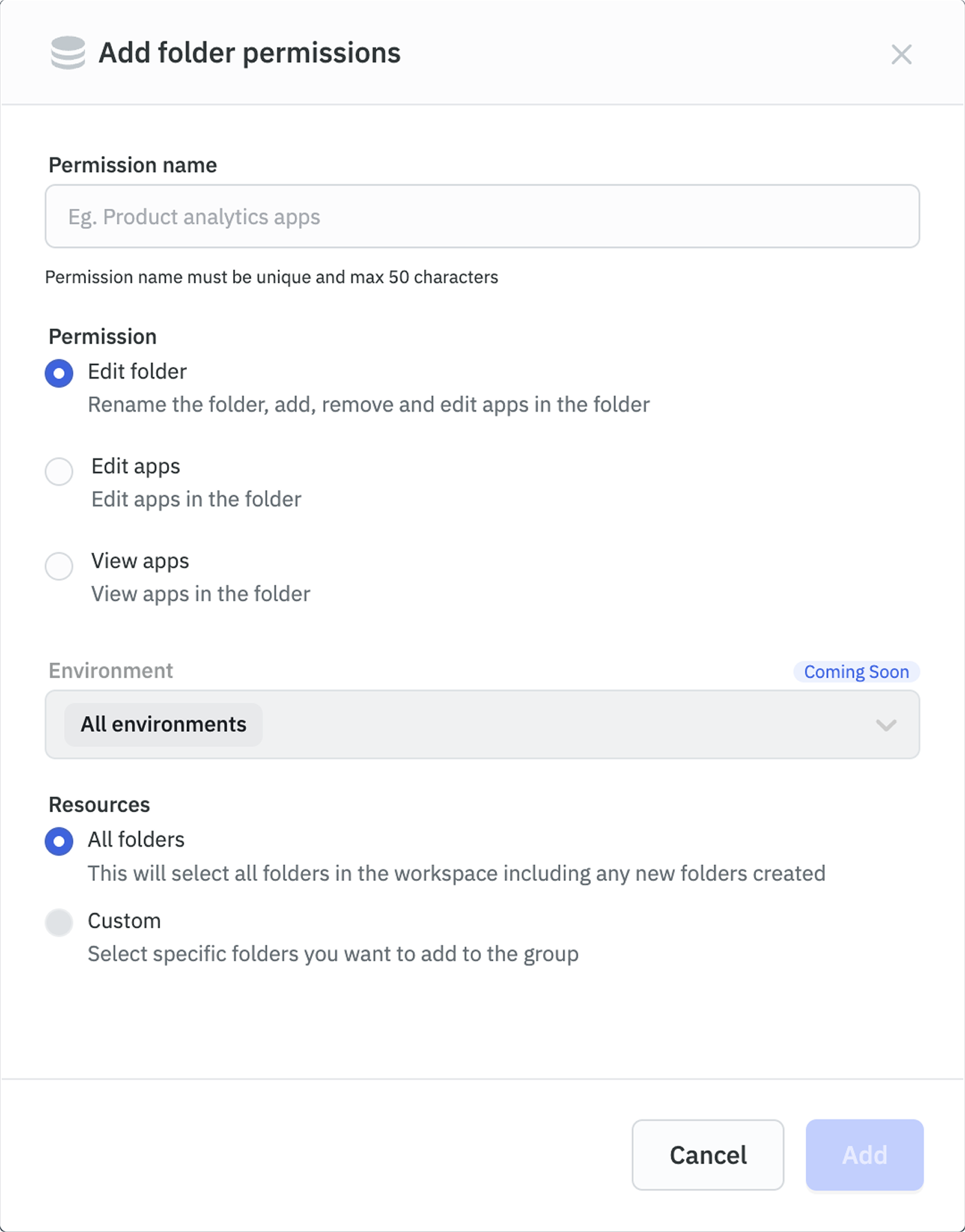
Folder-level permissions let you control who can access and work on groups of applications at once. For example, if your workspace has hundreds of apps organized by team, you can grant each team the right access to their folder instead of setting permissions for every app individually. All users in the group automatically get the appropriate access to every app inside it.
-
Edit Folder: Users in the group can rename the folder and add or remove apps from it. This access also grants Edit Apps and View Apps permissions for all apps within the folder by default.
-
Edit Apps: Users in the group can edit apps within the folder. This access also grants View Apps permission for all apps within the folder by default.
-
View Apps: Users in the group can view and launch apps within the folder. They cannot edit apps or make changes to the folder.
-
All folders: Provides the selected access to all folders in the workspace, including any newly created folders.
-
Custom: Provides the selected access only to the specified folders.
infoFolder permissions apply across all environments.
Configuring Granular Access Permission
Role Required: Admin
-
Click on the settings icon (⚙️) on the bottom left of your dashboard.
-
Go to Workspace Settings > Groups.
(Example URL -https://app.corp.com/nexus/workspace-settings/groups) -
Select the group to configure granular access permissions.
-
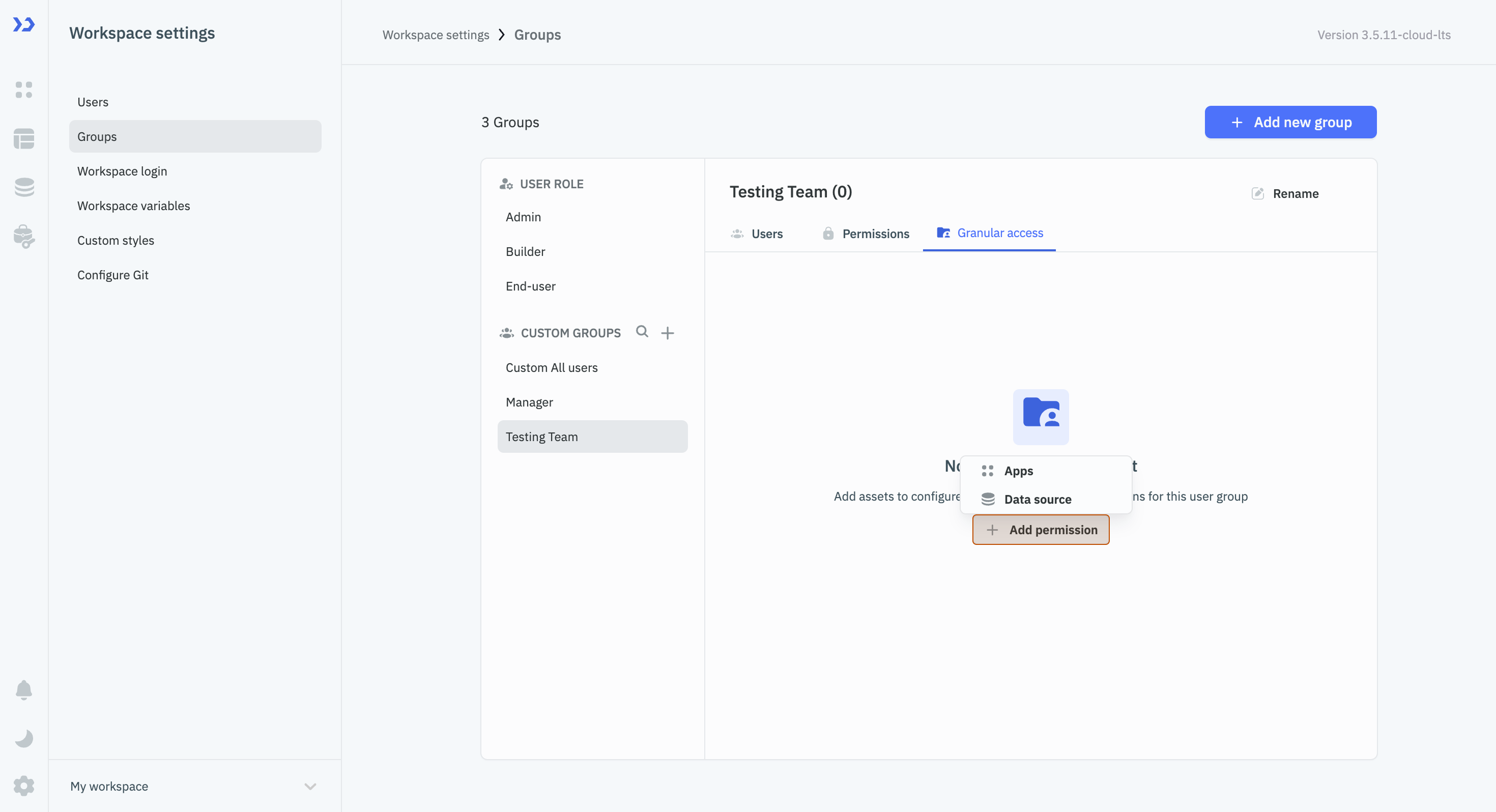
Switch to the Granular access tab and click on + Add permission button.
-
Select the resource (Apps/Data source/Modules) based on requirement. Give a name for the permission, configure required permission and click on Add at the bottom of the modal.