Push and Pull Commit
Pushing sends your changes to the branch in Git. Pulling brings changes from Git back into ToolJet. In single-branch mode both act on the branch your workspace is connected to.
Push a Commit
You commit directly on the branch, with no pull request in between.
To commit an application or module:
- Open the application in the App Builder, or the module in the Module Builder.
- Click Commit in the header.
- Enter a commit message.
- Confirm the commit.
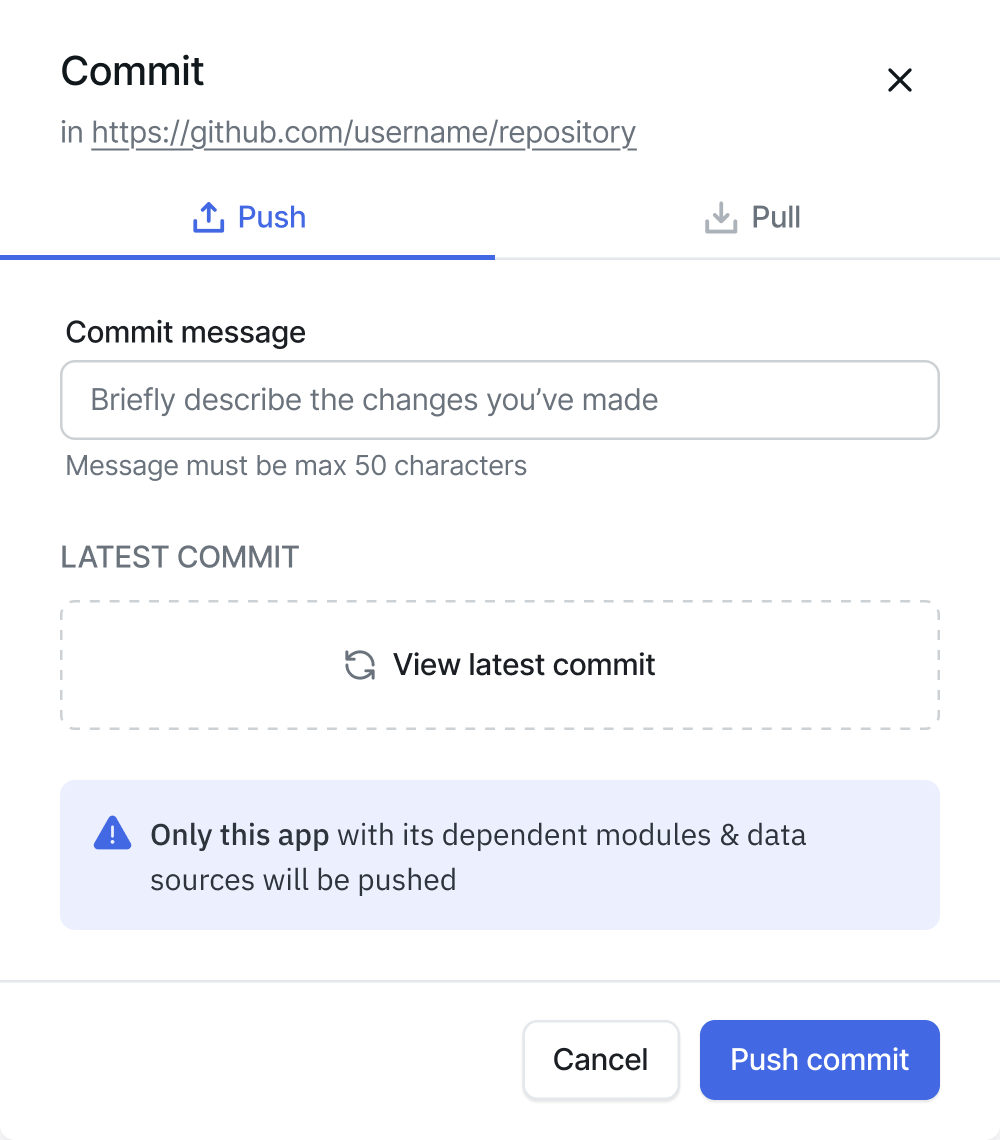
To commit datasource changes:
- Go to the Data sources page.
- Click Commit in the header.
- Enter a commit message.
- Confirm the commit.
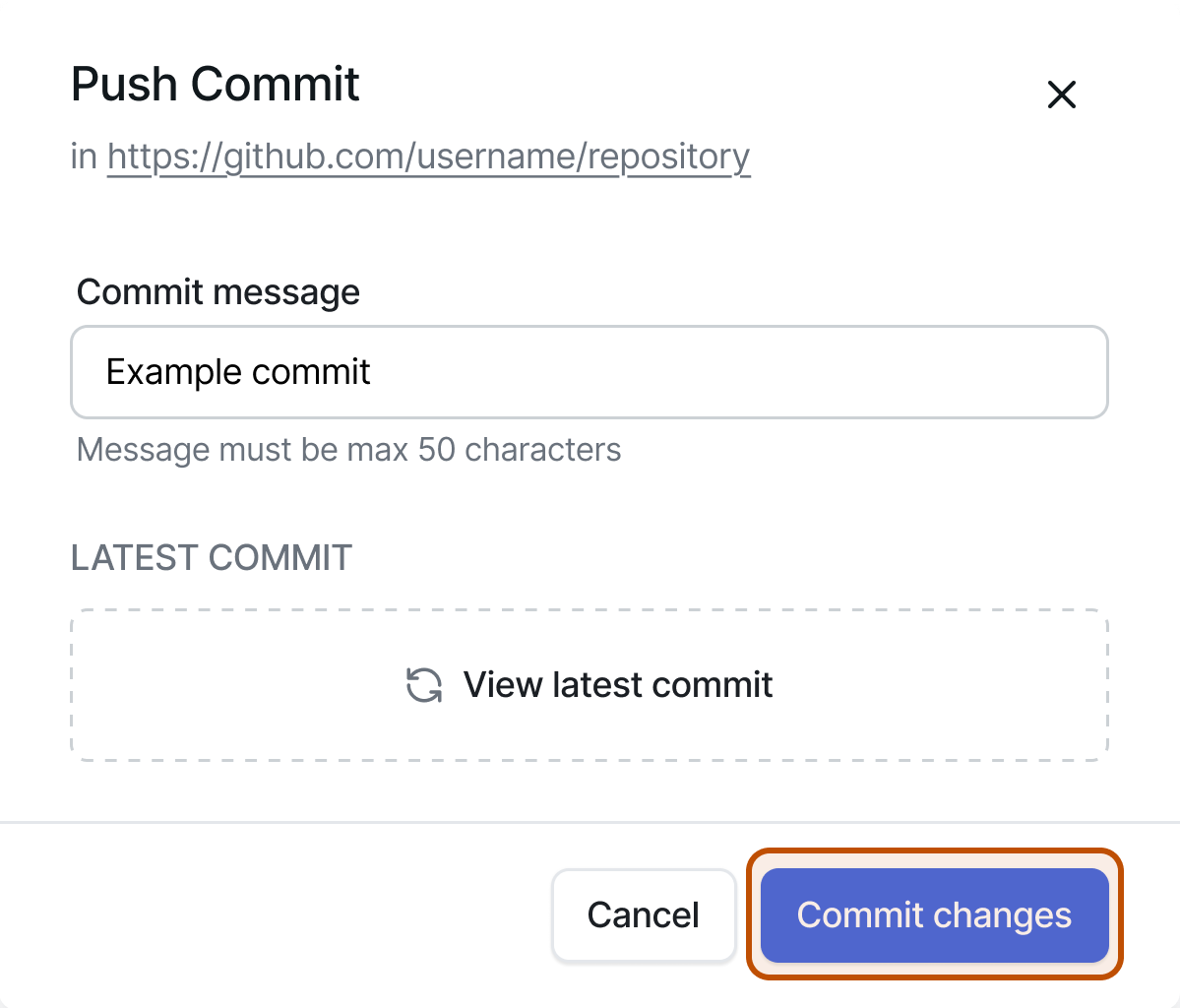
Commit only re-pushes resources that Git already tracks. A resource that has never been committed uses a separate first-time flow, refer to Sync Unsynced Resources.
Scope of a Push
A push covers the resource you are pushing plus the resources it needs to run. There is no action that pushes everything at once.
| Where you push from | What is pushed |
|---|---|
| App Builder | The application, plus the modules and datasources it depends on |
| Module Builder | The module, plus the resources it depends on |
| Data sources page | Datasource changes |
Dependent resources travel with the resource so it does not arrive in Git in a broken state.
What Is Committed
Applications, modules, datasources, and folder assignments are written to Git. Datasource credentials are handled carefully so that connecting several instances to one repository does not move secrets between them.
| Value | Written to Git |
|---|---|
| Non-encrypted datasource options, such as a host or port | Yes |
| An encrypted field backed by a workspace constant | The reference only, for example {{constants.db_password}} |
| An encrypted field with a value typed directly | No |
| Runtime authentication artifacts, such as OAuth tokens | No |
Pulling follows the same rule in reverse. A workspace constant reference from Git updates the local value, non-encrypted values from Git overwrite local ones, and a directly entered credential is never overwritten by a pull.
Use workspace constants for credentials you want to travel with the repository. Constants resolve per environment, so the same reference points at the development value on one instance and the production value on another. Anything typed directly into a datasource field stays on the instance where it was entered.
Pull a Commit
Pull before you start editing. Everyone works on the same branch, so Git holds only the latest commit, and pushing from an out-of-date copy replaces whatever a teammate committed before you.
Scope of a Pull
What a pull brings in depends on where you start it:
| Where you pull from | What is pulled |
|---|---|
| Dashboard header, on the Applications, Data sources, or Modules page | Everything on the branch: every application, module, datasource, and folder assignment |
| App Builder | Only that application, plus the modules and datasources it needs to run |
| Module Builder | Only that module, plus the resources it needs to run |
Pull from a builder when one application is ready to test or release. Pull from the dashboard when you want the whole branch, for example when setting up a fresh instance.
Pull From the Dashboard
- Click Pull in the header.
- Confirm the pull.
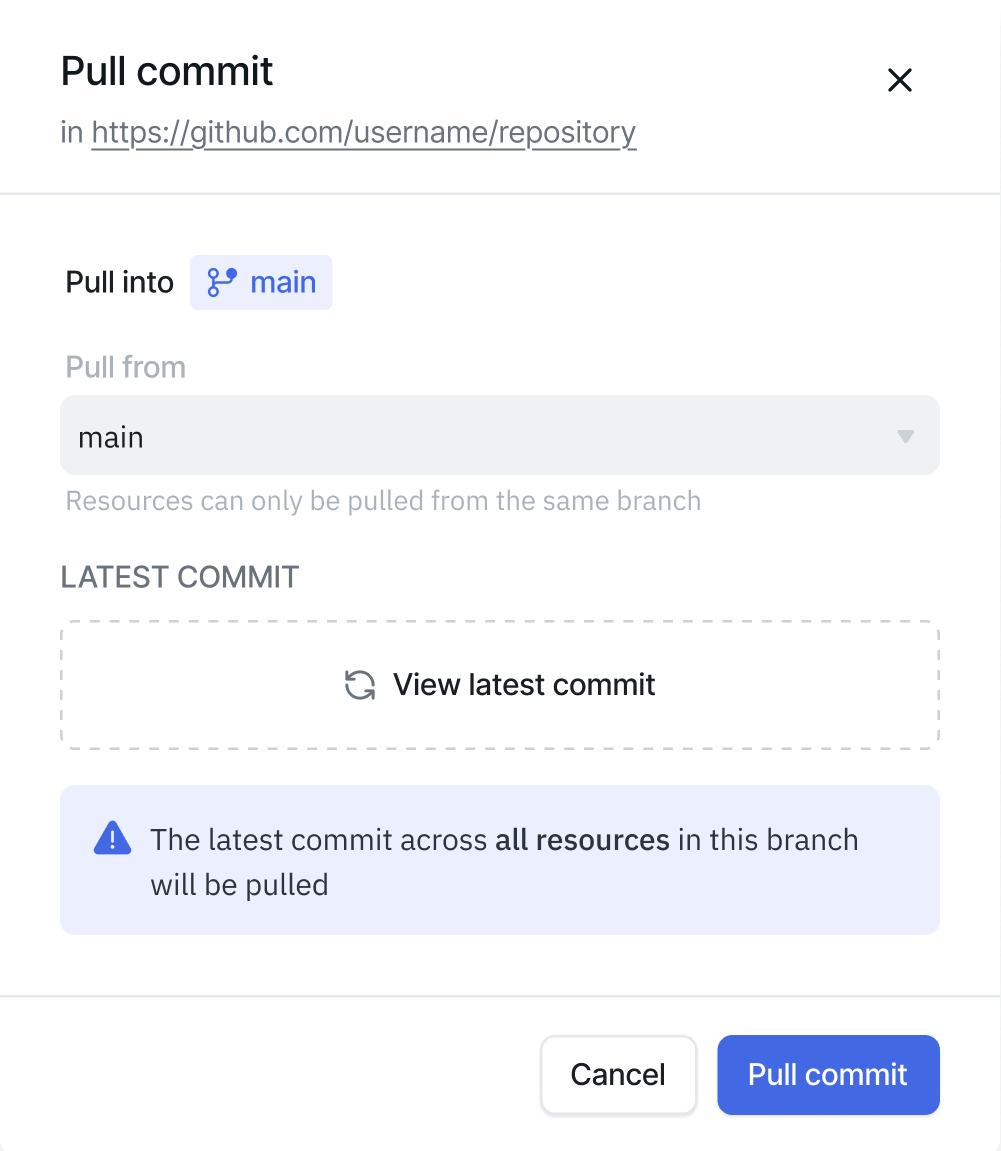
A dashboard pull runs as a background job and notifies you when it finishes. Applications, folders, and datasources update automatically once it completes.
Pulling removes applications and modules that are no longer present in Git, and deactivates datasources that are no longer present.
Pull From the Builder
- Open the application in the App Builder, or the module in the Module Builder.
- Open the GitSync action in the header and switch to the Pull tab.
- Choose the Latest commit, or a saved version.
- Confirm the pull.
Versions
Saving a version locks it and creates a tag in the Git repository. A saved version cannot be edited or renamed, and it becomes available to promote through environments and release.
Each application has one draft, which is what you edit. Saving a version creates a new draft so there is always something to work on. Refer to Version Control with Git for how drafts, saved versions, and Git tags relate to each other.
Pull a Saved Version
Every saved version is tagged in Git when it is saved, so it can be restored later or brought into another instance. This is how a version moves from a development instance to staging or production.
There are two ways to pull one.
From the version dropdown, which also shows you what exists in Git but not here:
- Open the version dropdown in the App Builder header.
- Click Refresh. ToolJet checks Git for versions of this application.
- Any version that is in Git but not in this workspace is added to the list.
- Hover that version and click Pull.
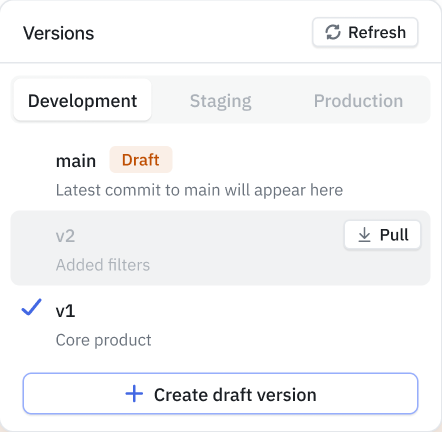
Versions are listed per environment, so switch the Development, Staging, and Production tabs to see what is available in each.
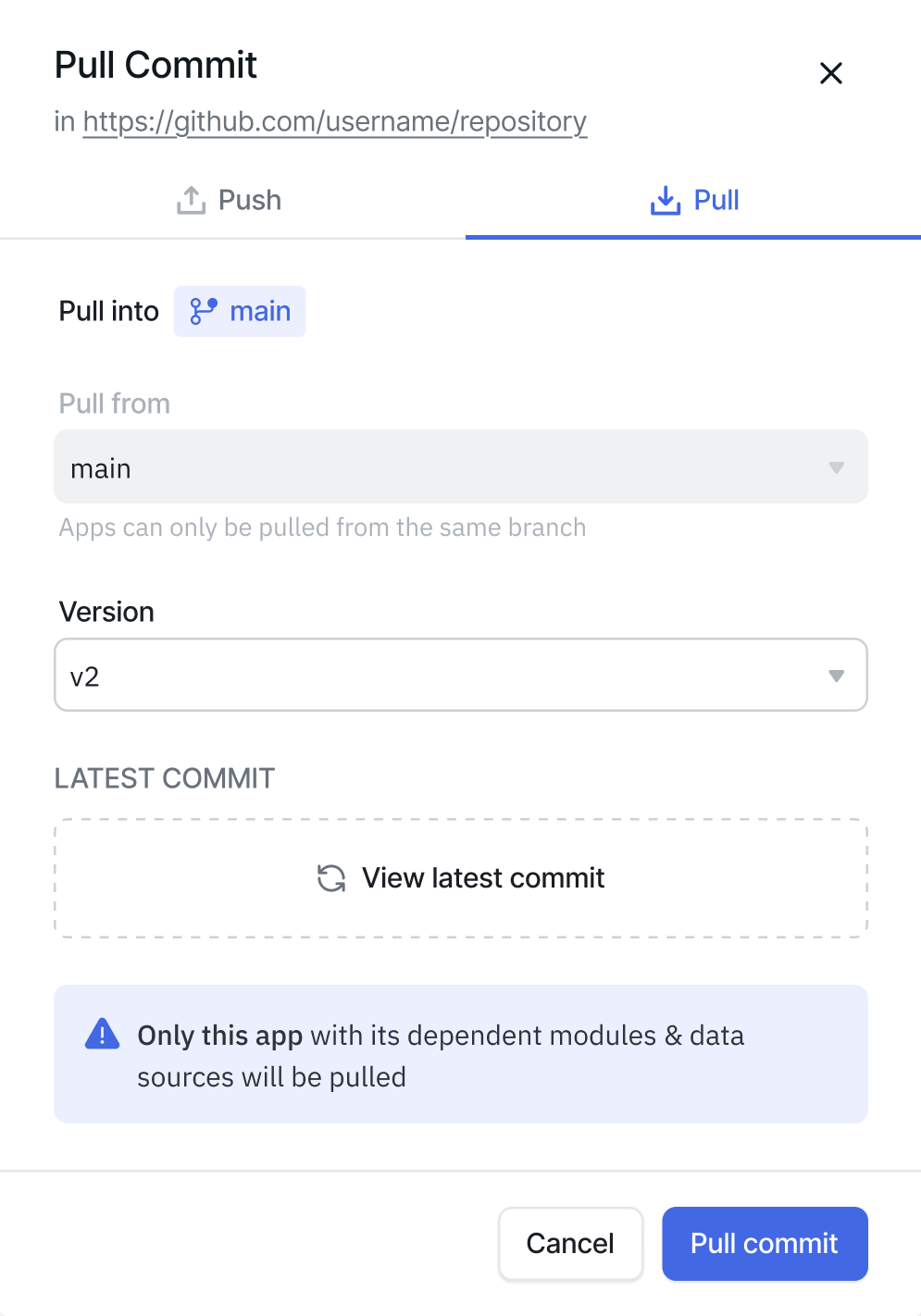
From the GitSync dialog, when you want to choose between the latest commit and a version in one place:
- Open the GitSync action in the App Builder header and switch to the Pull tab.
- Choose the version from the Version list.
- Confirm the pull.
A version that already exists in the workspace is not pulled again.
Pulling a saved version does not affect your current draft, which continues to track the latest commit on the branch.
Conflicts
If ToolJet finds a duplicate name or slug between your workspace and the incoming changes, the operation stops before anything is written and a dialog explains what clashed. Refer to Resolving Conflicts.
Need Help?
- Reach out via our Slack Community
- Or email us at support@tooljet.com
- Found a bug? Please report it via GitHub Issues