Manage Data
ToolJet Database tables can be filled with SQL and exported as CSV files. To add or edit rows one at a time, or to bulk upload a CSV file, see Adding and Modifying Data.
Data in Each Environment
Each environment keeps its own rows for every table. Seeding, exporting, and other changes to data apply only to the environment selected in the environment switcher, and never affect the other environments. See ToolJet Database environments to learn more.
Seed Data With SQL
Self HostedUse SQL to fill the selected environment's table, for example with test data for staging.
- Select the environment and open the table.
- Click Add new data > Seed data with SQL.
- Enter the SQL, and click Seed.
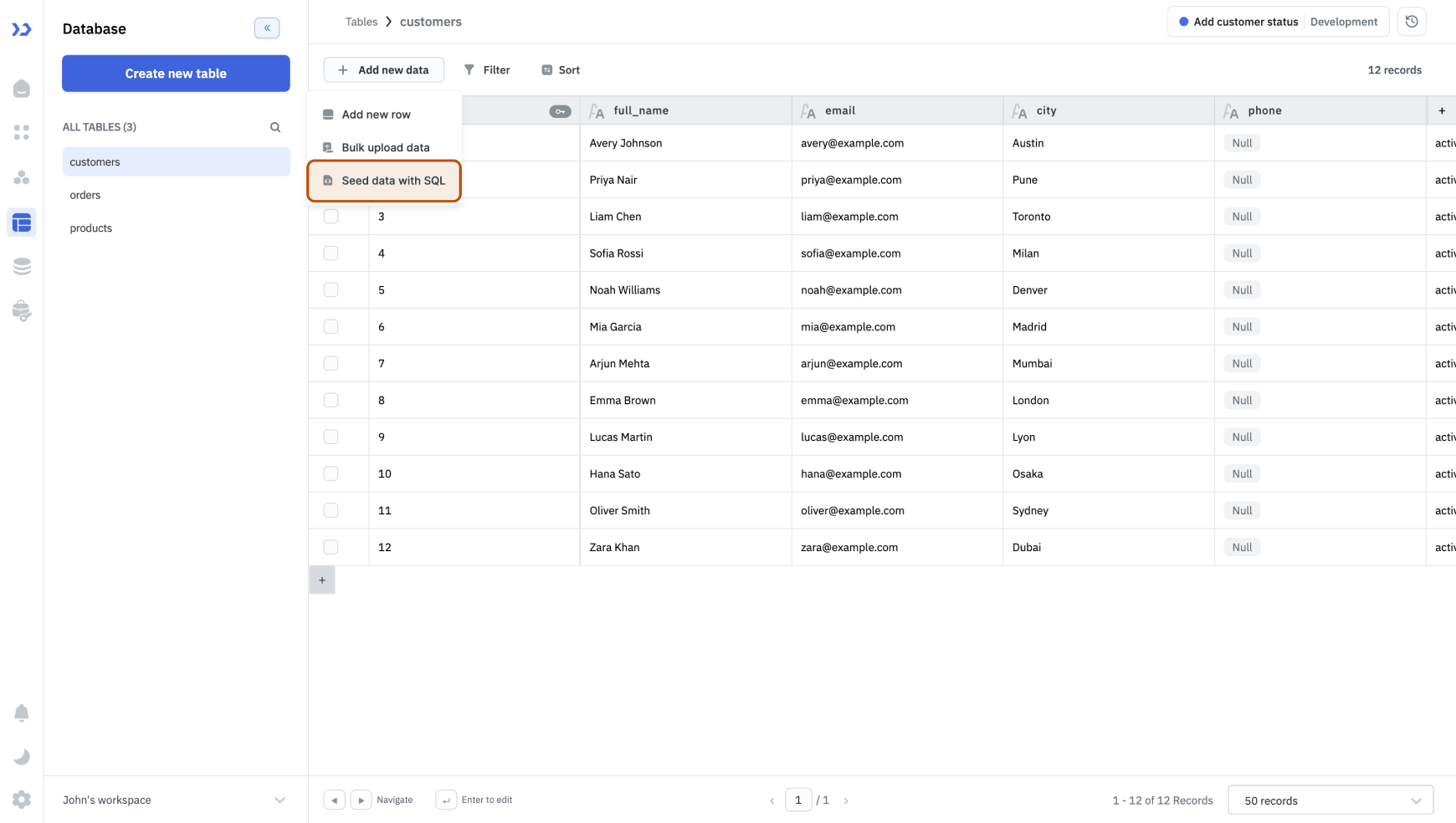
Refer to the table as {{self}}:
INSERT INTO "{{self}}" ("name", "email")
VALUES ('Jane Doe', 'jane@example.com'), ('John Doe', 'john@example.com');
Only SELECT, INSERT, UPDATE, and DELETE statements on this table are allowed. To change the schema, use the table operations or write a SQL migration in development instead.
Seed data with SQL isn't available on ToolJet Cloud, or when TJDB_SQL_MODE_DISABLE is set to true.
Export Data as CSV
- Click the kebab menu next to the table name, and select Export data as CSV.
- Select the environment to export. Each one shows its row count and latest migration.
- Click Export as CSV.
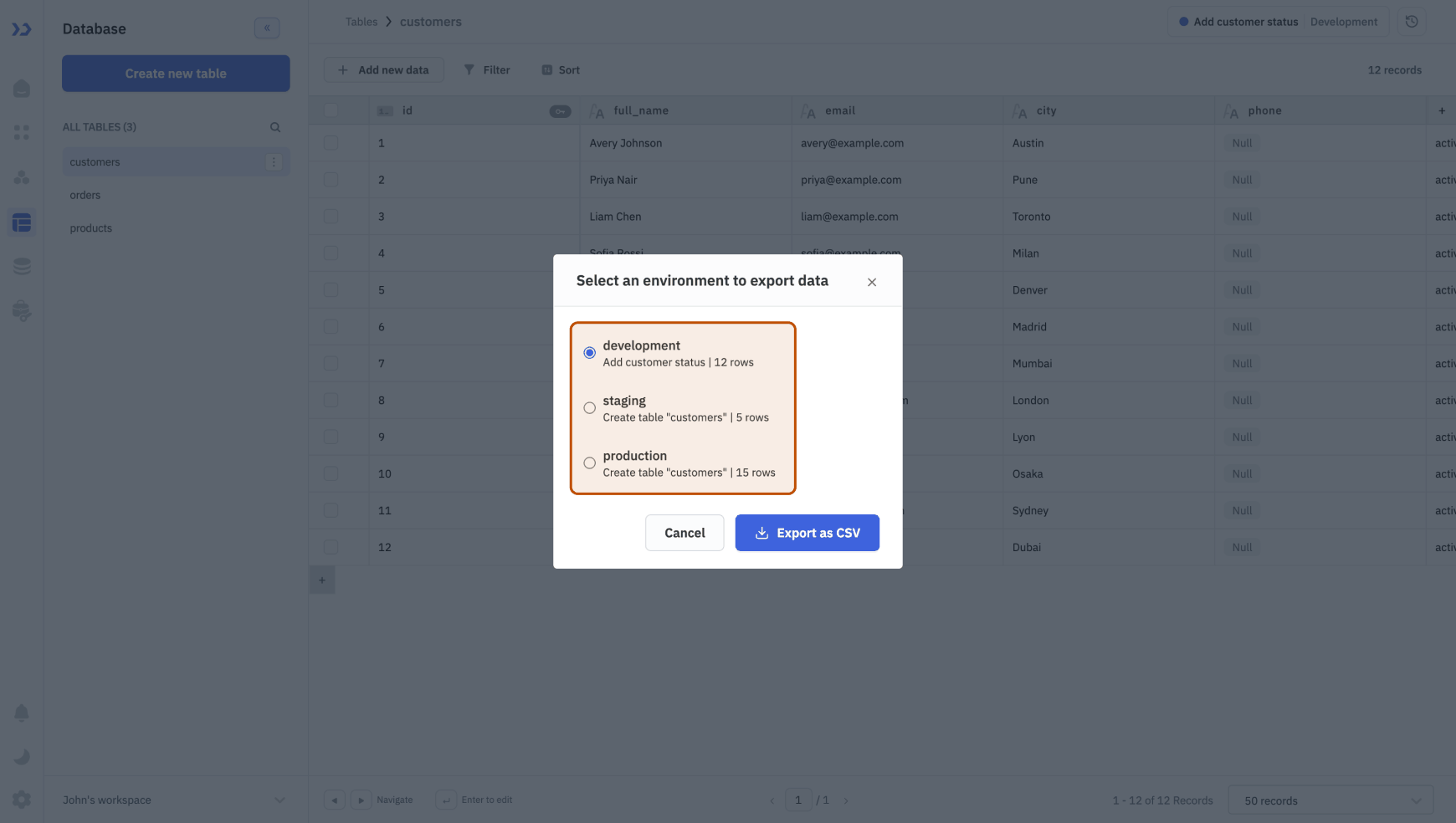
The file downloads as <table>-<environment>.csv. Large tables can take a while to export.
Need Help?
- Reach out via our Slack Community
- Or email us at support@tooljet.com
- Found a bug? Please report it via GitHub Issues