Single-Branch Mode
Single-branch mode connects your workspace to one branch in a Git repository, usually main or master. You build directly on that branch and commit your changes to it. This is how GitSync works by default, and it is the mode a workspace stays in until branching is turned on.
Use Cases
- Promoting an application to another instance. Connect your development, staging, and production instances to the same repository, then pull the application into the next instance instead of exporting and importing it.
- Restoring an application after a bad change. Every commit and saved version is in the repository, so you can pull an earlier saved version back into the workspace.
- Handing work between builders. Builders take turns on an application: one commits when they finish, the next pulls before starting.
- Answering what changed and when. The repository holds the full commit history, so changes to an application can be reviewed in Git without opening ToolJet.
How It Differs From Multiple Branches
Everything happens on one branch, so there is no isolation between builders and no review step before a change reaches Git. If two builders need to work at the same time without waiting for each other, or if changes must be approved before they land, that is what multi-branch mode is for. The branching overview compares the two modes side by side.
Resources Synced to Git
Applications, modules, datasources, and their folder assignments are synced to Git. Workflows and ToolJet Database tables are not synced yet.
Where the Controls Are
The Pull button appears in the header on the Applications, Data sources, and Modules pages. The Commit button appears on the Data sources page. Applications and modules are committed from inside the App Builder.
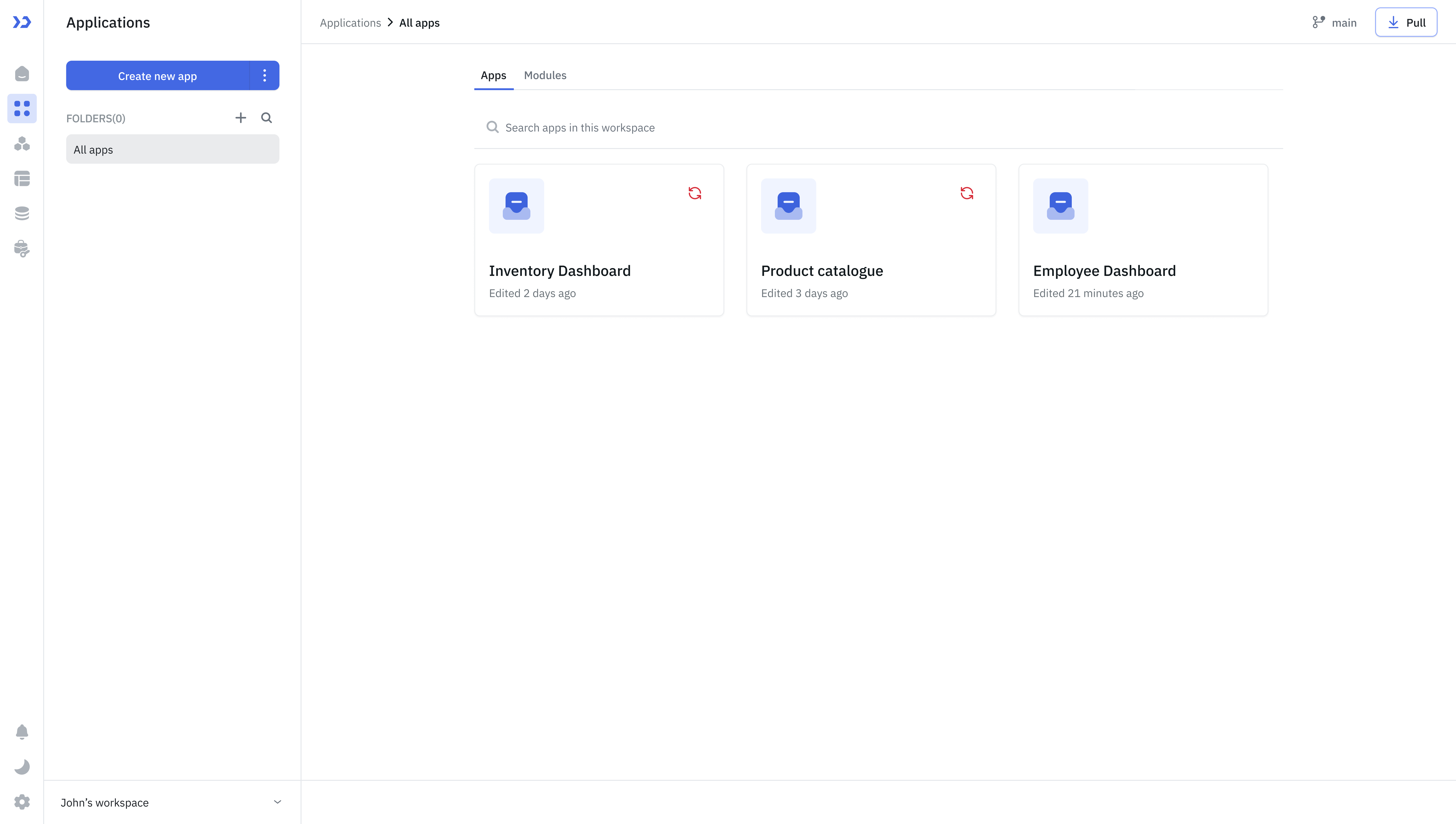
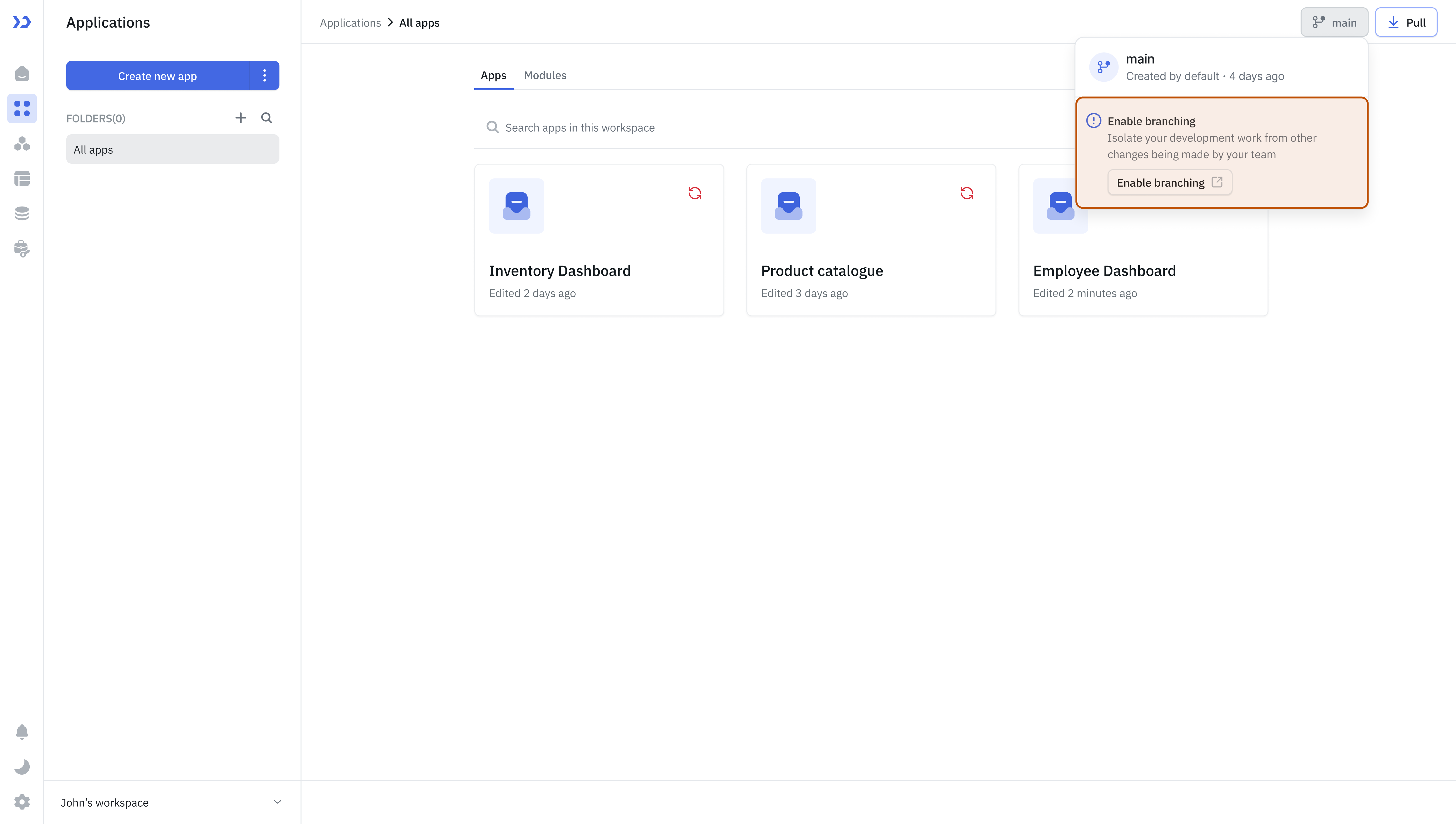
The branch dropdown shows the branch you are connected to, along with an Enable branching option if you decide to move to multiple branches later.
Need Help?
- Reach out via our Slack Community
- Or email us at support@tooljet.com
- Found a bug? Please report it via GitHub Issues