OpenID Connect
In ToolJet, you can use the group synchronization feature to automatically update user roles and custom groups from the identity provider. This functionality enables centralized access management, reduces the risk of manual errors, enhances security, and simplifies the user onboarding process.
Group synchronization occurs at every login. Users must log out and log back in for changes to be reflected. Manual editing of groups in ToolJet is not recommended as changes will be overwritten upon subsequent logins.
Whenever a user is deleted from the Identity Provider, admins needs to manually archive the user in ToolJet. Otherwise, if password login is enabled, the user can still log in using their password.
If the license expires or downgrades to a plan without group sync, both SSO and group sync features will be disabled. Users will need to log in via alternative SSO methods or email/password. If the license limit is reached, new users will not be allowed to log in.
This guide explains how group sync works at the instance level, when to use it, and how to configure it.
When to Use Instance Level Group Sync
Imagine your organization has multiple workspaces in ToolJet, one for Marketing, another for Sales, and another for Engineering and you’re using OIDC SSO for authentication. In a traditional setup, you would need to configure OIDC SSO and group sync separately for each workspace. This means setting up group-to-role mappings manually in every workspace, which can quickly become repetitive and prone to errors.
Instance-level group sync addresses this challenge. As a Super Admin, you can configure OIDC SSO and group sync once at the instance level. These settings are automatically applied to the default workspace and can optionally be inherited by other workspaces.
This setup also streamlines the login experience: users can authenticate directly via the root instance URL, removing the need to access individual workspace URLs.
How It Works
Role Required: Super Admin
Enable Group Sync at Instance Level
-
Naviate to Instance Settings > Instance Login Tab.
-
Click on the OpenID Connect under the SSO section.
-
Setup the OpenID Connect SSO by following this guide.
-
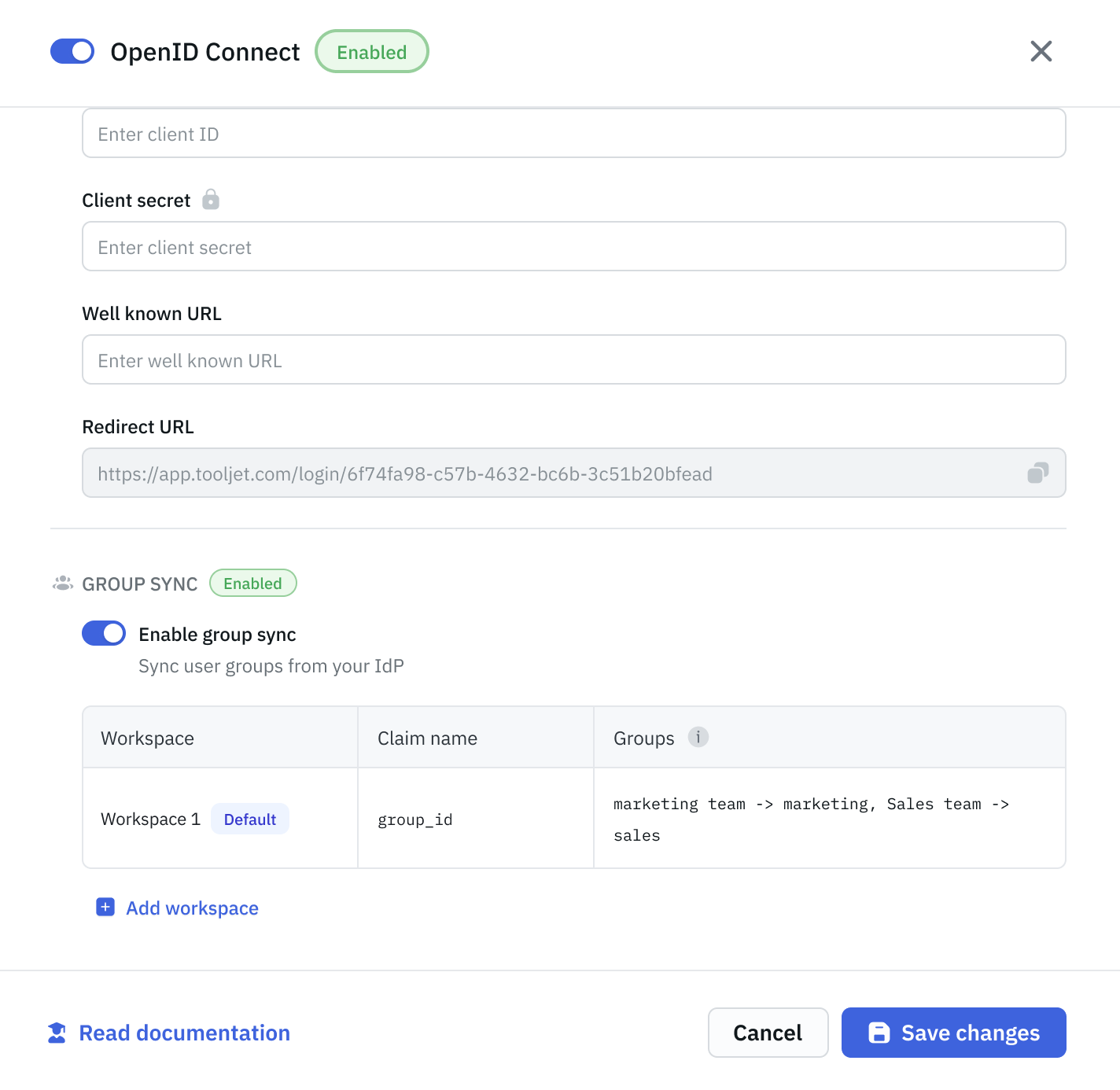
Enable the Group Sync toggle and provide the following information:
- Claim name: Enter the name of the claim in the OIDC token that contains group information (e.g.,
groups). For a nested claim, enter its dot path, such ascustom_attributes.groups. - Delimiter: Enter the character that separates group names when the claim is sent as a single string (e.g.,
,or;). Enterspacefor a single space. Leave it empty for array claims. - Group mapping: Configure how IdP groups map to ToolJet groups. Use the format:
IdP Group -> ToolJet Group, Another IdP Group -> Another ToolJet GroupFor example:
Marketing Team -> marketing, Sales Team -> salesCheckout the Group Mapping section below for more details.
- Claim name: Enter the name of the claim in the OIDC token that contains group information (e.g.,
Default Workspace Inheritance
ToolJet will apply these settings to one default workspace automatically.
- You can disable this inheritance if needed
- If you delete the default workspace, make sure another one inherits the config
Add More Workspaces
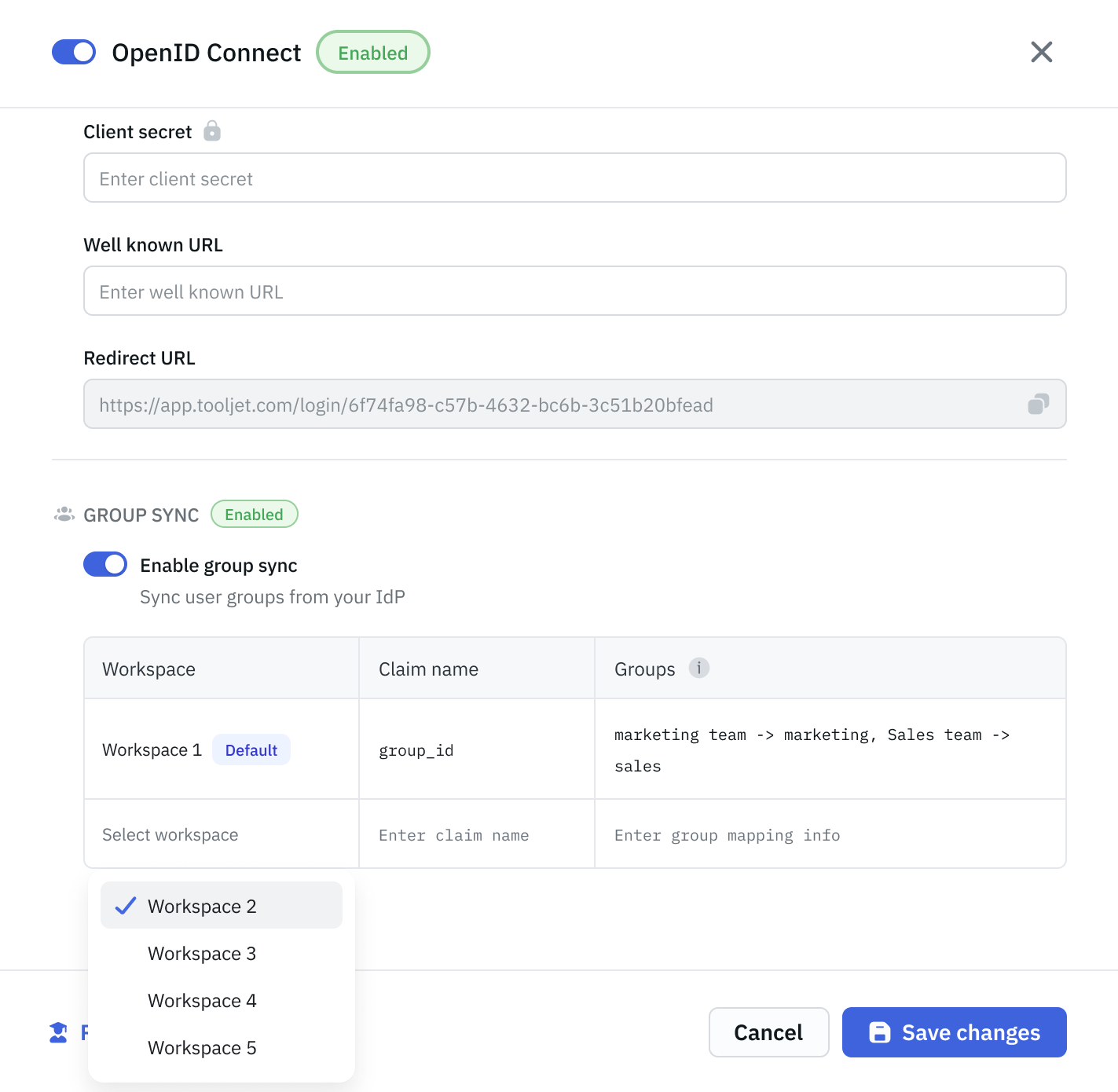
You can choose other workspaces to inherit the instance-level configuration.
-
Click Add Workspace
-
Pick a workspace from the dropdown
-
The workspace will inherit the Claim Name, Delimiter and Group Mappings
-
You can edit them if needed (overrides the inherited config) This makes it easy to roll out consistent role mappings across all workspaces.
Disable Group Sync
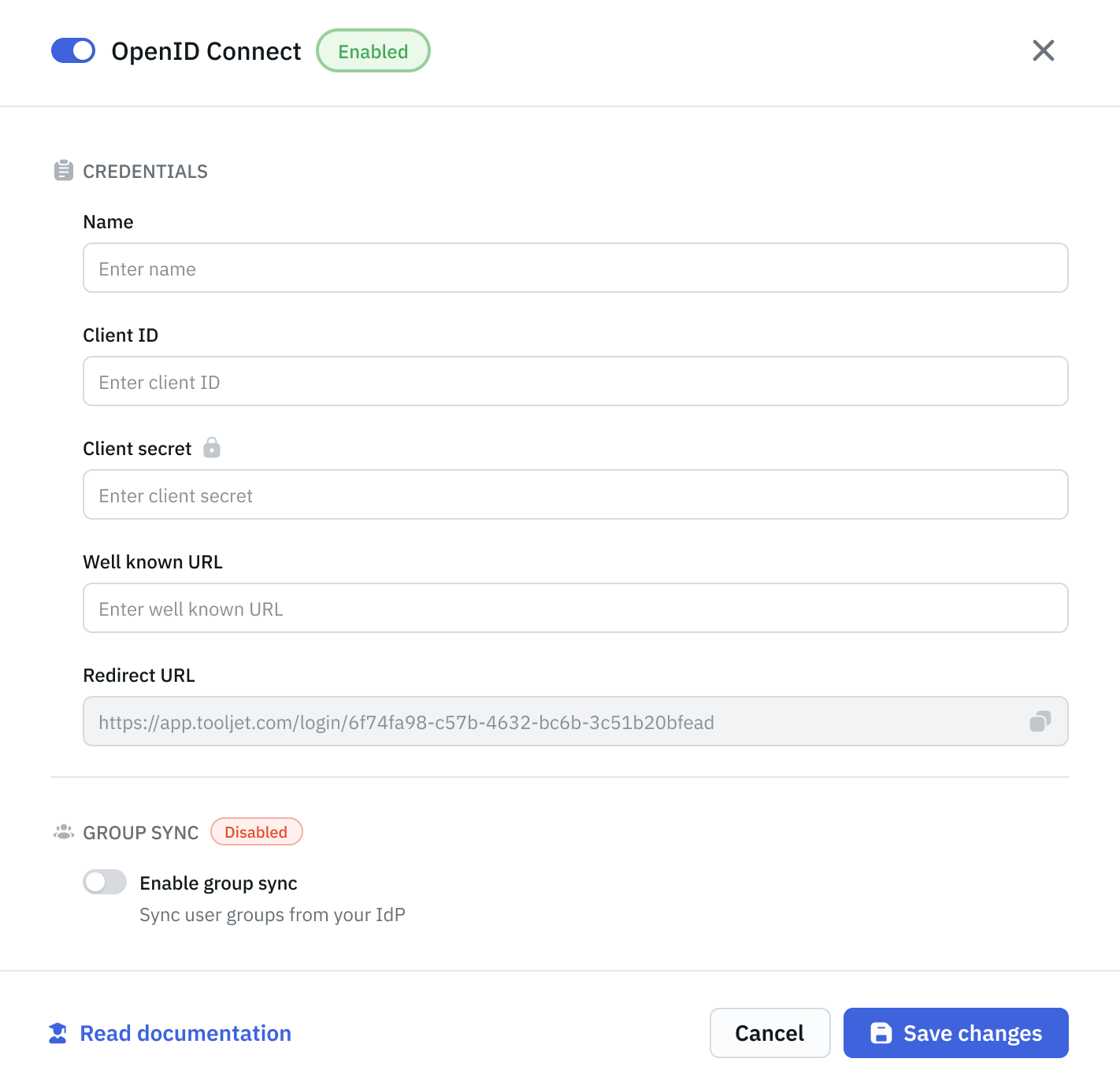
If you toggle off Group Sync:
-
All settings are hidden but not lost
-
You can re-enable later, and your previous config will return
-
No changes are applied while it's off
Delete Workspaces
-
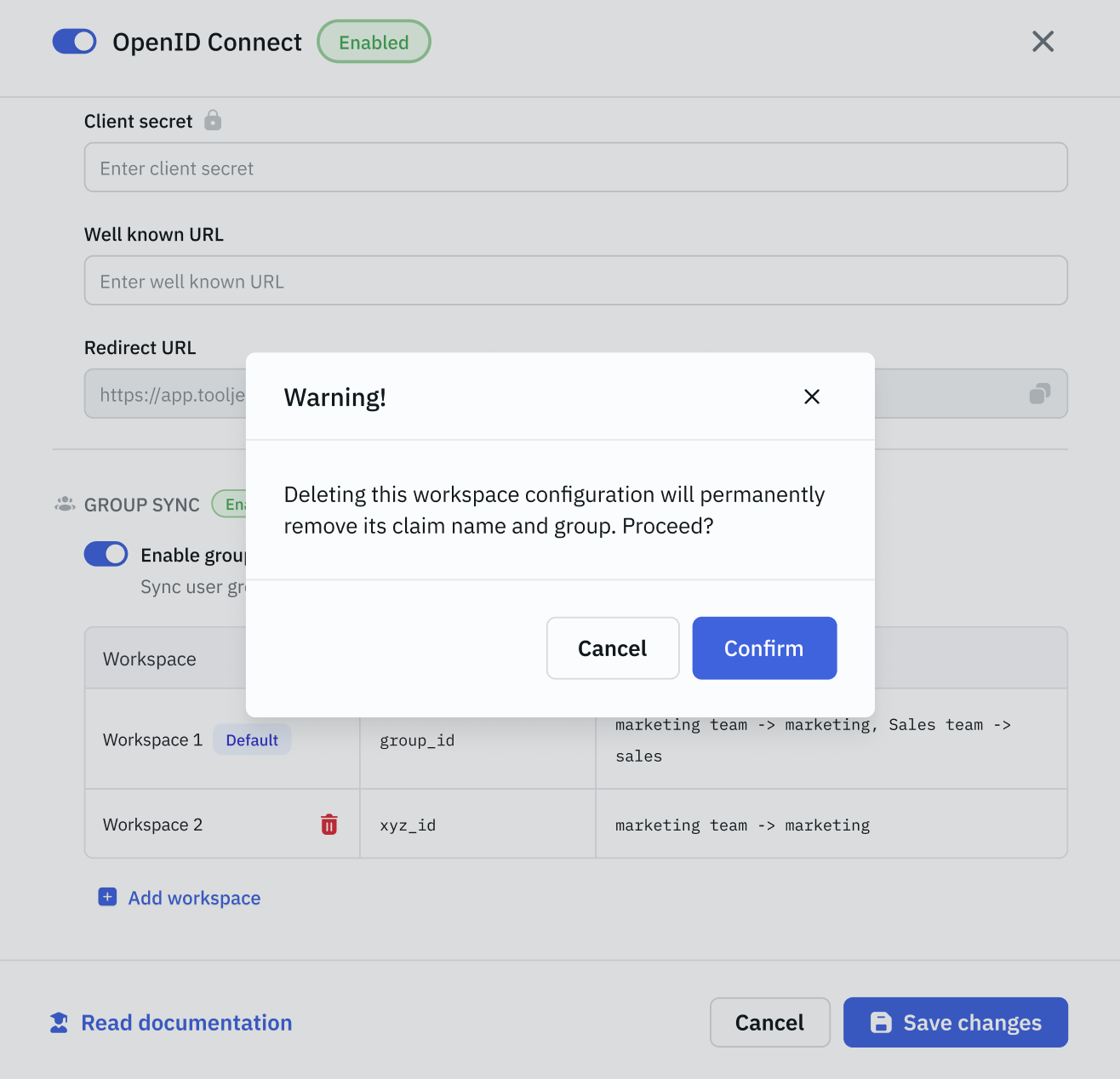
You can delete workspaces from the sync list
-
ToolJet will show a warning before removing config
-
At least one workspace must stay enabled for Group Sync to work
Group Mapping
Group mapping in ToolJet follows these principles:
- Default 1:1 mapping based on group names (case-sensitive).
- Custom group mapping can be configured.
- Users without a matching group are assigned to the end-users group.
Group Mapping Scenarios
| Groups in IdP | Groups in ToolJet | Role Mapping Settings | Result |
|---|---|---|---|
| admin, builder, end-user | Exists (User Roles) | None | User is assigned with the corresponding user role. |
| engineers | Exists | None | User added to engineers custom group and assigned either end-users or builders user role based on permissions. |
| engineers | engineers - Doesn't exist developer - Exists | engineers → developers | User added to developers custom group and assigned builder or end-user role based on permissions. |
| admin, developers | Exists | None | User added to developers custom group and assigned admin user role. |
| no group | N/A | None | User added to end-users default group. |
Group Claims Sent as a String
Most identity providers send groups as an array, such as ["engineering", "marketing"]. Some send them as a single string instead, such as "engineering,marketing". To sync groups from a string claim, set the Delimiter field to the character that separates the group names.
| Claim value | Delimiter | Groups synced |
|---|---|---|
["engineering", "marketing"] | Empty | engineering, marketing |
"engineering,marketing" | , | engineering, marketing |
"engineering; marketing" | ; | engineering, marketing |
"engineering marketing" | space | engineering, marketing |
"engineering,marketing" | Empty | None |
["engineering", "marketing"] | , | None |
ToolJet trims spaces around each group name and drops empty or duplicate entries. It checks the user info response, then the ID token, then the access token, and uses the first claim in the expected format.
Set the Delimiter with an Environment Variable
On self-hosted ToolJet, the delimiter can also be set with the OIDC_GROUPS_DELIMITER environment variable. When set, it overrides the Delimiter field in every OIDC group sync configuration on the instance.
OIDC_GROUPS_DELIMITER=,
If the delimiter isn't picked up from the environment variable, wrap the value in quotes, such as OIDC_GROUPS_DELIMITER="#". The Delimiter field in the UI doesn't need quotes.
Nested Group Claims
Some identity providers send the groups claim inside another object instead of at the top level of the token:
{
  "custom_attributes": {
    "groups": "engineering,marketing"
  }
}
To read a nested claim, enter its dot path in Claim name, such as custom_attributes.groups. If the nested value is a string, also set the Delimiter field as described in Group Claims Sent as a String.
- A top-level claim named exactly
custom_attributes.groupstakes priority over the nested path. - If any part of the path is missing, no groups are synced from the claim.