Auto-Sync from Repository
Auto-sync keeps ToolJet up to date with your Git repository automatically. Instead of clicking Pull after every merge, you register a webhook in your Git provider and ToolJet applies the changes as they happen.
This is especially useful when you run more than one ToolJet instance against the same repository, because a single event updates every connected instance. Auto-sync works in single-branch and multi-branch mode alike, and is unavailable while a license is expired.
Prerequisites
- GitSync configured for the workspace, using GitHub or GitLab.
- The Admin or Super admin role. Builders and end users cannot configure auto-sync.
- Permission to add a webhook to the Git repository.
TOOLJET_HOSTset to a URL your Git provider can reach. The webhook URL is derived from it, so an unreachable or incorrect value means events never arrive.
Events
Three events are available. Each one has to be subscribed to in two places: in ToolJet, and in the webhook you create in your Git provider. The provider decides what gets delivered, so an event ticked in ToolJet but not in the provider never arrives.
| ToolJet event | Subscribe in GitHub | Subscribe in GitLab | Triggers when |
|---|---|---|---|
| Push | Pushes | Tag push events | A version tag is pushed to Git, which happens when you save a version. Syncs that saved version to all connected instances. |
| Pull request | Pull requests | Merge request events | A pull request is merged in Git. Pulls the merged changes into all connected instances. |
| Branch delete | Branch or tag deletion | Not supported | A branch is deleted in Git. Removes it from all connected instances. |
Ordinary commits to a branch do not trigger a sync. Only version tags and merged pull requests do. This keeps in-progress work on a feature branch from being pulled into other instances before it is reviewed.
In single-branch mode, only Push is offered, because pull requests and branch deletions are branch operations that do not apply.
GitLab has no branch-deletion event that ToolJet recognizes, so a branch deleted in a GitLab repository is not removed from connected instances automatically. Delete it in each instance instead.
Set Up Auto-Sync
-
Go to the Workspace settings page and open the Configure git sync tab.
-
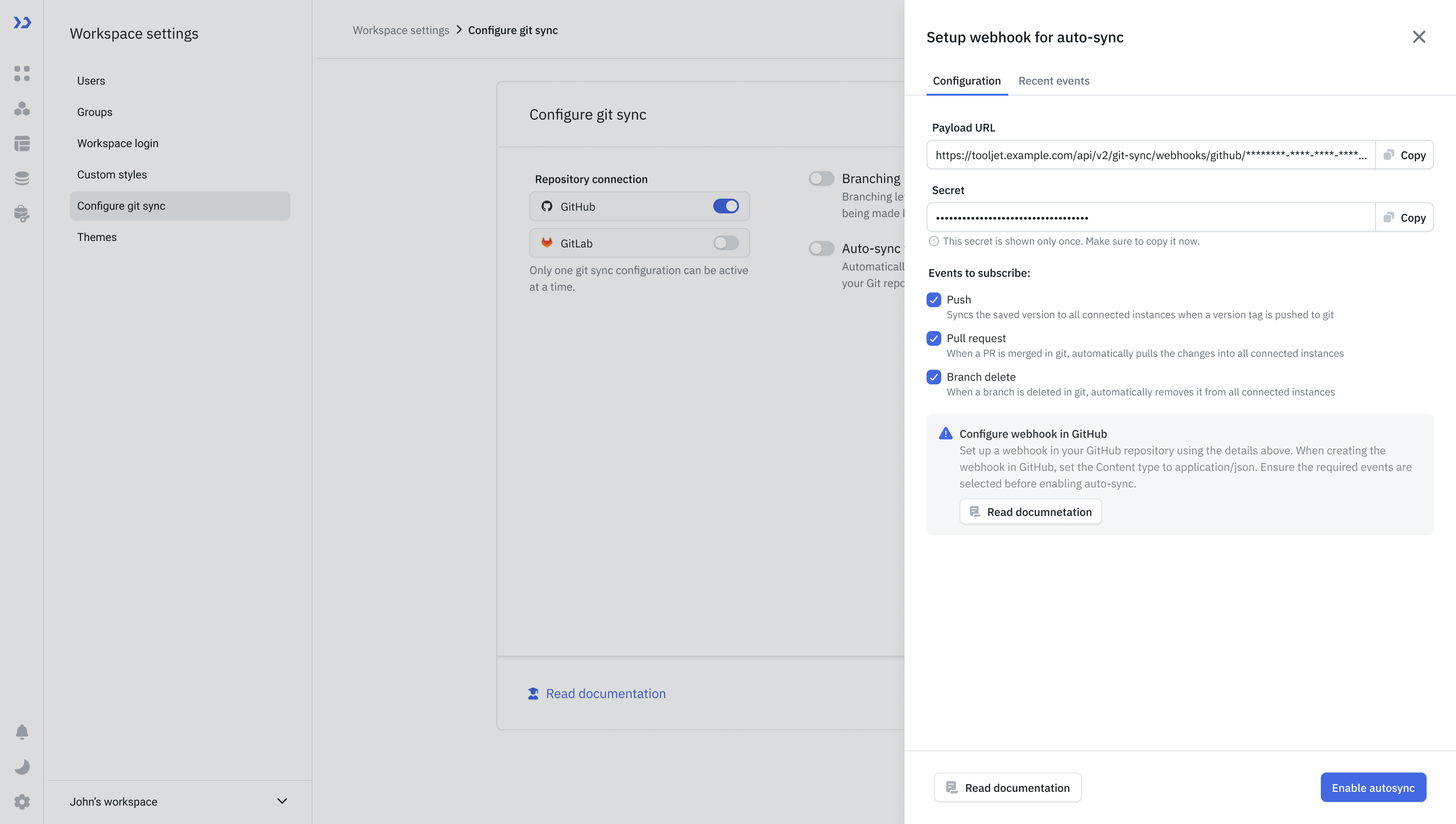
Turn on Auto-sync from repository. The webhook setup panel opens.
-
Copy the Payload URL.
-
Copy the Secret. It is shown only once during first-time setup, so save it before closing the panel.
-
Select the events to subscribe to.
-
In your Git repository, create a webhook using the copied URL and secret, and set the content type to
application/json. Choose the option to select individual events and tick the ones listed in the table above. The default of delivering only push events will not send merges or branch deletions.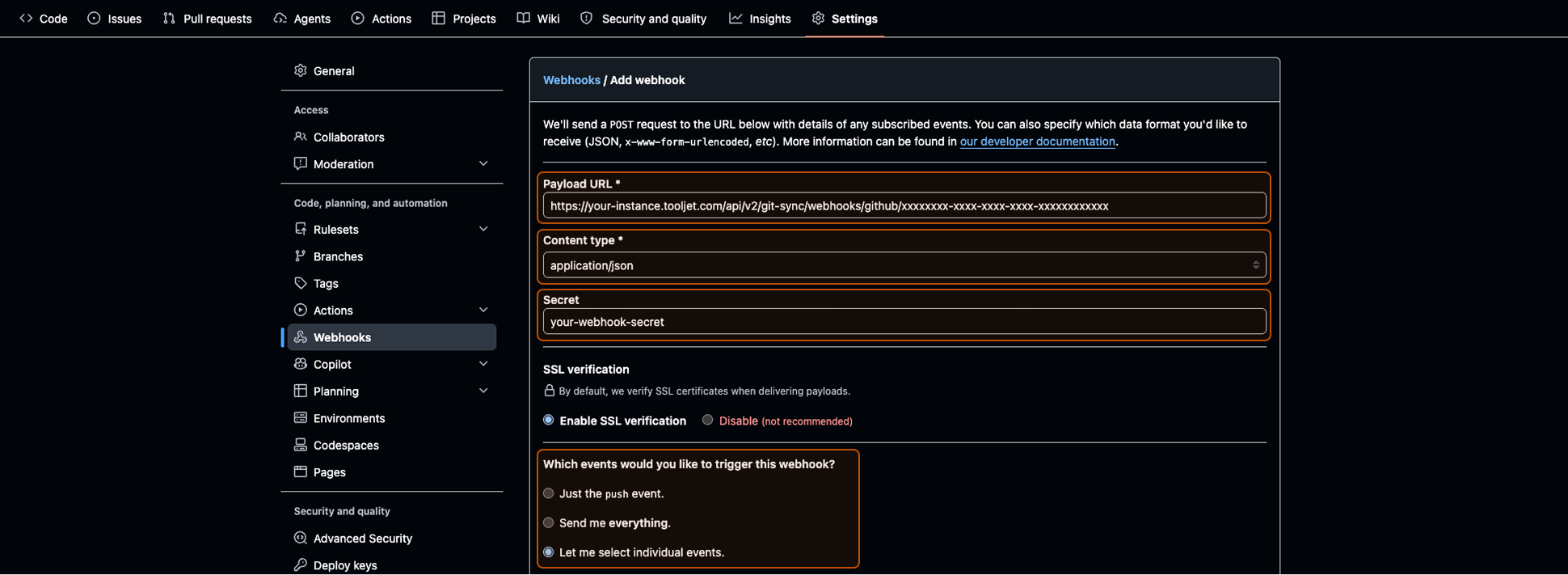
-
Save the configuration in ToolJet.
The payload URL follows this form:
<TOOLJET_HOST>/api/v2/git-sync/webhooks/<provider>/<workspace-id>
<provider> is github or gitlab.
Events are rejected if the signature does not match the secret. If you regenerate the secret in ToolJet, update the webhook in your Git provider to match, otherwise auto-sync stops silently.
Change Subscribed Events
- Go to Workspace settings > Configure git sync.
- Click Edit webhook next to the auto-sync event tags.
- Adjust the selected events and save.
At least one event must remain selected. Closing the panel with unsaved changes prompts you to discard them.
Review Recent Events
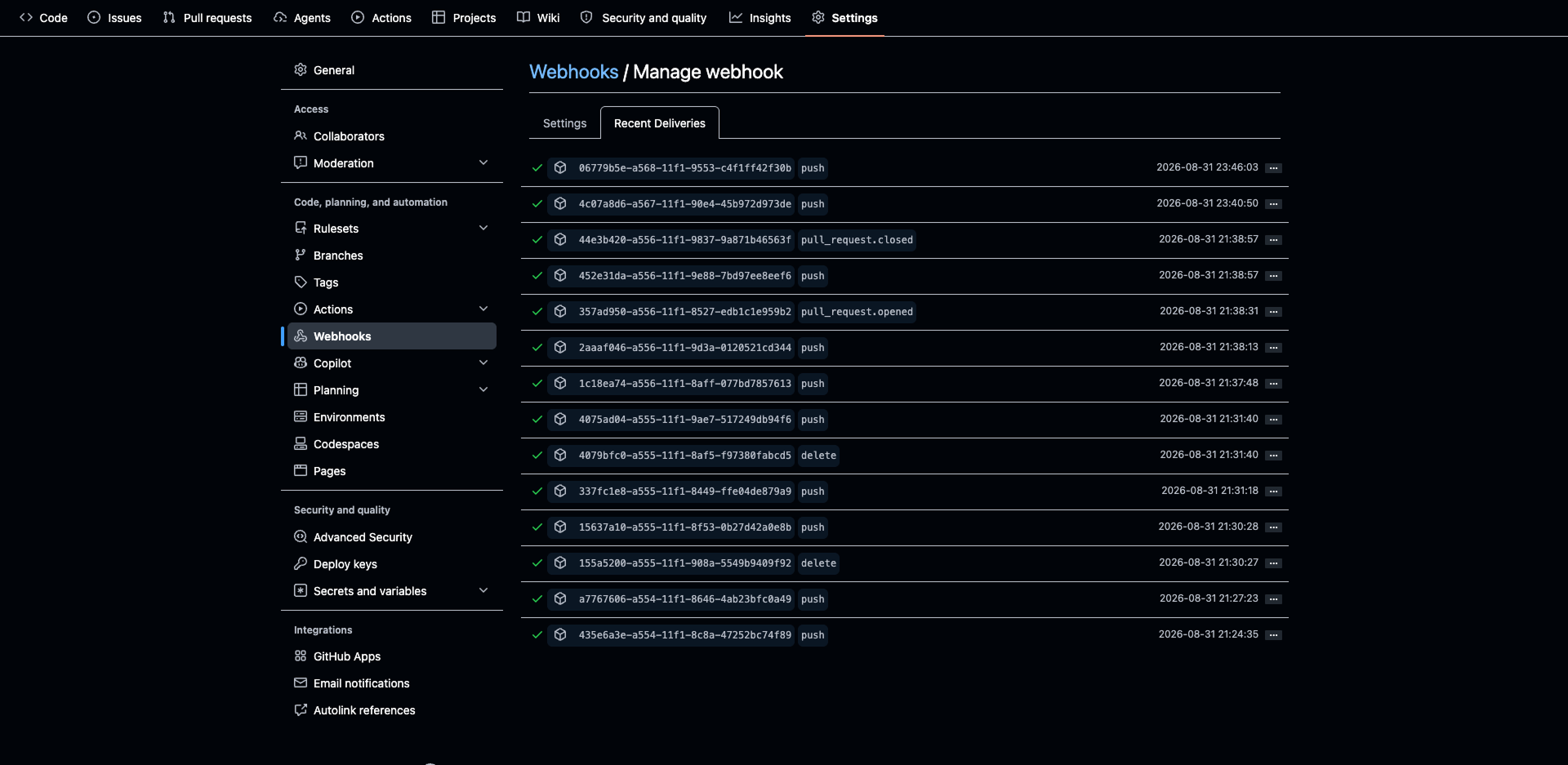
The webhook panel has a Recent events tab listing the deliveries ToolJet has received, along with whether each was applied, skipped, or failed. Use it to confirm the webhook is wired up correctly, and to see why an event did not result in a sync.
An event is reported as skipped when it is not actionable, for example a pull request that was opened rather than merged, a branch push, or a change that originated from this instance.
If nothing appears in the list at all, the event never reached ToolJet. Check the delivery log in your Git provider to confirm it was sent and what response it received.
ToolJet ignores events caused by its own actions, so committing from one instance does not cause that same instance to sync the change back onto itself.
Delete the Webhook
- Go to Workspace settings > Configure git sync.
- Click Edit webhook, then Delete webhook.
Deleting disables auto-sync and invalidates the current secret. Enabling it again requires configuring a new webhook. Remove or update the webhook in your Git repository as well, otherwise it keeps sending deliveries that ToolJet rejects.
Need Help?
- Reach out via our Slack Community
- Or email us at support@tooljet.com
- Found a bug? Please report it via GitHub Issues