Version Control with Git
Branching separates two jobs that a version does on its own. Branches carry work in progress, and versions mark the stable points you promote and release.
The Draft Version
Every application carries exactly one draft version on each branch, and that draft is never absent. The draft is your editable working copy: it holds every change you make in the App Builder until you save that work as a version, and it is what the branch's next commit pushes to Git. Because there is exactly one per branch, switching branches switches which draft you are editing, so the same application can hold separate work in progress on several branches at once.
- A draft is created automatically for every new or imported application.
- A new draft is created for you each time you save a version, so there is always something to edit.
- A second draft cannot be created while branching is enabled.
- Drafts cannot be renamed. You name the version at the point you save it.
The draft on the default branch represents the current state of that branch, which is why only one can exist.
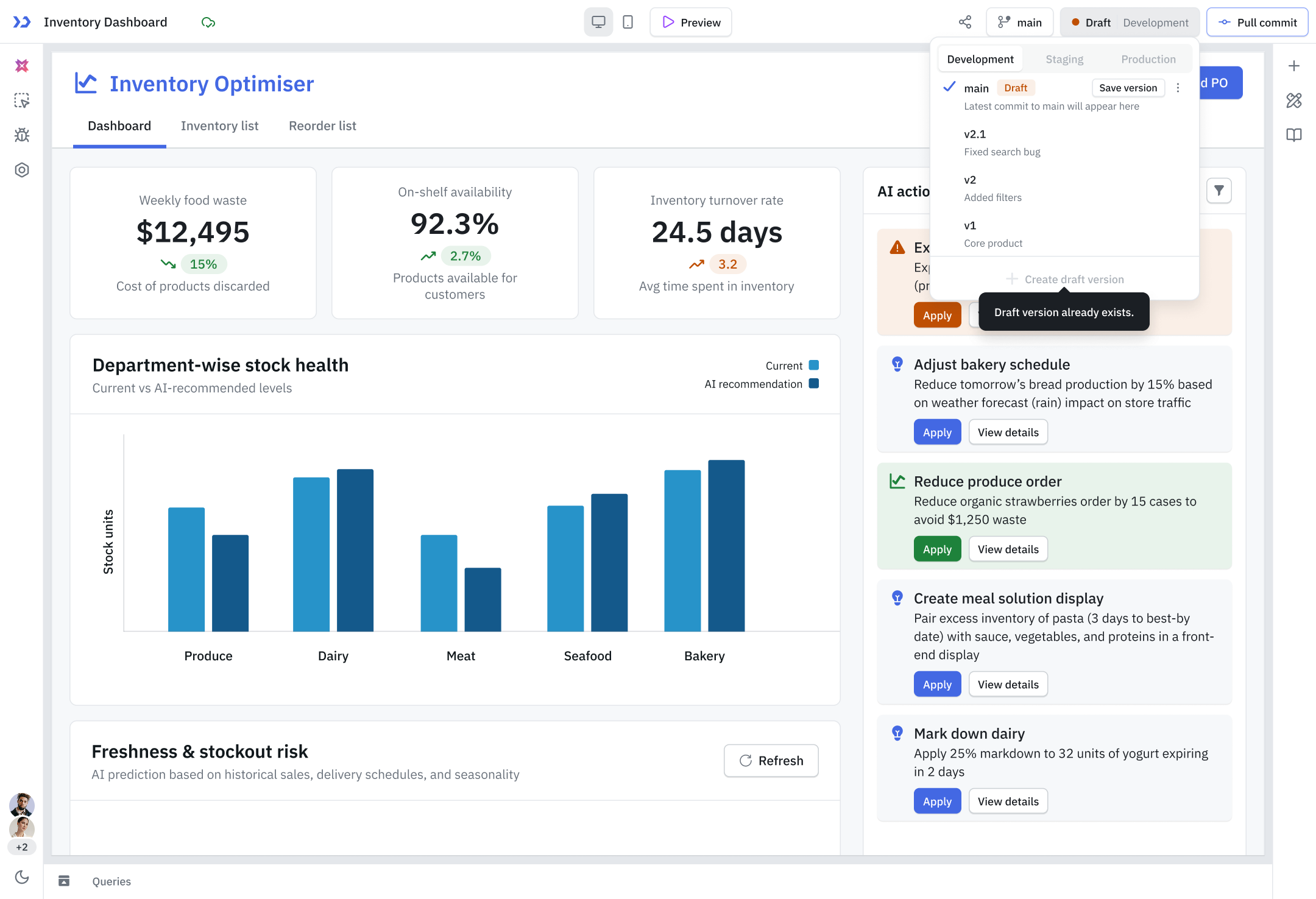
Where Saved Versions Live
Feature branches hold a working draft and nothing else. Saved versions appear on the default branch, because a version is something you promote through environments and release, and environments are not branch-scoped.
This is why the pull dialog offers a version to choose from on the default branch, and only the latest commit on a feature branch.
Saving a Version
Saving locks the version and creates a tag in your Git repository, named after the application and the version. Once saved, a version cannot be edited or renamed, and it becomes available to promote to staging and production, and then to release.
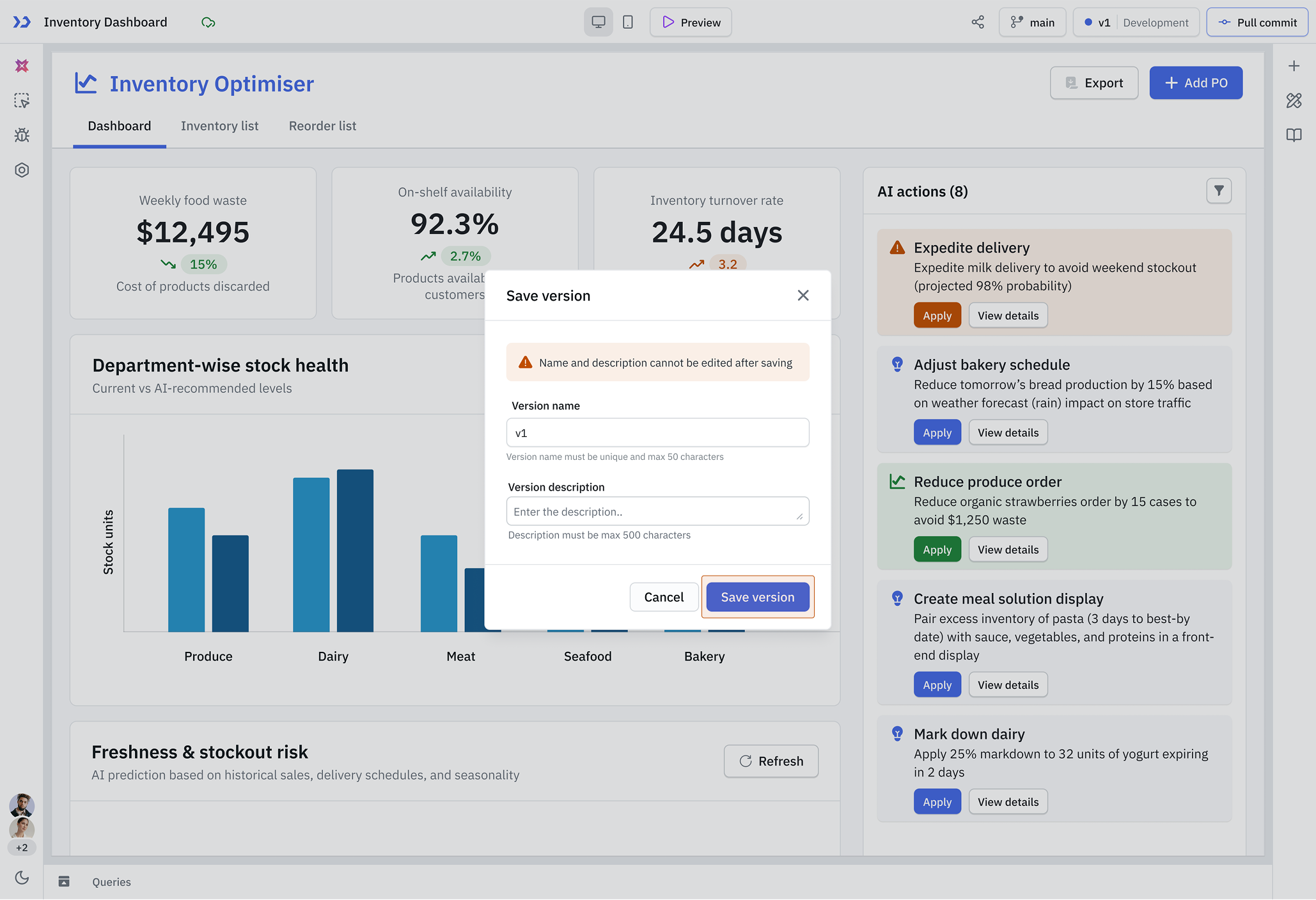
What happens next depends on where you save from.
| Saved from the default branch | Saved from a feature branch | |
|---|---|---|
| Your draft | Becomes the version | Stays as it is, still editable |
| The version | Saved on the default branch | Created on the default branch |
| A new draft | Created automatically | Not needed, your draft is untouched |
| The Git tag points at | The default branch | The feature branch's own commit |
Saving from a feature branch does not move the default branch forward. The use case is a hotfix: create a branch that starts from an earlier saved version, correct it there, and save that correction without disturbing what is currently at the head of the default branch. Refer to Create a Branch for choosing a starting point.
Updating a Version From Git
Only the draft can be updated from Git. Pulling the latest commit refreshes the draft with the newest changes on the branch, and saved versions are left untouched because they are locked.
Pulling a specific saved version brings it in as a published version, which is how a saved version moves between instances. A version that already exists in the workspace is not pulled again.
In single-branch mode a saved version cannot be changed at all. In multi-branch mode you can still pull, but only the draft is updated.
Development Lifecycle With Branching
- Create a feature branch from the default branch and work in its draft.
- Commit, open a pull request, and merge it in Git.
- On the default branch, pull the merged changes into the draft.
- Save the draft as a version. It is tagged in Git, and a fresh draft is created.
- Promote the version to staging and production, then release it.
Need Help?
- Reach out via our Slack Community
- Or email us at support@tooljet.com
- Found a bug? Please report it via GitHub Issues