Resolving Conflicts
ToolJet requires applications, modules, datasources, and folders to have unique names and slugs within a branch. Because each branch is isolated, two branches can independently use the same name without either one reporting a problem. Once both are merged, the branch in Git holds two resources competing for the same name, and ToolJet cannot apply those changes without being told which is which.
ToolJet checks for these conflicts before making any changes, so a conflicting pull or commit stops safely and leaves your workspace untouched.
How Conflicts Are Detected
ToolJet runs a conflict check before it writes anything, when you:
- Pull changes into a branch
- Commit and push changes to Git
- Create a branch
- Import an existing Git branch
- Switch to a branch whose contents have not been brought in from Git yet
If a conflict is found, the operation stops and a dialog opens describing what is wrong and which action was blocked.
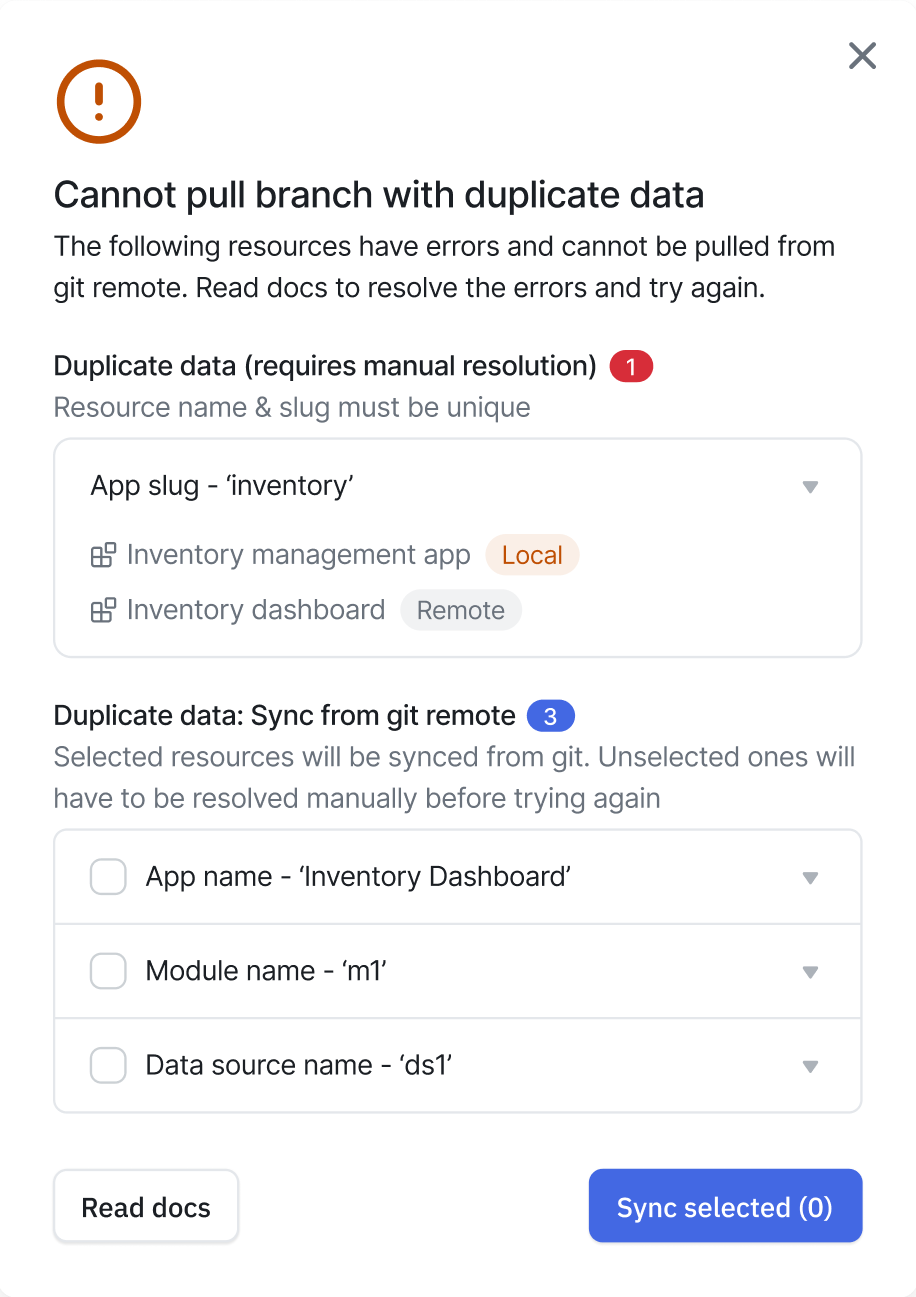
Nothing is written to your workspace or to Git until the conflicts are resolved.
Fields That Must Be Unique
- Application name
- Application slug
- Application folder name
- Module name
- Datasource name
- Module folder name
How Conflicts Happen
When two builders work on separate branches, they each work in isolation, and uniqueness is only enforced within a single branch. Both branches can contain an application with the slug /inventory without either one reporting an error.
Once both pull requests are merged, the default branch in Git contains two applications with the same slug. Pulling those changes into ToolJet stops with a conflict.
Example:
- Builder A creates an application on
feature/inventorywith the slug/inventory. - Builder B creates a different application on
feature/catalog, also with the slug/inventory. - Both pull requests are reviewed and merged into the default branch.
- Pulling the default branch into ToolJet stops and reports the conflicting slug.
Sync Conflicts Automatically
Some name conflicts can be resolved directly from the conflict dialog. This applies when the conflict has a local side and a remote side, meaning the resource exists both in your workspace and in the incoming changes and the two are actually the same resource that lost its link.
- In the conflict dialog, find the resources listed outside the manual resolution sections.
- Expand a row to confirm which local and remote resources are involved.
- Select the checkbox for each conflict you want to resolve.
- Click Sync selected.
ToolJet links the local resource to the incoming resource from Git, so both sides are treated as the same resource from then on. For datasources, ToolJet also pulls the incoming configuration so the values match Git immediately.
Automatic syncing is not offered when:
- The conflict is on a slug rather than a name.
- Both conflicting resources come from the incoming changes and neither exists locally. There is nothing on your side to link, so the name must be corrected in Git.
Conflicts That Require Manual Resolution
The dialog groups these into sections, each with a count.
Duplicate Data
Cause: Two different resources share a name or slug, and ToolJet cannot determine that they are the same resource.
Solution, when the branch that introduced the duplicate still exists:
- Switch to that branch in ToolJet.
- Rename the conflicting field, for example change the application slug from
/inventoryto/inventory-catalog. - Commit the change and push it to Git.
- Open a pull request and merge it into the default branch.
- Pull the default branch into ToolJet again.
Solution, when the branch has already been deleted:
Pulling the default branch will keep failing, so bring in just the affected application through a temporary workspace and rename it there. This is a one-off recovery step. Normal branching work happens entirely within a single workspace.
- Create a new temporary workspace in ToolJet.
- Connect it to the same Git repository using your existing Git credentials.
- Import the affected application using the Import from git repository. Do not use Pull, which brings in the entire branch state and fails for the same reason.
- Create a new branch in the temporary workspace.
- Rename the conflicting field so it is unique.
- Commit, push, open a pull request, and merge it into the default branch.
- Pull the default branch into your original workspace.
Still In Use
Cause: A module or datasource was deleted or deactivated in Git, but something in your workspace still references it. Removing it would break that reference.
Solution: Open the applications listed in the dialog and remove the references to the deleted module or datasource, or replace them with a supported alternative. Commit the change, then retry the operation.
Invalid Name
Cause: A resource has a name containing a forward slash (/). These names were pushed before name validation existed and are not valid resource names.
Solution: Rename the resource so the name contains no forward slash. Rename it on whichever side the dialog lists it, commit the change, then retry the operation.
Applications With Multiple Draft Versions
Cause: Branching allows exactly one draft version per application per branch, and an application in your workspace has more than one.
Solution: Open each application listed in the dialog and delete the extra draft versions, keeping the one you want. Then retry the pull.
Reading the Conflict Dialog
Each resource in the conflict dialog is labeled with the side it came from, so you can tell which copy is already in ToolJet and which is arriving from Git. Resources are identified by name, and by a short identifier when several share a name. Use this to locate the correct branch or application to fix.
Need Help?
- Reach out via our Slack Community
- Or email us at support@tooljet.com
- Found a bug? Please report it via GitHub Issues