Push Unsynced Resources to Git
An unsynced resource is an application, module, or datasource that exists in ToolJet but has never been committed to your Git repository. You will usually meet them right after turning on GitSync or branching in a workspace that already had resources in it: everything built beforehand is still local, and Git has never seen it.
How Unsynced Resources Reach Git
A resource gets into Git the same way any other change does, through a feature branch and a pull request. ToolJet gives unsynced resources their own entry point because the ordinary Commit button cannot help here. Commit re-pushes resources Git already tracks, and it is unavailable on the default branch, which is exactly where an unsynced resource sits.
So the flow is: push the resource to a feature branch, then merge that branch into the default branch.
Where ToolJet Flags Them
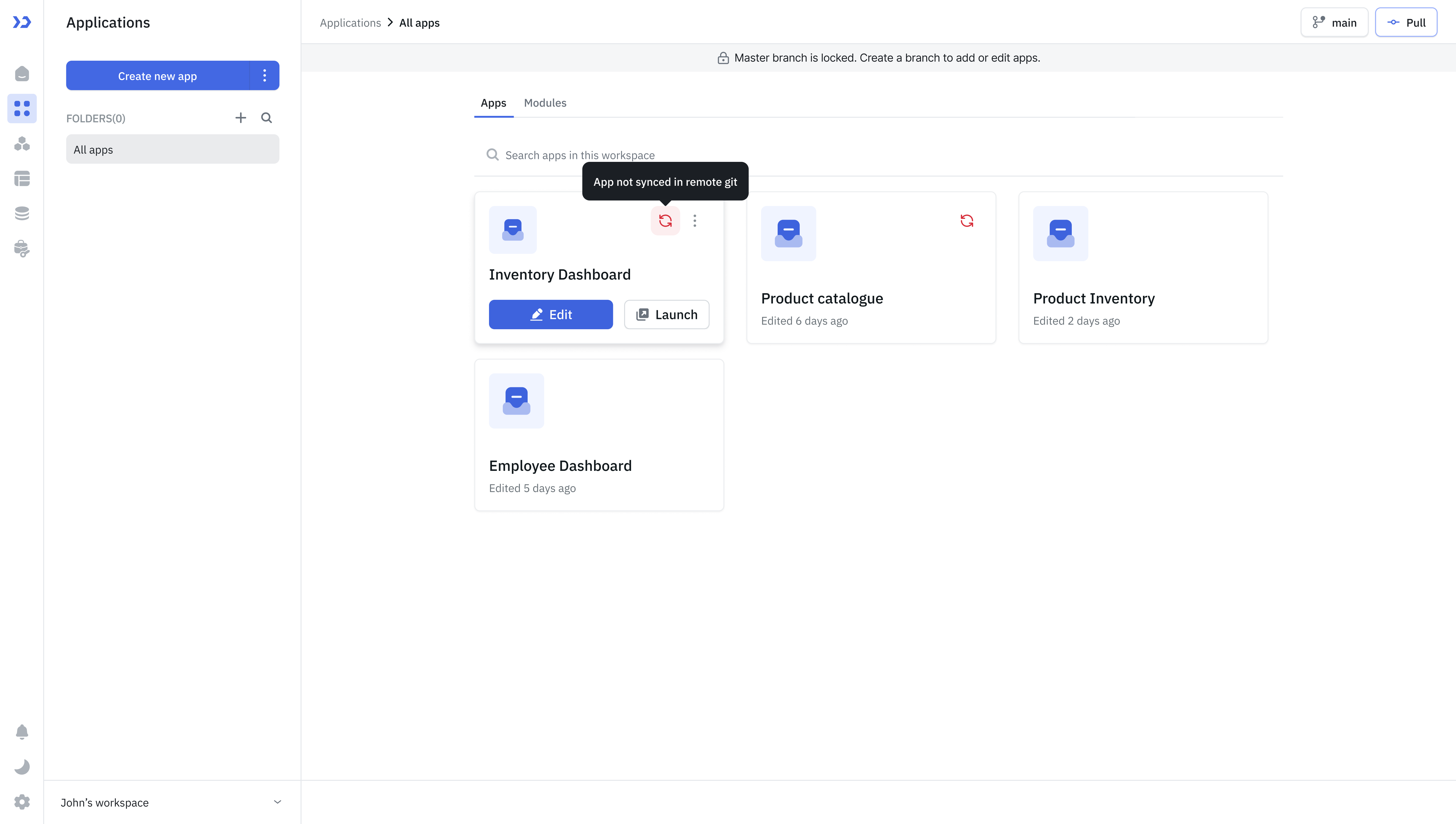
Indicators appear only while you are on the default branch. Each entry point pushes a different scope, which is the part worth checking before you click.
| Where you are | What you see | What it pushes |
|---|---|---|
| Applications or Modules page | A red refresh icon on the card | That one application or module |
| App Builder | A Sync button in the header | The application you have open |
| Data sources page | A red refresh icon on the row | That one datasource |
| Data sources page | A Sync button in the header | Every unsynced datasource at once |
The header Sync button on the Data sources page covers datasources only. An unsynced application is always pushed from its card or from the App Builder, never from there.
Workflows never appear as unsynced, because they are not branch-scoped.
Push an Unsynced Resource
- Click the red refresh icon on the resource, or Sync in the header.
- Confirm which resource to push. On the Applications and Modules pages the dialog also lists your other unsynced resources, so you can switch to a different one without closing it.
- Choose a target branch. Select an existing feature branch, or type a new name to create one. New branches always come from the default branch, whichever branch you are viewing.
- Push. ToolJet commits the resource to that branch, pulls it back, and switches you to the branch.
- Open a pull request for the branch and merge it into the default branch. Refer to Pull Requests.
The resource is only on a feature branch until step 5 completes. It reaches the default branch when the pull request is merged.
Version Requirements Before Pushing
Git uses exactly one draft version as the tip of the default branch. ToolJet checks this before pushing an application or module, and blocks the push if the resource, or anything it depends on, does not meet it. A dialog names the condition and the resources affected.
| Condition | How to fix |
|---|---|
| The application or module has more than one draft version | Save all draft versions except one. If linked modules or applications also have multiple drafts, reduce those to one as well, and make sure the application is pinned to the module's remaining draft. |
| The application or module has no draft version | Create a new draft version. Create one for any linked modules or applications that are missing one, and pin the application to it. |
| A module used by this application is not ready | For each module listed, save all draft versions except one, or create one if it has none, then pin the application to that draft. |
| An application linked to this one is not ready | For each application listed, save all draft versions except one, or create one if it has none. |
Datasources have no versions, so this check does not apply to them.
Naming Conflicts
If the resource shares a name with something already in Git, the push stops and a conflict dialog opens. Nothing is written to Git until you resolve it. Refer to Resolving Conflicts.
Need Help?
- Reach out via our Slack Community
- Or email us at support@tooljet.com
- Found a bug? Please report it via GitHub Issues