GitLab Configuration
Connect your workspace to a GitLab project using a project access token. The connection works over HTTPS, and you choose the branch to sync with directly in ToolJet.
Role Required: Admin
1. Create a New Project
Create a new project in your GitLab account. You can choose to make it public or private. If you’re using an existing repository, ensure it’s empty before proceeding.
2. Get the GitLab Project ID
On the project overview page, click Actions in the upper-right corner and then select Copy project ID. This value represents the unique identifier assigned by GitLab to your project. Save this value for later use.
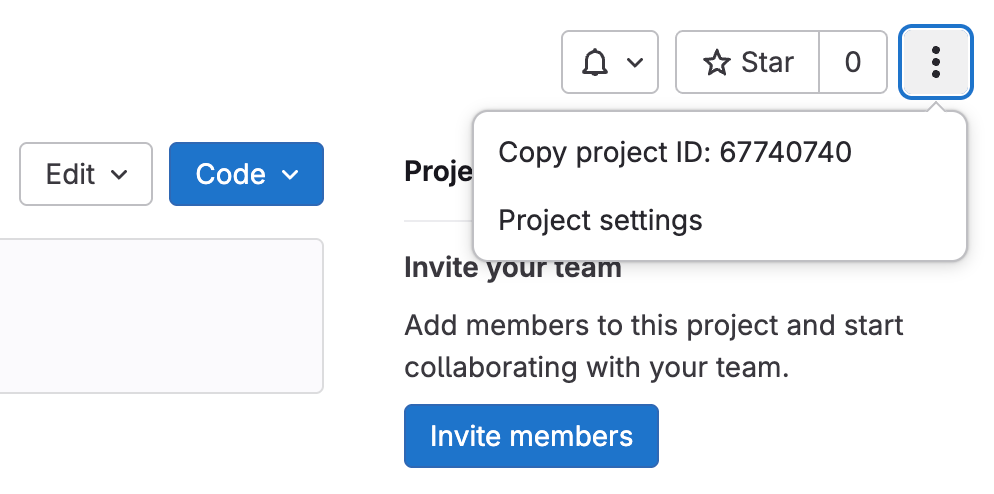
3. Generate a Project Access Token
Follow these steps to generate a project access token:
- Go to your Project Settings and click on Access Tokens
- Enter name for your token.
- Select a role as Developer, Maintainer, or Owner
- Select the required scopes. The mandatory scopes are:
- api
- read_api
- read_repository
- write_repository
- Click the Create project access token button.
Once generated, copy and store the token as it won't be displayed again. This token will be used later when configuring GitSync.
4. Configure GitLab in GitSync
Navigate to the Workspace settings page and click on the Configure git sync tab. Then, enter the required configuration values after selecting GitLab as your repository provider.
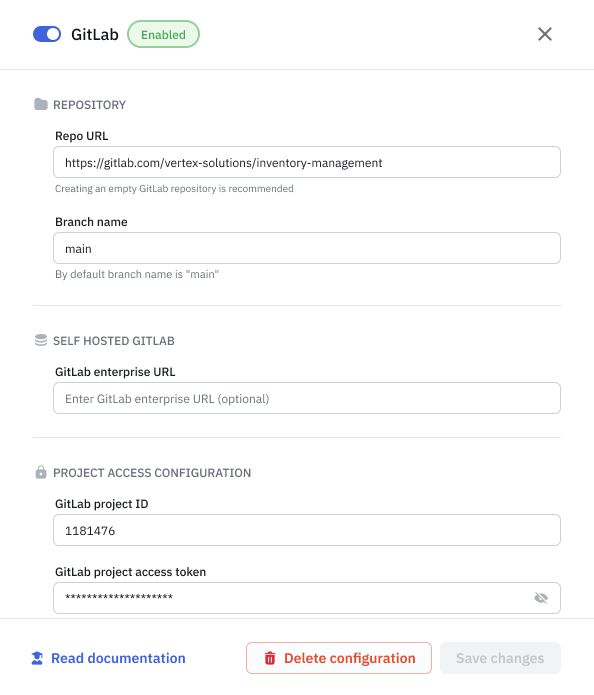
The table below describes each configuration values:
Repository
| Setting | Description |
|---|---|
| Repo URL | The URL of the Project you created to use with ToolJet. (e.g https://gitlab.com/<group-name>/<project-name> or https://gitlab.com/<username>/<project-name>) |
| Branch name | Branch name of your project. By default, it uses the main branch. |
Self-hosted GitLab (Optional)
| Setting | Description |
|---|---|
| GitLab enterprise URL | The domain used to access your self-hosted GitLab instance. (e.g https://gitlab.corp.com) If you use GitLab Cloud, you can leave this blank. |
Project Access Configuration
| Setting | Description |
|---|---|
| GitLab project ID | The GitLab project ID. |
| GitLab project access token | The GitLab project token. |
Once you've entered the necessary configurations, click Save changes. Your workspace is now connected to your GitLab project.
You can use the same credentials to configure a specific repository across multiple instances or workspaces.
Need Help?
- Reach out via our Slack Community
- Or email us at support@tooljet.com
- Found a bug? Please report it via GitHub Issues