Using RunJS
ToolJet allows you to use external JavaScript libraries such as Compromise for natural language processing or PapaParse for parsing CSV data in your application. You can import libraries globally so they are available across all queries, or load them on demand inside a RunJS query.
Importing Libraries Globally
The Libraries section on the left sidebar lets you register external libraries once at the app level. Registered libraries are loaded at app startup and available by their variable name in all RunJS queries and transformations — no per-query import code needed.
Add a Library
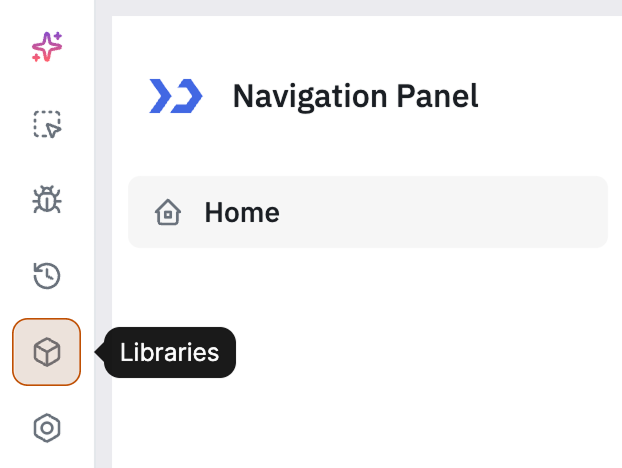
- Open Libraries from the left sidebar.
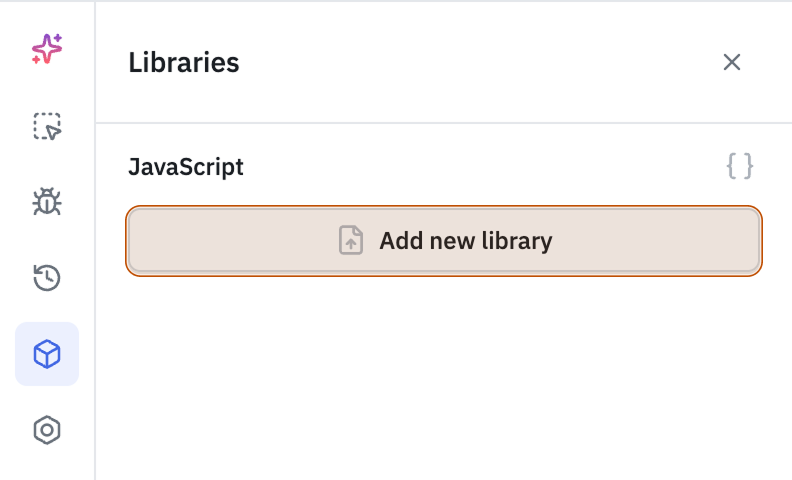
- Click on Add new library button.
- Enter a Variable name — the name you will use to call the library in your code (e.g.,
Papa). - Enter the CDN URL of a UMD or IIFE build of the library (e.g., from jsDelivr or cdnjs).
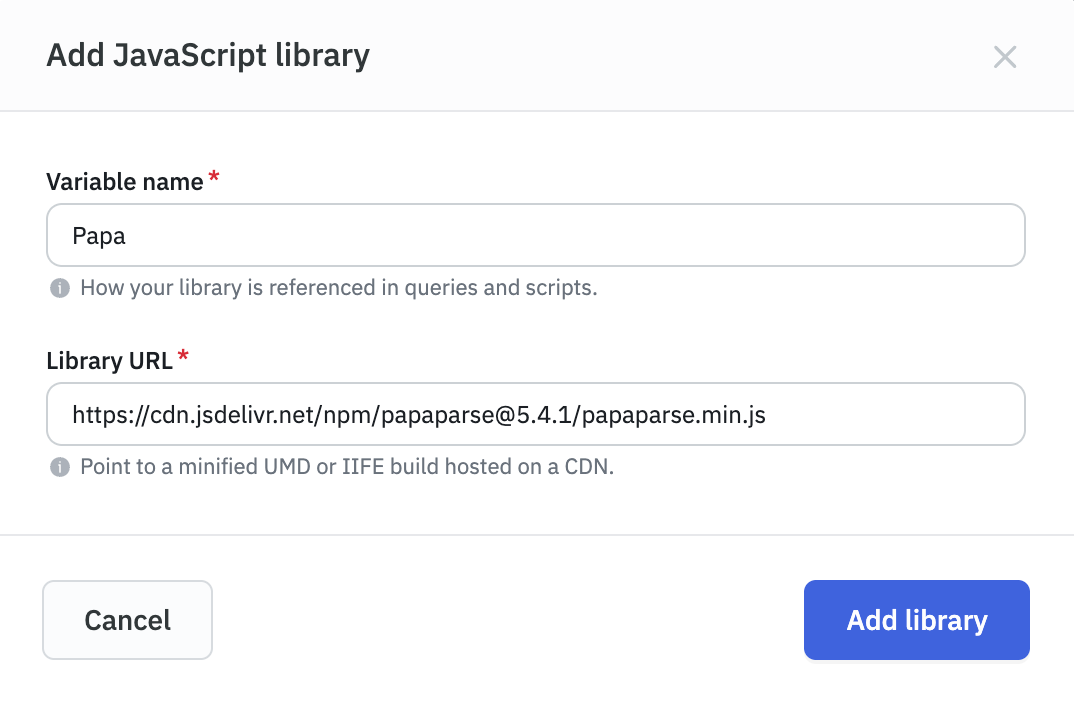
- Click + Add library.
ToolJet fetches and validates the library. If successful, the library is saved to the app definition and is immediately available in your queries.
Only minified UMD or IIFE builds are supported. ESM and CommonJS modules are not compatible. Use the .min.js build from jsDelivr or cdnjs.
Once added, use the library by its variable name directly in any RunJS query or transformation:
// Using PapaParse added with variable name "Papa"
const csvData = components.filepicker1.file[0].content;
const result = Papa.parse(csvData, { header: true, skipEmptyLines: true });
return result;
Remove a Library
Click the trash icon next to the library name in the Libraries list to remove it. The library is unregistered from the app immediately.
Preloaded JavaScript
The Preloaded JavaScript section (within Libraries) lets you write JavaScript that runs once after all registered libraries have loaded, before any queries execute. Use it for library initialization that must happen before your app runs — for example, extending a plugin or configuring a library's defaults.
To open the Preloaded JavaScript editor, click on inside the Libraries section.
Example — extending Day.js with the UTC plugin:
dayjs.extend(dayjs_utc);
Example — configuring a library default:
Papa.LocalChunkSize = 20480;
Click Save script to save it. The script runs automatically at app startup after libraries load.
The Preloaded JavaScript has access to all registered library variables and the same built-in libraries available in RunJS (Moment.js, Lodash, Axios).
Importing Libraries via a RunJS Query
For libraries you only need in a single query, you can load them dynamically inside a RunJS query using document.createElement('script').
Create a RunJS Query
Open the query panel and create a new RunJS query.
How to Import Libraries
This guide walks you through the process of importing libraries using RunJS. We'll use the below libraries for demonstration:
- Compromise: for natural language processing
- PapaParse: for parsing CSV data
Create a RunJS Query
Open the query panel and create a new RunJS query.
Add the Following Code Snippet
// Function to add script dynamically
function addScript(src) {
  return new Promise((resolve, reject) => {
    const scriptTag = document.createElement('script');
    scriptTag.setAttribute('src', src);
    scriptTag.addEventListener('load', resolve);
    scriptTag.addEventListener('error', reject);
    document.body.appendChild(scriptTag);
  });
}

try {
  await addScript('https://cdn.jsdelivr.net/npm/compromise@13.11.3/builds/compromise.min.js');
  await addScript('https://cdn.jsdelivr.net/npm/papaparse@5.4.1/papaparse.min.js');
  await actions.showAlert("success", "Compromise and PapaParse imported");
} catch (error) {
  console.error(error);
}
After adding the code, click on the Run button in the query panel. An alert will appear with the message "Compromise and PapaParse imported".
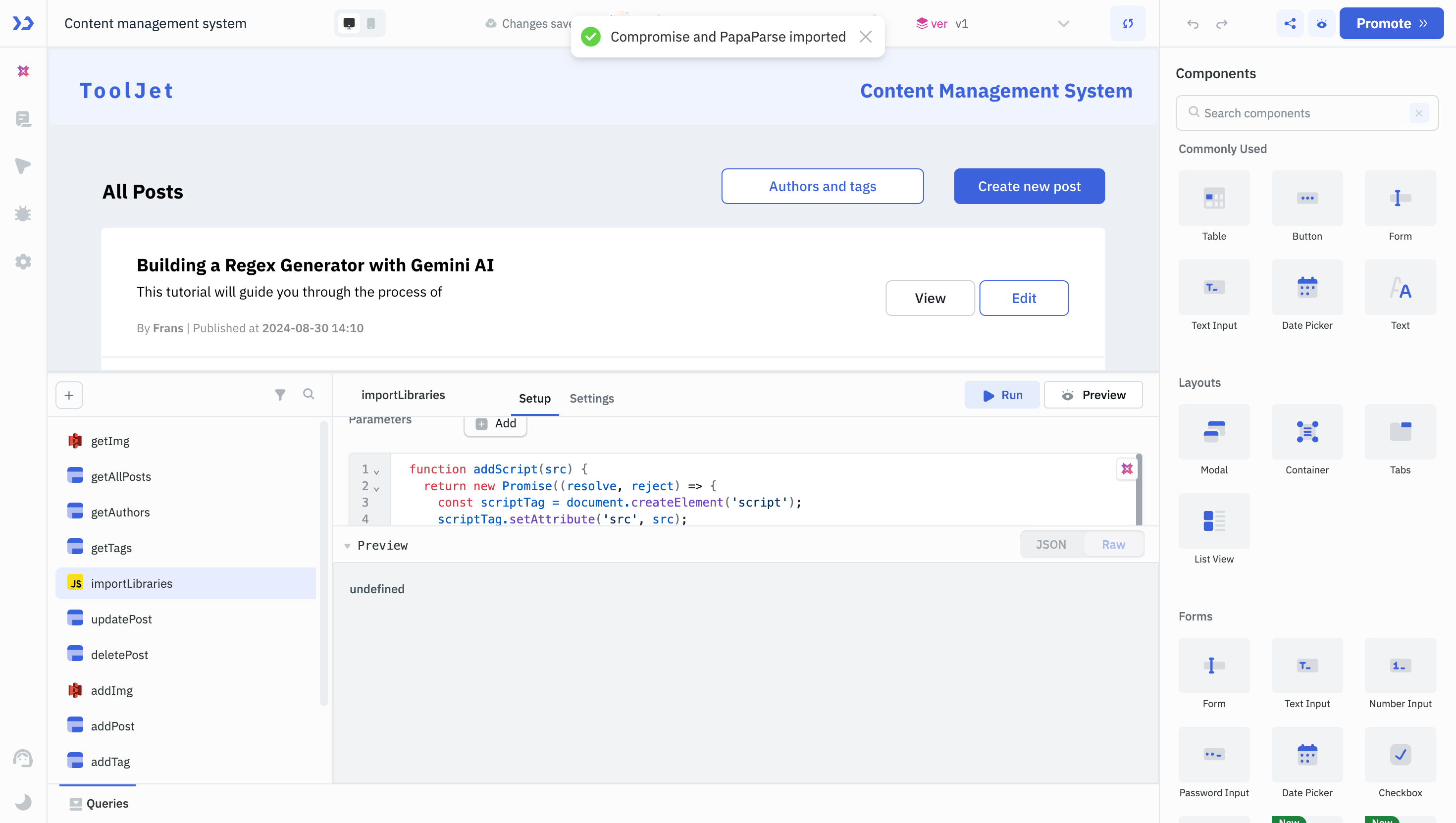
Enable the Run this query on application load option in the query settings to make the libraries available throughout the application as soon as the app is loaded.
Use Cases
Let’s look at how you can apply these libraries in real-world use cases.
Extracting Action Items from Meeting Notes using Compromise (NLP)
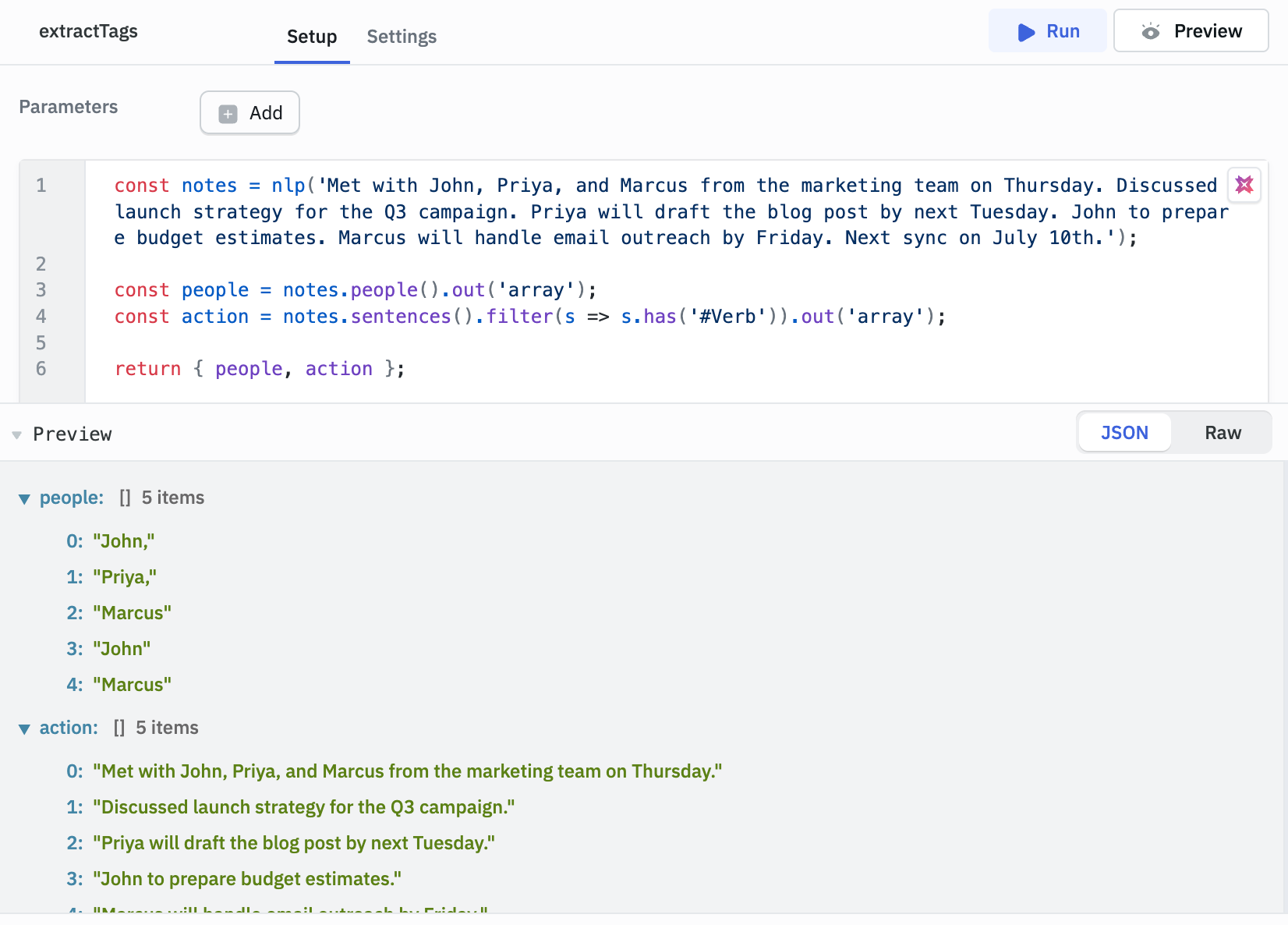
Let's say you are building an internal project management tool where users paste raw meeting notes. You want to auto-extract action items, dates, and team names. You can use the following code to process the notes using NLP:
const notes = nlp("Met with John, Priya, and Marcus from the marketing team on Thursday. Discussed launch strategy for the Q3 campaign. Priya will draft the blog post by next Tuesday. John to prepare budget estimates. Marcus will handle email outreach by Friday. Next sync on July 10th.");

const people = notes.people().out('array');
const actions = notes.sentences().filter(s => s.has('#Verb')).out('array');

return { people, actions };
Preview the output in the query manager or click Run in the query panel to see the output as shown below.
Bulk Upload Employee Data into an Employee Directory
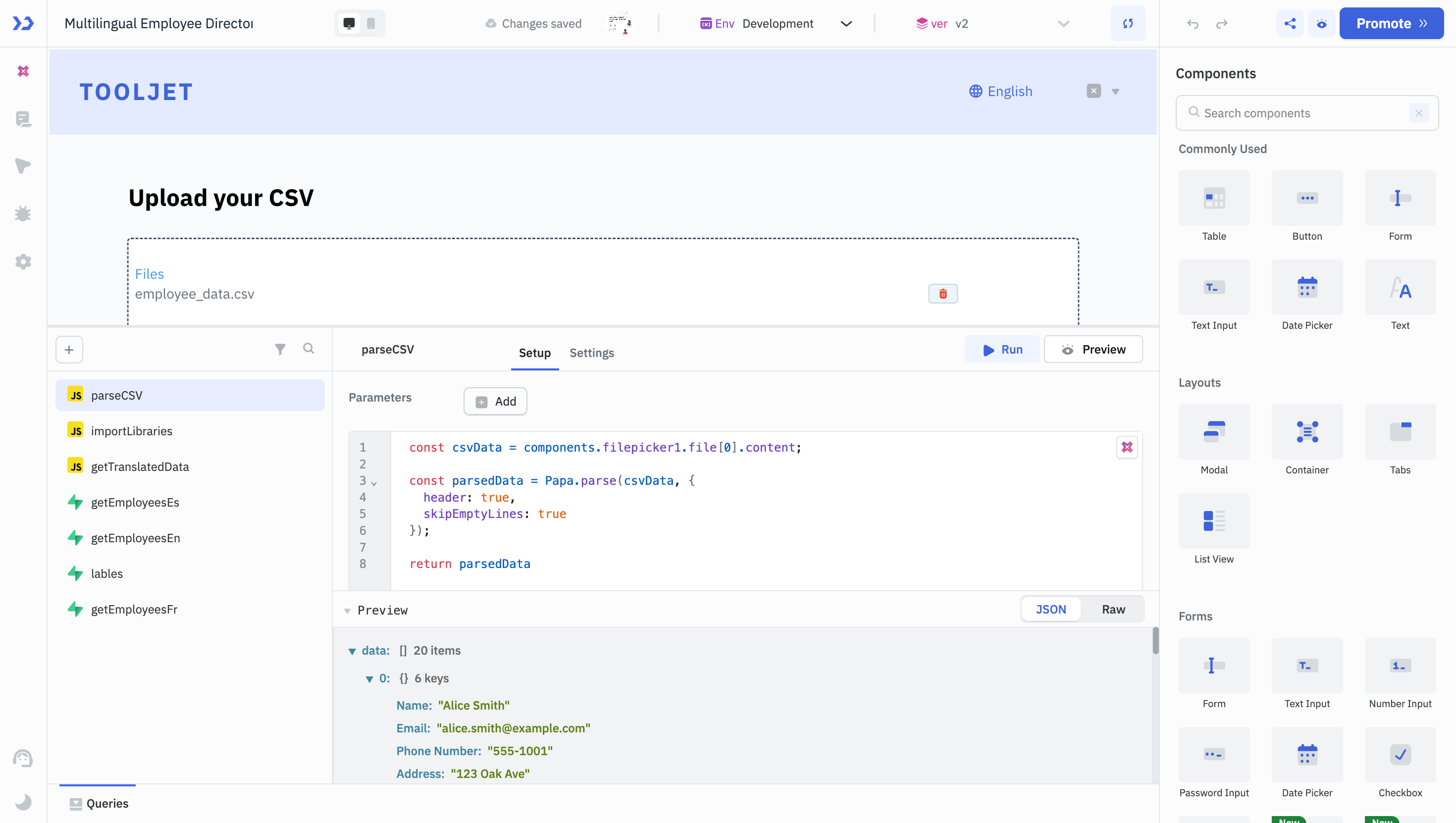
Let’s say your HR team maintains employee records in spreadsheets and wants a way to import this data quickly into your internal Employee Directory application. You can use the following code to clean up the data:
const csvData = components.filepicker1.file[0].content;

const parsedData = Papa.parse(csvData, {
  header: true,
  skipEmptyLines: true
});

return parsedData;
Built-in JavaScript Libraries
ToolJet comes with some essential JavaScript libraries preloaded in the RunJS environment, so you don’t need to import them manually:
- Moment.js – for date/time formatting and manipulation
- Lodash – for working with arrays, objects, and collections
- Axios – for making HTTP requests
You can use these libraries directly in RunJS to simplify your logic, transform data, or integrate with APIs.
Example:
// Format Timestamps for UI Display
const raw = '2025-06-05T15:42:00Z';
return moment(raw).format('MMM D, YYYY, h:mm A');// "Jun 5, 2025, 9:12 PM"

//  Deep Comparison of Records with Lodash
const a = { name: 'Alice', dept: { id: 1, name: 'HR' } };
const b = { name: 'Alice', dept: { id: 1, name: 'HR' } };

return _.isEqual(a, b); // true

// Posting JSON Data with Error Handling
axios.post('https://api.company.com/inventory', {
  name: 'Laptop',
  quantity: 10,
}).then(res => res.data)
  .catch(err => console.error(err.response.data));
Use RunJS to easily import and leverage external JavaScript libraries in your ToolJet app for advanced data processing and logic.