Two Factor Authentication
Two-factor authentication (2FA) adds an extra layer of security to your ToolJet login by requiring a time-based one-time password (TOTP) from an authenticator app, in addition to your email and password. ToolJet works with any TOTP authenticator app, such as 1Password, Google Authenticator, or Microsoft Authenticator.
Two-factor authentication applies only to accounts that sign in with a password. It doesn't apply to users who sign in through SSO.
Enable Two-Factor Authentication
Role Required: Super Admin
Before users can set up 2FA on their accounts, a super admin needs to turn the feature on for the instance.
Set the MFA_MASTER_SECRET environment variable on the ToolJet server before you turn on 2FA. ToolJet uses this secret to derive each user's 2FA key. If it isn't set, users can't set up 2FA from their profile, and users who already have 2FA turned on can't sign in. These requests fail with the error MFA_MASTER_SECRET is not configured. Set it in the environment before enabling two-factor authentication.
Keep the value unchanged once users have set up 2FA. Changing it invalidates every authenticator app that's already set up. See Environment Variables.
- Click on the settings icon (⚙️) on the bottom left of your dashboard.
- Go to Settings > Security.
(Example URL -https://app.corp.com/settings/security)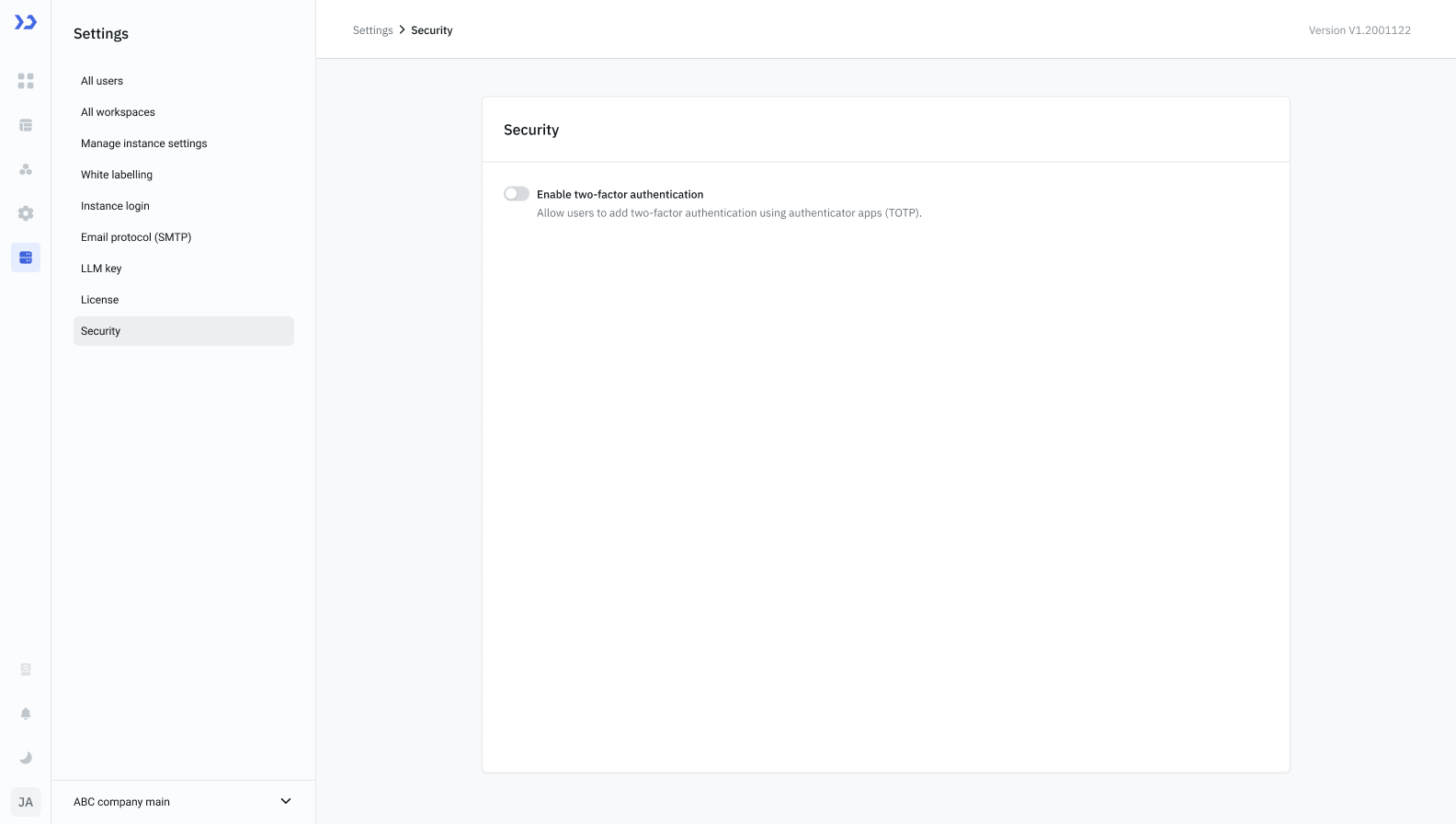
- Enable the Two-factor authentication toggle.
By enabling this toggle 2FA isn't enforced for everyone. It only makes 2FA available - it applies to a user only after that user manually configures 2FA from their own profile.
Configure Two-Factor Authentication From Profile
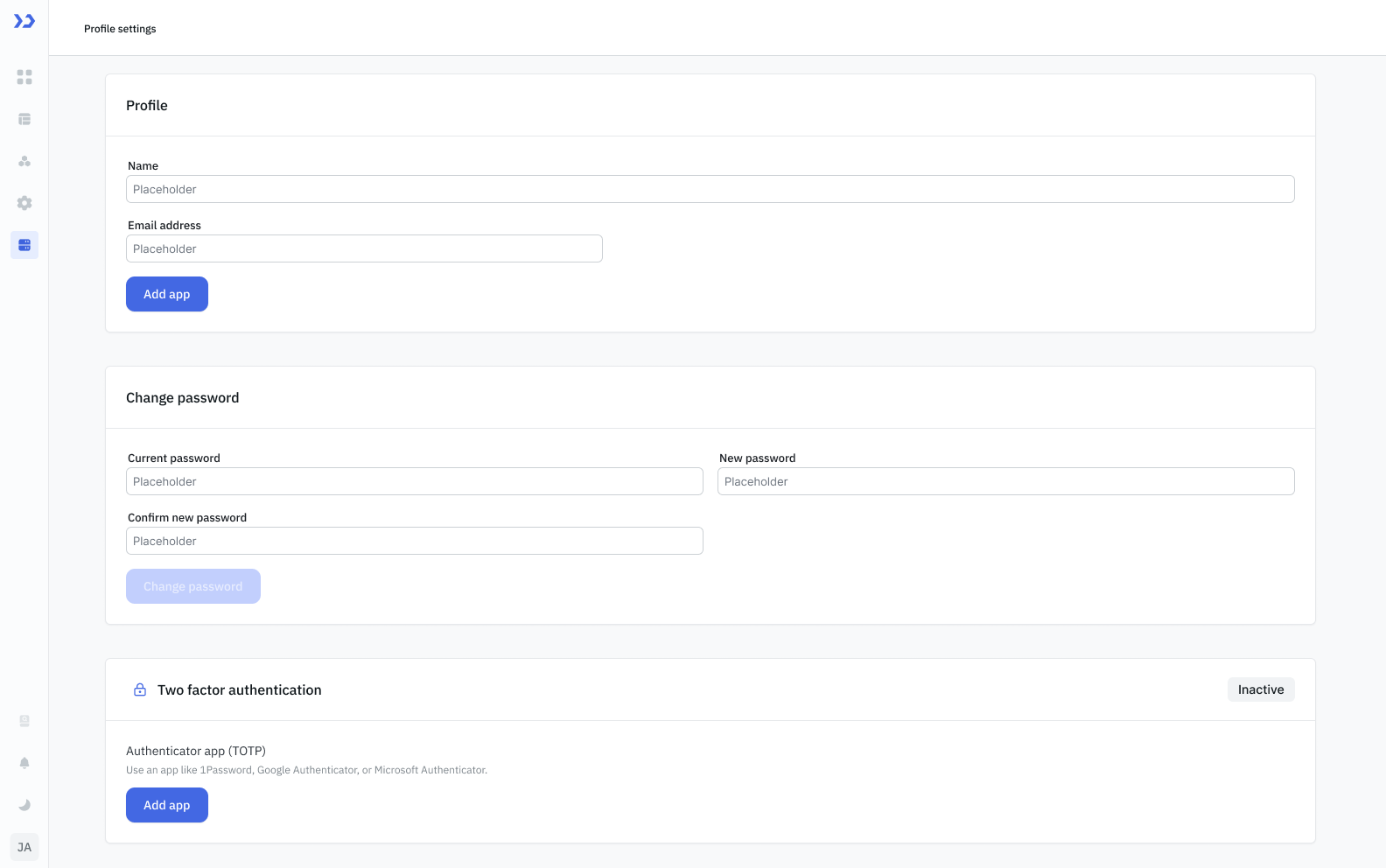
Once the Super Admin enables the two-factor authentication, the users can configure it from their profile.
- Click on the settings icon (⚙️) on the bottom left of your dashboard.
- Go to Profile Settings.
(Example URL -https://app.corp.com/nexus/profile-settings) - On the Two factor authentication card, click Add app.
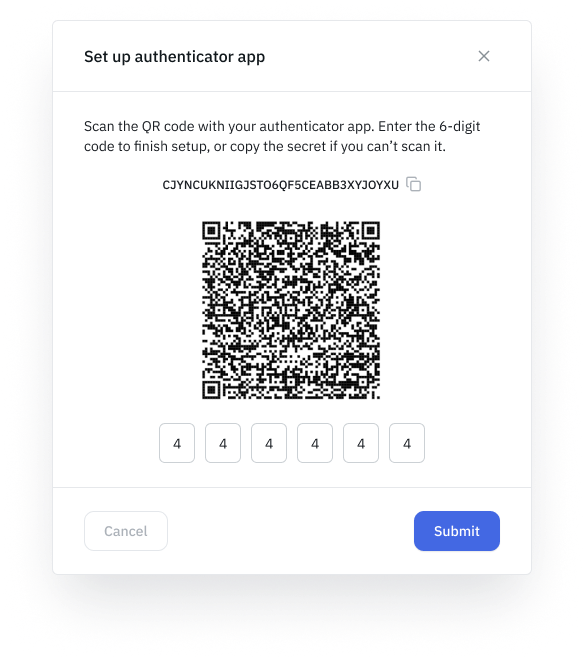
- Scan the QR code with an authenticator app, or if you can't scan it, copy the secret key shown below the QR code and enter it manually in your app.
- Enter the 6-digit code generated by the app and click Submit.
Once confirmed, the card's status switches to Active, and you'll be asked for a code from your authenticator app every time you sign in with your password.
Reset Two-Factor Authentication
Admin Level
Role Required: Super Admin
If a user loses access to their authenticator app, a super admin can reset 2FA for that user:
- Click on the settings icon (⚙️) on the bottom left of your dashboard.
- Go to Settings > All Users.
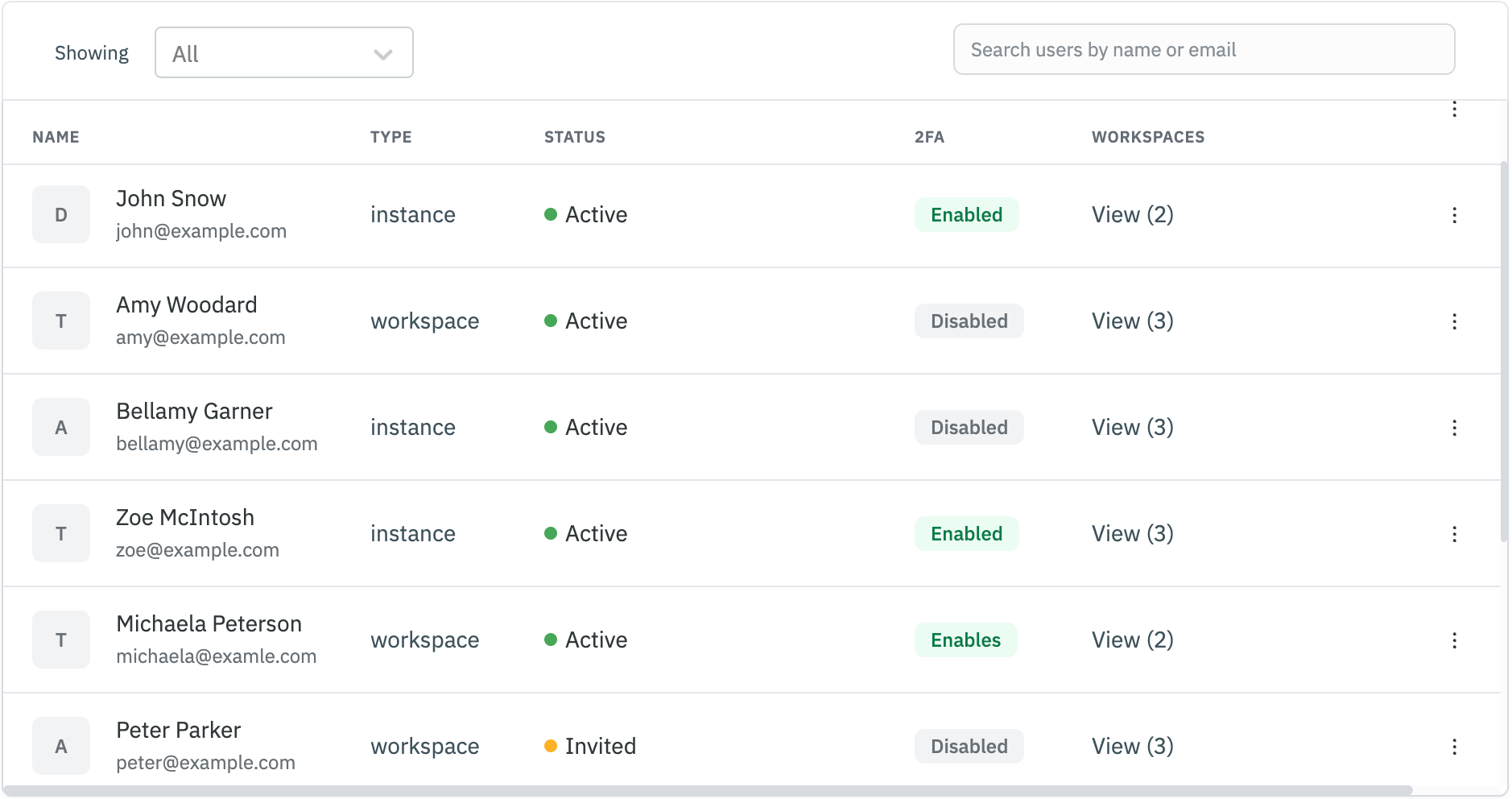
(Example URL -https://app.corp.com/settings/all-users) - Find the user in the list. Users with 2FA turned on show Enabled under the 2FA column.
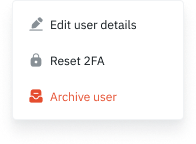
- Click on the kebab icon (three dots) on the right side of the user's row and select Reset 2FA.
This option only appears for users who currently have 2FA enabled.
The user's 2FA is turned off, and they can set it up again from Profile Settings.
User Level
- Click on the settings icon (⚙️) on the bottom left of your dashboard.
- Go to Profile Settings.
(Example URL -https://app.corp.com/nexus/profile-settings) - On the Two factor authentication card, click Reset.
- It will open the setup screen again, so you can scan the QR code or copy the secret onto a new device, then re-confirm with a fresh code. Use this if you're switching devices or reinstalling your authenticator app.
Disable Two-Factor Authentication
Admin Level
Role Required: Super Admin
- Click on the settings icon (⚙️) on the bottom left of your dashboard.
- Go to Settings > Security.
(Example URL -https://app.corp.com/settings/security) - Disable the Two-factor authentication toggle.
User Level
- Click on the settings icon (⚙️) on the bottom left of your dashboard.
- Go to Profile Settings.
(Example URL -https://app.corp.com/nexus/profile-settings) - On the Two factor authentication card, click Disable.
- Enter your current 6-digit code to turn off 2FA for your account.
Logging In With Two-Factor Authentication
If you've enabled 2FA on your account, after entering your email and password you'll be asked for the current 6-digit code from your authenticator app. Enter the code and click Submit to sign in.
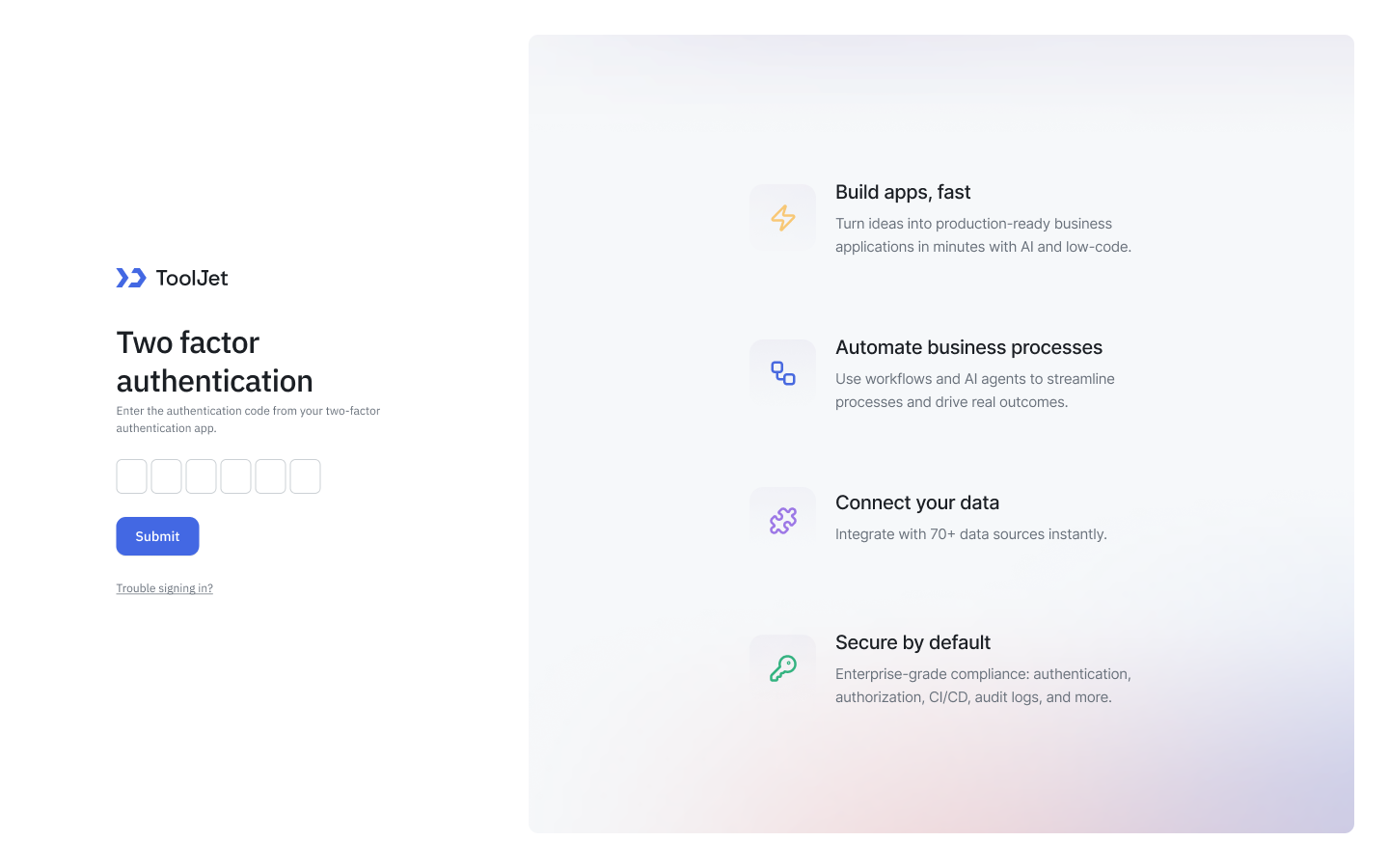
Can't access your authenticator app? Click Trouble signing in? on the screen for recovery guidance.
- Codes refresh every 30 seconds. If your code keeps getting rejected, check that your device's clock is in sync - authenticator apps rely on accurate time to generate valid codes.
- If you close the tab while entering the OTP, you'll have to restart the login flow from the beginning, that is, enter your email and password again.
Checking Which Users Have Enabled 2FA
Role Required: Super Admin
- Click on the settings icon (⚙️) on the bottom left of your dashboard.
- Go to Settings > All Users.
(Example URL -https://app.corp.com/settings/all-users) - Check the 2FA column for each user - it shows Enabled or Disabled based on whether that user has 2FA turned on.