MS SQL Server / Azure SQL Databases
ToolJet can connect to MS SQL Server & Azure SQL databases to read and write data.
Connection
To establish a connection with the MS SQL Server data source, click on the + Add new Data source button located on the query panel or navigate to the Data Sources page from the ToolJet dashboard.
Please make sure the Host/IP of the database is accessible from your VPC if you have self-hosted ToolJet. If you are using ToolJet cloud, please whitelist our IP.
ToolJet requires the following to connect to your MS SQL Server database.
- Connection type: Select Manual connection to enter each connection detail, or Connection string to paste a connection string. See Connection String.
- Host
- Port
- Instance: The name of the SQL Server named instance, if you connect to one.
- Database
- Authentication type: See Authentication Type.
- Connection Options
- SSL/TLS: See SSL/TLS.
- SSH tunnel: See SSH Tunnelling.
- Allow dynamic connection parameters: See Dynamic Connection.
- Azure encrypt connection: Turn this on if you are using Azure SQL databases. It encrypts the connection.
In this release, ToolJet doesn't pass the Instance value to SQL Server. To connect to a named instance, enter the instance's port in Port instead.
Note: It is recommended to create a new database user so that you can control the access levels of ToolJet.

Connection String
To connect using a connection string, select Connection string as the connection type and paste the string in host;key=value or sqlserver://host;key=value format, for example sqlserver://db.example.com:1433;database=sales;user=tooljet;password=<password>. ToolJet fills in Host, Port, Instance, Database, Username, Password and Azure encrypt connection from the string. You can still edit these fields, and ToolJet connects using their values.
ToolJet reads these keys: database or initial catalog, user id, uid or user, password or pwd, port, instance or instance name, and encrypt. You can also add the instance to the host as host\instance.
Connection Options
You can add optional configurations in key-value pairs for the MS SQL data source connection.
Example:
| Key | Value |
|---|---|
| trustServerCertificate | true |
These options allow you to fine-tune the connection, such as enabling encryption when using a self-signed certificate.
Authentication Type
ToolJet supports multiple authentication methods for the MSSQL data source through the Authentication type dropdown. Select the appropriate authentication method based on your SQL Server or Azure SQL setup.
SQL Server
Select SQL Server if you want to connect using the existing SQL authentication flow.
Provide the following credentials:
- Host
- Port
- Database
- Username
- Password
This is the default authentication method and requires no additional configuration changes.
Azure AD – Service Principal
Select Azure AD – Service Principal to authenticate using an Azure application registered in Microsoft Entra ID. This option is recommended when connecting to Azure SQL Database using application-based authentication instead of SQL logins.
Azure AD's encryption takes precedence over the manual SSL configuration when using this auth type.
Provide the following details:
- Tenant ID – The Microsoft Entra tenant (directory) ID
- Client ID – The Application (client) ID from the Azure app registration
- Client Secret – The client secret value generated for the app

SSL/TLS
Turn on SSL/TLS to encrypt the connection, then select the SSL certificate type:
- None: Encrypts the connection and trusts the server certificate without validating it.
- CA certificate: Validates the server certificate against the CA certificate you provide.
- Self-signed certificate: Enter the Client key, Client certificate and Root certificate.
When Authentication type is Azure AD – Service Principal, ToolJet always encrypts the connection and doesn't use these SSL settings.
Enabling Encryption with a Self-Signed Certificate
To enhance security during data transfer, encryption can be enabled even with a self-signed certificate.
Server-Side Configuration
- Create and Install a Self-Signed Certificate:
- Generate a self-signed certificate and install it on the SQL Server instance.
- Force Encryption:
- Configure the SQL Server instance to force encrypted connections.
- For Azure SQL databases, turn on the Encryption toggle in the Azure portal.
Client-Side Configuration
- Set the connection option
trustServerCertificatetotrue.- This bypasses certificate chain validation and is necessary when using a self-signed certificate.
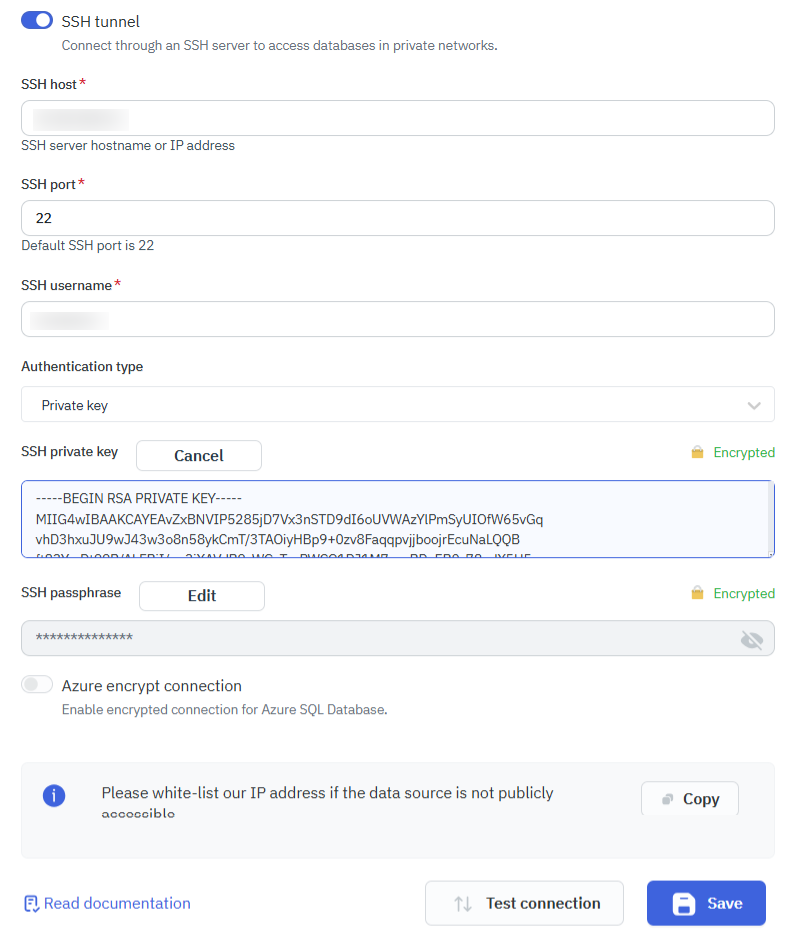
SSH Tunnelling
ToolJet now supports SSH tunnelling for the MSSQL data source, allowing secure connections to databases hosted inside private networks. This can be used to:
- Access private databases
- Improve security
- Enable encrypted communication
- Avoid firewall rule changes
SSH Configuration
To securely connect to a private MSSQL database using SSH tunnelling:
- Enable the SSH tunnel toggle in the MSSQL data source configuration.
- Provide the following details:
- SSH host – Server hostname or IP address.
- SSH port – Port number (default:
22). - SSH username – Username for the SSH server.
- Authentication type – Choose either:
- Private key – Enter the SSH private key, and the SSH passphrase if the key is protected by one.
- Password – Enter the SSH password for the SSH user.
Once configured, ToolJet establishes a secure SSH connection. All MSSQL queries are routed through this encrypted tunnel.
Dynamic Connection
ToolJet can override the host and database of an MS SQL Server data source at query runtime, so a single data source can serve multiple servers or databases. To use it, turn on Allow dynamic connection parameters in the data source configuration. Each MS SQL Server query then shows Host and Database fields. Leave a field empty to use the value from the data source configuration.
Querying in SQL Mode
SQL mode can be used to query MS SQL Server / Azure SQL Databases using SQL queries.
- Create a new query and select the MS SQL data source.
- Select SQL mode from the dropdown.
- Enter the SQL query in the editor.
- Click on the Run button to run the query.

Example
SELECT * FROM users
Parameterized Queries
ToolJet offers support for parameterized SQL queries, which enhance security by preventing SQL injection and allow for dynamic query construction. To implement parameterized queries:
- Use
:parameter_nameas placeholders in your SQL query where you want to insert parameters. - In the Parameters section below the query editor, add key-value pairs for each parameter.
- The keys should match the parameter names used in the query (without the colon).
- The values can be static values or dynamic values using the
{{ }}notation.

Example:
Query: SELECT * FROM users WHERE username = :username
SQL Parameters:
- Key: username
- Value: oliver // or
{{ components.username.value }}
Row Level Security
In ToolJet, you can set up server-side row-level security to restrict access to specific rows based on custom groups or default user roles. Refer to the Setup Row Level Security guide for more information.
Query Timeout
You can set the timeout duration for SQL queries by adding the PLUGINS_SQL_DB_STATEMENT_TIMEOUT variable to the environment configuration file. By default, it is set to 120,000 ms.
MS SQL Server Dynamic Functions and System Variables
SQL Server provides dynamic functions that return information about the current connection, database, user, and server. These can help you write queries that automatically adapt to different environments without hardcoding values.
| Function / Variable | Description | Example Output |
|---|---|---|
DB_NAME() | Returns the name of the current database | tooljet_db |
SUSER_SNAME() | Returns the login name of the current user | app_user |
USER_NAME() | Returns the database user name of the current user | dbo |
SYSTEM_USER | Returns the current system login (login name) | app_user |
@@SERVERNAME | Returns the name of the SQL Server instance | MSSQLSERVER01 |
@@VERSION | Returns the SQL Server version and build info | Microsoft SQL Server 2019 (RTM)... |
@@SPID | Returns the current session ID | 55 |
Querying in GUI Mode
GUI mode can be used to query MSSQL database without writing queries.
- Create a new query and select the MSSQL data source.
- Select GUI mode from the dropdown.
- Choose the operation you want to perform.
- Fetch and select the Table name.
- Click on the Preview button to view the output or click on Run button to trigger the query.
List Rows
Retrieve records from the selected table with optional filtering, sorting, and pagination options.
Required Parameters
- Schema: Select the required schema either by using the
fxexpression for dynamic values or by clicking the Fetch Schemas button to choose schema from the dropdown list. - Table: Select the table from which rows need to be retrieved.
Optional Parameters
- Filter: Apply conditions to return only rows that match specific criteria.
- Sort: Arrange the returned rows in ascending or descending order based on selected columns.
- Aggregate: Apply aggregate functions such as count, sum, average, minimum, or maximum on selected columns.
- Group by: Group rows that share the same values in selected columns into summarized results.
- Limit: Restricts the number of rows returned in the result.
- Offset: Skips a specified number of rows before starting to return results.

Create Row
Insert a new row into the selected table by providing values for the required columns.
In the editor, ensure the Columns input is provided in string format.
Required Parameter
- Columns: Specifies the table columns and their corresponding values to be inserted when creating a new row.

Update Rows
Modify existing row values in the selected table based on the specified conditions or identifiers.
In the editor, ensure the Columns input is provided in string format.
Required Parameter
- Columns: Specify the column names and values to be updated in the selected row(s).
Optional Parameters
- Filter: Apply conditions to identify which row(s) should be updated. At least one filter condition is required unless Allow this query to update multiple rows is on. With that toggle on and no filter, the query updates every row in the table.
- Allow this query to update multiple rows: When enabled, the query can modify multiple rows at once. When disabled, the query fails if the filter matches more than one row.
- Consider query that updates zero records as success: When enabled, a query that matches no rows is still treated as successful. When disabled, the query fails if no row matches the filter.
Both toggles are off by default. When a toggle's condition is violated, the update is rolled back, so no rows are changed.

Delete Rows
Remove one or more rows from the selected table that match the given conditions.
Required Parameter
- Filter: Apply conditions to specify which row(s) should be deleted. Required unless you set a Limit.
Optional Parameters
- Limit: Specify the maximum number of rows to delete.
- Allow this query to delete multiple rows: When enabled, the query can delete multiple rows at once. When disabled, the query fails if more than one row would be deleted.
- Consider query that deletes zero records as success: When enabled, a query that matches no rows is still treated as successful. When disabled, the query fails if no row matches the filter.
Both toggles are off by default. When a toggle's condition is violated, the delete is rolled back and no rows are deleted.

Upsert Row
Insert a new row or update an existing row if a matching primary or unique key already exists.
In the editor, ensure the Columns input is provided in string format.
Required Parameters
- Primary key column(s): Specifies the column(s) used to identify whether a row already exists for updating or if a new row should be inserted.
- Columns: Provide the column names and values to be inserted or updated.
Optional Parameters
- Allow this query to update multiple rows: When enabled, the query can modify multiple rows at once. When disabled, the query fails if more than one row is affected.
- Consider query that updates zero records as success: When enabled, a query that affects no rows is still treated as successful. When disabled, the query fails if no row is affected.
Both toggles are off by default. When a toggle's condition is violated, the upsert is rolled back.

Bulk Insert
Inserts multiple rows into the table in a single operation using an array of records.
Required Parameters
- Table : Select the table into which multiple rows need to be inserted.
- Records to insert: Provide the set of rows and corresponding column values to be inserted in a single operation.
Example Values
{{ [
  { id: 101, first_name: 'Alice', email: 'alice@example.com' },
  { id: 102, first_name: 'Bob', email: 'bob@example.com' },
  { id: 103, first_name: 'Charlie', email: 'charlie@example.com' }
] }}

Bulk Update using Primary Key
Update multiple existing rows at once by matching records using their primary key values.
Required Parameters
- Primary key column(s): Specify the primary key column(s) used to identify the rows that need to be updated.
- Records to update: Provide multiple records with updated column values for the matching primary key rows.
Example Values
{{ [
  { id: 101, first_name: 'Alice Charles', email: 'alice_charles@example.com' },
  { id: 102, first_name: 'Bob Mark', email: 'bob_mark@example.com' }
] }}

Bulk Upsert using Primary Key
Insert multiple new rows or update existing ones by matching rows using primary key values.
Required Parameters
- Primary key column(s): Specify the primary key column(s) used to determine whether each record should be updated or inserted.
- Records to upsert: Provide multiple records that will be inserted as new rows or updated if matching primary key values already exist.
In this operation, if a row with the matching primary key exists, it is updated; otherwise, a new row is inserted.
Example Values
{{ [
  { id: 101, first_name: 'Alice Charlie', email: 'alice_charlie@example.com' },
  { id: 104, first_name: 'David', email: 'david@example.com' },
  { id: 105, first_name: 'Emma Jackson', email: 'emma_jack@example.com' }
] }}

Query results can be transformed using transformations. Read our transformations documentation to see how: link