PostgreSQL
ToolJet has the capability to connect to PostgreSQL databases for data retrieval and modification.
Establishing a Connection
To establish a connection with the PostgreSQL data source, you can either click on the + Add new Data source button located on the query panel or navigate to the Data Sources page from the ToolJet dashboard and choose PostgreSQL as the data source.
ToolJet offers following connection types to connect to your PostgreSQL database:
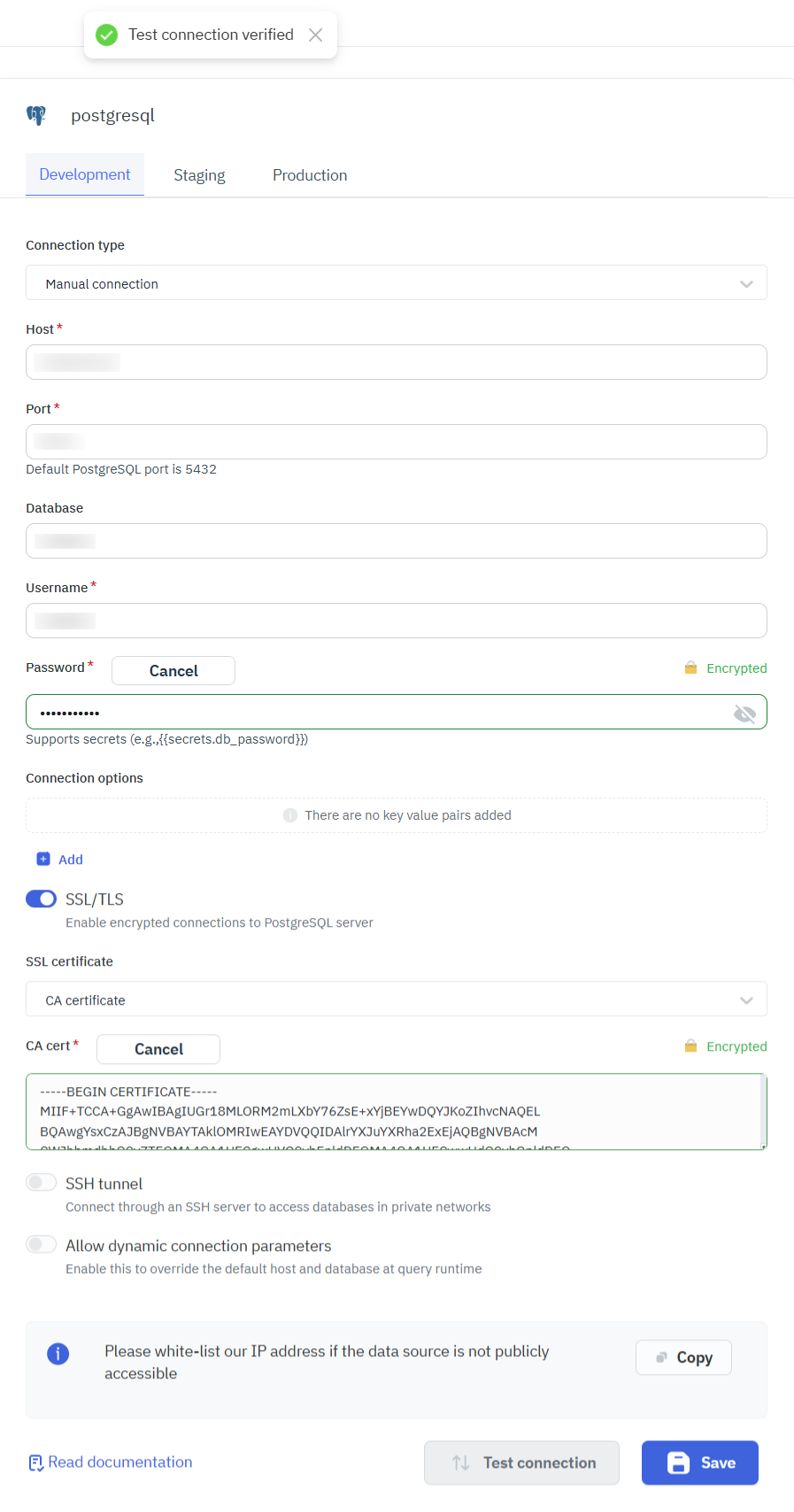
Manual Connection
To connect to PostgreSQL using Manual connection parameters, select Manual connection as the connection type and provide the following details:
- Host
- Port
- Database Name
- Username
- Password
- Connection Options
- SSL Certificate
- SSH Tunnelling
Connection String
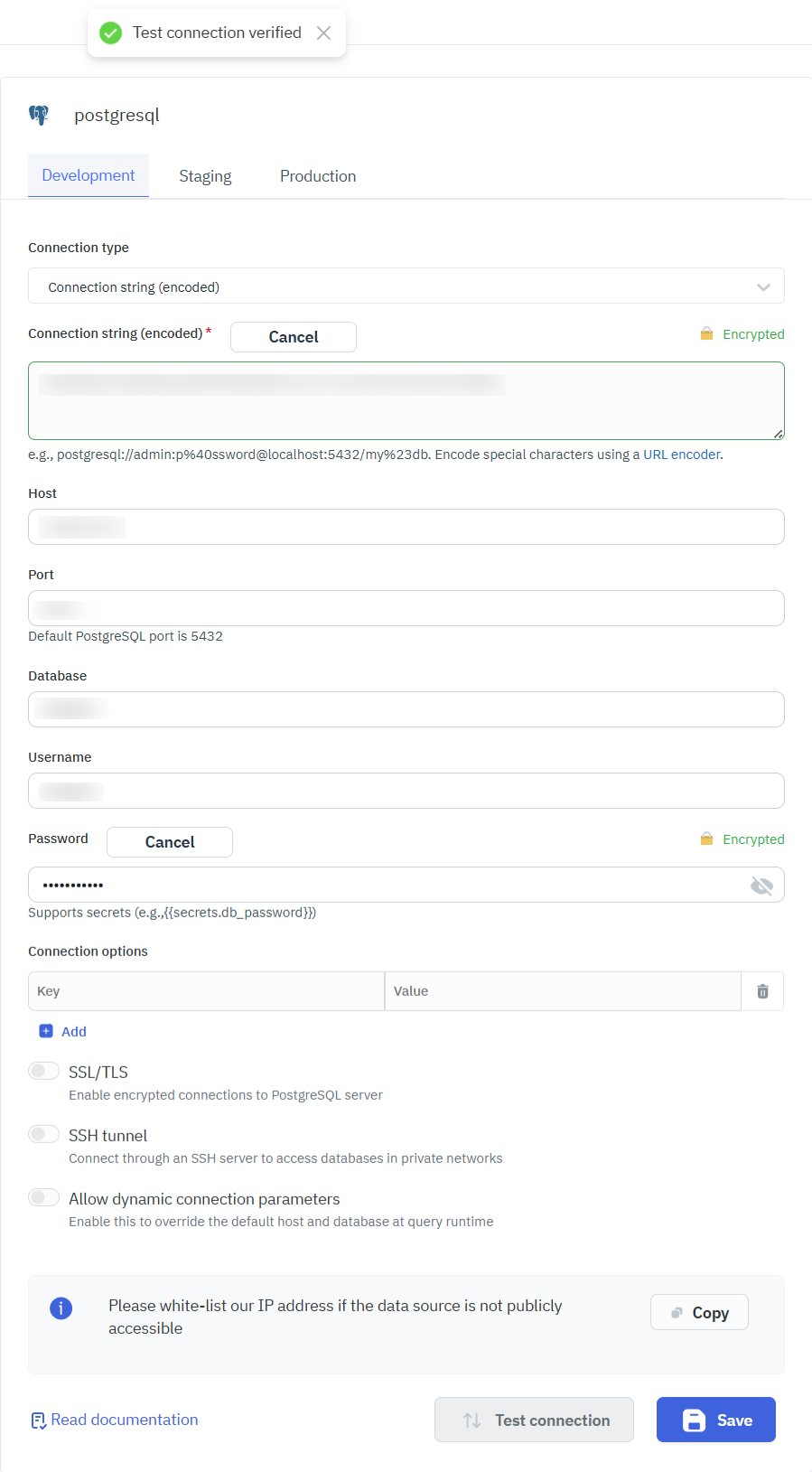
To connect to PostgreSQL using a connection string, select Connection String as the connection type and provide the following details:
If your connection string (username, password, database) contains any special characters, you need to URL-encode them.
You can use this tool to encode or decode values: URL Encoder/Decoder.
For example, const POSTGRES_URL = postgresql://${encodeURIComponent(user)}:${encodeURIComponent(password)}@${host}:${port}/${encodeURIComponent(database)};
Note: We recommend creating a new PostgreSQL database user to have control over ToolJet's access levels.
Please make sure the Host/IP of the database is accessible from your VPC if you have self-hosted ToolJet. If you are using ToolJet cloud, please whitelist our IP.
SSH Tunnelling
ToolJet now supports SSH tunnelling for the PostgreSQL data source, allowing secure connections to databases hosted inside private networks. This can be used to :
- Access private databases
- Improve security
- Enable encrytped communication
- Avoid firewall rule changes
SSH Configuration
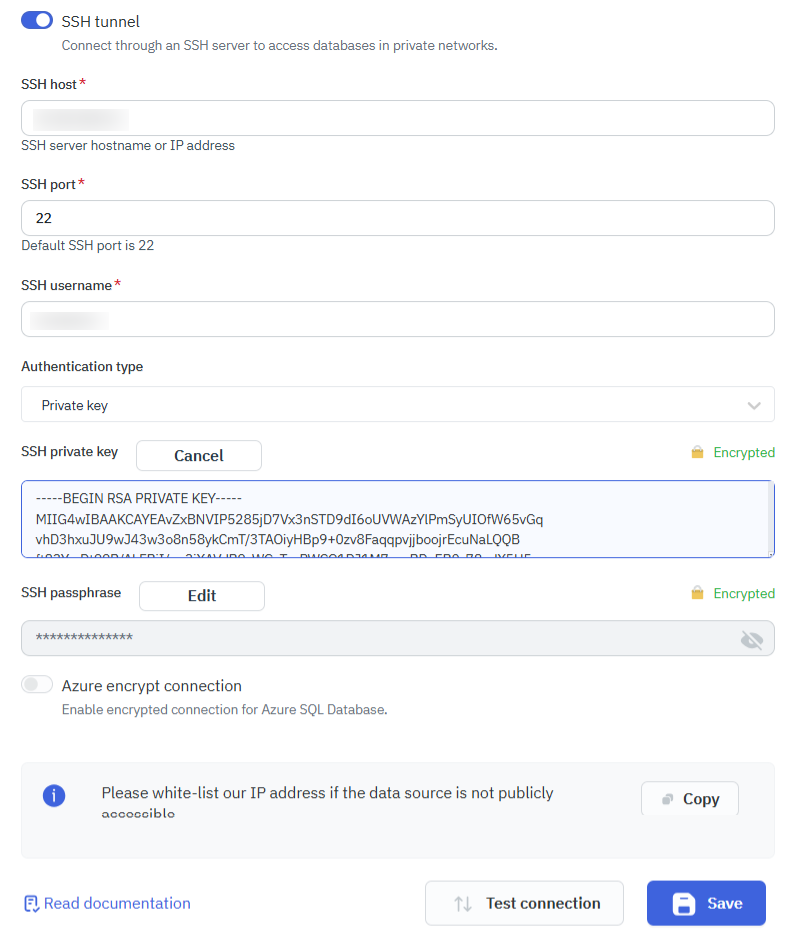
To securely connect to a private PostgreSQL database using SSH tunnelling:
- Enable the SSH tunnel toggle in the PostgreSQL data source configuration.
- Provide the following details:
- SSH host – Server hostname or IP address.
- SSH port – Port number (default:
22). - SSH username – Username for the SSH server.
- Authentication method – Choose either:
- Private key
- Password
Once configured, ToolJet establishes a secure SSH connection. All PostgreSQL queries are routed through this encrypted tunnel.
Querying in SQL Mode
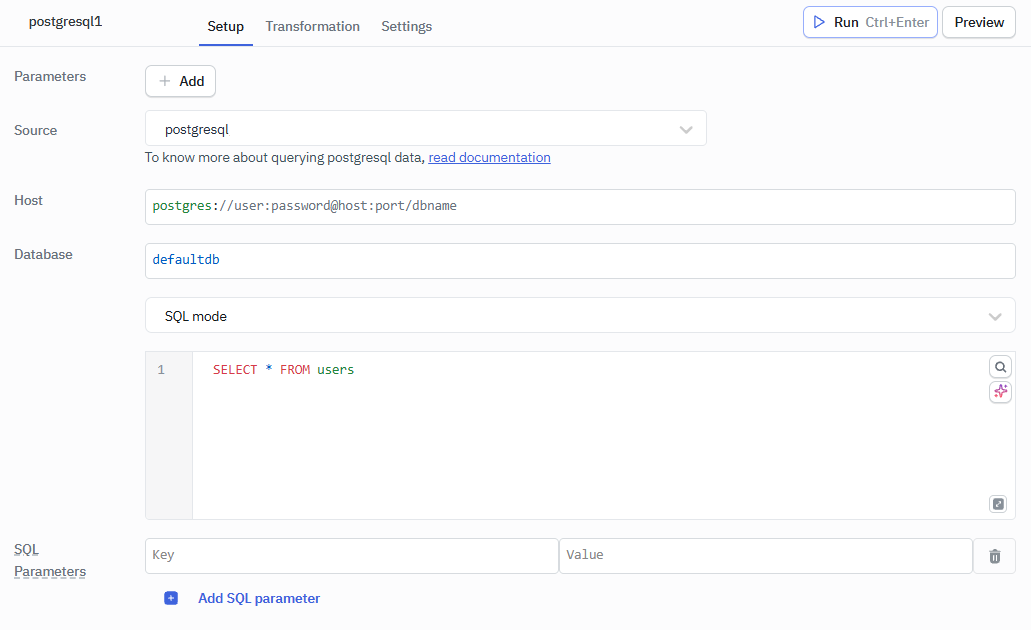
- Create a new query and select the PostgreSQL data source.
- Select the SQL query mode from the dropdown and enter the query.
- Click on the Preview button to preview the output or Click on the Run button to trigger the query.
Parameterized Queries
ToolJet offers support for parameterized SQL queries, which enhance security by preventing SQL injection and allow for dynamic query construction. To implement parameterized queries:
- Use
:parameter_nameas placeholders in your SQL query where you want to insert parameters. - In the Parameters section below the query editor, add key-value pairs for each parameter.
- The keys should match the parameter names used in the query (without the colon).
- The values can be static values or dynamic values using the
{{ }}notation.
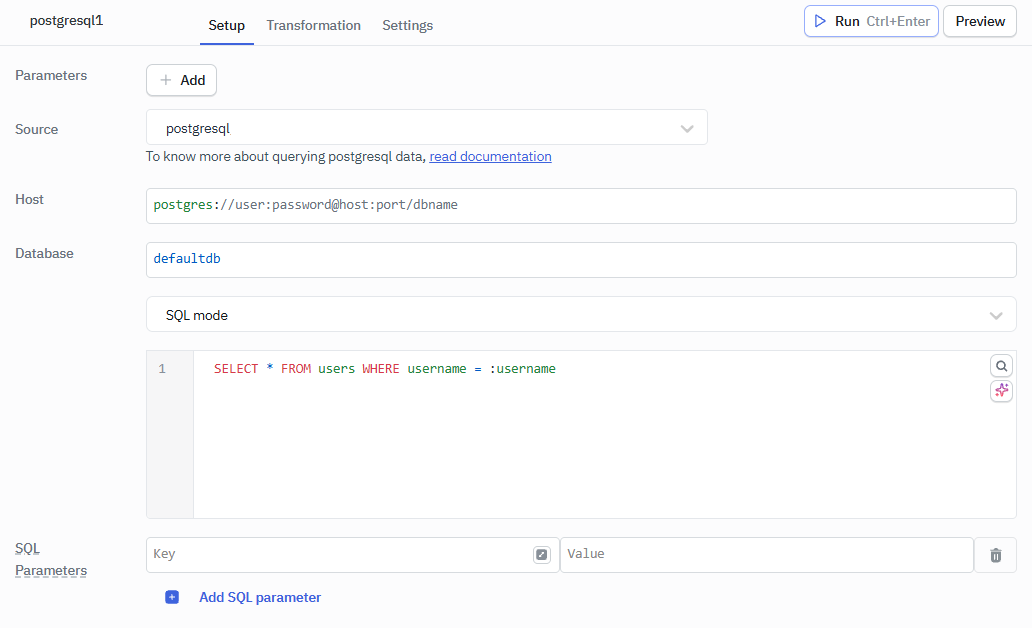
Example:
Query: SELECT * FROM users WHERE username = :username
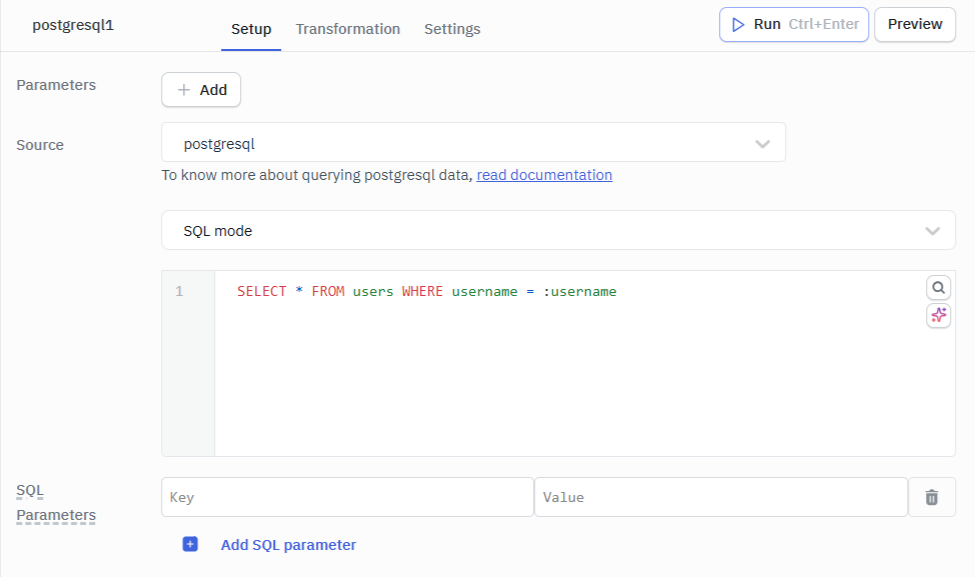
SQL Parameters:
- Key: username
- Value:
{{ components.username.value }}
Row Level Security
In ToolJet, you can set up server-side row-level security to restrict access to specific rows based on custom groups or default user roles. Refer to the Setup Row Level Security guide for more information.
Query Timeout
You can set the timeout duration for SQL queries by adding the PLUGINS_SQL_DB_STATEMENT_TIMEOUT variable to the environment configuration file. By default, it is set to 120,000 ms.
PostgreSQL Dynamic Functions and System Variables
PostgreSQL offers dynamic functions that provide runtime information about the current session, connection, database, and server settings. These can help you write queries that automatically adapt to different environments without hardcoding values.
| Function / Variable | Description | Example Output |
|---|---|---|
current_database() | Returns the name of the current database | tooljet_db |
current_user | Returns the name of the current user | app_user |
session_user | Returns the session user (same as current_user unless role changes) | app_user |
version() | Returns the PostgreSQL server version | PostgreSQL 15.3 on x86_64-pc-linux-gnu... |
inet_server_addr() | Returns the IP address of the server | 192.168.1.10 |
inet_server_port() | Returns the server port | 5432 |
pg_backend_pid() | Returns the process ID of the current backend | 56789 |
Dynamic Connection
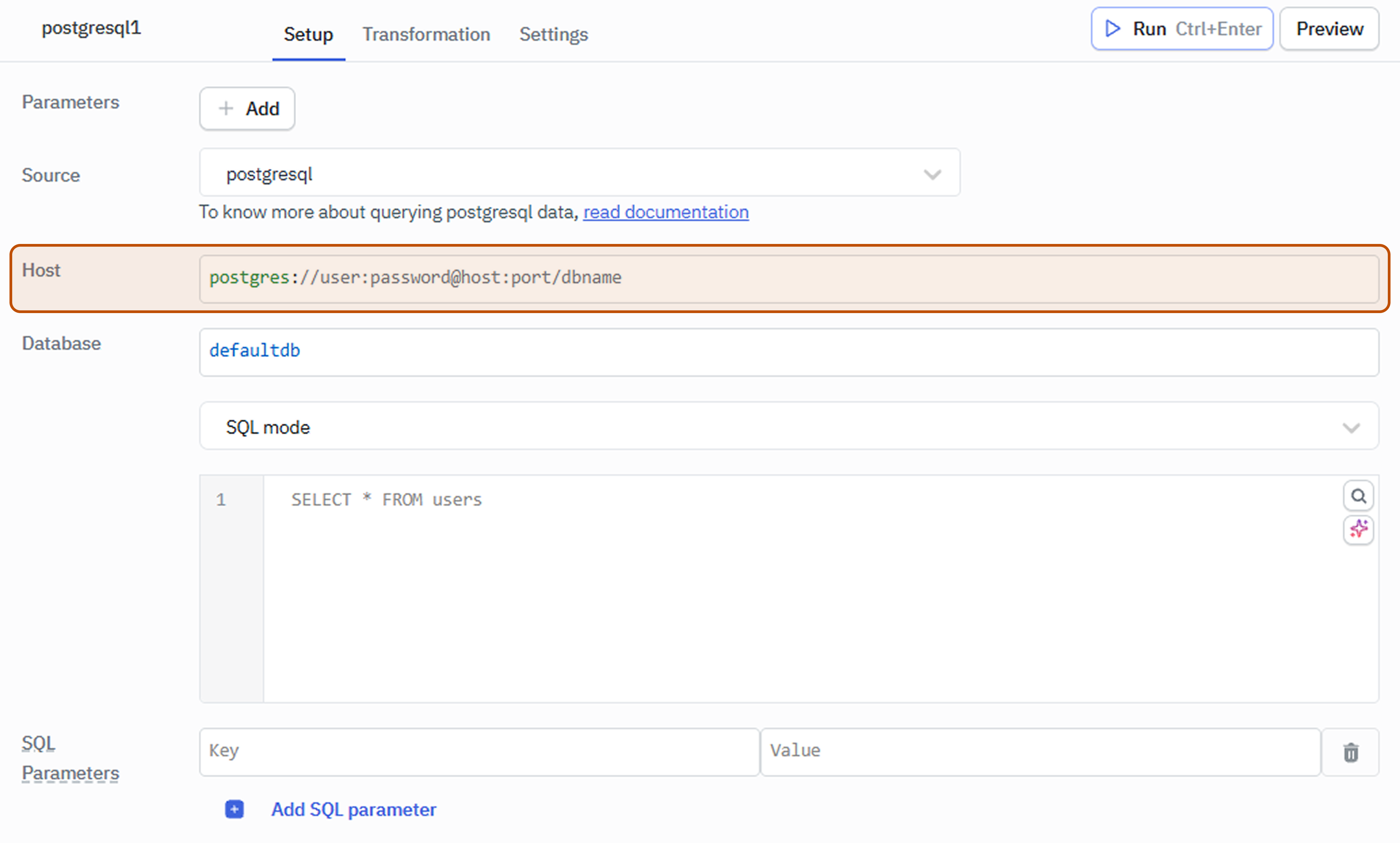
ToolJet allows overriding PostgreSQL connection parameters such as host and database directly at query runtime when dynamic connection parameters are enabled. This enables a single data source to support multiple environments or tenants without requiring separate configurations.
Querying in GUI Mode
- Create a new query and select the PostgreSQL data source.
- Select the GUI mode from the dropdown.
- Select the operation you want to perform.
- Select the Schema, Table and add the Primary key column name.
- Click on the Preview button to preview the output or Click on the Run button to trigger the query.
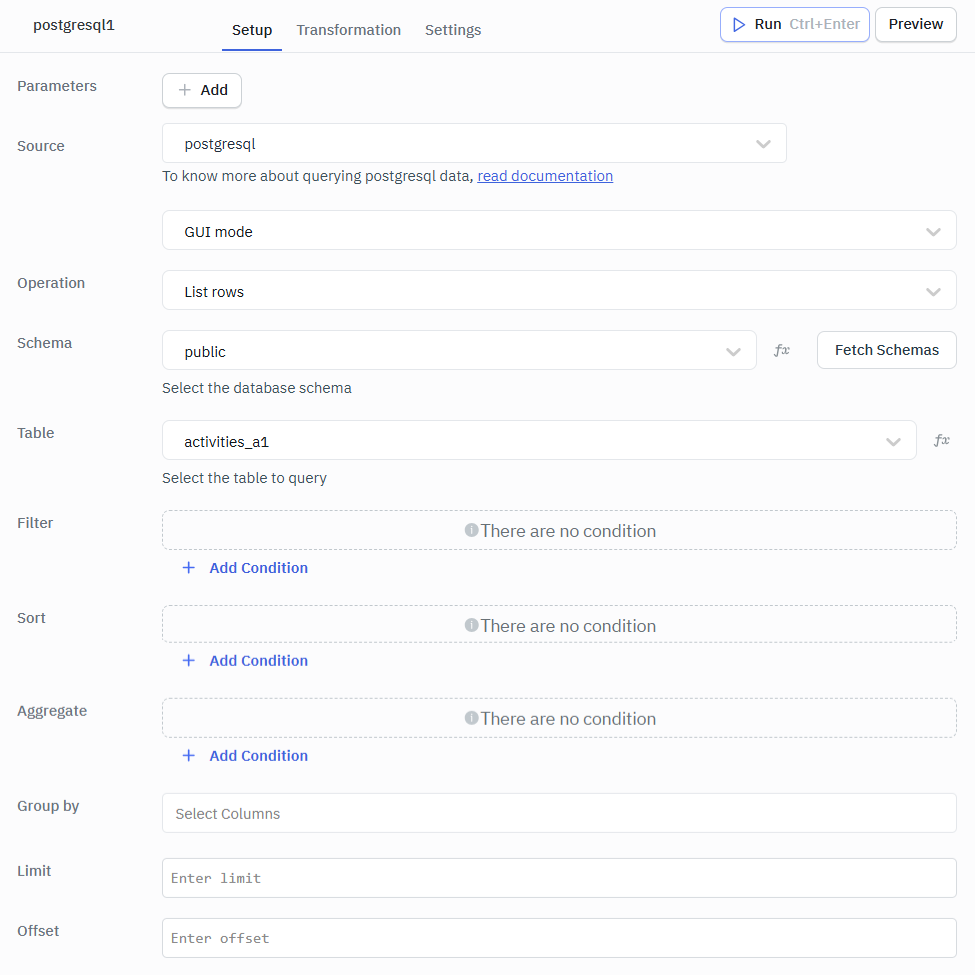
List Rows
Retrieves and displays rows from the selected table based on optional filters, sorting, and limits.
Optional Parameters
- Filter: Applies conditions to return only rows that match the specified criteria.
- Sort: Orders the returned rows based on one or more selected columns.
- Aggregate: Performs calculations such as count, sum, or average on selected columns.
- Group by: Groups rows that have the same values in specified columns to enable aggregation.
- Limit: Restricts the number of rows returned in the result.
- Offset: Skips a specified number of rows before starting to return results.
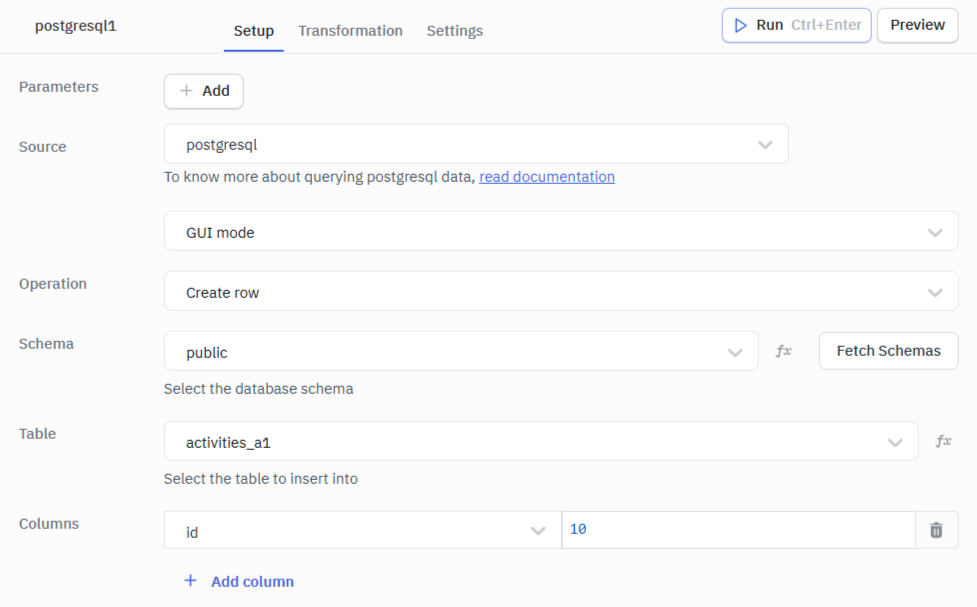
Create Rows
Inserts a new row into the selected table with the specified column values.
In the editor, ensure to the input the Columns in string format.
Required Parameters
- Columns: Specifies the table columns and their corresponding values to be inserted when creating a new row.
Update Rows
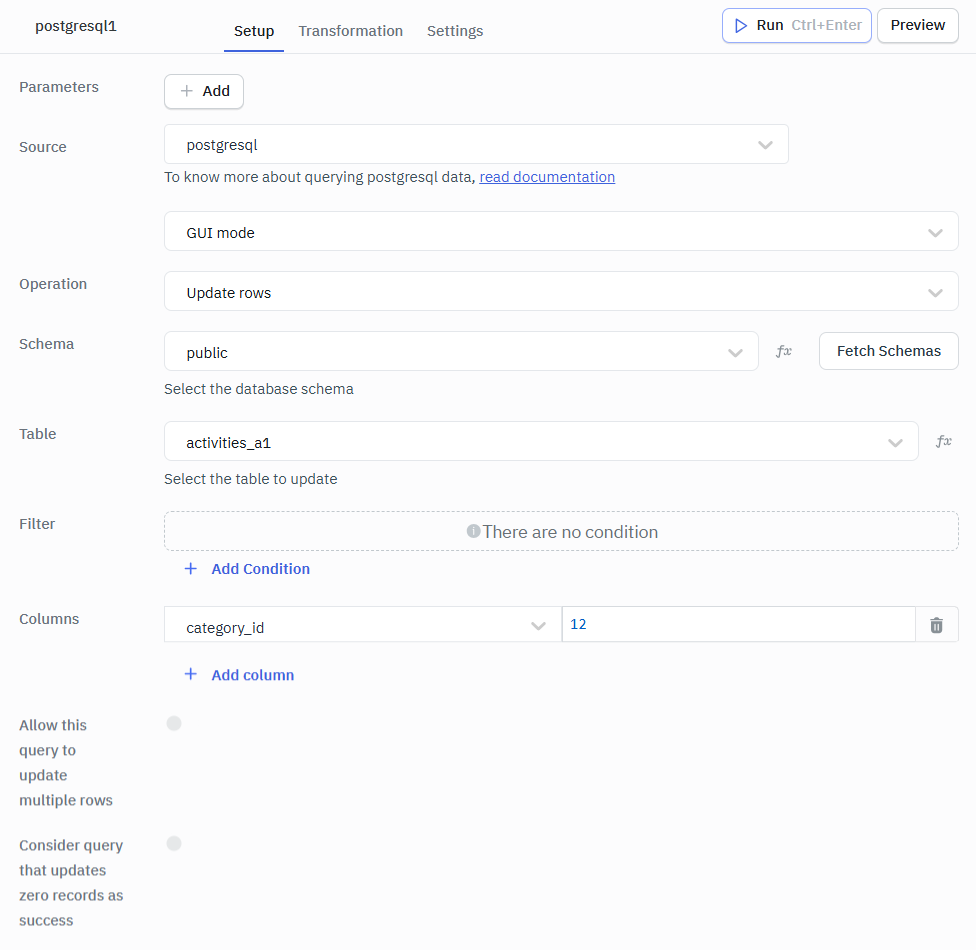
Modifies existing rows in the table that match the provided filter conditions.
In the editor, ensure to the input the Columns in string format.
Required Parameters
- Columns: Specify the columns and their new values that should be updated for the matching rows.
Optional Parameters
- Filter: Defines conditions to select which rows should be updated.
Delete Rows
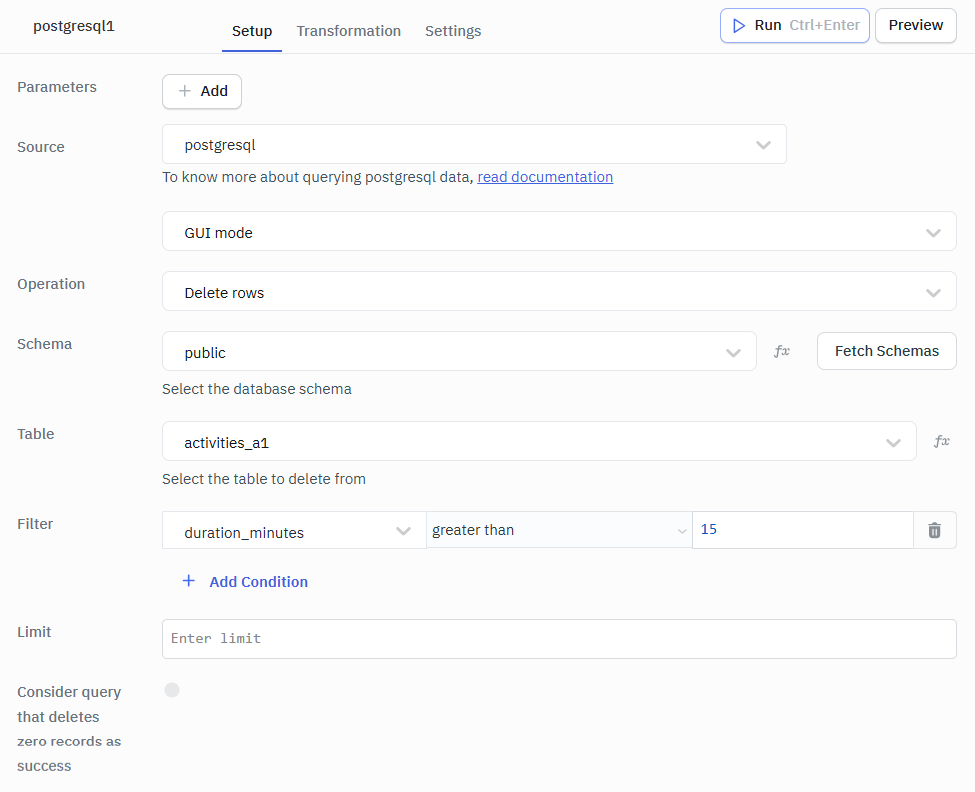
Removes either all rows from the table or that match the specified filter conditions.
Optional Parameters
- Filter: Specifies conditions to determine which rows should be deleted from the table.
- Limit: Restricts the maximum number of rows that can be deleted in the operation.
Upsert Rows
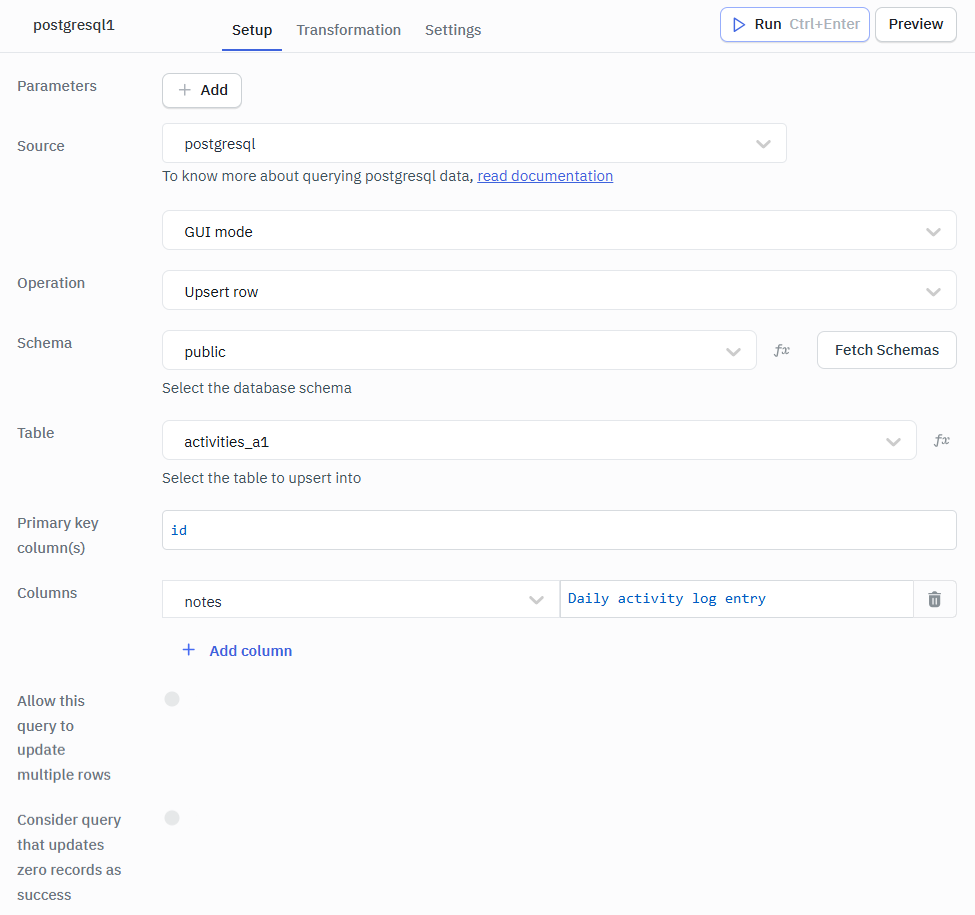
Inserts a new row or updates an existing row if a matching primary key already exists. In the editor, ensure to the input the Columns in string format.
Required Parameters
- Primary Key column(s): Specifies the column(s) used to identify whether a row already exists for updating or if a new row should be inserted.
- Columns: Defines the column–value pairs that will be inserted or updated in the row.
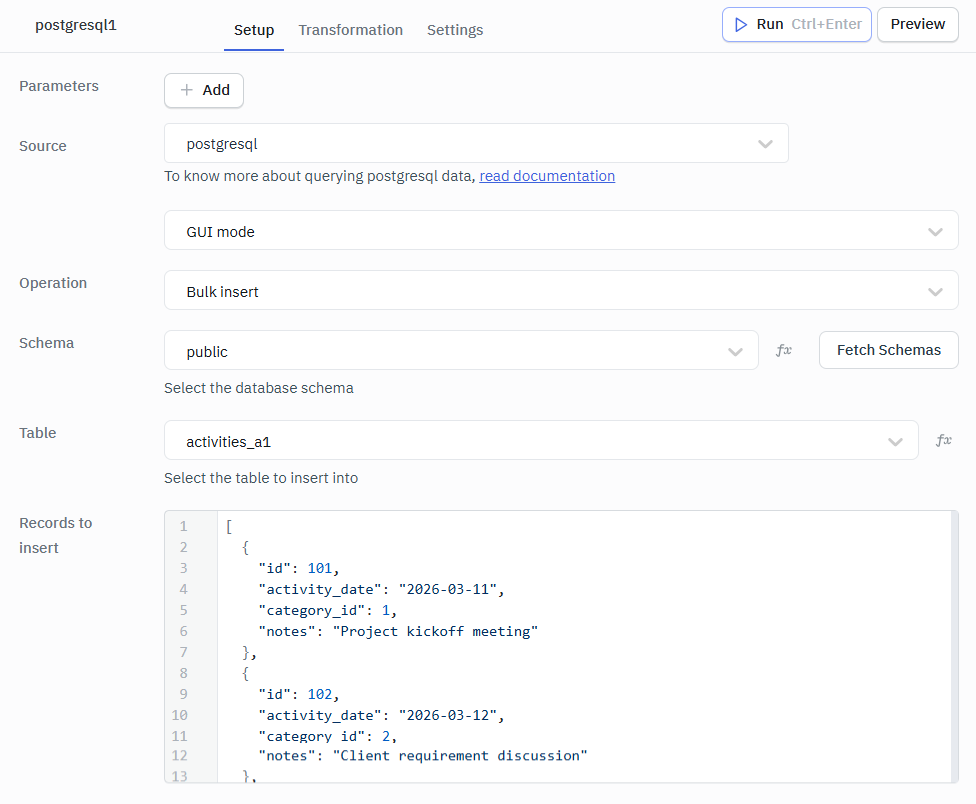
Bulk Insert
Inserts multiple rows into the table in a single operation using an array of records.
Required Parameters
- Records to Insert: An array of objects representing multiple rows to be inserted into the selected table in a single operation.
Example Values
[
  {
    "id": 101,
    "activity_date": "2026-03-11",
    "category_id": 1,
    "notes": "Project kickoff meeting"
  },
  {
    "id": 102,
    "activity_date": "2026-03-12",
    "category_id": 2,
    "notes": "Client requirement discussion"
  },
  {
    "id": 103,
    "activity_date": "2026-03-13",
    "category_id": 3,
    "notes": "Design review session"
  }
]
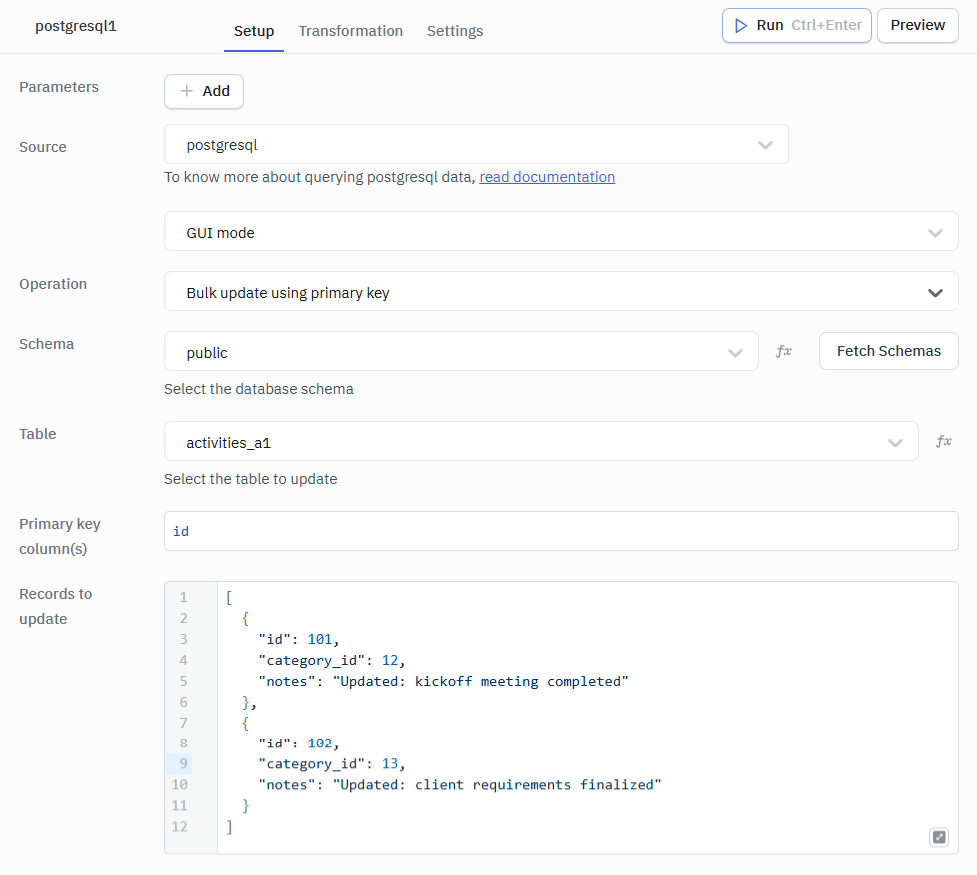
Bulk Update using Primary Key
Updates multiple rows at once by matching each record with its corresponding primary key.
Required Parameters
- Primary Key columns: Specifies the column(s) used to uniquely identify the rows that should be updated.
- Records to Update: An array of objects containing the primary key and the column values to be updated for each row.
Example Values
[
  {
    "id": 101,
    "category_id": 12,
    "notes": "Updated: kickoff meeting completed"
  },
  {
    "id": 102,
    "category_id": 13,
    "notes": "Updated: client requirements finalized"
  }
]
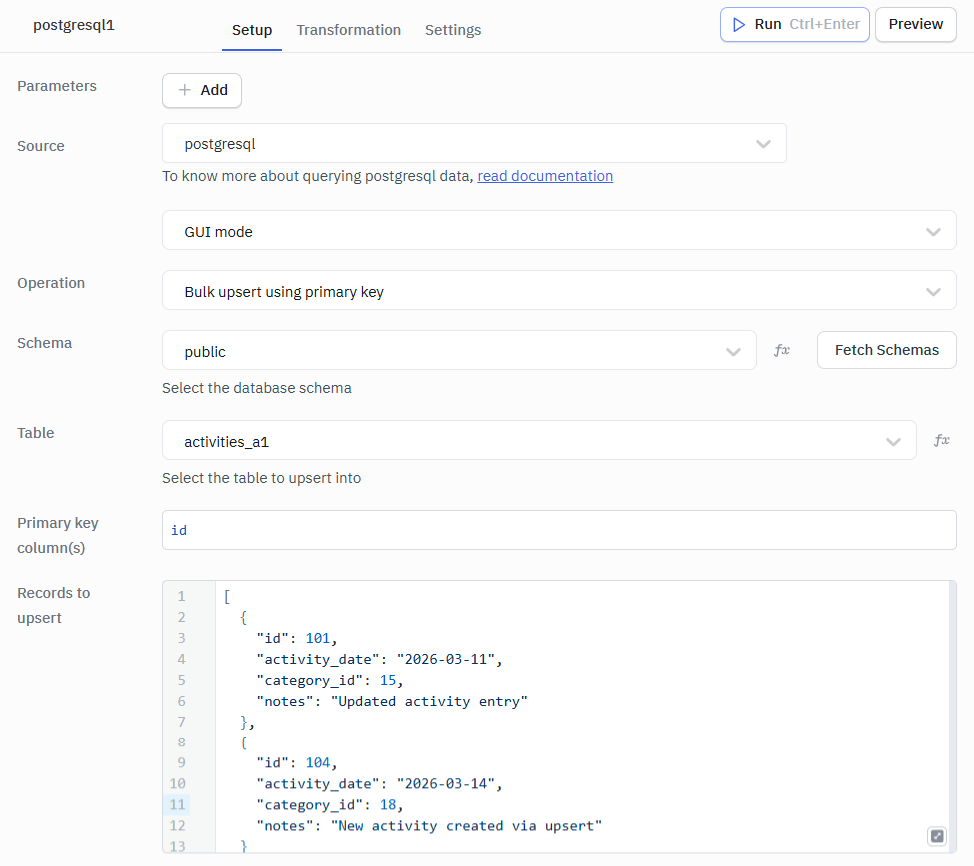
Bulk Upsert using Primary Key
Inserts new rows or updates existing rows in bulk based on matching primary key values.
Required Parameters
- Primary Key columns: Specifies the column(s) used to determine whether a row already exists for updating or if a new row should be inserted.
- Records to Update: An array of objects containing primary key values and column data that will be inserted as new rows or used to update existing rows.
This basically means If the row exists then update, if not do insert.
Example Values
[
  {
    "id": 101,
    "activity_date": "2026-03-11",
    "category_id": 15,
    "notes": "Updated activity entry"
  },
  {
    "id": 104,
    "activity_date": "2026-03-14",
    "category_id": 18,
    "notes": "New activity created via upsert"
  }
]
- You can apply transformations to the query results. Refer to our transformations documentation for more details: Transformation Tutorial
- Check out this how-to guide on bulk updating multiple rows from a table component.