Custom Styles
The Custom Styles feature in ToolJet allows users to apply their own CSS, overriding the default app styles. This is useful for styling that isn't covered by App Themes - such as fonts, shadows, spacing, and other component-specific details - giving you full control over the finer points of your app's appearance.
For most branding needs, configure an App Theme first, it gives you a reusable, workspace-wide design system (brand colors, text, borders, system states) without writing any CSS. Use Custom Styles only for styling that App Themes don't expose.
Configuring Custom Styles
Custom Styles are applied at the workspace level by writing CSS that targets a class — any component across the workspace that shares that class will share the styling. You can target every component of a given type across the workspace, one individual component, or define your own class and add it to different components.
-
Navigate to the Custom Styles page from Workspace Settings on the ToolJet dashboard.
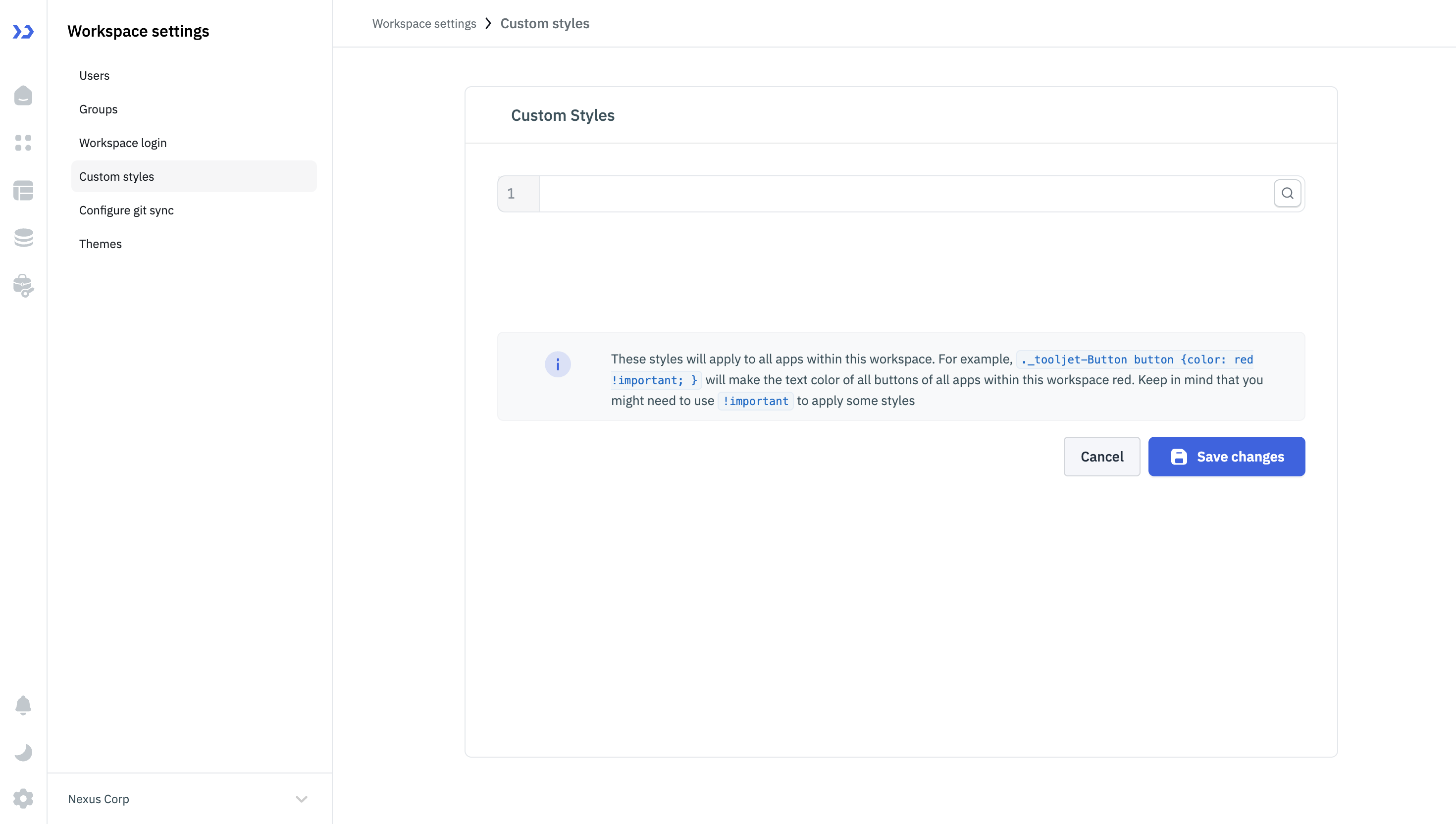
-
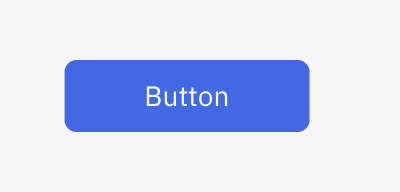
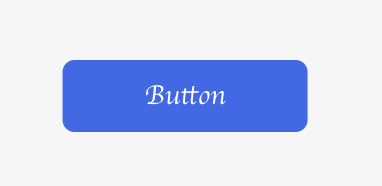
Write CSS in the editor, targeting the class of the component you want to style. For example, the CSS below changes the font family of every Button component in the app:
._tooljet-Button button {
    font-family: 'Georgia', serif !important;
}
Finding the CSS Class to Target
Every component gets one or two classes you can target out of the box, and you can also assign your own.
Component's Default Class (All Components of a Type)
To style every component of a given type across your app, target its default class, which follows the format _tooljet-<component>.
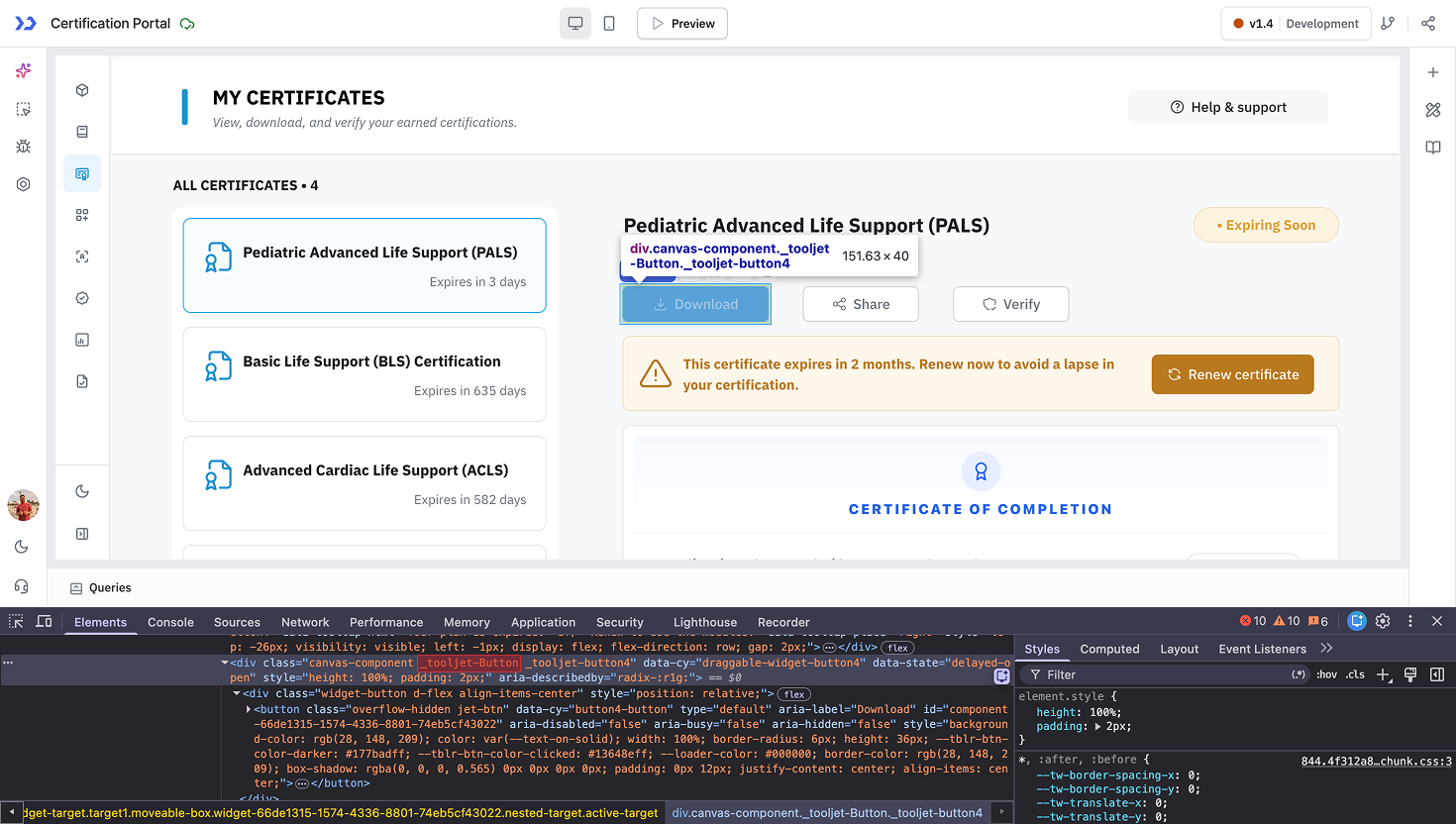
You'll then need to identify the specific sub-class (or HTML tag) to target the particular attribute you want to change — the browser's inspector will help you find this.
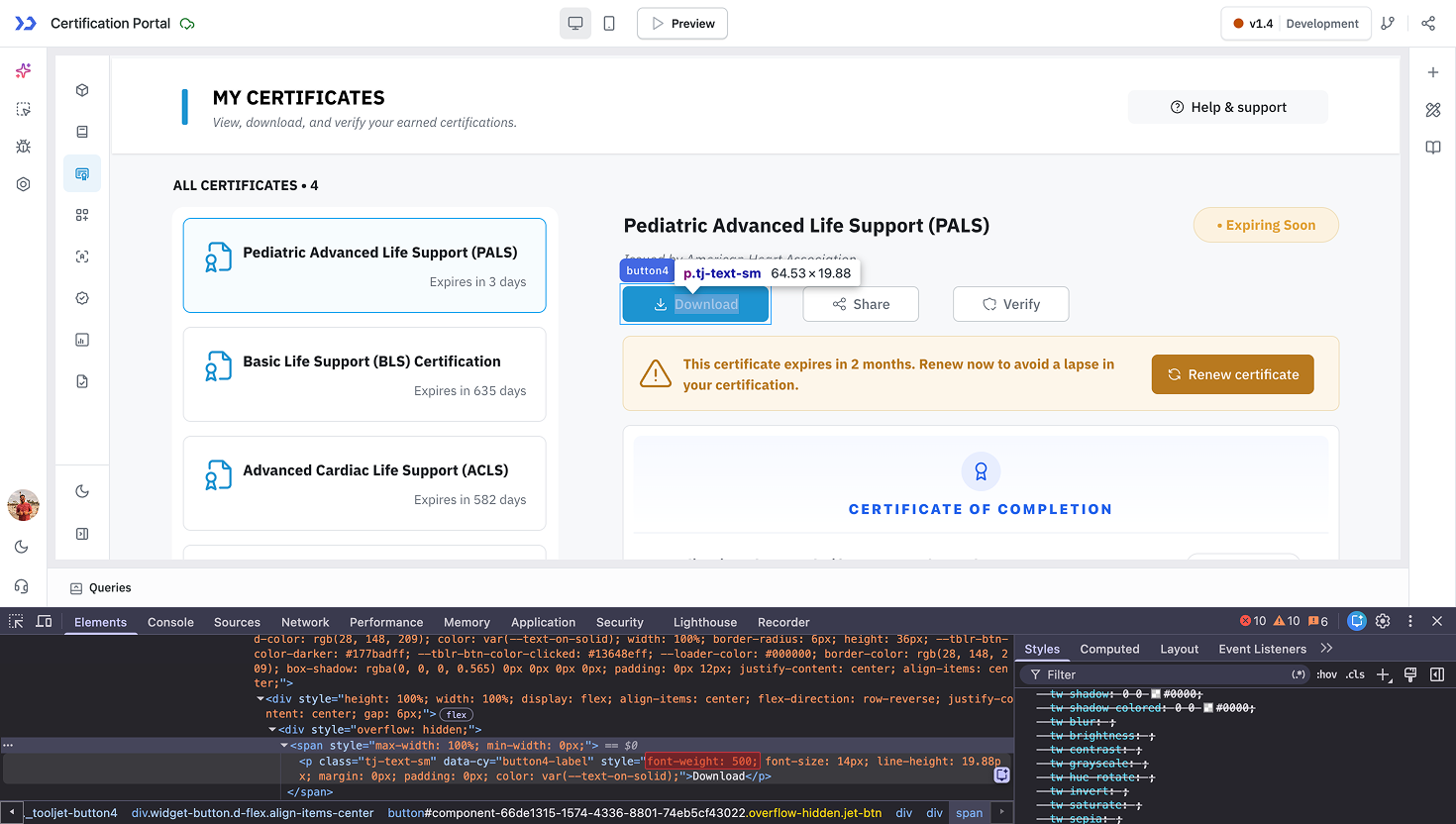
For example, the code below changes the font weight of the button component:
._tooljet-Button .tj-text-sm {
  font-weight: 1000 !important;
}
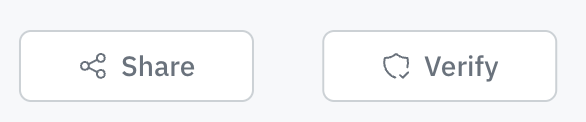

Component's Name (Single Component)
To style just one specific component, target the name given to that component in the app, which follows the format _tooljet-<component_name>.
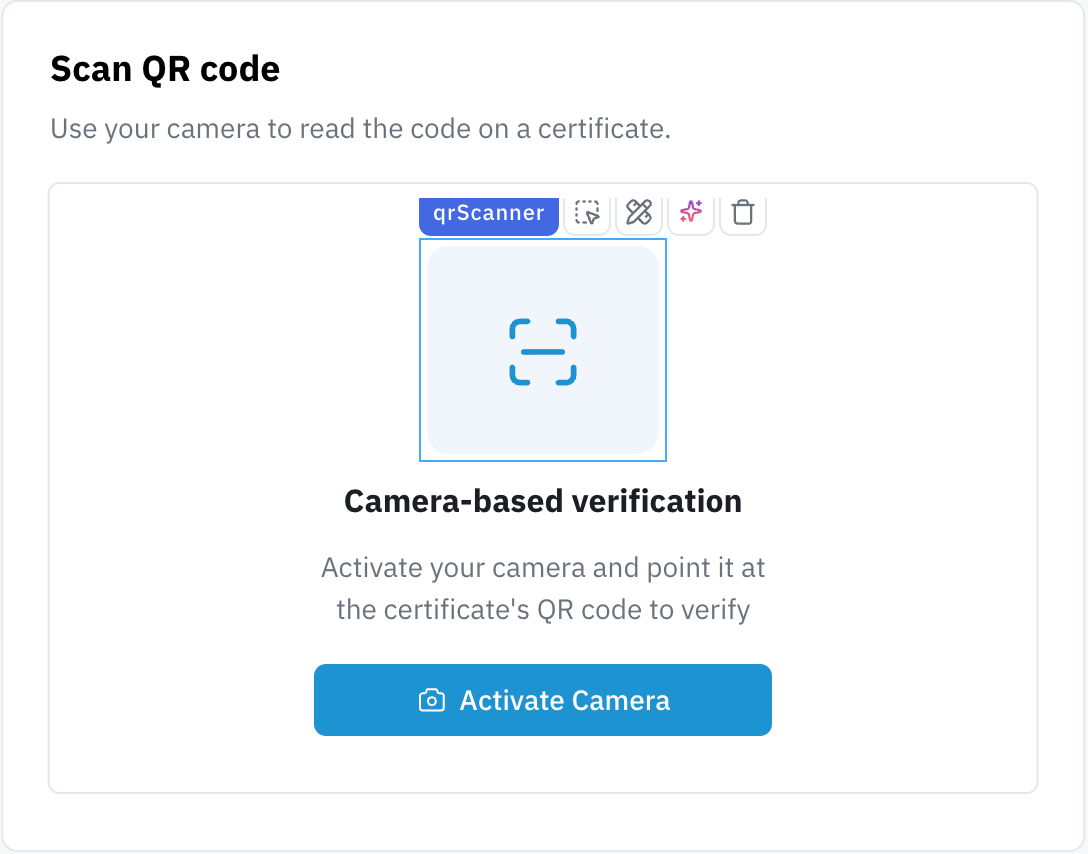
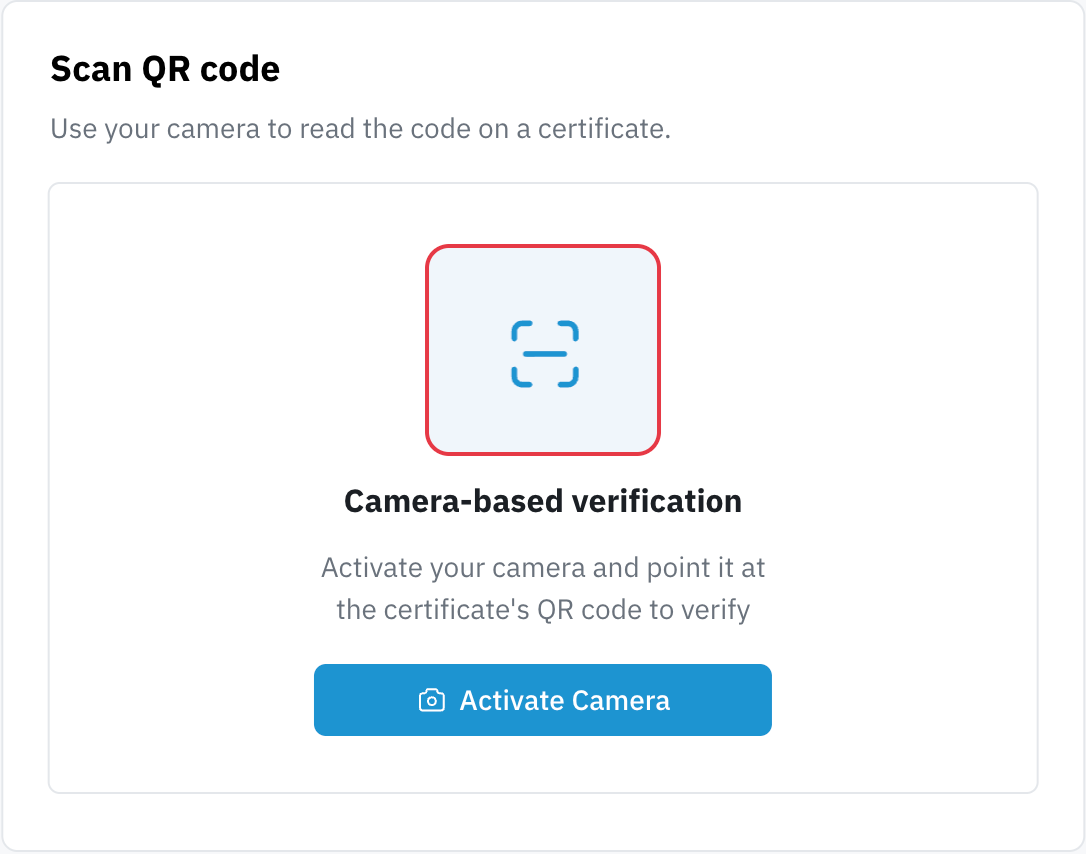
For example, the border of this particular container (named qrScanner) can be changed using the code below, without affecting any other container in the workspace:
._tooljet-qrScanner .jet-container {
  border: 2px solid #E63946 !important;
}
Adding a Custom CSS Class
Instead of relying on a component's default or name-based class, most components also expose a CSS class field under their Style > Advanced section. This field lets you enter one or more custom class names directly on that component, which you can then reference from the Custom Styles page.
This is useful when:
- You want a more readable, stable class name instead of hunting for the default or name-based class via the browser inspector.
- You want to apply the same styling to a group of unrelated components at once — since a custom class isn't tied to a single component's default or name-based class, the same class name can be added to multiple components and targeted with one rule.
For example, adding the class name highlight-card to a few components and then adding the following in Custom Styles will style all of them together:
.highlight-card {
    box-shadow: 0 0 0 2px #E63946 !important;
}