Amazon Redshift
ToolJet can connect to Amazon Redshift, enabling your applications to query data in an Amazon Redshift Serverless workgroup.
Before following this guide, it is assumed that you have already completed the process of Using Marketplace plugins.
Configuration
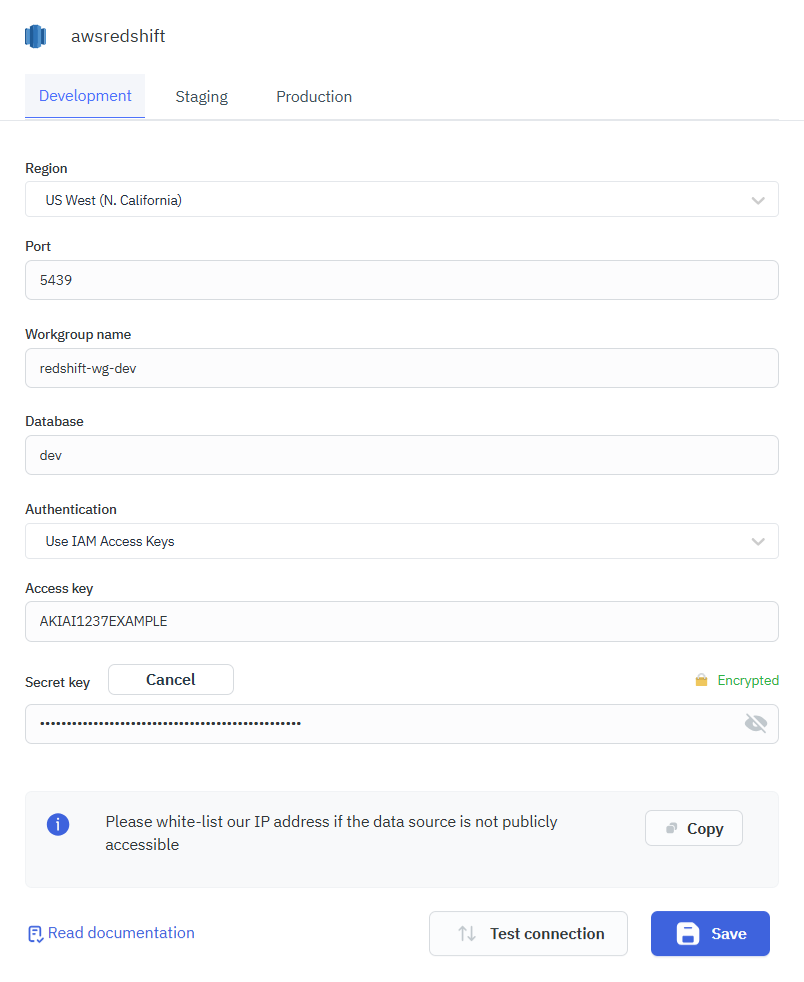
To connect to Amazon Redshift, you need to provide the following details:
- Region: The AWS region of your Amazon Redshift Serverless workgroup. For example,
us-east-1. - Workgroup name: The name of the Redshift Serverless workgroup to run queries in. ToolJet sends every query through the Redshift Data API to this workgroup, so only Redshift Serverless is supported; provisioned clusters aren't.
- Database: The name of the database you want to connect to. The form pre-fills
dev. - Authentication: Only Use IAM Access Keys is supported. After you select it, the form shows the Access key and Secret key fields.
- Access key: The access key of the IAM user that ToolJet uses to call the Redshift Data API.
- Secret key: The secret key of that IAM user.
The connection form also shows a Port field, pre-filled with 5439. ToolJet doesn't use it, because queries go through the Redshift Data API over HTTPS rather than a direct database connection.
Supported Queries
Redshift supports a comprehensive set of SQL commands. You can use the SQL editor to run any SQL query on the connected Redshift cluster. Refer to the Redshift documentation for more information on the supported SQL commands.
Read Data
The following example demonstrates how to read data from a table in the connected Redshift cluster. The query selects all the columns from the employee table.
SELECT * FROM employee
Write Data
The following example demonstrates how to write data to a table in the connected Redshift cluster. The query inserts a new row into the employee table.
INSERT INTO employee (
    first_name,
    last_name,
    email,
    phone_number,
    hire_date,
    job_title,
    salary,
    department_id
) VALUES (
    'Tom',
    'Hudson',
    'tom.hudson@example.com',
    '234843294323',
    '2024-01-01',
    'Test Automation Engineer',
    245000.00,
    12
);
Update Data
The following example demonstrates how to update data in a table in the connected Redshift cluster. The query updates the first_name and last_name columns of the employee table.
UPDATE employee
SET first_name = 'Glenn',
    last_name = 'Jacobs'
WHERE employee_id = 8;
Delete Data
The following example demonstrates how to delete data from a table in the connected Redshift cluster. The query deletes a row from the employee table.
DELETE FROM employee
WHERE employee_id = 7;