App Generation
This guide explains how to generate and modify applications and modules with ToolJet AI, using nothing but a prompt.
This page covers Start with a prompt, the AI built into ToolJet. To build the same apps from Claude Code, Codex, or another coding agent, see ToolJet MCP instead.
Creating Application
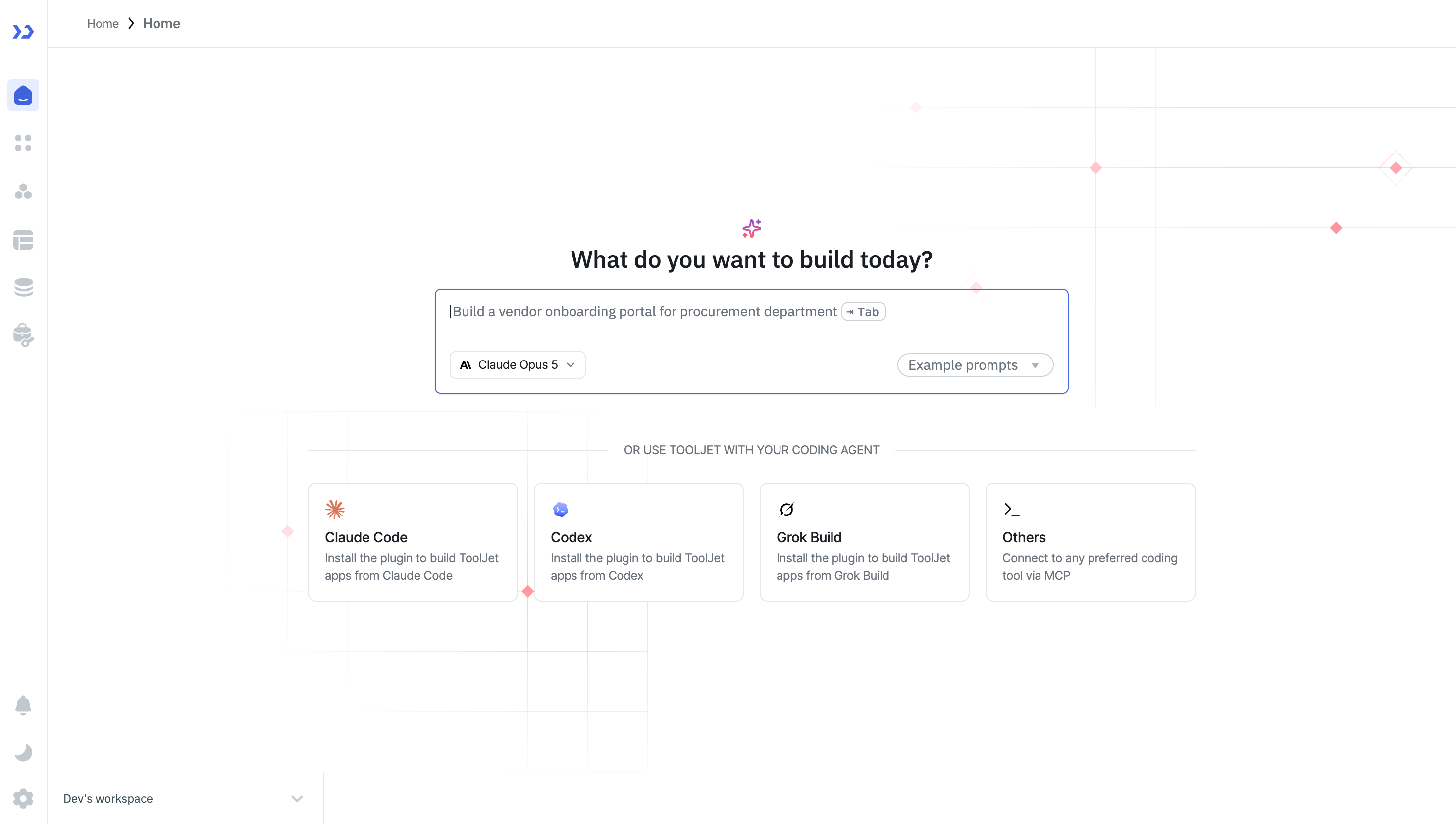
Enter a prompt on the home page describing the business application you want to build, then click the build button. ToolJet creates a new app, opens it in the App Builder, and builds it there from the AI chat.
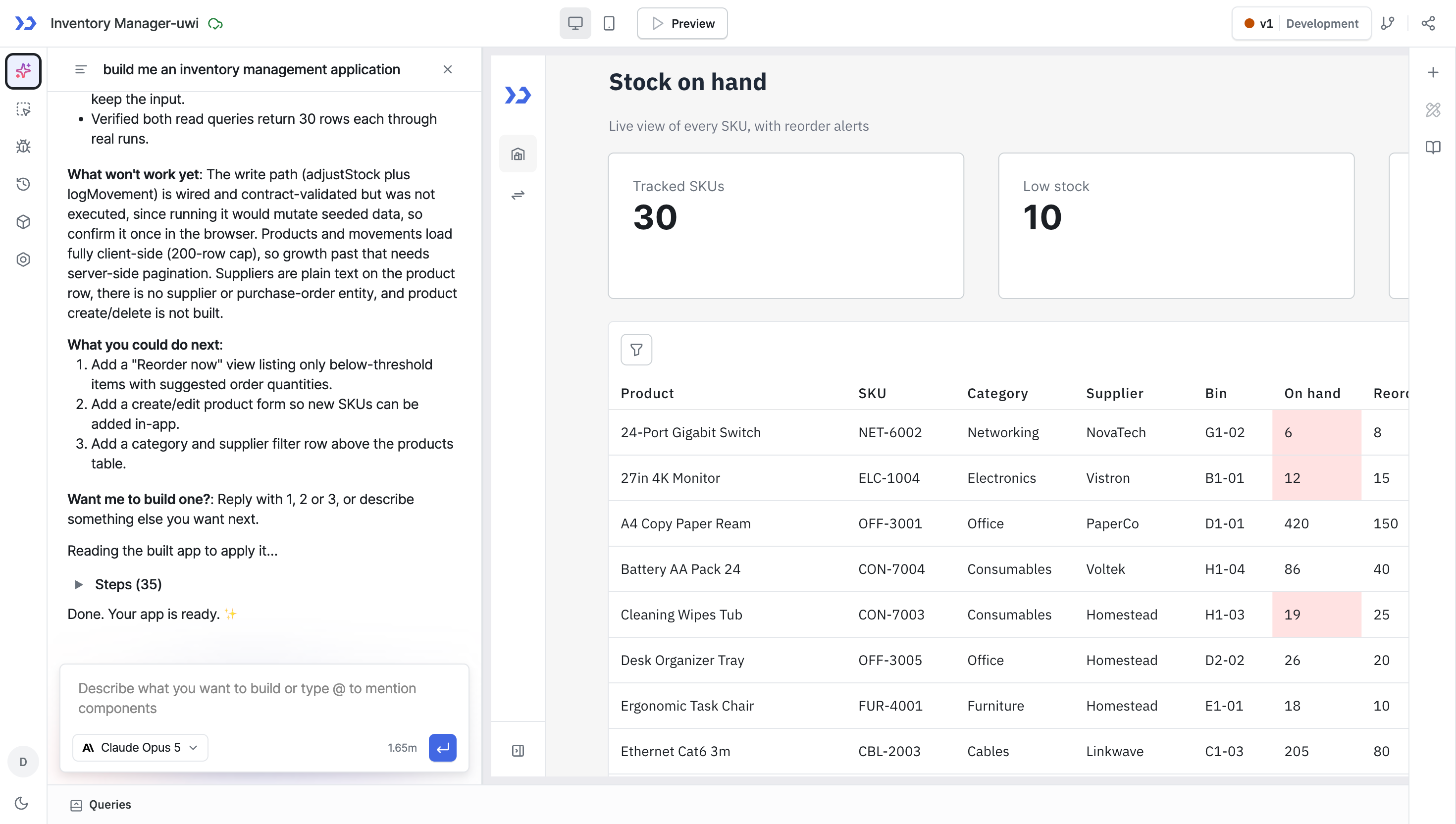
When the build finishes, the app is ready in the App Builder: UI components, queries, and data bindings are already configured, and you can customize anything from there.
Answering Questions During a Build
Depending on your prompt, the AI either builds the app straight away or pauses in the chat and waits for your input before it continues. For example, it can ask you to:
- Answer a question: The chat shows a card with the question and a list of options. Select an option, or select the option that lets you type your own answer, then click the card's continue button. If the card has a skip button, you can skip the question instead. You can also move between options with the arrow keys and press Enter to continue.
- Pick a data source: The card asks you to Select data source(s) for the app's data. If you @mentioned data sources in your prompt, only those are offered.
- Connect a data source: If the app needs a data source that isn't connected yet, click Connect followed by the data source name to set up the connection without leaving the chat, then click I've connected followed by the name to continue the build. On self-hosted deployments, a marketplace plugin that isn't installed shows Install instead, which opens the Marketplace in a new tab.
- Review the specs: See Reviewing the Specs.
The questions, options, and button labels on these cards come from the AI, so they vary from build to build.
Reviewing the Specs
When the AI writes a specification for your app, the chat shows a Specs card. Click it to open the document next to the chat. Each time the specification changes, ToolJet keeps the earlier version. Use the version dropdown (Version 1, Version 2 - latest, and so on) to switch between them.
On paid plans, you can edit the latest version: click Edit, make your changes, then click Save & continue. The AI reads your changes and updates the specification. Click Cancel to discard your changes.
Implementation Phases
For a larger app, the AI can split the build into phases. A bar above the chat input shows the current phase and how many of its steps are done, for example [2/5]. Click the bar to see all Implementation phases. When a phase is done, click Next phase to build the next one, or hover over a later phase and click Start to build that one.
On the free plan, only the first phase is built. When you try to start another phase, ToolJet shows: Phase 1 of your app is complete! Free plan covers only one phase.
Chat History
Each app keeps your AI chats for it. Your chats are private to you: other builders working on the same app see only their own.
To reopen an earlier chat, click the Chats icon in the AI chat header. All chats lists your chats for this app. Use Search conversations... to find one, then select it to continue where you left off. To start over, click Start new chat at the bottom of the list. If you already have an empty chat, ToolJet opens it instead of creating another one.
When a chat reaches its context limit, the chat input is replaced by You've reached the context limit for this conversation. Start a new chat to continue building. Click Continue on new chat to start a new chat that carries over a summary of the current one, keeps the same model, and picks up the work where it stopped.
Modifying Application
You can modify any application in ToolJet with AI assistance, whether it's a newly created app or an existing one. You can update components and queries within your application with just a prompt.
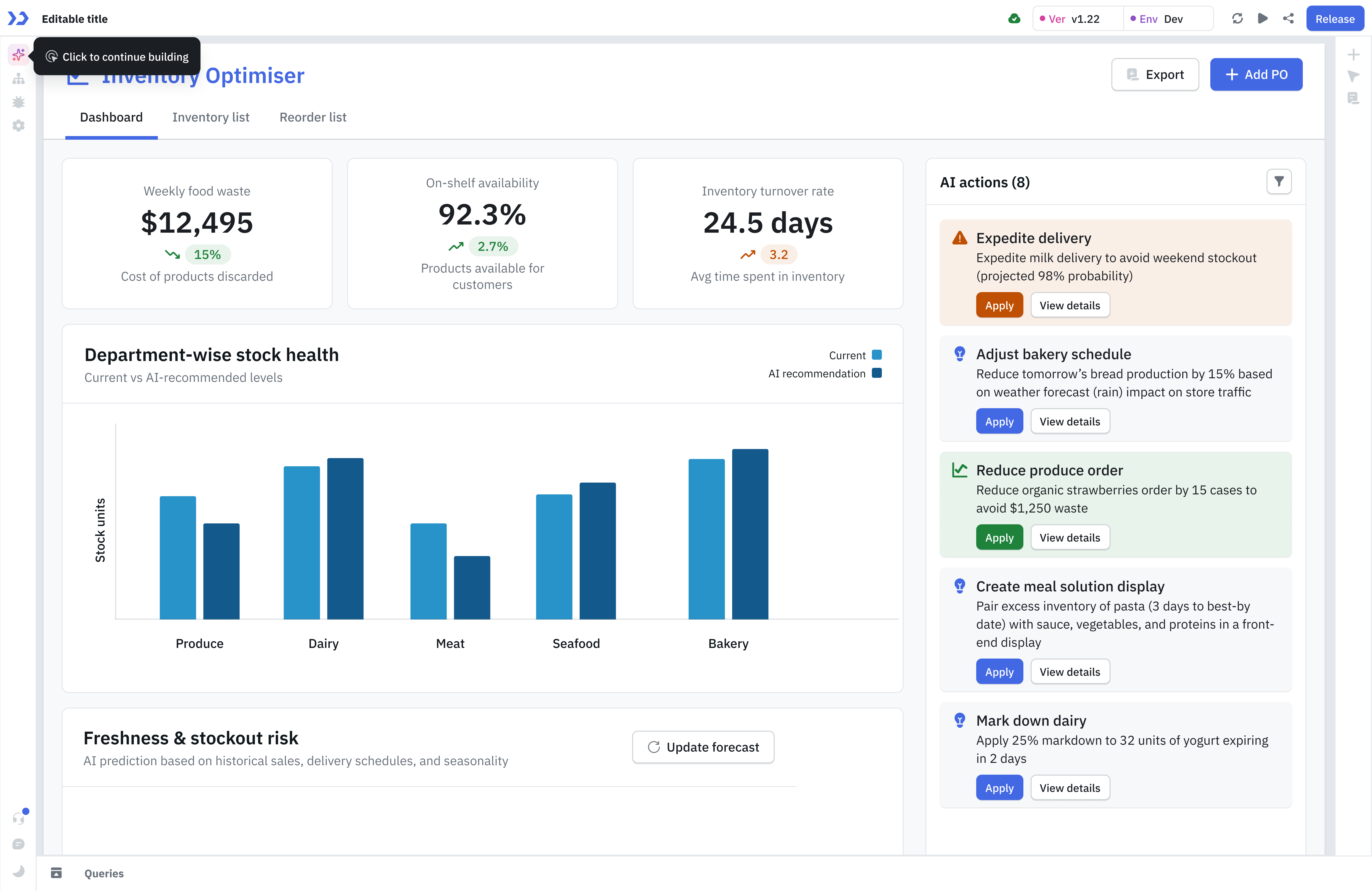
To change one specific component or query rather than letting the AI infer the target, @mention it in the chat.
Creating Modules
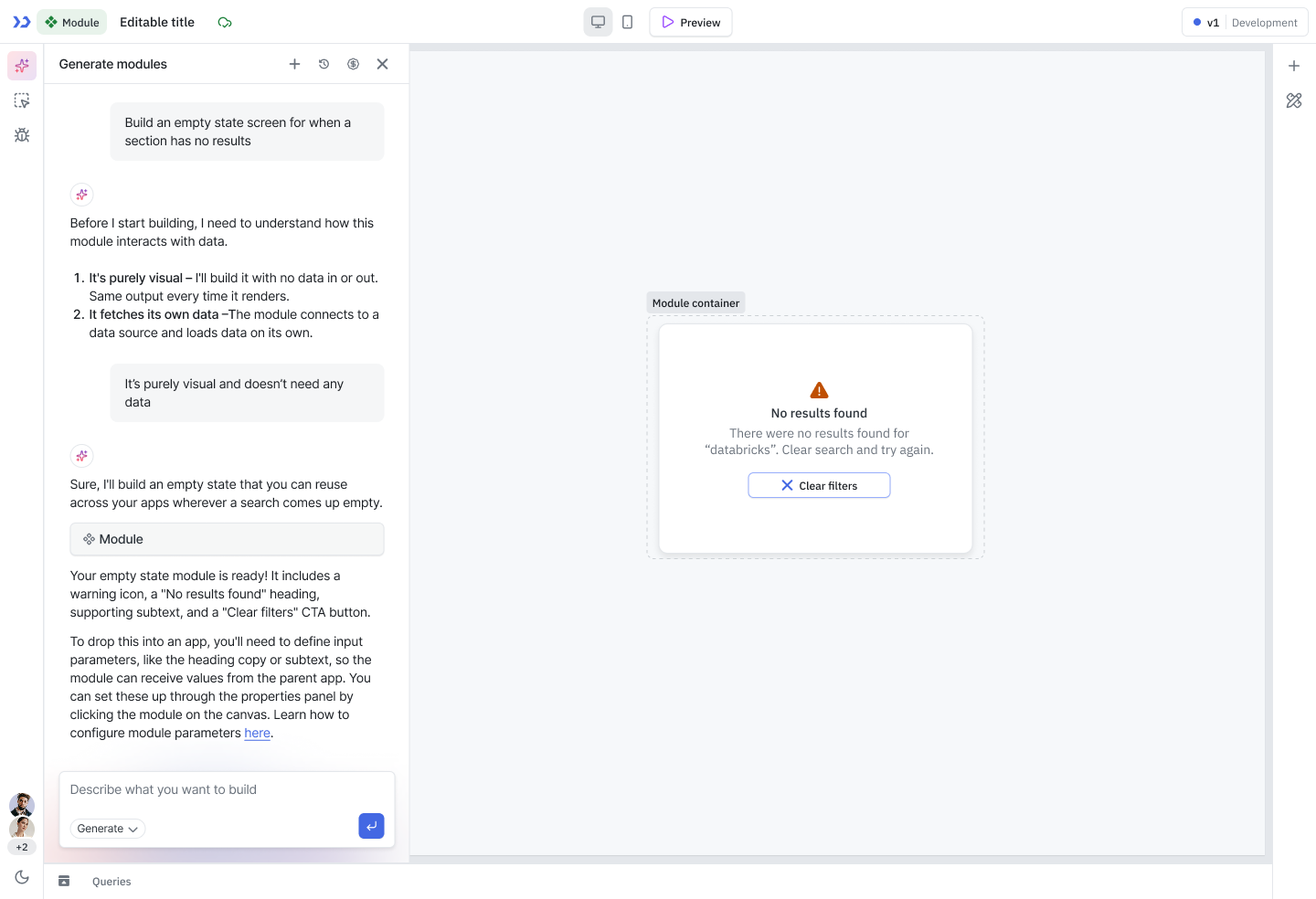
ToolJet AI can be used to quickly generate Modules, which can then be reused across multiple applications. To generate a module using ToolJet AI, open the Module Builder and enter your prompt describing the UI you want to create.
Related
- Query Generation — generate queries, code, and organize your query panel
- @mention in AI Chat — target an exact component or query
- Understanding AI Credits — how much an operation costs