Create a React Builder App
A React Builder application can be created from a prompt or as a blank application. From a prompt, ToolJet AI builds the application's screens, data and queries. A blank application is built in the browser or in a local code editor.
Create the App
The build mode is chosen when an app is created, and the app keeps it. A visual app can't become a React Builder app later, or the other way round.
- From a prompt
- Blank app
- Open the Home page, or click Start with a prompt on the dashboard. Describe the app in the prompt box and send it.
- ToolJet asks how it should build the app. Click React Builder, and the build starts. ToolJet asks for each new app until Don't ask again is selected. After the first choice, the prompt box also shows the build mode it will use, and the mode can be switched there.
- The editor opens with the AI chat, and the app is named from the prompt. If the AI asks a question, pick an option and click Continue.
- Watch the build move through its three stages: Data, Build and Check. The screens appear on the canvas near the end. Click Stop to change course.
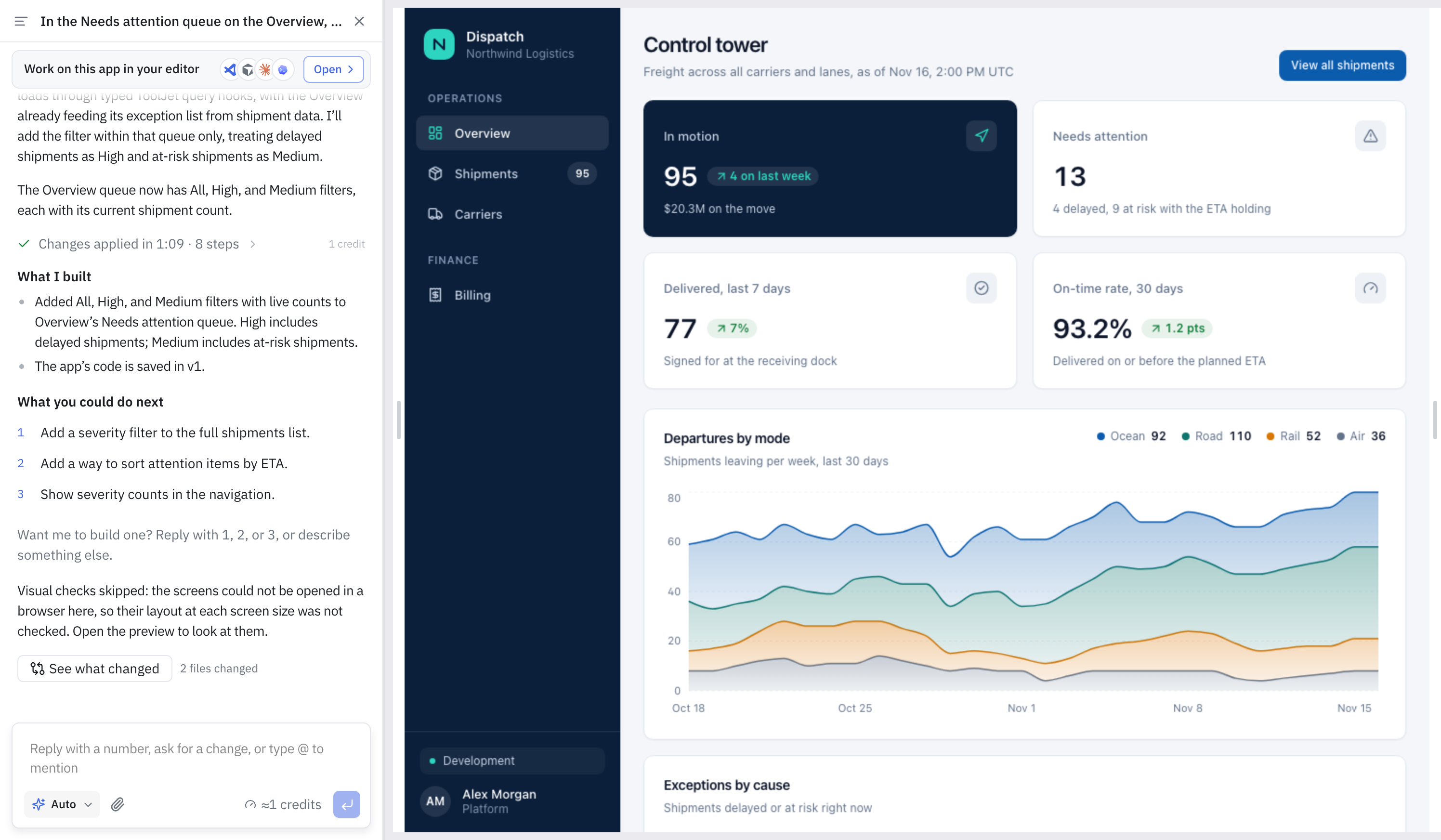
When the build finishes, the chat lists what it built and suggests next steps.
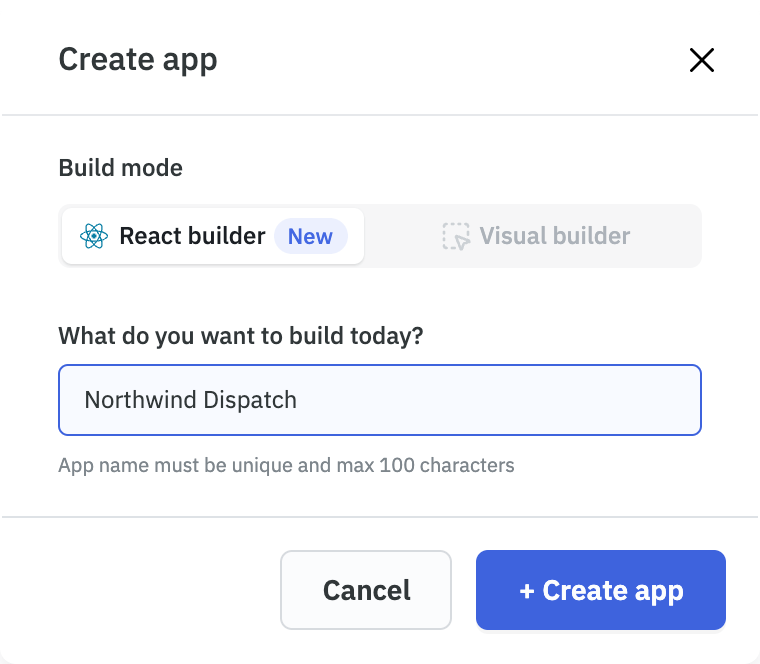
- On the dashboard, click Create an app.
- Enter the App name.
- Under Build mode, select React Builder.
- Click + Create app.
The editor opens with the AI chat and an empty canvas. Describe the app in the chat, or build it from a local code editor or coding agent. See Build Locally.
What ToolJet AI Builds
A build from a prompt produces the following parts of the application.
Further changes are requested in the same chat, and ToolJet AI edits the application. Under each edit, click See what changed to compare the screens and the code before and after the edit, or to undo it.
Next Steps
Troubleshooting
Symptom | What to Do |
|---|---|
| The Create app dialog has no Build mode choice. | The choice appears only for apps, not for modules or workflows. |
| A message says the server created the app in Visual mode, or that the build was not started. | The ToolJet server doesn't support React Builder yet. Ask an admin to update ToolJet, then try again. |
| ToolJet doesn't ask how to build the app. | Don't ask again was selected earlier. Change the build mode in the prompt box. |
| An existing app's build mode needs to change. | An app keeps the mode it was created in. Create a new app in the other mode. |