Edit in the Browser
A React Builder application can be edited inside ToolJet. Files are edited in the Code panel, and the style inspector changes the styling of an element selected on the canvas. Each save rebuilds the application in the browser and updates the canvas.
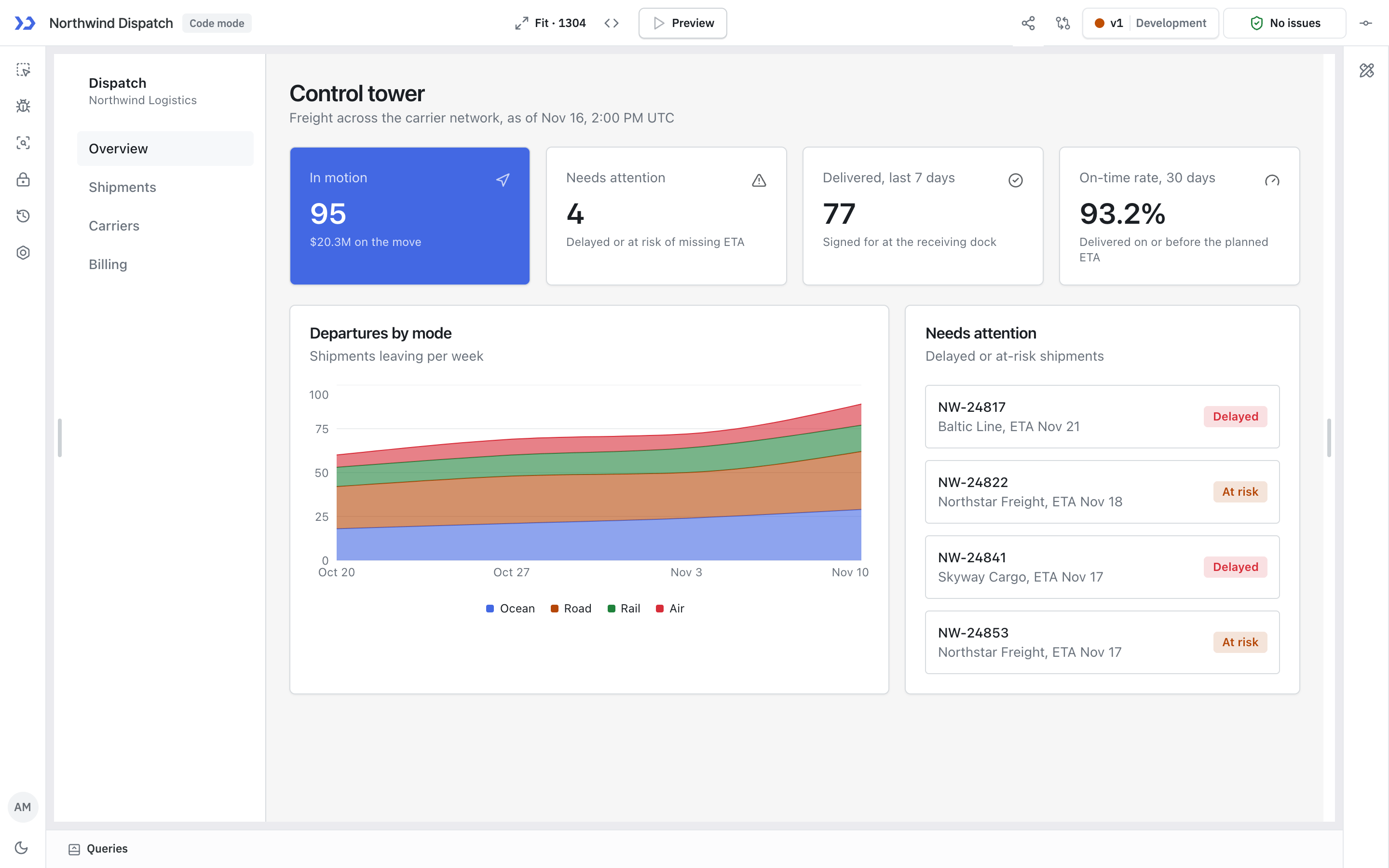
Edit Code in the Code Panel
The Code panel shows the project's files and edits them in ToolJet, with highlighting for TypeScript, TSX and CSS.
- Click Code in the header. The panel opens over the right side of the canvas. Drag its edge to resize it.
- On the Files tab, open a file from the tree.
- Edit the code, then click Save or press
Cmd/Ctrl+S.
ToolJet stores the change, builds the app in the browser and updates the canvas. If the code doesn't build, the panel lists the errors and the app keeps showing its last working version. Click an error to jump to its line.
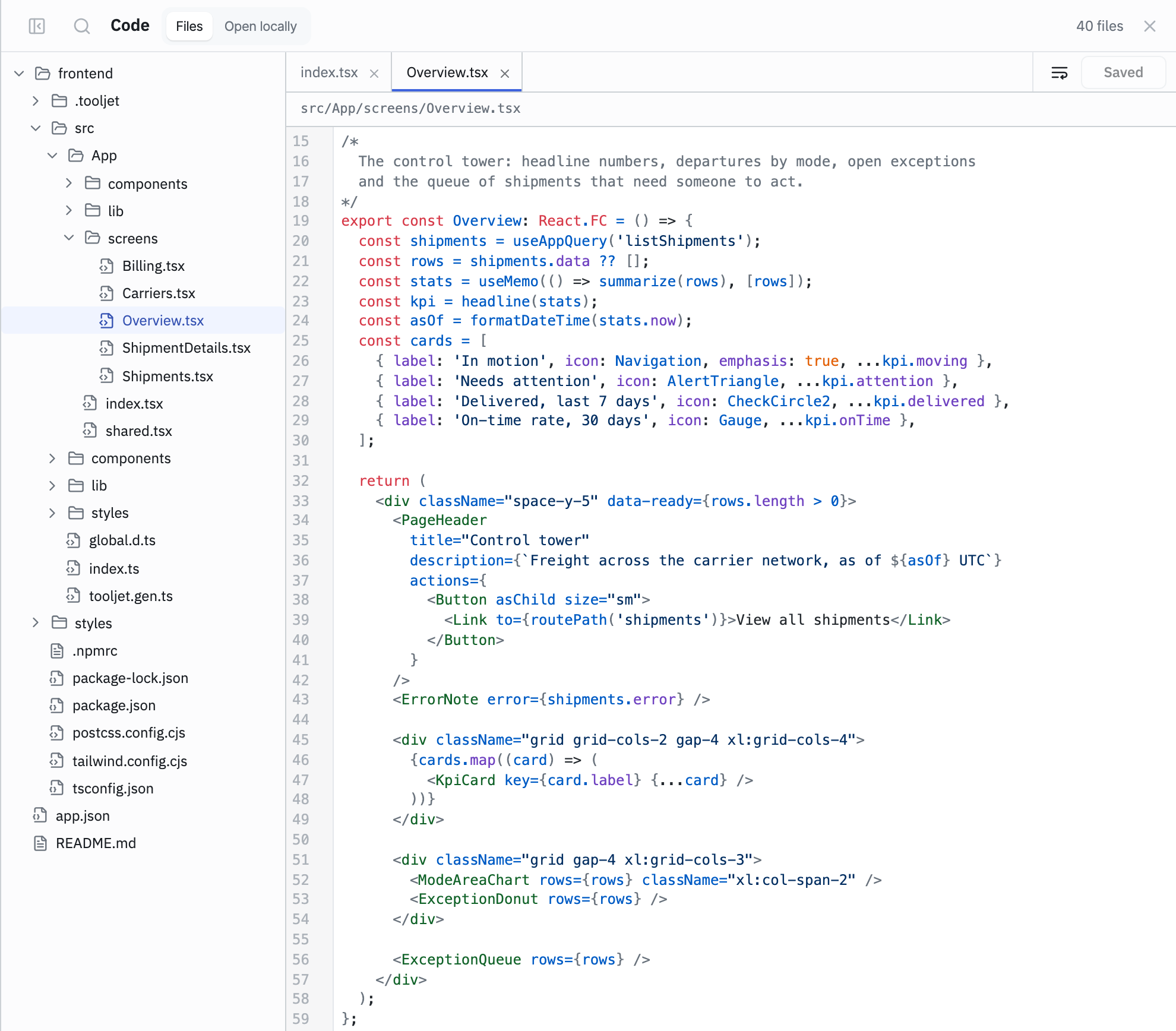
Unsaved edits are kept in the browser. If the editor is closed with unsaved changes, the panel offers to Restore or Discard them the next time it opens.
To work in a local code editor instead, open the panel's Open locally tab. See Build Locally.
Restyle With the Style Inspector
A React Builder app has no component properties to set. Instead, the style inspector shows the size, spacing, color and type of the selected element, and writes the changes into the code.
- Click Style inspector in the right sidebar, then click an element in the app.
- Check the element's name at the top of the panel. The link next to it opens the element's file and line in the Code panel.
- In the Design view, change the element's size, spacing, color, text or shape.
- Under Applies to, choose where the change goes. Check the preview of the code change, then click Apply.
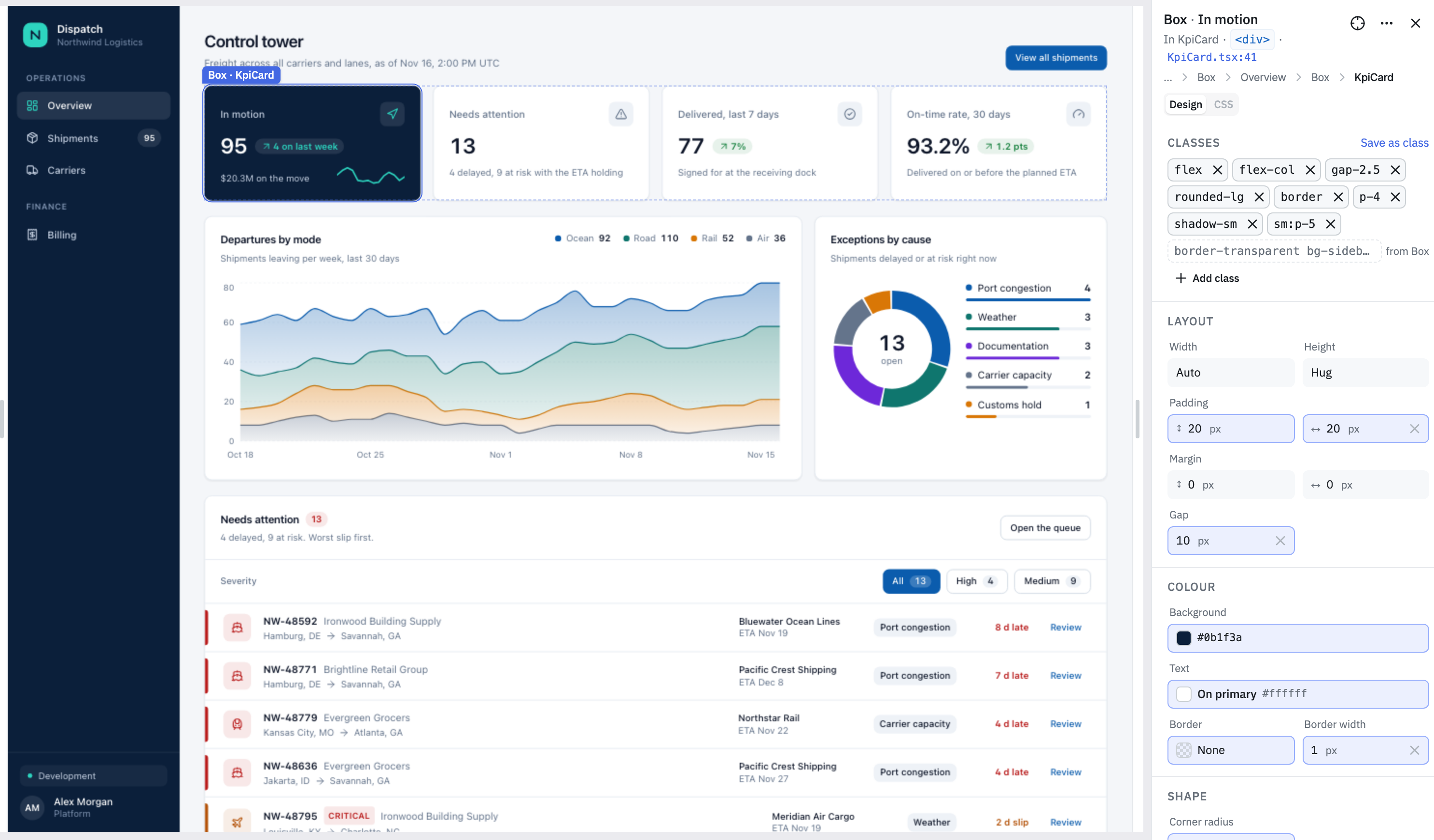
Undo reverts the last edit. To change a piece of text, double-click it on the canvas. Right-click an element for more, such as Open code and Ask AI about this.
Check Other Screen Sizes
A React Builder app never switches to a separate mobile layout. Its own code decides how each screen adapts, so check the widths the app's users have.
- Click the canvas width control in the header. It shows the current width, for example Laptop · 1280.
- Pick Phone (375 px), Tablet (768 px), Laptop (1280 px), Desktop (1440 px) or Fit, or type a width.
The grips at the edges of the canvas can also be dragged, and double-click a grip to fit the canvas again. Preview opens the app the way its users see it, with the same width control.
Work With Queries
The app reads its data through queries, and the code calls them by name. Queries are created and changed in the Queries panel, which works as it does in a visual app. A change there reaches every screen that uses the query.
A few things to know:
- The panel starts collapsed. Expand it to create, edit or run a query.
- RunJS and RunPy queries, and transformations, don't run in a React Builder app. Put that logic in the app's code. See What App Code Can't Do.
- When a query is previewed with its parameters empty, a note under the result says so. The app passes its own values when it runs the query.
- The Access panel sets who can run each query. See Control Access.
When the app is also developed locally, run tooljet app pull after a query changes, so the typed hooks in the local project match.
Shortcuts, Read-Only Code and Editing at the Same Time
Shortcuts
Shortcut | Action |
|---|---|
Alt+Shift+E | Show or hide the Code panel. |
Cmd/Ctrl+S | Save the open file. |
Cmd/Ctrl+P | Go to a file. |
Cmd/Ctrl+F | Find in the open file. |
Cmd/Ctrl+Shift+F | Search in all files, with Match case and Whole word. |
Alt+Shift+C | Open the style inspector and pick an element. |
Up, Down | With an element picked, move to the previous or next element. |
Left, Right | Move to the element around it, or to the first one inside it. |
Enter | Edit the picked element's text. |
Escape | Stop picking. |
Shift+right-click | Show the browser's menu instead of the element's menu. |
When the Code Is Read-Only
The Code panel and the style inspector change only a draft whose code is stored on ToolJet. In every other case, the panel says why the code is read-only.
Case | What to Do |
|---|---|
| The version is saved. | Saved versions can't change. Create a draft version and edit that. The style inspector has a Create draft version button. |
| The code lives in a Git repository. | Edit it there. The style inspector offers Copy the change, so a style change can be applied in the repository. |
| The code is synced with Git and the default branch is checked out. | Create a feature branch to make changes. |
| The user can view the app but not edit it. | Ask for edit access to the app. |
| The AI is changing the app's code. | Wait for the build. Editing is possible again when it's done. |
| The code isn't stored on ToolJet, for example because it was built on a developer's computer. | Click Set up from your computer, then run the command it shows in the app's folder: tooljet app dev --once --source platform. In the style inspector, Turn on style editing opens the same steps. |
When Two People Edit at Once
The AI, a teammate or someone's tooljet app dev session can change files while they are open.
- If someone changed the files since they were opened, choose Keep my changes, Use their changes or Decide later.
- If the AI changed files that were being edited, choose Keep my edits or Use the AI's version.
- While the AI works on the app, the Code panel is paused.
When tooljet app dev is running, the header can also show a note about the local copy. See Status Notes in the Editor.