Keyboard Shortcuts
You can perform operations like copying and pasting components, cloning components, deleting components, undo, redo, and more using keyboard shortcuts.
| Action | Mac Shortcut | Linux/Windows Shortcut |
|---|---|---|
| Select all components | cmd + a | ctrl + a |
| Copy component | cmd + c | ctrl + c |
| Cut component | cmd + x | ctrl + x |
| Paste component | cmd + v | ctrl + v |
| Undo | cmd + z | ctrl + z |
| Redo | cmd + shift + z | ctrl + shift + z |
| Clone component | cmd + d | ctrl + d |
| Move component left or right by one grid column | left arrow / right arrow | left arrow / right arrow |
| Move component up or down by 10 px | up arrow / down arrow | up arrow / down arrow |
| Remove component | delete | backspace |
| Deselect component | esc | esc |
| Run Query | cmd + enter | ctrl + enter |
| Preview Query | cmd + shift + enter | ctrl + shift + enter |
To choose several components at once within the app-builder, simply hold down the shift key while clicking on each component you want to select.
When Shortcuts Work
- Component shortcuts work only while you're editing the app. They're turned off in preview.
- They don't run while your cursor is in a text field or code editor. There, keys such as
cmd + candcmd + zact on the text instead. - Remove component asks you to confirm before it deletes the selected components.
- Select all selects every component on the canvas, or every component in the container you're working in. Paste adds the copied components to that same container or the canvas.
- On a released or locked version, and when you don't have permission to edit the app, component shortcuts do nothing. A banner at the top of the canvas explains why. To make changes, create a new version. See Version Control.
- In the module editor, copy, cut, paste, clone and remove shortcuts are turned off while the Module container is selected.
Moving Components with Arrow Keys
Select one or more components on the canvas and press an arrow key to nudge them in the layout you're editing (desktop or mobile):
left arrow/right arrowmoves the selection by one grid column. The canvas is 43 columns wide.up arrow/down arrowmoves the selection by 10 px.
When several components are selected, they all move by the same amount. A component doesn't move if the move would push it past the edge of the canvas, or below the bottom of the container it's in.
Find and Replace in the Code Editor
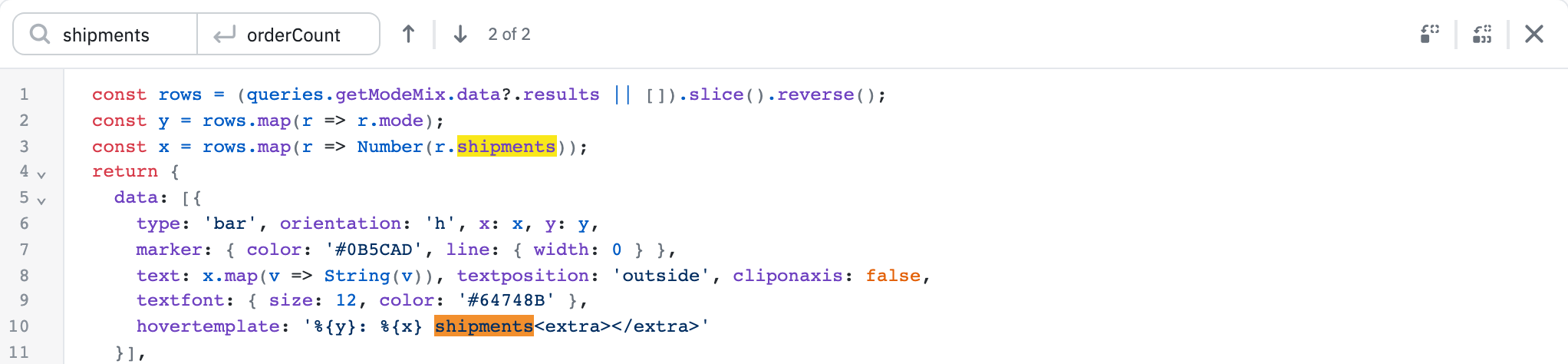
Multi-line code editors have a find and replace panel. These include RunJS and RunPy queries, SQL editors (for example, PostgreSQL, MySQL and ToolJet Database SQL mode), transformations, gRPC and the Custom Component code editor. To open it, click the search icon at the top right of the editor, or click inside the editor and press the shortcut below. Single-line fields in the properties panel don't have this panel.
| Action | Mac Shortcut | Linux/Windows Shortcut |
|---|---|---|
| Open find and replace | cmd + f | ctrl + f |
| Go to next match (in the Find field) | enter | enter |
| Go to previous match (in the Find field) | shift + enter | shift + enter |
| Replace next match (in the Replace field) | enter | enter |
Search isn't case-sensitive and matches plain text; regular expressions aren't supported. The panel shows which match you're on and the total, for example 2 of 5, and counts up to 1,000 matches. To replace every match at once, click Replace all.