Run Migrations in Staging and Production
When a table's schema changes are ready in development, run its migrations in staging to test them, and then in production. Running migrations never copies rows between environments. A migration that includes data statements or changes a column's type can still change the rows in the environment it runs in.
Run a Table's Migrations
- Open the table and click the Migration history icon next to the environment switcher.
- Select Development to update staging, or Staging to update production.
- Click Run in staging or Run in production.
- Review the migrations that will run and their SQL.
- (Optional) Click Download backup to download the target environment's rows as a CSV file. A backup isn't available the first time a table's migrations run in an environment, because the table doesn't exist there yet.
- Click Run in staging or Run in production.
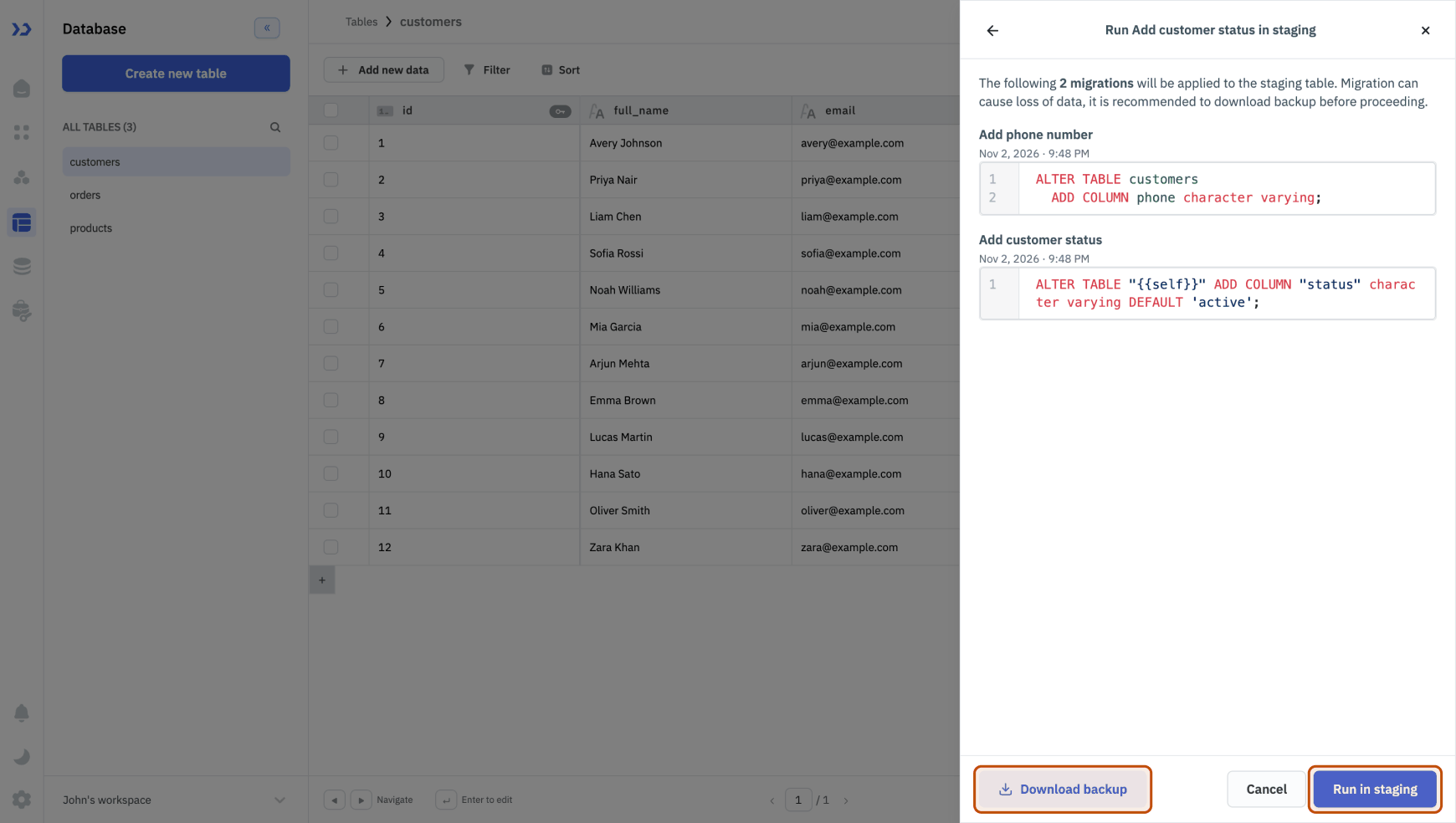
ToolJet runs all of the table's pending migrations, in order, and switches to that environment. The first time a table's migrations run in an environment, ToolJet creates the table there with no rows.
The Run in button doesn't appear when the next environment is already up to date.
Migrations can delete data. For example, a migration that drops a column deletes that column's values in the environment it runs in. Download a backup before running migrations in staging or production.
If a Run Fails
ToolJet applies migrations one at a time. If one fails, the migrations before it stay applied, and ToolJet shows the database error. Fix the cause, for example by correcting rows in that environment or by writing a new migration in development, and run the migrations again. The run continues from the migration that failed.
| Message | What To Do |
|---|---|
Cannot promote "<table>" to <environment>: Table "<other>" has no relation in this environment. Promote "<other>" first. | A migration references another table, for example through a foreign key, that doesn't exist in the target environment yet. Run that table's migrations first. |
Another promote is already in progress for this table and environment | Wait for the current run to finish. |
Undo a Migration
ToolJet doesn't roll back migrations automatically. To undo a change, write a SQL migration in development that reverses it, and then run it in staging and production.
A migration can't bring back deleted data. To restore it, bulk upload the rows from the backup CSV file.
Promote Applications That Use the Table
Queries use the copy of the table in the application's environment. Before promoting an application, run the migrations of the tables it uses in the target environment.
- If a table doesn't exist in the target environment, the promotion is blocked with a message such as
Promote blocked - table "orders" not available in staging. Promote the table first. - If a table exists but is missing migrations, the application is promoted, and ToolJet shows a warning with the number of pending migrations.
- If a query runs against a table that doesn't exist in its environment, it fails with
Table "<name>" has no relation in this environment.
Need Help?
- Reach out via our Slack Community
- Or email us at support@tooljet.com
- Found a bug? Please report it via GitHub Issues