Environment Variables
ToolJet requires several environment variables to function properly. Below is a simplified guide to setting them up.
ToolJet Server
Required Variables
ToolJet Host
TOOLJET_HOST: Public URL of ToolJet (e.g.,https://app.tooljet.com)
Lockbox Configuration
LOCKBOX_MASTER_KEY: 32-byte hex string for encrypting datasource credentials- Generate using:
openssl rand -hex 32
- Generate using:
Application Secret
SECRET_KEY_BASE: 64-byte hex string for encrypting session cookies- Generate using:
openssl rand -hex 64
- Generate using:
Database Configuration
PG_HOST: PostgreSQL database hostPG_DB: Database namePG_USER: UsernamePG_PASS: PasswordPG_PORT: Port
Docker Compose Setup: If you are using a Docker Compose setup with an in-built PostgreSQL instance, set PG_HOST to postgres. This ensures that Docker's internal DNS resolves the hostname correctly, allowing the ToolJet server to connect to the database seamlessly.
Database Connection URL: If you intend to use the database connection URL and your database does not support SSL, use the following format when setting the DATABASE_URL variable:
DATABASE_URL=postgres://PG_USER:PG_PASS@PG_HOST:5432/PG_DB?sslmode=disable
Replace username, password, hostname, port, and database_name with your actual database details.
Disabling Automatic Database & Extension Creation (Optional)
PG_DB_OWNER=false: ToolJet by default tries to create database based onPG_DBvariable set and additionally my try to create postgres extensions. This requires the postgres user to haveCREATEDBpermission. If this cannot be granted you can disable this behaviour by settingPG_DB_OWNERasfalseand will have to manually run them.
ToolJet Database
TOOLJET_DB: Default database name (tooljet_db)TOOLJET_DB_HOST: Database hostTOOLJET_DB_USER: Database usernameTOOLJET_DB_PASS: Database passwordTOOLJET_DB_PORT: Database portTOOLJET_DB_BULK_UPLOAD_MAX_ROWS: Maximum number of rows allowed in bulk upload (default: 5000)TOOLJET_DB_BULK_UPLOAD_MAX_CSV_FILE_SIZE_MB: Maximum file size of CSV for bulk upload. Default value is 5 MB
Why ToolJet Requires Two Databases
ToolJet requires two separate databases for optimal functionality. TOOLJET_DB is used to store the platform's internal metadata, including tables created within ToolJet. On the other hand, PG_DB acts as the primary database for application data, handling end-user data managed by the apps built on ToolJet.
Automatic Database Creation: The database name specified in TOOLJET_DB will be automatically created during the server boot process in all production deployment setups.
PostgREST
ToolJet uses PostgREST (v12.2.0) for API access. The following environment variables are required for PostgREST:
PGRST_JWT_SECRET: JWT secret (Generate usingopenssl rand -hex 32). If this parameter is not specified, PostgREST will refuse authentication requests.PGRST_DB_URI: Database connection stringPGRST_LOG_LEVEL=infoPGRST_DB_PRE_CONFIG=postgrest.pre_config
If you intent to make changes in the above configuration. Please refer PostgREST configuration docs.
Configuring PGRST_DB_URI
PGRST_DB_URI is required for PostgREST, which is responsible for exposing the database as a REST API. It must be explicitly set to ensure proper functionality.
This follows the format:
PGRST_DB_URI=postgres://TOOLJET_DB_USER:TOOLJET_DB_PASS@TOOLJET_DB_HOST:5432/TOOLJET_DB
Ensure that:
usernameandpasswordmatch the credentials for the PostgREST database user.hostnameis correctly set (postgresif using Docker Compose setup with an in-built PostgreSQL).portis the PostgreSQL port (default:5432).database_nameis the database used for PostgREST (tooljet_dbin this example).
Redis Configuration
Include the following Redis environment variables within the ToolJet deployment only if you are connecting to an external Redis instance (v7.x recommended) for a multi-service or multi-pod setup, or when running workflows with separate worker containers.
Required Variables:
REDIS_HOST=
REDIS_PORT=
Optional Variables:
REDIS_USER=
REDIS_PASSWORD=
REDIS_DB=0                   # Redis database number (default: 0)
REDIS_TLS=false              # Enable TLS/SSL connection (set to 'true')
For Workflows: When running separate worker containers or multiple instances for workflow scheduling, an external Redis instance is required for job queue coordination. The built-in Redis only works for single instance deployments.
Workflow Scheduling
ToolJet Workflows allows you to design and execute complex, data-centric automations using a visual, node-based interface. Configure the following environment variables to enable workflow scheduling:
Required Variables:
WORKER: Set totrueto enable job processing for workflow scheduling. Set tofalseor leave unset for HTTP-only mode (default:false)
Optional Variables:
TOOLJET_WORKFLOW_CONCURRENCY: Number of workflow jobs processed concurrently per worker instance (default:5)
External Redis Requirement: When running separate worker containers or multiple instances, an external stateful Redis instance is required for job queue coordination. The built-in Redis only works when the server and worker are in the same container instance (single instance deployment).
For detailed workflow configuration and deployment examples, refer to the Workflow Migration Guide.
Optional Configurations
Comments Feature
COMMENT_FEATURE_ENABLE=true/false: Use this environment variable to enable/disable the feature that allows you to add comments on the canvas. To configure this environment variable, ensure that multiplayer editing is enabled in the Settings.
User Session Expiry
USER_SESSION_EXPIRY: Controls session expiry time (in minutes). Default: 10 days.
Note: The variable expects the value in minutes. ex: USER_SESSION_EXPIRY = 120 which is 2 hours
Password Retry Limit
By default, an account is locked after 5 failed login attempts. You can control this with:
DISABLE_PASSWORD_RETRY_LIMIT=true: Disables the retry limit.PASSWORD_RETRY_LIMIT=<number>: Sets a custom retry limit (default is 5).
Invite Link Expiry
LINK_EXPIRY_MINUTES: Controls how long workspace invite, forgot password, and email verification links remain valid (in minutes). Default: 1440 minutes (24 hours).
Password Expiry
PASSWORD_EXPIRY_DAYS: Controls how long a password remains valid before the user is required to reset it (in days). Default: 30 days. Set to0to disable password expiry.
Two-Factor Authentication
Enterprise PlanMFA_MASTER_SECRET: Secret used to derive each user's two-factor authentication (2FA) key. Required to use two-factor authentication. No default.- Use a long random value, for example one generated with
openssl rand -hex 32.
- Use a long random value, for example one generated with
If MFA_MASTER_SECRET isn't set, every 2FA request (setting up an authenticator app, entering a code at sign-in, or turning 2FA off) fails with the error MFA_MASTER_SECRET is not configured. Set it in the environment before enabling two-factor authentication.
Set MFA_MASTER_SECRET once and keep it unchanged. Each user's 2FA key is derived from this secret, so changing it invalidates every authenticator app that's already set up. Users who had 2FA turned on then need a super admin to reset 2FA before they can set it up again.
Hide Account Setup Link
HIDE_ACCOUNT_SETUP_LINK: Set totrueto hide the account setup link from the admin in the manage user page. Ensure SMTP is configured to send welcome emails.
Bulk User Upload
Enterprise PlanLimits for bulk uploading users from a CSV file:
ORG_USERS_BULK_UPLOAD_MAX_FILE_SIZE_MB: Maximum size of the CSV file, in MB. Default: 1.ORG_USERS_BULK_UPLOAD_MAX_ROWS: Maximum number of user rows per file. Default: 250.
Both values must be positive numbers. Any other value falls back to the default.
Restrict Signups
Set DISABLE_SIGNUPS=true to allow only invited users to sign up. The signup page will still be visible but unusable.
SMTP Configuration
ToolJet sends emails via SMTP.
If you have upgraded from a version prior to v2.62.0, the SMTP variables in your .env file will automatically be mapped to the UI. For versions v2.62.0 and later, SMTP configuration will no longer be picked up from the .env file for Enterprise Edition. You must configure SMTP through the UI. You can safely remove these variables from your .env file after ensuring that the configuration is properly set up in the UI.
For Enterprise Edition, configure SMTP in the ToolJet Settings UI.
For Community Edition, use these environment variables:
DEFAULT_FROM_EMAIL: Sender email addressSMTP_USERNAME: SMTP usernameSMTP_PASSWORD: SMTP passwordSMTP_DOMAIN: SMTP hostSMTP_PORT: SMTP port
Custom CA Certificate
If ToolJet needs to connect to self-signed HTTPS endpoints, ensure the NODE_EXTRA_CA_CERTS environment variable is set to the absolute path of the CA certificate file.
NODE_EXTRA_CA_CERTS=/path/to/cert.pem: Absolute path to the PEM file (can contain multiple certificates).
ToolJet API Import Application
By default, server accepts maximum JSON size as 50 MB. To increase this limit, use the following environment variable:
MAX_JSON_SIZE = "150mb"
Customizing Workflow Configuration
You can control workflow execution behavior using the following environment variables:
| Variable | Description | Default | Unit |
|---|---|---|---|
WORKFLOW_TIMEOUT_SECONDS | Maximum duration a workflow execution can run before timing out. | 60 | seconds |
WORKFLOW_JS_MEMORY_LIMIT_MB | Maximum memory limit allocated to each runjs or loop node during execution. | 20 | MB |
WORKFLOW_JS_TIMEOUT_MS | Maximum time allowed for each runjs or loop node execution. | 100 | milliseconds |
Rate Limiting Data Query Runs
ToolJet rate-limits how often a data query can be run (from the query editor's Run/Preview, or a launched app) to protect against a runaway loop, for example a recursive onChange handler or scripted client, that could otherwise flood the connection pool and downstream data sources.
The limit is applied per (user, app) — logged-in users are keyed by user ID, and anonymous viewers on public apps are keyed by IP. One limit is shared across both builder and viewer runs, so a runaway app can't starve other apps or other users on the same app. It's on by default.
| Variable | Description | Default | Unit |
|---|---|---|---|
DISABLE_DATA_QUERY_RUN_THROTTLE | Set to true to bypass the throttle entirely. When unset, the throttle is on. | unset | boolean |
DATA_QUERY_RUN_TTL | Duration of the rate-limit window. | 1000 | milliseconds |
DATA_QUERY_RUN_LIMIT | Maximum number of query runs allowed per window, per (user, app). | 50 | runs |
Requests over the limit receive an HTTP 429 response.
Rate-limit counters are tracked per pod. In a multi-pod deployment, the effective limit is DATA_QUERY_RUN_LIMIT multiplied by the number of pods, until shared (Redis-backed) counter storage is added.
Configuring Non Email Identifier for ToolJet OIDC
You can setup OIDC using non email identifier for authenticating users to ToolJet (for example, an employee ID) by setting the following environment variables.
| Variable | Description |
|---|---|
SSO_UNIQUE_ID_FIELD | Unique identifier field name sent back by the IdP. |
SSO_CUSTOM_EMAIL_DOMAIN | Domain name that will be used to construct dummy email id. |
To learn more, refer to this section.
Configure Stronger Password Validation Rules
ToolJet allows you to enforce a stronger password complexity rule. By default, the login password should be atleast 5 characters long and any character can be used. To enforce stronger password validation, use the following environment variable:
ENABLE_PASSWORD_COMPLEXITY_RULES = true
When false, passwords will follow the default validations. When true, passwords must meet all the following rules:
| Rule | Requirement |
|---|---|
| Password length | 12-24 characters |
| Uppercase letters | A-Z |
| Lowercase letters | a-z |
| Numbers | 0-9 |
| Special characters | ! @ # $ % ^ & * ( ) _ + - = { } [ ] : ; ” ' , . ? / \ | |
These validations apply to both the instance and workspace levels.
Configure GitSync via Environment Variables
This feature is currently in beta and is not recommended for production use. For full setup instructions, provider-specific keys, and Docker Compose examples, see Configure GitSync via Environment Variables.
GitSync can be configured using environment variables instead of the ToolJet UI, useful for self-hosted setups where you want to automate or version-control your GitSync configuration.
ToolJet supports GitHub (HTTPS), GitLab, and Git (SSH). For example, to configure GitSync with GitHub (HTTPS), set the following variables:
| Key | Description |
|---|---|
GITHUB_URL | The HTTPS URL of your GitHub repository. (e.g. https://github.com/your-org/your-repo) |
GITHUB_BRANCH | The branch to sync with. |
GITHUB_APP_ID | Your GitHub App ID. |
GITHUB_INSTALLATION_ID | The installation ID for your GitHub App. |
GITHUB_PRIVATE_KEY | The private key generated when creating the GitHub App. Escape newlines as \n. |
Configure License Key via Environment Variable
This feature is currently in beta and is not recommended for production use.
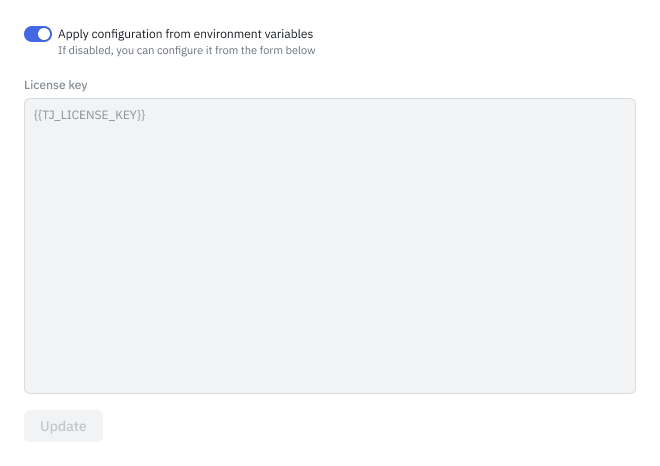
The license key can be configured via an environment variable to avoid re-entering it through the UI on every new instance. Setting TJ_LICENSE ensures the license is applied automatically at startup without any manual configuration.
| Variable | Description |
|---|---|
TJ_LICENSE | Your ToolJet license key. When set, the license key field on the Settings page is populated automatically from this variable. |
How it works:
- When
TJ_LICENSEvariable is set, the Settings page shows the license key field pre-filled with the placeholder{{TJ_LICENSE_KEY}}, indicating the value is sourced from the environment. - The field will be disabled and the toggle will be switched to Env variable mode automatically.
- To switch back to entering the key manually via the UI, use the toggle on the Settings page to switch to UI mode.
Third-Party Integrations
Slack
To use Slack as a data source in ToolJet, create a Slack app and set:
SLACK_CLIENT_ID: Slack app client IDSLACK_CLIENT_SECRET: Slack app client secret
Google OAuth
To connect ToolJet with Google services like Google Sheets, create OAuth credentials in Google Cloud Console.
GOOGLE_CLIENT_ID: Google OAuth client IDGOOGLE_CLIENT_SECRET: Google OAuth client secret
Google Maps API
To use the Maps widget in ToolJet, create a Google Maps API key and set:
GOOGLE_MAPS_API_KEY: Google Maps API key
Application Monitoring (APM)
APM_VENDOR=sentry: Set APM vendor.SENTRY_DNS: Sentry project DSN.SENTRY_DEBUG=true/false: Enable/disable Sentry debugging.
Security & Authentication
By default, ToolJet sends user count updates every 24 hours. To disable this, use:
DISABLE_TOOLJET_TELEMETRY=true: Disables telemetry.(Enabled by default)
Single Sign-On (SSO)
Enable Google or GitHub SSO with these environment variables:
Google SSO:
SSO_GOOGLE_OAUTH2_CLIENT_ID: Google OAuth client ID
GitHub SSO:
SSO_GIT_OAUTH2_CLIENT_ID: GitHub OAuth client IDSSO_GIT_OAUTH2_CLIENT_SECRET: GitHub OAuth client secretSSO_GIT_OAUTH2_HOST: GitHub host if self-hosted
General SSO Settings:
SSO_ACCEPTED_DOMAINS: Comma-separated list of allowed email domainsSSO_DISABLE_SIGNUPS=true: Restricts signups to existing users
Group Synchronization
If any of the following environment variables are set to true, group synchronization will be skipped during the login process for the respective SSO provider:
DISABLE_LDAP_GROUP_SYNC=true– Disables group sync for LDAP during login.DISABLE_SAML_GROUP_SYNC=true– Disables group sync for SAML during login.
REST API Cookie Forwarding
By default, ToolJet does not forward cookies with REST API requests. To enable this (self-hosted only), set:
FORWARD_RESTAPI_COOKIES=true: Allows forwarding cookies with REST API requests.
Asset Path
This is required when the assets for the client are to be loaded from elsewhere (eg: CDN). This can be an absolute path, or relative to main HTML file.
ASSET_PATH: Path for loading frontend assets (e.g.,https://app.tooljet.com/)
Additional Configurations
Log File Path
LOG_FILE_PATH: Path to store audit logs (e.g.,tooljet/log/tooljet-audit.log)
Embedding Private Apps
By default, only public apps can be embedded. To allow embedding of private ToolJet apps, set:
ENABLE_PRIVATE_APP_EMBED=true/false: Allows embedding of private ToolJet apps.
Note: Available in ToolJet Enterprise 2.8.0+ and Community/Cloud 2.10.0+.
Default Language
Set the default language using the LANGUAGE variable. Supported options:
| Language | Code | Native Name |
|---|---|---|
| English | en | English |
| French | fr | Français |
| Spanish | es | Español |
| Italian | it | Italiano |
| Language | Code | Native Name |
|---|---|---|
| Indonesian | id | Bahasa Indonesia |
| Ukrainian | uk | Українська |
| Russian | ru | Русский |
| German | de | Deutsch |
Example: LANGUAGE=fr (for French).
Note: This setting is not available in ToolJet Cloud.
Observability
ToolJet supports OpenTelemetry (OTEL) for comprehensive observability and monitoring. Enable metrics collection to monitor application performance, query executions, and system health.
Basic Configuration:
ENABLE_OTEL: Set totrueto enable OpenTelemetry metrics collection (default:false)OTEL_EXPORTER_OTLP_TRACES: OTLP traces endpoint URL (default:http://localhost:4318/v1/traces)OTEL_EXPORTER_OTLP_METRICS: OTLP metrics endpoint URL (default:http://localhost:4318/v1/metrics)OTEL_SERVICE_NAME: Service identifier for metrics (default:tooljet)OTEL_EXPORTER_OTLP_HEADERS: Authentication headers for OTLP endpoint (optional, format:key1=value1,key2=value2)
Advanced Configuration:
OTEL_LOG_LEVEL: Debug logging level for OTEL (usedebugfor detailed logs)OTEL_ACTIVE_USER_WINDOW_MINUTES: Activity window for concurrent user tracking in minutes (default:5)OTEL_MAX_TRACKED_USERS: Maximum number of tracked users/sessions (default:10000)OTEL_INCLUDE_QUERY_TEXT: Include actual query text in metrics - WARNING: Creates high cardinality (default:false)
Only enable OTEL_INCLUDE_QUERY_TEXT=true for debugging. This creates high cardinality metrics that can impact Prometheus performance. Use an OTEL Collector to filter this label in production.
For comprehensive setup instructions, metrics details, and Grafana dashboard integration, see the OpenTelemetry Observability documentation.
Need Help?
- Reach out via our Slack Community
- Or email us at support@tooljet.com
- Found a bug? Please report it via GitHub Issues